

Do these 3 things before closing this tab:
1Scan for outdated or missing drivers - takes under a minute2Repair Windows errors before they cause bigger problems3Fix the driver behind crashes, sound loss and screen glitchesiTechGuides is reader-supported. When you buy through links on our site, we may earn an affiliate commission. As an Amazon Associate I earn from qualifying purchases. Learn more
This Itechguide teaches you how to remove footer in Google Docs. The guide offers steps to remove footer in Google Docs from a PC or the Apps (Android or iPhone).
Option 1: Remove Footer Using a PC
- Open Docs.Google.com from your PC or Mac. Then, if you are not already signed in, sign in with your Google account.
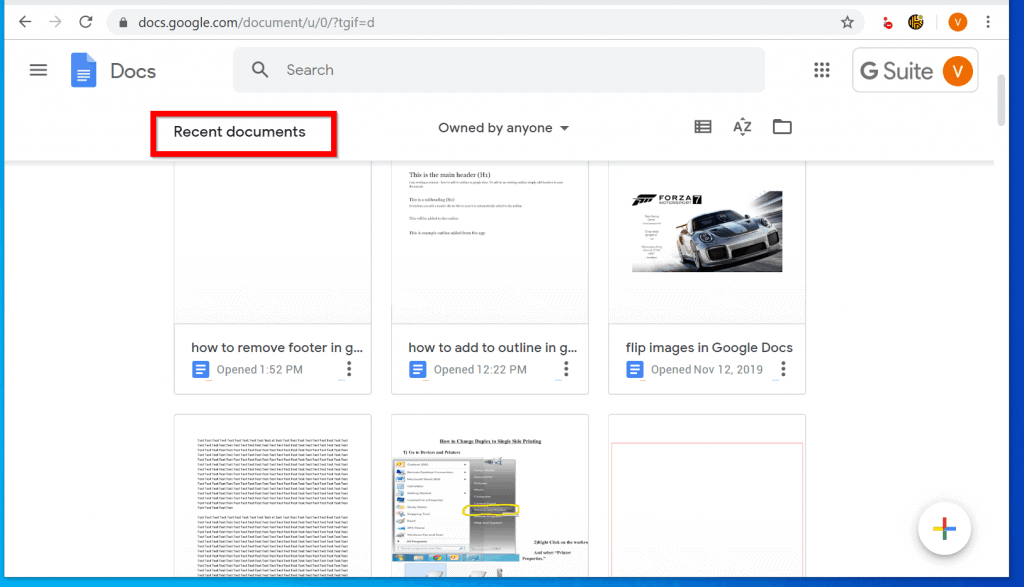
- Open the document you want to remove its footer. You can open a saved Google Docs document from Recent documents or from Google Drive.
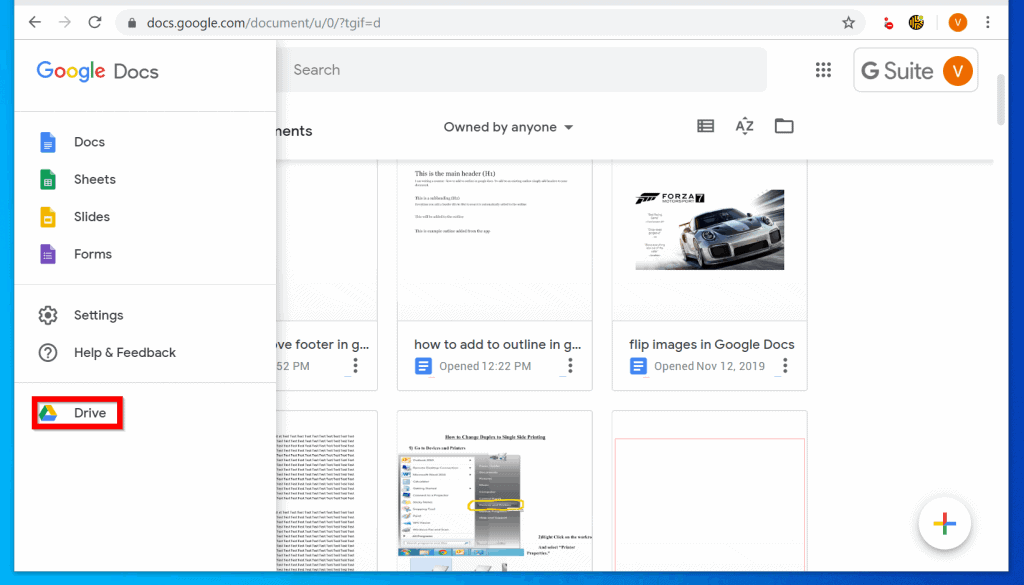
- To access Google Drive, click the 3 lines on the top left of Docs homepage. Then click Drive.

- Once the document opens, click on the document footer. To confirm that you have clicked on the footer, the Footer options will be displayed.

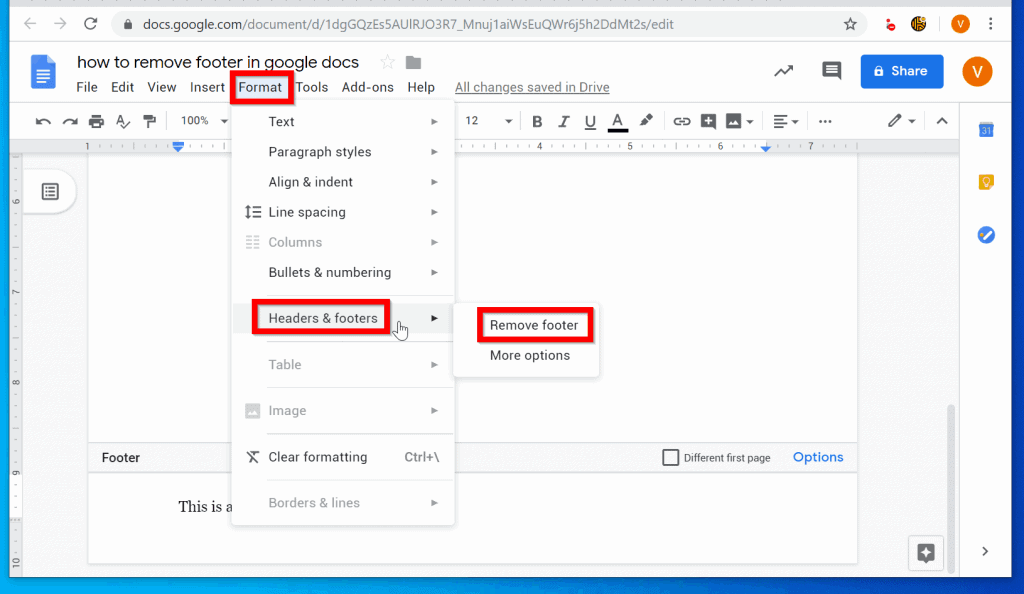
- Then on the top menu, click Format, point to Headers & footers and click Remove footer.
Option 2: Remove Footer Through the Android or iPhone App
- Open Google Docs App on your App. If you have not logged in already, login with your Google account.

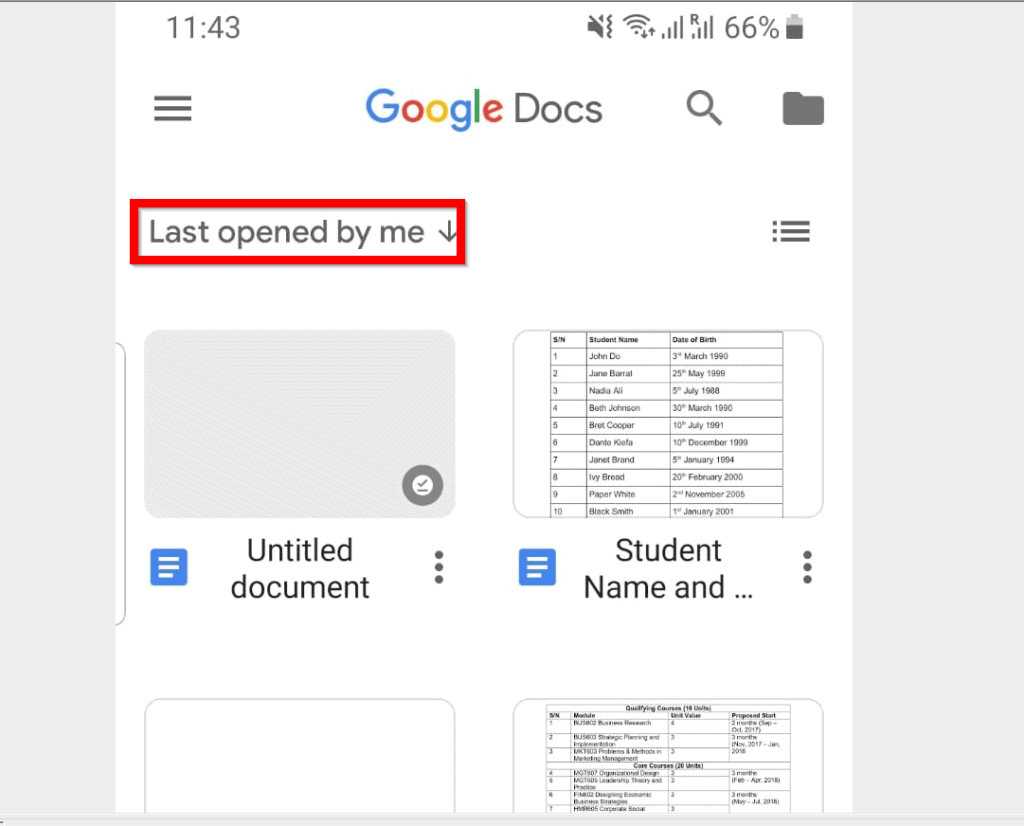
- Then open the Google Docs document you want to remove footer for. You could open the document from the Last opened by me group or from Google Drive.
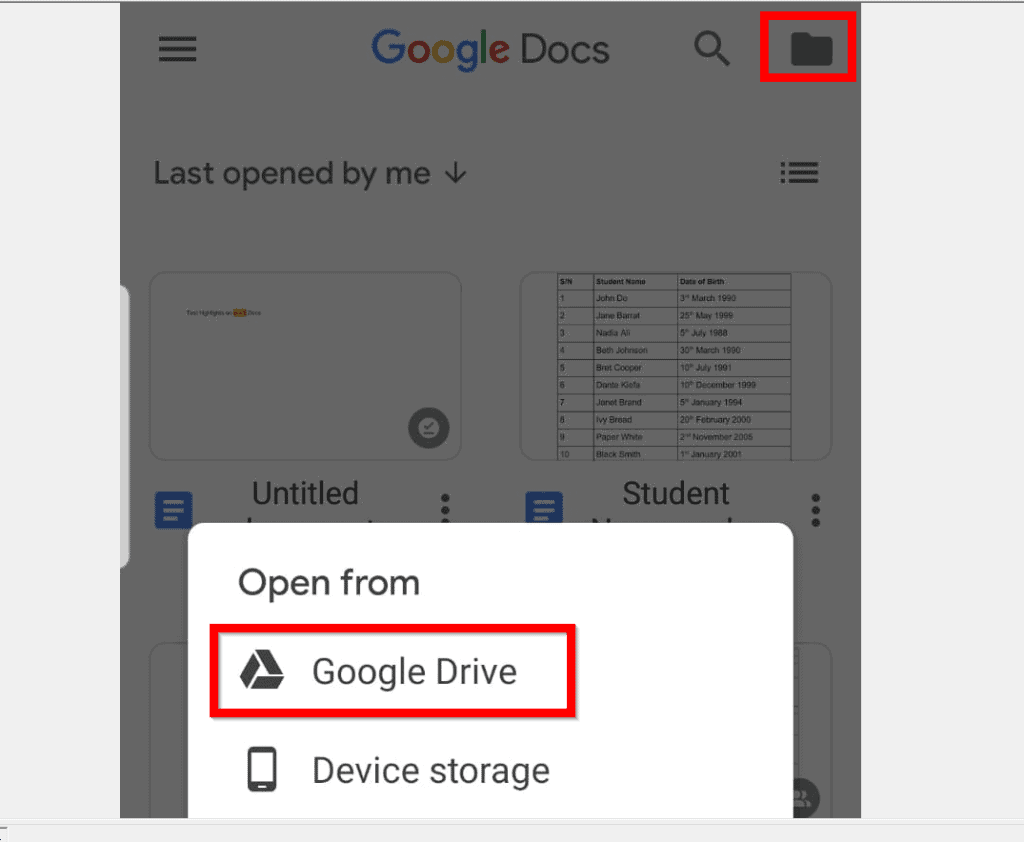
- To open a document from Google Drive, on the top right of the App, tap the folder icon. Then select Google Drive.
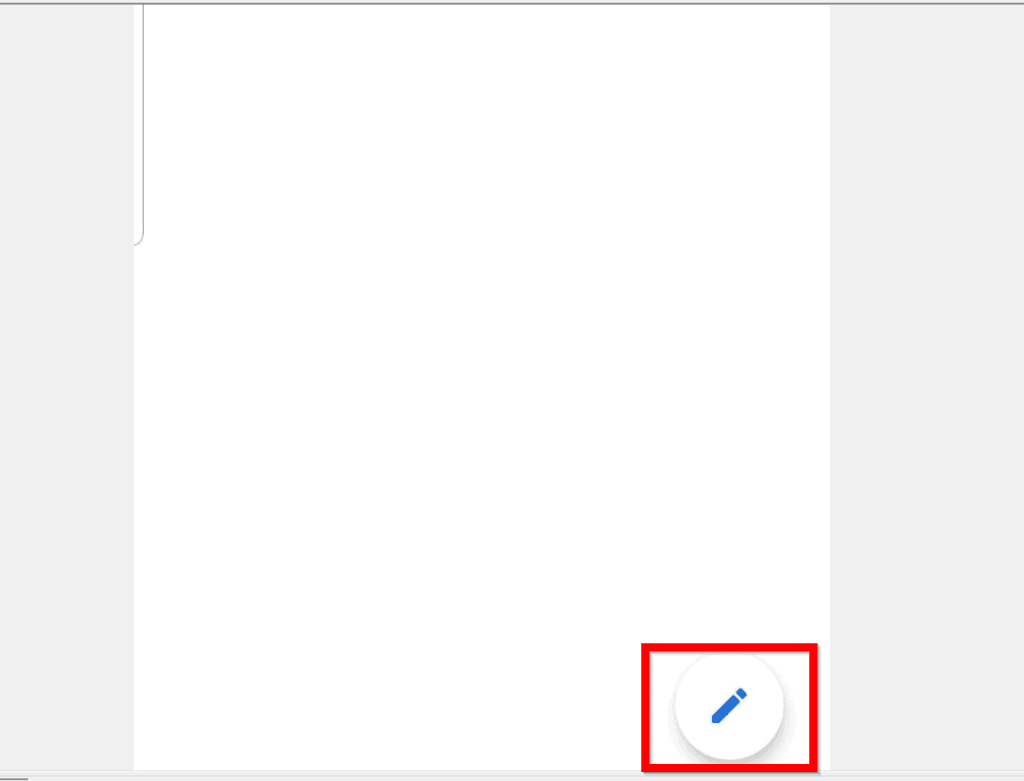
- Once the document is open, you need to display the footer. To begin, tap the edit button (it is like a pencil icon located towards the bottom right of the app).
- To display the footer, tap the 3 lines top right of the App. Then tap the button beside Print layout to switch it on. When it is switched on, the button changes from gray to blue – see the second and third images below. The document footer will also become available.


- Finally, tap on the footer. Then modify the footer text as you wish.
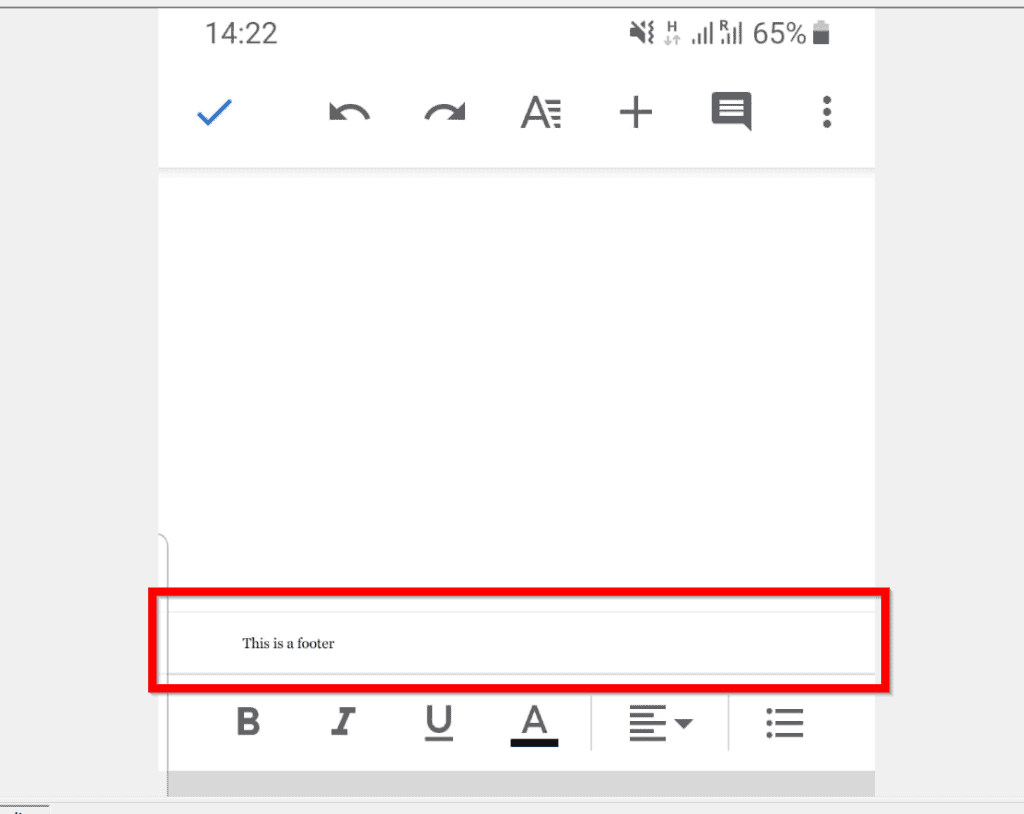
- When you finish making your changes on the footer, click the 3 dots again. Then flip the Printer layout from On to Off.
- When you finish making your changes, on the top left of the App, tap the blue tick.

It is this easy to remove footer in Google Docs! Whether you access Google Docs from a PC or the mobile Apps, I hope you found this guide helpful.
If you did, click on “Yes” beside the “Was this page helpful” question below.
Recommended Free Tools
You may also express your thoughts and opinions by using the “Leave a Comment” form at the bottom of this page.
#1 Best Overall

- Reliable Plug and Play: The USB receiver provides a reliable wireless connection up to 33 ft (1), so you can forget about drop-outs and delays and you can take it wherever you use your computer
- Type in Comfort: The design of this keyboard creates a comfortable typing experience thanks to the low-profile, quiet keys and standard layout with full-size F-keys, number pad, and arrow keys
- Durable and Resilient: This full-size wireless keyboard features a spill-resistant design (2), durable keys and sturdy tilt legs with adjustable height
- Long Battery Life: MK270 combo features a 36-month keyboard and 12-month mouse battery life (3), along with on/off switches allowing you to go months without the hassle of changing batteries
- Easy to Use: This wireless keyboard and mouse combo features 8 multimedia hotkeys for instant access to the Internet, email, play/pause, and volume so you can easily check out your favorite sites
Finally, to read more Google guides, visit our Google How To page.
Quick Recap
Best Value

- 【Lag-free & Efficient】Stable and reliable connection of wireless keyboard and mouse is up to 10m(33ft). This combo share a nano USB receiver, no need to take up additional USB ports (Also the wireless keyboard and mouse can also be used separately). Plug and play, no software needed,convenient and efficient.
- 【Quiet & Type in Comfort】Wireless keyboard come with adjustable height tilt legs to increase comfort and prevent your wrists injury when typing for a long time.Our wireless keyboard adopts a silent structure. Soft membrane keys provide a quiet and comfortable typing experience.The wireless mouse is quiet without any clicking sound also.So whether at home or in the office, you can use this combo as you please without worrying about disturbing others.
- 【Full Size Keyboard】This keyboard saves desktop space while retaining its full size.The full size wireless keyboard with numeric keypad and 12 multimedia shortcut keys, such as play/ pause, volume increase and decrease, and search, to help you improve work efficiency.
- 【Auto Power Saving Function】Wireless keyboard and mouse have a smart auto-sleep mode to save power for long battery life. They will enter sleep mode after stop using a while(Refer to the instructions for details). Unplug the receiver or after the PC shutdown, they will enter sleep mode too.You can press any keys to wake. (battery life may vary based on user and computing conditions)
- 【Comfortable Optical Mouse】This silent wireless mice provides 3 adjustable DPI (800/1200/1600) to meet your different needs in terms of sensitivity.The compact lightweight design of wireless mouse and a hand-friendly contoured shape for all-day comfort, and smooth, precise tracking. Very suitable for office and daily use.
Rank #4

- Connect in seconds: Fast, easy Bluetooth wireless technology simply connects without the need for a dongle or USB port
- Durable and reliable: Built for quality, K250 offers long-lasting keys, a spill-resistant design (2)
- Comfort is key: Deep-profile keys and an adjustable tilt-leg design make typing feel great
- Space-saving: with a compact layout that still includes number pad, arrow keys, and handy F-key shortcuts
- Made responsibly: Designed to last, K250 plastic parts are durably made with minimum 64% recycled plastic (3) to withstand everyday use
Rank #3

- Dependable wireless connection: Enjoy the reliability and convenience of 2.4 GHz connectivity with your logitech wireless keyboard and mouse combo, wireless range up to 10 meters away at home, or work.
- Full-Size Wireless Keyboard: Comfortable, quiet typing on a familiar keyboard layout with palm rest, spill-resistant design, and media keys. This wireless keyboard and mouse logitech has easy-access to media keys
- Plug and Play: MK345 works seamlessly with Windows, macOS, and ChromeOS. Experience hassle-free setup with the logitech mk345 wireless combo and wireless keyboard mouse combo for various operating systems.
- Long-lasting Battery: The MK345 combo offers a full size keyboard battery life of up to 3 years and a mouse battery life of 18 months (1); batteries included
- Comfortable Right-handed Mouse: This wireless USB mouse with dongle works well for this wireless mouse and keyboard combo, featuring a contoured shape for all-day comfort and smooth, precise tracking and scrolling for easier navigation.
Rank #2

- All-day Comfort: This USB keyboard creates a comfortable and familiar typing experience thanks to the deep-profile keys and standard full-size layout with all F-keys, number pad and arrow keys
- Built to Last: The spill-proof (2) design and durable print characters keep you on track for years to come despite any on-the-job mishaps; it’s a reliable partner for your desk at home, or at work
- Long-lasting Battery Life: A 24-month battery life (4) means you can go for 2 years without the hassle of changing batteries of your wireless full-size keyboard
- Simply plug the USB receiver into a USB port on your desktop, laptop or netbook computer and start using the keyboard right away without any software installation
- Simply Wireless: Forget about drop-outs and delays thanks to a strong, reliable wireless connection with up to 33 ft range (5); K270 is compatible with Windows 7, 8, 10 or later
Product prices and availability are accurate as of the date/time indicated and are subject to change. Any price and availability information displayed on Amazon at the time of purchase will apply.
Independent reader supportYour contribution helps us test, update, and keep practical guides available for everyone.


