
Quick wins for a faster PC:
Repair Windows errors before they cause bigger problemsFix Now →Fix the driver behind crashes, sound loss and screen glitchesFind Drivers →Clear out junk files and repair common Windows errorsFree Scan →iTechGuides is reader-supported. When you buy through links on our site, we may earn an affiliate commission. As an Amazon Associate I earn from qualifying purchases. Learn more
You can often clear a Content ID claim from an archived YouTube livestream without deleting or re-uploading the video. In YouTube Studio, open the claim and use Trim out segment, Replace song, or Erase song—or mute all sound in the claimed segment. The edit must remove or replace all claimed material. If you believe the claim is wrong, dispute it only when you have a valid basis.
Why an archived livestream can receive a claim
YouTube says Content ID claims can be made after a livestream ends if you choose to archive it. A claim is not the same as a copyright strike, and it does not automatically mean you must delete the archive. YouTube’s editing tools can address a claim on the existing video without uploading a new one. YouTube Help: Copyright issues with live streams · YouTube Help: Remove claimed content from videos



Choose how to handle the claimed material
| Option | What remains | Best fit | Limitation |
|---|---|---|---|
| Trim out segment | The rest of the video and its audio | You can sacrifice the marked passage | If any claimed material remains, the claim may not clear. |
| Replace song | The video with a replacement soundtrack | You want audio to continue and the claim is about music | The replacement must cover the full claimed portion. |
| Erase song | The video and potentially dialogue or effects | You want to mute the claimed song while keeping other sound | Song erasure may fail for some songs. |
| Mute all sound in claimed segments | The video, but no audio during the affected segment | Removing audio matters more than preserving speech or effects | All audio in the segment, including dialogue, is muted. |
| Dispute | The claimed material remains while the claim is challenged | You have rights, a relevant copyright exception, or evidence of misidentification | You need a valid basis; the claimant is notified and has 30 days to respond. |
Remove the claim in YouTube Studio
- Sign in to YouTube Studio and open Content.
- Find the livestream archive with the copyright notice. Open the notice and select View details.
- Find the specific claim and select Take action. Check which segment or audio YouTube identifies before choosing an edit.
- Choose the least disruptive available option. Use Trim out segment to remove the marked passage; preview the revised start and end points. For an audio claim, use Replace song to select a track from YouTube Audio Library, or choose Erase song to try to mute the song while preserving other sound. If song erasure does not work, you can mute all sound in the claimed segment or trim it.
- Preview the edit carefully. If you choose replacement audio, make sure it covers the entire claimed portion; any uncovered claimed audio can prevent the claim from clearing.
- Save the edit and wait for processing. YouTube says processing times vary, and other edits are unavailable while processing. When it finishes, reload Studio and check whether the claim has cleared.
Protect the original before saving
Download the archive first if you may need an untouched copy. YouTube says that, starting in June 2025, changes saved in Studio Editor cannot be undone with Revert to original. Preview the proposed changes before saving, especially when trimming or muting a long segment. YouTube Help: Remove claimed content from videos
Do these 3 things before closing this tab:
1Fix the driver behind crashes, sound loss and screen glitches2Clear out junk files and repair common Windows errors3Scan for outdated or missing drivers - takes under a minuteDispute only if you have a valid reason
If you believe you have the necessary rights, the use is covered by a copyright exception such as fair use, or the material was misidentified or claimed in error, you can dispute rather than edit away the content. YouTube notifies the claimant, who has 30 days to respond. YouTube advises disputing only when you are confident you have the necessary rights; it does not decide whether you should dispute. YouTube Help: Dispute a Content ID claim
#1 Best Overall

- Relaxation and Peace: Helps you relax and find peace through carefully composed instrumental music
- Professional Musicians: Soothing classical guitar with cello performed by Billboard Top 10 artists, Ryan Judd and Kristen Miller
- Versatile Use: Calm your mind with this relaxation CD suitable for meditation, yoga and massage sessions
- Stress Relief: Relieves stress and anxiety through gentle, expressive acoustic performances
- Therapeutic Design: Developed by a board-certified music therapist with a percentage of profits donated to help children with cancer
Giving credit, owning a copy of a song, or choosing not to monetize does not by itself establish a valid reason to dispute. A Content ID claim is not itself a strike, but if a dispute leads to a valid copyright removal request, YouTube may remove the video and issue a strike. Distinguish a claim from a takedown or strike notice: this editing workflow is for an archive that remains available, not a video already removed through a takedown. YouTube Help: Dispute a Content ID claim · YouTube Help: Copyright strikes
Troubleshooting
- The claim remains after trimming: The edit may have left some claimed material in the video. Reopen the claim details, identify the remaining section, and trim or otherwise address all of it.
- The claim remains after replacing the song: Check that the replacement covers the full claimed portion; any uncovered claimed audio may keep the claim active.
- Erase song did not work: YouTube warns that song erasure can fail. Try muting all sound in the claimed segment or trimming that passage instead.
- You cannot make another edit: Wait for the current edit to finish processing, then reload Studio. Other edits are unavailable during processing.
- The video was removed or you received a strike notice: This is not the same as an active Content ID claim on an available archive. Follow the instructions in the removal or strike notice rather than assuming the claim-edit tools will restore the video.
Keeping future YouTube streams running
Resolving a claim on an existing archive is separate from how you run future livestreams. If you later want uploaded videos to loop continuously on YouTube, StreamNeo runs them from the cloud: upload a video or build a playlist, add your YouTube stream key, and go live. It does not resolve Content ID claims or stream from a camera.
Rank #2
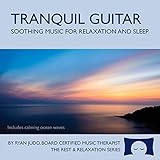
- Helps you relax and sleep. All of these calming tracks are at the rhythm of the resting heart rate.
- 60 minutes of calming guitar music with ocean waves. Creates white noise to drown out other sounds.
- Relax your body and calm your mind with this relaxation and sleep CD that is research-based.
- An ocean background track relaxes you and lulls you to sleep. Relieves stress, anxiety and insomnia.
- Developed by a music therapist. A percentage of profits are donated to help children with cancer.
Or let it run in the cloud
With StreamNeo, nothing has to stay on at home; uploaded video streams at its original quality up to 4K 60fps for one flat price per slot, and automatic recovery can restart the stream if YouTube drops it. The first day is free with no card. Monthly is $9.99 per month. Start your free day with StreamNeo.
The Tool Desk
Outbyte Driver Updater FREEFix the driver behind crashes, sound loss and screen glitchesFind Drivers →Outbyte PC Repair FREERepair Windows errors before they cause bigger problemsFix Now →Quick Recap
Product prices and availability are accurate as of the date/time indicated and are subject to change. Any price and availability information displayed on Amazon at the time of purchase will apply.

