
Free tools Windows power users keep installed
One-click scans. No signup required.
iTechGuides is reader-supported. When you buy through links on our site, we may earn an affiliate commission. As an Amazon Associate I earn from qualifying purchases. Learn more
Pay school fees through the payment link on your school’s official website or parent portal, check the student and fee details before paying, then confirm the result in the portal and save the receipt. If your bank shows a debit but the school portal does not show a receipt, check the payment status and contact the school’s accounts office before trying again.
How do I pay my child’s school fees online?
Use the school’s own payment route. Portals, accepted payment methods, service charges and processing rules vary by school and provider, so examples from other schools are not universal instructions.
- Open the official portal. Start at the school’s known official website and follow its parent-portal or fee-payment link. Avoid unsolicited payment links or requests to pay an individual. Fatima High School’s portal help says its payment links are system-generated and advises families to use its specified route: Fatima High School online fee payment guidelines.
- Sign in and choose the correct student. Use the parent or student credentials supplied by the school. If you have more than one child linked to the account, verify whose account you opened.
- Select the billed item and period. Choose the due fee, such as tuition or transport, and confirm the term or other billing period. For example, DPS Bopal’s instructions describe selecting an item under Fee Details before choosing Make Payment and Pay Now: DPS Bopal payment guidelines.
- Review the amount and payment options. Check the student’s name, fee item, billing period, balance and total. Use only payment methods shown in the school’s portal, and check whether it displays a gateway or convenience charge before confirming. Options differ: DPS Bopal lists net banking and debit or credit cards, while the Ottawa-Carleton District School Board (OCDSB) describes eCheque and Visa or Mastercard for its SchoolCash Online setup: OCDSB fees and payments FAQ.
- Complete the provider’s payment flow. Follow the payment provider’s prompts and wait for the return to the school portal and the result or receipt screen. Fatima High School advises waiting for the fee receipt to download; avoid refreshing or leaving the page while the payment is processing.
- Save the receipt and check the account. Download or print the receipt if available. Then check the portal’s payment history and the student’s fee balance or status. OCDSB says its receipt page indicates successful completion and that payment records are available under Payment History. Prince William County Public Schools says its Student Quick Pay service lets parents print receipts and account statements: PWCS Student Quick Pay.
Keep the receipt with the payment date, amount, student, fee item and transaction or reference ID. When asking for help, do not share your password, card details or one-time passcode. Fatima High School’s portal help states: “Never share your passwords, OTP and/or other sensitive personal details with anyone.”
PC Slower Than It Used to Be?
A free scan shows the junk files, broken settings and background clutter dragging Windows down - then fixes them in one click.Free scan · Windows 10 & 11Crashes, No Sound, or Screen Glitches?
Random freezes, missing sound and display glitches usually trace back to one bad driver. Find and replace yours safely.Free scan · under a minuteHow do I know if my school-fee payment was successful?
Look for confirmation in the school portal, not just a debit in your bank or card account. A completed receipt or confirmation screen, a transaction entry in payment history, and an updated fee status are useful checks. OCDSB’s FAQ says, “Once you have reached the payment receipt page, your payment was successfully completed.” The exact screen labels and whether the student balance updates immediately depend on the school and payment provider.
#1 Best Overall

- PAYMENT TERMINAL: The Verifone P400 is a compact, customer-facing payment terminal engineered for efficient checkout experiences. Powered by a 600 MHz Arm Cortex-A9 processor and Linux-based V/OS, it combines reliable performance, intuitive operation, and durable construction for modern retail and service environments.
- MULTIPLE PAYMENT OPTIONS: Accept a wide range of payment methods with support for triple-track magnetic stripe cards, EMV chip cards, and NFC/contactless transactions. Compatible with major contactless payment schemes and ISO standards, the P400 delivers flexible payment acceptance for diverse customer preferences.
- VIVID TOUCHSCREEN DISPLAY: Equipped with a 3.5-inch HVGA color capacitive touchscreen featuring Corning Gorilla Glass technology, the P400 offers a responsive and user-friendly interface. The bright display enhances customer interaction, making payment verification, PIN entry, and transaction processing quick and convenient.
- SECURE TRANSACTIONS: Designed with PCI PTS 5.x approval and EMVCo-certified technologies, the Verifone P400 helps safeguard sensitive payment information. Advanced security architecture, secure card authentication, and support for encrypted payment processing provide enhanced protection during every transaction.
- VERSATILE CONNECTIVITY: Integrate seamlessly with existing POS infrastructures using Ethernet, USB, and RS232 connectivity options. The P400 also supports optional Wi-Fi or Bluetooth configurations, enabling flexible deployment across retail counters, hospitality environments, and service-based businesses while maintaining dependable performance.
- Save the receipt or confirmation page and note its transaction/reference number.
- Check the portal’s payment history for the transaction.
- Check the student’s fee account for a paid, completed or otherwise updated status.
- If these records disagree with one another, contact the school’s accounts office or designated portal support before making another payment.
What if the fee transaction is pending or no response came from the bank?
A “pending” status can mean the bank or payment provider has not yet returned a final result. It does not, by itself, establish whether the school recorded the payment. Follow the status guidance and reconciliation window shown by your own portal; do not rely on another school’s timeline. For example, OCDSB notes that an eCheque may remain pending while funds clear, even though the school marks it paid at checkout.
- Check the school portal’s payment history and the student’s fee status.
- Check the bank or card account to see whether the transaction is pending, posted or reversed.
- Record the date, amount and transaction/reference ID, and keep any confirmation message.
- Wait for the school or provider’s stated reconciliation period. Before retrying, establish whether the first attempt failed, is still pending or was recorded as paid.
- If the status remains unclear after that period, contact the school accounts office or designated payment support with the reference and relevant details.
My account was debited, but no fee receipt was generated
A debit in your account is a reason to investigate, not proof that the fee has been posted to the school’s ledger. First check the portal’s payment history and the bank or card status. Do not reflexively pay again: a second attempt may create a duplicate charge.
Rank #2

- Accepts all payment types: NFC/CTLS, mobile wallets, EMV and magstripe
- Supports a variety of third-party apps through Verifone’s Merchant Marketplace
- Optional features, such as dual-band WiFi and Bluetooth 4.2 BLE
- Supports Verifone’s estate management solution for remote device management, value-added services, updates and diagnostics
Follow the school portal’s reconciliation instructions, then contact the school’s accounts office or payment support if the receipt remains missing. Share the student’s name or account details, fee item, date, amount and transaction reference. Provide a bank screenshot or other evidence only if requested, and hide unrelated transactions and sensitive information. DPS Bopal advises parents to contact its accounts office if payment succeeds but no fee receipt is generated; Veena Vidhyalaya asks parents to retain the transaction ID or reference for a debited but unconfirmed transaction: Veena Vidhyalaya fee payment guidelines.
What should I do if I paid twice?
Contact the school’s accounts department or designated support and ask how it handles duplicate payments. Refunds and credits are school-specific; do not assume a refund happens automatically. Provide both transaction references, dates and amounts, plus supporting evidence if requested. Keep copies of the receipts and your messages until the school confirms how it resolved the duplicate. DPS Bopal and the Argus portal guide direct families with duplicate transactions to contact the school and provide transaction details: Argus fee payment guide.
Rank #3
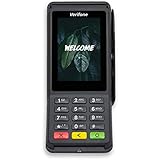
- Accepts all payment types: NFC/CTLS, mobile wallets, EMV and magstripe
- Supports a variety of third-party apps through Verifone’s Merchant Marketplace
- Optional features, such as dual-band WiFi and Bluetooth 4.2 BLE
- Supports Verifone’s estate management solution for remote device management, value-added services, updates and diagnostics
Why can’t I see my child or the fee I need to pay?
Check that you are signed into the account linked to the right student and that the school has the correct admission or account information. A child or invoice missing from the portal may reflect a student-record or account-linking issue rather than a payment problem. OCDSB says its payment system is linked to its student information system and advises families to contact the school office if a student is absent from that system. Do not guess another student’s identifier or pay an unrelated invoice.
Independent reader supportYour contribution helps us test, update, and keep practical guides available for everyone.Which payment option should I use?
There is no payment method that is best for every school. Choose among the options displayed by your school’s authorized portal, and compare the details that matter to your transaction:
Rank #4

- Premium Aluminum Composite Construction: Built with a rigid, high-grade composite core that resists bending, warping, and fading, ensuring your sign looks pristine over time.
- Available in 3 Versatile Sizes: Choose from multiple sizes to fit your specific needs. Whether it’s a tight corner or a large wall, these signs adapt easily to any space or setting.
- Indoor & Outdoor Versatility: Perfectly suited for retail environments, corporate offices, industrial sites, event spaces, and exterior building walls.
- Installation Freedom: Your sign arrives fully printed on a solid aluminum composite panel with no pre-drilled holes or mounting hardware, giving you the flexibility to choose the installation method that works best for your space. Drill holes exactly where needed, use a suitable mounting adhesive, or place the sign in a compatible frame or sign holder.
- Whether the payment link is reached from the school’s official website.
- Which payment methods the portal accepts.
- Whether a service charge appears before confirmation.
- How the portal distinguishes pending from completed payments.
- Where receipts and payment history are stored.
- Which school office or provider handles reconciliation and duplicate-payment requests.
If the portal offers an optional installment service, check its eligibility and terms on that official portal before using it; availability and conditions are not established across schools.
Recommended Free Tools
Quick Recap
Best Value

- ENSURE BUSINESS SUCCESS: 2-1/4” (57 mm) Width x 16 ft Length. 30 Rolls per box. A smart payment terminal is necessary for any business today, especially a successful business. However, in order to serve a lot of customers as fast as possible, you need premium quality thermal paper for your payment terminal.
- DESIGNED FOR YOUR PAYMENY TERMINAL: The wrong size of thermal paperl roll in your machine can ruin it, which means your customers can’t pay using the terminals, and your business suffers. Our receipt paper is compatible with all Poynt smart payment terminals (Wifi and 3G), and multiple other smart terminals, debit terminals, and receipt printers, Also accepted in multiple debit terminals, receipt printers and smart payment terminals.
- PREMIUM QUALITY: Our thermal paper rolls are made of the highest quality paper which is coreless and dust-free to guarantee the perfect running of your smart payment terminal, so you can make sure your customers can always be served and charged promptly!
- CONVENIENCE PACK: Our pack includes 30 thermal paper rolls, so you can make sure your smart payment terminal, receipt printer, or debit terminal is always operational, and your customers can quickly purchase your good and services. Each thermal paper roll has a red end of roll warning stripe.
- ULTRA-CLEAR IMAGES: The premium quality thermal paper produces unbelievably clear imaging, and have a first-rate print definition so you can always impress your customers with the quality of receipts they receive.
Product prices and availability are accurate as of the date/time indicated and are subject to change. Any price and availability information displayed on Amazon at the time of purchase will apply.

