
iTechGuides is reader-supported. When you buy through links on our site, we may earn an affiliate commission. As an Amazon Associate I earn from qualifying purchases. Learn more
Monitor the hospital’s official doctor listing or OPD schedule, then verify every alert through the hospital’s official booking system or published phone number. A changed webpage can signal a schedule update, but it does not prove that a slot is available or that an appointment is confirmed. Check the specific site’s terms before using automated monitoring.
What to monitor—and what an alert can tell you
Start with the official hospital website and find the relevant doctor listing, OPD schedule, or appointment page. Confirm that it refers to the right hospital location, department, and doctor. For example, VMMC & Safdarjung Hospital has an “OPD Schedule” section labeled “Doctors Timings & Schedules,” as well as a separate online booking link (VMMC & Safdarjung Hospital).
Keep the schedule page and appointment channel distinct. The Government of India’s ORS portal describes online appointments at participating hospitals, where patients select a hospital, department, and appointment date; hospitals provide the appointment slots (ORS Patient Portal). Participation and available features vary by hospital. A schedule listing may not show remaining capacity, a last-minute change, or a confirmed booking.
Free tools Windows power users keep installed
One-click scans. No signup required.
So treat a page-change notification as a prompt to check—not as proof of availability, a booking, or a clinical update. The official sources do not establish that an external monitoring tool works with every hospital website or provides real-time alerts.
#1 Best Overall
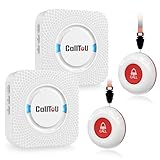
- [ Wireless Guard ] 2 Receiver 2 Call Button. Allow caregivers and residents to be free while ensuring that help is still available at the touch of a button, ideal for elderly, seniors, patients, disabled
- [ Easy to Carry ] The receiver can be moved with the caregiver and the open area working range is 500+ ft, you can take it to the bedroom, kitchen or living area(receiver requires plugging into an outlet). The call button can also be hung around the neck of the person with a neck strap who needs help like a pendant or secured with a bracket or double sticker
- [ Smart Ringtones ] The receiver of caregiver pager has 55 ringing tones to choose from and 5 level adjustable volume from 0db to 110db. Easy use by plug the receiver into an electrical outlet
- [ High Quality ] Both call button and receiver are waterproof and dustproof. Whether you install it in the washroom or take it outside on a rainy day, you don't have to worry about this caregiver pager getting wet
- [ Dont Hesite to Order ] The sophisticated packaging helps you keep the pager secure without worrying about losing it. If you have any questions, you can check the included user manual, and 24 hours customer services and professional technology team are standing by
Set up monitoring carefully
- Find the exact public page. Open the hospital’s official website and identify the schedule or doctor page for the relevant location and department. If the hospital uses a separate official booking channel, save that URL too.
- Record a baseline. Save the exact schedule URL and note when you first checked it. Look for a “last updated” date or a period during which the schedule is valid.
- Check the site’s terms and access controls. Use automated alerts only if the site’s terms permit the activity. Permission to view a page does not automatically mean permission to scrape, republish, or use its information commercially. Apollo 24|7’s terms, for example, restrict commercial use of information on its platform; that is an Apollo-specific condition, not a general rule for every Indian hospital (Apollo 24|7 Terms and Conditions).
- Choose a conservative check interval. Use a reputable page-change alert for the public schedule page only, and avoid needlessly frequent checks. There is no universally appropriate interval established for hospital pages; follow the site’s terms and any published access guidance.
- Review alerts manually. Open the page after an alert and check the doctor’s name, department, location, effective date, and what changed. Rotating banners or page formatting can also trigger notifications without changing the schedule.
- Verify before acting. Recheck the hospital’s official booking channel or call its published contact number. Do not rely on a detected page change to establish that a slot remains available or that your appointment is confirmed.
Protect patient information
Monitoring a public schedule page should not require patient credentials or health details. Do not give a monitoring service your password, OTP, or personal medical information. Keep account-based booking tasks in the hospital’s official channel.
Government digital appointment workflows are not all the same: e-Hospital@NIC describes modules for patient registration and booking, confirming, or cancelling appointments, but does not establish a universal external change-alert service for every hospital (e-Hospital@NIC).
Rank #2

- [Wireless Life Guard] The Caregiver Pager allows you to get immediate assistance with just one button press, whether it's for an elderly at home or a patient in a hospital room. Its convenience and safety make your life more reassuring.
- [Long-Range & Expandable] The Caregiver Pager supports up to 1500FT wireless transmission between the call button and receiver. It can be expanded with up to 30 call buttons and multiple receivers for flexible use in different spaces.
- [Smart Alarm] Built-in 58 ringtones, the receiver of Caregiver Pager offers 5 adjustable volume levels ranging from 0 to 120 decibels (dB), satisfying all your daily communication needs.
- [Water & Dust-proof] With its IP55 waterproof and dustproof design, this care pager can work in temperatures ranging from -4°F to 140°F, ensuring reliable operation in a variety of environments for all your usage scenarios.
- [18-month warranty] We provide a comprehensive 18-month warranty. If you encounter any usage or quality issues, feel free to contact us at any time.
Why you still need to confirm an appointment
Availability and appointment timing can change after a schedule is published. These provider terms illustrate why the booking channel’s confirmation matters, but they should not be generalized to every hospital:
- Apollo 24|7 says consultation times are indicative and appointments may be rescheduled or cancelled (Apollo 24|7 Terms and Conditions).
- Medanta says doctor-specific service depends on availability, appointment confirmation is sent by SMS or email, and appointment timing is indicative (Medanta Terms & Conditions).
Follow the confirmation or contact details supplied by the hospital for the appointment you are trying to make. An external alert is not a substitute for that confirmation.
Rank #3

- The HD700V5 allows for up to 10 Alert Buttons to be Paired to the Base (Necklace and Wrist). The HD700V5 is also capable of using a Voice Pendant (under development to be released).
- No Monthly Fees - Bills or Contracts - Home Phone Line Required
- 2 Panic Buttons Included - 1 Waterproof Wrist Panic Button and 1 Waterproof Necklace Panic Button (expandable up to 10 total sos buttons)
- When button pressed - sequentially calls up to 3 phone numbers & plays your personalized emergency message.
- Pacemaker Safe - 150 Foot Range - Water Resistant Wrist Panic Button (You can shower and bathe with it).
Troubleshooting missed or noisy alerts
- The alert reports a change, but the schedule looks the same: A banner, layout change, or other page content may have triggered it. Compare the doctor, location, department, and effective date rather than treating every alert as a schedule change.
- The schedule changed, but no alert arrived: Confirm that you are monitoring the current official URL and that the page is accessible to the monitoring method. Some pages may not expose their schedule as ordinary page text. The available sources do not establish compatibility for any particular monitoring service or hospital site.
- The schedule lists a time, but booking offers no slot: A published schedule and an open appointment slot are different signals. Check the hospital’s official booking channel or contact the hospital.
- You are unsure whether automated checks are allowed: Review the target site’s terms and access controls. If permission is unclear, use manual checks or contact the hospital instead of assuming automated monitoring is permitted.
- A monitor asks for an OTP, login, or medical details: Do not provide them for a public-page alert. Use the hospital’s official appointment channel for account-based booking.
Or skip the browser setup
ScreenshotNeo can capture a page with one API request. A screenshot can help you inspect what the schedule page displays, but it is not itself a change-alert service; you still need to arrange permitted checks and verify any change with the hospital. ScreenshotNeo says it removes cookie banners, newsletter popups, and chat widgets before capture; bot checks, blank pages, and failed loads are not billed; and it offers an MCP server for AI agents to take screenshots. Its free plan includes 1,000 screenshots a month with no card; paid plans start at $5 for 3,000.
For setup details, see the ScreenshotNeo documentation. Example request:
curl -G "https://api.screenshotneo.com/v1/shot" -d access_key=YOUR_API_KEY --data-urlencode url=https://vmmc-sjh.mohfw.gov.in/ -o shot.webpSign up for ScreenshotNeo’s free plan to get 1,000 screenshots a month with no card.
Quick Recap
Product prices and availability are accurate as of the date/time indicated and are subject to change. Any price and availability information displayed on Amazon at the time of purchase will apply.

