
What’s actually slowing this PC down?
Pick the symptom - the matching free tool is one click away.
iTechGuides is reader-supported. When you buy through links on our site, we may earn an affiliate commission. As an Amazon Associate I earn from qualifying purchases. Learn more
To make text sound natural when AI reads it, write for a listener: lead with the point, use familiar words and clear transitions, then listen to a synthesized sample and revise anything that sounds confusing or unnatural. Punctuation helps guide delivery, but pronunciation, pauses, and emphasis may need controls supported by the specific voice or tool.
Write for someone listening, not scanning
A listener cannot skim back over a sentence as easily as a reader can. Put the main idea early, keep sentences focused, and use plain, conversational language. Microsoft’s editorial guidance puts it simply: “Write like you speak.” It also recommends reading text aloud, avoiding jargon and overly complex wording, and cutting unnecessary words. These are writing recommendations, not a guarantee that every short sentence will sound better in every voice. Microsoft Style Guide
Contractions can make a passage feel more conversational, but natural speech is not a string of clipped fragments. Vary sentence length, preserve the rhythm that suits the subject, and use transitions to show how one thought connects to the next.
Put the action or conclusion first
Instead of making a listener wait through a long setup, state what matters and then explain why. For example, change “After reviewing the settings and considering the available options, you can improve clarity by slowing the voice” to “Slow the voice to improve clarity. First, review its speaking-rate setting.” The second version gives the listener a clear point before the detail.
#1 Best Overall

- AI Reading Companion for Growing Readers – Help children stay engaged with every book. Scan difficult words, sentences, or ideas to get reading-level explanations with Quick AI. Tap Simplify for easier understanding, reduce frustration, and build the confidence to read independently.
- Instant Reading Support with Quick AI – Scan a word, phrase, or sentence to receive clear, age-appropriate explanations in seconds. Quick AI helps children understand difficult vocabulary, long sentences, and complex ideas without leaving the page or interrupting their reading.
- Explore Beyond the Page with AI Reading Buddy – Every scan automatically syncs to AI Reading Buddy for deeper learning. Discover the big ideas, get fun facts and insights beyond the scanned text with Tell Me More, and reinforce comprehension with AI-generated reading quizzes.
- More Than a Dictionary Pen – Includes offline tools like Text-to-Speech, translation, and a built-in dictionary for uninterrupted reading anywhere. When connected, unlock Quick AI, AI Reading Buddy, plus enhanced dictionaries and translation for deeper learning support.
- Designed to Build Independent Readers – Created for growing readers, ESL learners, and students who need extra reading support. WorldPenScan encourages curiosity, strengthens comprehension, and helps children develop the confidence to solve reading challenges on their own.
Replace jargon and overloaded sentences
Use familiar terms where they are accurate. If a technical term is necessary, define it briefly the first time it appears. Break a sentence when it carries several conditions, exceptions, or steps; do not split every sentence just to make it short.
Make names, numbers, and symbols easy to say
Text that looks compact on screen may be difficult to follow aloud. Microsoft’s speech-interaction guidance warns that unusual word sequences, part numbers, and punctuation can make spoken output hard to understand. Give acronyms, names, dates, abbreviations, formulas, URLs, and product identifiers an extra listen. Microsoft Speech synthesis guidance
Rank #2

- AI-Powered Learning Excellence: Equipped with AI Dictionary, AI Homework Checker, and real-time AI Chat, this pen is your 24/7 study buddy. It integrates multi-language dictionaries for in-depth word explanations, plus AI Image Recognition and Scan-to-Solve functions to answer questions and explore the world around you—all in one device
- Dyslexia-Friendly Design: Tailored for readers with dyslexia, it lets you adjust word reading speed and pause time, with British and American accent options. The special font design reduces reading stress, making text easier to process and helping you overcome reading challenges effortlessly
- Versatile Translation for Every Scene: Whether you’re scanning printed text, taking a photo (5MP built-in camera), or using voice input—this pen handles it all! Translate between 112 languages instantly, perfect for travel, dining out, asking for directions, or multi-language learning
- 6 Reading Levels for All Learners: From pre-readers (Level 1) to advanced readers (Level 6), it grows with you. Ideal for kids at different learning stages, students, and adults—no matter your reading proficiency, this pen adapts to your pace
- Effortless Operation & Data Management: Slide to scan, and text appears instantly on the pen’s screen—syncs to your phone, tablet, or computer without extra software! With 16GB storage and support for exporting to txt/doc/pdf formats, plus Bluetooth connectivity, saving, sharing, and editing your content has never been easier
- Acronyms and names: Listen for whether the voice says the intended letters or pronunciation. If it does not, rephrase where possible or use a pronunciation feature supported by the tool.
- Dates and numbers: Consider whether the listener needs a spoken form rather than a compact written form. Make the meaning clear in context.
- Symbols, formulas, and URLs: Avoid forcing a voice to read a dense string when a plain-language explanation will do. For example, say what a formula means before presenting its notation.
- Lists and parenthetical details: Break up long sequences and explain how the items relate. A listener may not be able to retain a long run of details while hearing it once.
Use punctuation first; add speech controls only when needed
Punctuation gives a synthesis system useful cues. Microsoft says its Speech service handles punctuation automatically, including pauses after periods and intonation at question marks. If ordinary punctuation produces the delivery you want, there is no need to add markup.
Crashes, No Sound, or Screen Glitches?
Random freezes, missing sound and display glitches usually trace back to one bad driver. Find and replace yours safely.Free scan · under a minutePC Slower Than It Used to Be?
A free scan shows the junk files, broken settings and background clutter dragging Windows down - then fixes them in one click.Free scan · Windows 10 & 11When punctuation is not enough, a compatible speech interface may offer Speech Synthesis Markup Language (SSML) or other controls. Depending on the service and voice, these can adjust pauses, pronunciation, speaking rate, pitch, volume, emphasis, or voice style. Microsoft defines prosody in terms of pitch, duration, volume, and pauses, and notes that supported SSML tags depend on the selected voice. Check the documentation for the specific voice rather than assuming every control works everywhere. Microsoft SSML documentation Microsoft Speech transparency note
Rank #3

- OrCam Read has been recognized with the top CES 2021 Best of Innovation Award, in the Accessibility category! OrCam Read is a personal artificial intelligence (AI)-driven device unlike any other, for anyone who is consistently exposed to large amounts of text – at work and school, or for leisure – and can even assist people with visual impairment, or reading difficulties including dyslexia and reading fatigue
- The OrCam Read can also help people with learning disability, or anyone who reads large amounts of text on a daily basis, including students, professionals, etc. Now with a new smart reading feature: Simply ask for the text that interests you: “Read the headlines,” “Read amounts,” or “Start from” a specific section (like “desserts” in a menu)
- The OrCam Read can be used in any environment, including low-light, and without requiring any internet connectivity. The device can be easily used to read any kind of printed or digital text, at home, in the office, or on the go. Make your reading easier and more enjoyable, add the OrCam Read to your cart TODAY!
- People who have moderate to severe levels of visual impairment would have difficulties using the device. OrCam Read requires the user to be able to hear, with or without a hearing device. OrCam Read also requires the user to have full control over their hand movements
Keep the layers separate: make the sentence clear as text, then tune delivery if the voice supports a control that solves a specific problem. A pronunciation substitution may help with a name; a pause may help separate two ideas. Markup cannot make an unclear sentence clear.
Listen to the actual voice and revise
A passage that reads well silently can still sound awkward when synthesized. Microsoft recommends listening to TTS strings for intelligibility and naturalness. Test the actual voice and output you plan to use; another voice or platform may interpret the same text differently. Microsoft Speech synthesis guidance
Rank #4

- 🎙️ Hands-Free Voice Typing for Windows & Mac – Powered by iOS & Android dictation technology, AI VoiceWriter allows fast, accurate speech-to-text directly on your desktop. Simply speak, and your words appear in real time. Compatible with Windows 10 & above, macOS 13 & above.
- ✍️ AI Writing Assistant for Effortless Editing – Boost productivity with AI proofreading, rephrasing, and formatting. Perfect for emails, reports, creative writing, and professional content.
- 💻 Works Seamlessly in Any Desktop App – Type with your voice in Microsoft Word, Google Docs, PowerPoint, Teams, emails, and more. Just place your cursor in any text field and start speaking!
- 📱 Mobile App for Enhanced Voice Input – The AI VoiceWriter mobile app enhances voice recognition by using your phone’s microphone as an input device for clearer, more accurate dictation—while typing on your desktop. Supports iOS 15 & above, Android 9.0 & above.
- 🌎 Multilingual Voice Typing & AI Assistance – Supports 33 languages for dictation, plus AI-powered features in Chinese, English, Japanese, Korean, French, German, Spanish, Italian and, Swedish.
- Synthesize a representative excerpt. Include ordinary prose and any tricky names, abbreviations, numbers, or symbol-heavy passages. Use the chosen voice and its intended settings.
- Listen for specific problems. Notice mispronunciations, misplaced emphasis, clauses that sound rushed, pauses that break the meaning, and references such as “it” or “they” that are hard to identify by ear.
- Fix the simplest cause. Rewrite confusing wording first. If the wording is clear but the delivery is not, try a supported pronunciation, pause, rate, or other voice control.
- Listen again. Confirm that the change fixed the problem without creating a new one nearby.
For tools that accept delivery instructions in a prompt, OpenAI’s speech prompting reference recommends concrete directions, pronunciation hints for acronyms or names, and punctuation or line breaks to cue pauses. It also recommends changing one instruction at a time while iterating. These are suggestions for that prompting workflow, not universal requirements for every text-to-speech engine. OpenAI text-to-speech guide
Check what the chosen voice actually supports
Speech controls and voice availability vary by provider, model, and voice. Choose based on the language and pronunciation needs of the text, the controls that are compatible with the voice, and how easily you can audition and revise output. Do not assume a feature listed for one voice applies to another.
Best Value
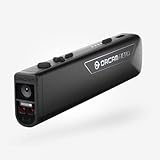
- OrCam Read has been recognized with the top CES 2021 Best of Innovation Award, in the Accessibility category! OrCam Read is a personal artificial intelligence (AI)-driven device unlike any other, for anyone who is consistently exposed to large amounts of text – at work and school, or for leisure – and can even assist people with visual impairment, or reading difficulties including dyslexia and reading fatigue
- The OrCam Read can also help people with learning disability, or anyone who reads large amounts of text on a daily basis, including students, professionals, etc. Now with a new smart reading feature: Simply ask for the text that interests you: “Read the headlines,” “Read amounts,” or “Start from” a specific section (like “desserts” in a menu)
- The OrCam Read can be used in any environment, including low-light, and without requiring any internet connectivity. The device can be easily used to read any kind of printed or digital text, at home, in the office, or on the go. Make your reading easier and more enjoyable, add the OrCam Read to your cart TODAY!
- People who have moderate to severe levels of visual impairment would have difficulties using the device. OrCam Read requires the user to be able to hear, with or without a hearing device. OrCam Read also requires the user to have full control over their hand movements
- This version is for English language, for other languages contact OrCam. Free OrCam online video tutorials and user support
For context, OpenAI’s guide, accessed in 2026, lists 13 built-in voices and says the set is model-dependent; it recommends “marin” or “cedar” for best quality. Microsoft’s transparency documentation, also accessed in 2026, states that Azure offers over 400 prebuilt neural voice options in more than 140 languages and locales. Those are provider-stated service figures, not independent quality comparisons or counts of all AI voices; availability can change. OpenAI text-to-speech guide Microsoft Speech transparency note
Quick Recap
Product prices and availability are accurate as of the date/time indicated and are subject to change. Any price and availability information displayed on Amazon at the time of purchase will apply.

