
iTechGuides is reader-supported. When you buy through links on our site, we may earn an affiliate commission. As an Amazon Associate I earn from qualifying purchases. Learn more
You cannot use YouTube’s regular Loop control to make an active livestream restart or repeat. That control is for regular videos and playlists. To keep restaurant menu or kitchen footage playing continuously as a live broadcast, send the prepared video to YouTube Live through an encoder workflow, then arrange for the source to repeat. Viewers may be able to rewind a live stream with DVR, but that is not the same as looping it.
What “loop” means on YouTube
There are three different features people can mean by looping a YouTube Live stream:
- Repeat a regular video or playlist: YouTube documents a Loop or Repeat control for videos and playlists.
- Rewind a live broadcast: Live DVR can let viewers pause, rewind, and resume within limits.
- Broadcast a prepared video continuously: The creator sends a repeating source to YouTube Live using an encoder workflow.
Only the third approach creates a continuous live feed from restaurant footage. YouTube’s Loop videos or playlists help instructions do not document a viewer-side loop control for an active live broadcast.
Free tools Windows power users keep installed
One-click scans. No signup required.
Can viewers loop or rewind the restaurant livestream?
Looping a regular video
For a regular YouTube video, viewers can right-click the player on a computer and choose Loop. On a TV or game console, YouTube documents a Repeat option. Playlist repetition is also available. These controls apply to videos and playlists, not an ongoing livestream.
#1 Best Overall
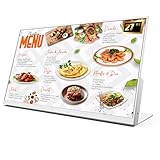
- 【27-Inch Desktop Size for Commercial Use】27-inch desktop design fits milk tea shops, restaurants and retail stores perfectly. It saves counter space, can be placed on ordering counters/front desks, enabling customers to view menus and promotions clearly, improving ordering efficiency.
- 【HD Display & True Colors】FHD 1920×1080 (16:9), clear vivid with high contrast, restoring product colors. Wide viewing angle ensures clear viewing from any position.
- 【Android System + CMS Content Management System】Stable Android system supports easy app installation and centralized content management for remote updating menus, promotions, videos and images. No need for on-site computer operation,making content management faster and more efficient.
- 【Commercial-Grade Durability】Made of commercial materials, it supports 24/7 continuous operation, with good heat dissipation, extending service life and reducing maintenance costs for merchants.
- 【Multi-Scene Application】Serves as electronic menu, advertising screen and signage, helping enhance brand image and operational efficiency.
Rewinding a live broadcast with DVR
If DVR is enabled, viewers can pause, rewind, and resume while the stream is live. They cannot seek to a point before the broadcast began. YouTube says DVR may be limited or unavailable for streams longer than 12 hours. Apple TV, AirPlay, or older app versions can also have lower rewind limits. If DVR is disabled, viewers cannot seek back during the live stream, though a recording may be available afterward. See YouTube’s live DVR guidance.
Autoplay does not loop an active livestream
YouTube describes autoplay as playing another related video after a video ends. It does not provide a way to repeat an active livestream. See YouTube’s autoplay help.
Rank #2

- 【Built-in Lifetime Free CMS & Remote Management】Control your digital signage display anytime through the free lifetime Cloud CMS using your PC, tablet, or smartphone. Upload content remotely, create playlists, schedule playback, manage multiple displays, split screens, and update promotions in real time. USB plug-and-play is also supported for quick local content changes.
- 【700 Nits Commercial Display for 24/7 Business Use】Designed for continuous commercial operation, this 18.5-inch desktop digital menu board delivers 700 nits of brightness for clear visibility in cafés, restaurants, reception areas, and retail stores. Powered by Android 12 with 2GB RAM and 32GB storage, it ensures stable, reliable playback every day.
- 【Designed for Countertops, Checkout Areas & Reception Desks】Includes a sturdy desktop stand with landscape and portrait display options to fit different business layouts. Perfect as a digital countertop display for coffee shops, bakeries, salons, hotel receptions, trade shows, retail counters, waiting rooms, and customer service desks.
- 【HD Display with Flexible Connectivity】Enjoy sharp 720P HD visuals with a wide viewing angle for menus, promotions, and advertisements. Supports HDMI, LAN, TF card, USB 2.0, USB 3.0, and DC connections, giving businesses flexible options for local or cloud-based content management.
- 【Built to Increase Customer Engagement】Transform your business with dynamic menus, promotional videos, product showcases, welcome messages, and advertising displays that capture customer attention better than printed signs. Ideal for restaurants, cafés, bakeries, retail stores, hotels, clinics, exhibitions, and other commercial environments.
How to broadcast a repeating restaurant video as a YouTube Live stream
This is a creator-side setup: prepare the menu or kitchen footage as the source, configure a broadcast in YouTube Live Control Room, and send the source to YouTube with an encoder. The official documentation supports an encoder workflow but does not say that every setup requires dedicated encoder hardware or prescribe a particular way to repeat a prerecorded source.
What’s actually slowing this PC down?
Pick the symptom - the matching free tool is one click away.
- Prepare the footage. Choose the menu or kitchen video, check that it plays as intended, and decide how it should repeat. Ensure the source you use can keep sending the feed for the length of the broadcast.
- Check content and permissions. Make sure you have the necessary rights to stream the video and any music or other audiovisual content it contains. Consider customer and staff privacy and consent, as well as rights for third-party video or menu assets. Applicable legal obligations depend on the circumstances and jurisdiction.
- Create or configure the livestream. In YouTube Live Control Room, set up the stream and obtain its stream URL and stream key. Keep the key private: it is used to send a feed to your broadcast.
- Configure an encoder. Enter the YouTube stream URL and stream key in your encoder, select the prepared video source, and configure the encoder to repeat that source if it supports the workflow. YouTube’s encoder streaming guidance describes sending the feed this way. The documentation does not establish one universal repeat setting or software product.
- Choose settings for your connection and production. YouTube recommends settings appropriate to the available internet connection. Software encoding is an option; YouTube recommends professional-grade hardware encoders for higher-production events, not as a universal requirement. Consult YouTube’s live encoder settings and recommendations for the applicable settings.
- Start sending the feed and check stream health. Start the encoder, then confirm in Live Control Room that YouTube is receiving the feed before relying on the broadcast. Monitor the source and connection for interruptions during the stream.
Choosing a way to keep the stream running
The creator workflow needs a source that repeats the prepared video, an encoder that sends it to YouTube, and a way to notice interruptions. YouTube’s official guidance describes the encoder-based workflow but does not name a specific encoder or establish that dedicated hardware is necessary for every creator. A hardware video encoder is an optional category to consider for a higher-production setup, rather than a requirement for all restaurant streams.
Rank #3

- 【24-Inch Desktop Size for Commercial Use】24-inch desktop design fits milk tea shops, restaurants and retail stores perfectly. It saves counter space, can be placed on ordering counters/front desks, enabling customers to view menus and promotions clearly, improving ordering efficiency.
- 【HD Display & True Colors】FHD 1920×1080 (16:9), clear vivid with high contrast, restoring product colors. Wide viewing angle ensures clear viewing from any position.
- 【Android System + CMS Content Management System】Stable Android system supports easy app installation and centralized content management for remote updating menus, promotions, videos and images. No need for on-site computer operation,making content management faster and more efficient.
- 【Commercial-Grade Durability】Made of commercial materials, it supports 24/7 continuous operation, with good heat dissipation, extending service life and reducing maintenance costs for merchants.
- 【Multi-Scene Application】Serves as electronic menu, advertising screen and signage, helping enhance brand image and operational efficiency.
Restaurant livestream checks before going live
- Rights: YouTube’s terms place responsibility on stream providers to have the necessary rights for streamed content, including relevant music and audiovisual rights.
- Privacy and consent: Check whether customers or staff are identifiable in kitchen footage and consider what permissions or notices are appropriate for your situation.
- Stream key security: Treat the key as a credential. Do not publish or share it; if it is exposed, replace it in YouTube’s stream settings before continuing.
- Viewer expectations: Tell viewers that the broadcast is a repeating menu or kitchen feed if that context is useful. DVR lets eligible viewers navigate within the live window; it does not restart the broadcast.
- Long broadcasts: A stream longer than 12 hours may have limited or unavailable DVR, so do not promise viewers a particular rewind window.
Troubleshooting
The video plays once and then stops
The encoder or source may not be set to repeat, or the chosen workflow may not support repeating a prerecorded source. Check its repeat behavior and confirm the source is still sending video before restarting the broadcast.
YouTube is not receiving the feed
Confirm the encoder has the correct stream URL and current stream key, then check the encoder’s connection and YouTube Live Control Room’s stream status. Avoid sharing the key while troubleshooting.
Rank #4

- 【FAST MENU UPDATES】Update your digital menu board in under 18 seconds. Magnetic side frames and included suction cup make slide changes tool-free. This revolutionary illuminated menu board for restaurant ensures your promotions stay current with zero tools or technical expertise required
- 【FLEXIBLE MOUNTING SOLUTIONS】Install your wall mounted menu board light box anywhere(recommended for heights under 3m). Full aluminum bracket supports wall or ceiling mounting with 0-90° rotation. Easily switch between portrait and landscape orientations to optimize space and visibility
- 【SLIM & TOUGH BUILD】This slim led menu board boasts high-density aluminum frames, an ultra-narrow bezel for maximum viewable area, and convenient magnetic side access, perfect for high-impact digital menu boards for restaurants and retail displays
- 【VIBRANT LED DISPLAY】Enjoy crystal-clear visibility with energy-efficient LED backlighting. This led backlit menu board delivers uniform, shadow-free illumination that makes content pop day and night while cutting energy costs
- 【EXPANDABLE DISPLAY SYSTEM】This versatile digital menu board supports seamless chaining of multiple units using included connection hardware. Perfect for restaurants, cafes, and food trucks, it's the ultimate solution for dynamic visual communication that grows with your business needs
Viewers cannot rewind
DVR may be disabled, unavailable for the stream, or constrained by the viewer’s device or app. YouTube also notes limits for streams longer than 12 hours. DVR is not a repeat control.
Recommended Free Tools
The broadcast stops unexpectedly
Check whether the source stopped, the encoder lost its connection, or the network could no longer sustain the selected settings. Match settings to the connection and verify the incoming feed in Live Control Room before resuming.
Best Value

- 【Indoor Commercial Digital Signage for Business】 Built for restaurants, cafes, retail stores, salons, clinics, hotels, gyms, and reception areas. Display menus, promotions, service lists, brand messages, and customer-facing information.
- 【1000-Nit 4K Display for Clear Indoor Visibility】 High-brightness 4K visuals help menus, prices, product photos, and promotional graphics stay sharp and readable in indoor commercial spaces.
- 【Free Android CMS, USB Playback & 24/7 Use】 Update content through Free Android CMS or USB playback. Supports scheduled playlists, split-screen layouts, and daily operation with 4+32GB hardware.
- 【Slim Wall-Mount Design with Flexible Display Setup】 Slim body and narrow bezel create a clean wall-mounted look. Supports portrait or landscape installation for built-in media playback. Install on a solid indoor wall.
- 【3-Year Warranty with First-Year Replacement Support】 Setup videos are available for installation, CMS, USB playback, WiFi connection, and scheduling. First-year eligible issues are handled by replacement, not repair.
Or let it run in the cloud
StreamNeo is a cloud service for keeping an uploaded video or playlist live on YouTube. The setup is: upload the video or build a playlist, add your YouTube stream key once, and go live. You do not have to leave a computer or home connection running. Uploaded video streams as made, up to 4K 60fps, for one flat price per slot; StreamNeo automatically recovers if YouTube drops the stream. The first day is free with no card required. Monthly pricing is $9.99 per month. UPI and cards are supported in India, and card checkout is available worldwide. StreamNeo streams to YouTube only and plays uploaded videos rather than going live from a camera. Learn more at StreamNeo, or start your free day.
Quick Recap
Product prices and availability are accurate as of the date/time indicated and are subject to change. Any price and availability information displayed on Amazon at the time of purchase will apply.

