
Quick wins for a faster PC:
Repair Windows errors before they cause bigger problemsFix Now →Fix the driver behind crashes, sound loss and screen glitchesFind Drivers →Clear out junk files and repair common Windows errorsFree Scan →If Hebrew, English, or numbers appear in the wrong order in a PDF, first check whether the problem is in the editable source document or only in the PDF viewer or copied text. When you can edit the source, set the paragraph to right-to-left (RTL), keep embedded English and number strings left-to-right (LTR) where needed, then export a fresh PDF and check it in the reader your audience uses. Do not reverse the characters by hand: the order in which text is stored and the order in which it is displayed are not the same thing.
First identify where the order goes wrong
Before changing text, compare the same passage in the source document, the exported PDF, and—if relevant—the text you get by copying it. Also check whether the issue appears in one PDF reader or in more than one. This helps distinguish an authoring problem from an export, display, printing, or text-extraction problem.

- Wrong in the editable source: Correct paragraph direction and any mixed-direction runs in the authoring application, then export a new PDF.
- Source looks right, PDF looks wrong: Compare the PDF in the reader your audience will use and check whether the problem is limited to one reader or output mode.
- PDF looks right, copied text looks wrong: Treat this as a text-extraction or character-order issue, separate from how the line is displayed. There is no universal repair established for every PDF producer, font, and extractor.
- Only a form field or annotation is affected: Use controls for that specific field or markup if the PDF application provides them; do not assume they change ordinary page text.
Why mixed Hebrew, English, and numbers can look out of order
Hebrew text normally runs right-to-left, while Latin-script English normally runs left-to-right. A line containing both is bidirectional text. Unicode’s Bidirectional Algorithm determines how characters are laid out for display; it does not mean the characters in the underlying text should be manually reversed.
Digits and punctuation can be especially confusing. Some characters do not have a strong direction of their own, so their displayed position depends on the surrounding text and its directional context. Parentheses around an English phrase, a date, a phone number, or an identifier can therefore appear displaced even when the text has not simply been stored backwards.
#1 Best Overall
Keep the characters in their intended logical sequence. Set the paragraph direction and, where the application supports it, the direction of embedded LTR runs. Unicode also defines explicit directional formatting controls, but adding invisible controls is not a dependable default fix for a general PDF problem.
Fix the editable source before repairing the PDF
If the original document is available, correct it there rather than trying to edit the PDF’s visible characters. Microsoft’s Office guidance describes enabling support for right-to-left languages and using RTL paragraph controls. Language or keyboard setup is a separate part of that workflow: switching an input language alone is not the same as setting paragraph direction.
- Enable the needed language support. Follow the RTL-language setup for the Office application and version you use. The Microsoft guidance covers language support as well as paragraph direction; exact menus can differ by application version.
- Set the paragraph to RTL. Apply the right-to-left paragraph control to the Hebrew paragraph, rather than relying only on alignment. Right alignment changes where a paragraph sits on the page; it does not, by itself, establish the text’s directional behavior.
- Check mixed runs. Keep English phrases, email addresses, web addresses, and number strings in logical order. Where the editor allows it, mark an embedded English or numeric run as LTR when its display is still ambiguous.
- Inspect context-sensitive characters. Check punctuation around parentheses, dates, phone numbers, and alphanumeric identifiers. A punctuation mark’s apparent position can be affected by the directional context around it.
- Export a fresh PDF. Inspect the output in the intended reader, and check printing too if printed output matters. Do not judge the export only by how the source editor renders it.
LibreOffice’s Complex Text Layout settings provide options for mixed RTL/LTR movement and selection. Its help also notes that contextual numeral display can depend on locale or surrounding formatting. If you work in LibreOffice, check those complex-text and numeral settings when the source itself behaves inconsistently; do not treat a keyboard-layout change as a substitute for paragraph and run direction.
Rank #2

- 🎶 INTERACTIVE DESIGN: Musical book featuring 6 different Jewish songs with easy-to-press sound buttons perfect for little hands to discover and explore
- 💡EDUCATIONAL VALUE: Combines music, visual learning, and cultural education to help children connect with Jewish traditions through song. And Singing is learning! Singing develops listening and memory skills important to early literacy.
- 👨👩👦 ENGAGING CONTENT: Colorful illustrations featuring adorable animal characters that bring Jewish songs to life for young learners. Beloved by children and parents alike, this sound book for toddlers ages 1-3 makes the perfect gift for Passover, Jewish holidays, and Shabbat.
- 🔊 SOUND FEATURES: Crystal-clear audio playback with press-and-listen technology makes learning Jewish songs fun and interactive
- 🎁 YOUR BEST GIVE EVER: Give the gift of learning, early appreciation of music, engaged & focused attention through these best books for 1 year old. They're screen-free, perfect as a birthday, Hanukkah, or casual gift for your little ones. Start making reading fun for your babies with an Oppenheim Toy Portfolio Gold Seal Awardee, Ditty Bird books with sound.
Check punctuation, numbers, and mixed identifiers in the new PDF
Test the actual kinds of strings that caused the problem, not just a plain Hebrew sentence. For example, review a Hebrew sentence containing an English product name in parentheses, a date, a phone number, and an identifier that mixes letters and digits. Check that each string reads in its intended order and that punctuation sits where the reader expects.
Recommended Free Tools
Judge the visible line in the target PDF reader. If the display is correct but copied text is not, record those as two separate outcomes. A visually correct line does not guarantee every extractor will return characters in the order a downstream application expects.
What to do when only the PDF is available
First determine whether the affected content is ordinary body text, an interactive form field, or an annotation such as a text markup. Adobe’s help page, updated September 23, 2025, documents Hebrew PDF support in Acrobat on Windows for viewing, searching, and printing. It separately describes direction and digit options for specified form fields, signatures, and text box markups.
Rank #3

- Includes Dry Erase Marker with Eraser
- Great for Practicing Modern and Ancient Hebrew
- Double sided board with Ancient Hebrew on one side, Modern Hebrew on the other
Those scoped controls are not a general body-text repair feature. If ordinary page text is wrong and there is no editable source, the cited Acrobat guidance does not establish a universal way to fix it in place. If the content is a supported field or markup, use its direction or digit options and check the result in the relevant form or annotation. For body text, look for the editable source and correct its direction before exporting again when possible.
Choose the repair route by the symptom
| What you can edit | Where the problem appears | Best next step |
|---|---|---|
| Editable source document | Source and PDF display | Set paragraph direction and mixed-run direction in the source; export and inspect a fresh PDF. |
| Editable source document | PDF display only | Compare readers and print output; check whether export or rendering is involved before changing the source text. |
| Existing PDF only | Form field or annotation | Check the applicable field or markup direction and digit controls in the PDF application. |
| Existing PDF only | Ordinary body text | Do not assume field controls repair page text. Seek the source document when possible; the cited guidance does not establish a universal in-place repair. |
| Either | Display is right but copied text is wrong | Treat extraction order as a separate issue and test the particular extractor or downstream workflow. |
Common causes and fixes
The paragraph is right-aligned but still behaves like LTR
Alignment and direction are different settings. Apply the authoring application’s RTL paragraph control, then export again. Do not infer direction from the paragraph’s position on the page.
English words or digits move to an unexpected side
Check whether the embedded string is being treated as an LTR run within the RTL paragraph. Keep the characters in normal logical order; do not reverse the English or number characters to compensate for display.
Rank #4

- Lonely Planet Hebrew Phrasebook & Dictionary
Parentheses or punctuation appear on the wrong side
Check the surrounding Hebrew and English context, since neutral punctuation can be positioned according to its neighbors. Test the complete phrase—including the punctuation—in the exported PDF.
Changing the input language did not fix the layout
Input language and paragraph direction address different parts of RTL authoring. Confirm that the paragraph itself is RTL and that the application has the relevant language or complex-text support enabled.
Acrobat’s RTL setting does not change the page text
Confirm what object the setting applies to. Adobe documents direction and digit options for certain fields and text markups, not as a universal control for ordinary PDF body text.
What’s actually slowing this PC down?
Pick the symptom - the matching free tool is one click away.
Best Value
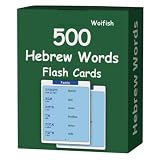
- Designed by Hebrew Language Teachers - With years of Hebrew teaching experience, we have carefully selected 500 essential Hebrew words, covering key topics including family, body, food, kitchen, nature, common adjectives, transportation and daily supplies, making it easy for beginners to start their Hebrew learning journey.
- Fun & Effective Hebrew Learning for Hebrew Beginners - Our Hebrew Vocabulary Flash Cards offer an enjoyable and efficient way to master basic Hebrew words for daily use. Whether you’re a complete beginner or looking to expand your basic vocabulary, these flashcards turn tedious memorization into a fun activity, helping you build confidence in learning Hebrew.
- Phonetic Symbols & Audio Pronunciation - Never worry about mispronouncing Hebrew words again! Each flashcard is marked with clear phonetic symbols, and you can scan the QR code on the card to access free pure Hebrew pronunciation audio, ensuring you learn standard, authentic Hebrew pronunciation easily.
- Easy to Remember & Practical - Our goal is to simplify Hebrew learning for beginners. We only include basic, practical Hebrew words and clear phonetic guides, no complicated extra information. You can play with these flashcards alone or with friends, making Hebrew vocabulary memorization simple and efficient.
- High-quality & Portable Design - Made of durable, water-resistant material, these Hebrew Flash Cards are large-sized for easy reading and portable for on-the-go learning. They are suitable for frequent use, whether in classrooms, at home, during commutes, or while traveling—perfect for individual or group learning.
Copying text produces a different order from the display
Separate the visible layout from the copied or extracted character sequence. Test the destination workflow with the actual PDF; do not assume a single source-document change will correct every extractor.
Independent reader supportYour contribution helps us test, update, and keep practical guides available for everyone.Or skip the browser setup
ScreenshotNeo is a website screenshot API, not a tool for correcting RTL text in a PDF. Once you have repaired and checked a web page or other HTML output, it can capture that page as an image or PDF. Its cleanup options accept cookie or consent banners and remove supported consent platforms, newsletter popups, and chat widgets before capture; those steps can be turned off. Bot checks, blank pages, timeouts, failed loads, and cache hits are not billed, and response headers report the page verdict and billing status. Its MCP server offers screenshot and PDF-capture tools to AI agents. The free plan includes 1,000 shots a month with no card; paid plans start at $5 for 3,000 shots.
For example, this cURL request captures a website as WebP; it does not fix PDF text direction. See the ScreenshotNeo API documentation for parameters and response details.
curl -G "https://api.screenshotneo.com/v1/shot" -d access_key=YOUR_API_KEY --data-urlencode url=https://stripe.com -o shot.webpLearn more at ScreenshotNeo, or sign up free for 1,000 screenshots a month with no card.
Frequently Asked Questions
Does Acrobat fix RTL body text in an existing PDF?
Adobe documents Hebrew viewing, searching, and printing on Windows, plus RTL-related controls for specified fields and text markups. That does not establish a general body-text repair feature.
Should I reverse the Hebrew or English characters manually?
No. Keep text in logical character order and correct paragraph or mixed-run direction in the editable source where possible.
Why does copied text differ from what I see in the PDF?
Display layout and extracted character order are separate. The result depends on the PDF and extraction path, so test the specific workflow rather than assuming one universal fix.
Quick Recap
Product prices and availability are accurate as of the date/time indicated and are subject to change. Any price and availability information displayed on Amazon at the time of purchase will apply.
The Tool Desk
Outbyte PC Repair FREERepair Windows errors before they cause bigger problemsFix Now →Outbyte Driver Updater FREEScan for outdated or missing drivers - takes under a minuteDriver Scan →
