
Windows Errors? Fix Them Before They Spread
Repair common Windows errors and clear accumulated junk for a smoother, more stable PC - no reinstall needed.Free scan · no reinstallCrashes, No Sound, or Screen Glitches?
Random freezes, missing sound and display glitches usually trace back to one bad driver. Find and replace yours safely.Free scan · under a minuteiTechGuides is reader-supported. When you buy through links on our site, we may earn an affiliate commission. As an Amazon Associate I earn from qualifying purchases. Learn more
To create a monthly YouTube livestream playlist calendar, plan a sustainable recurring schedule, schedule each event in YouTube Studio, share the event details with viewers, and add each public replay to a playlist. YouTube does not have a special calendar feature for this workflow; the calendar is your planning tool, while scheduled streams and playlists are managed separately in Studio.
Plan a livestream cadence you can maintain
Choose days and times that fit your production capacity, then assign a repeatable format to each slot. For example, a creator might reserve Tuesdays for a Q&A and the last Saturday of the month for a longer themed stream. These are planning examples, not recommended frequencies: YouTube does not prescribe one ideal number of streams per month.
YouTube’s upload schedule guidance for live streams recommends planning the coming weeks or months around your goals and a schedule you can sustain. It also advises weighing the monetary cost of streaming against viewership and revenue. Choose a cadence by considering:
Free tools Windows power users keep installed
One-click scans. No signup required.
- Whether you can reliably prepare and deliver each format.
- Whether viewers can understand and remember the recurring schedule.
- The production cost of each stream compared with its viewership and revenue.
- Whether keeping replays public provides ongoing value to your audience.
Draft the month before scheduling events
Make a working calendar in a spreadsheet, calendar app, or paper planner. For each proposed stream, record the date and time with its timezone, a working title or episode theme, the format, the intended audience, and whether the replay should go into the month’s playlist. These are useful planning fields, not special fields required by YouTube Studio.
#1 Best Overall
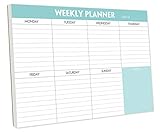
- STAY ORGANIZED & IMPROVE PRODUCTIVITY - Undated weekly planner notepad to help you organize your daily tasks, responsibilities, schedule and stay on your task & goals & planning. Stay organized and motivated each day and each week, improve your productivity with this desktop weekly planning pad
- 52 PAGES - Weekly calendar pad, enough for a full year of weekly planning. 10 x 7 inch planning pad, plenty of room to write in appointments, notes, check lists etc.
- THICK PAPER - Weekly planning pad with 100gsm smooth paper for easy writing and reducing ink leakage. It responds well to almost all pen types, fountain pen, gel pen, ballpoint pen, highlighter, pencil and etc. They are glued on the top edge to a cardboard backing
- CLEAN DESIGN - This weekly to do list notepad contains weekly day spread and notes section, allows you to prioritize by your priority tasks, write your to-dos, mark reminders and important events
- PERFECT FOR - All busy people or makes for a wonderful gift for Holiday, Christmas, Birthday
Leave room for changes, and only announce dates you expect the channel can produce. If your viewers are in different timezones, state the timezone clearly wherever you publish the schedule.
Check that the channel can livestream
Before announcing dates, review YouTube Studio for the channel’s current livestreaming prompts. YouTube’s live-streaming eligibility guidance says a channel must be verified and must not have had livestreaming restrictions in the preceding 90 days. It also states that streamers must be at least 16 years old. Account prompts and requirements can change, so confirm eligibility on the channel you will use.
Rank #2

- 52 PAGES UNDATED WEEKLY PLANNER - This weekly planner features 52 undated pages, measuring 11 x 8.5 inches (A4) in a horizontal layout. It provides ample space for year-round planning, allowing you to schedule at your own pace without wasting pages or skipping dates.
- THOUGHTFUL FEATURES FOR PLANNING - Our weekly to do list notepad is designed with a top priority, a low priority, and a follow-up section, allowing you to prioritize and stay organized. It also has to do list part, notes part, which can help you track important daily events and develop daily habits.
- SPIRAL BOUND WEEKLY PLANNER - The weekly planner is spiral-bound for easy page turning and the option to tear off used pages for new plans. It features a transparent cover that protects your pages from dirt and damage.
- 100 GSM THICK PAPER - Our desk calendar planner is crafted with premium 100 GSM FSC-certified wood-based paper, paired with sturdy cardboard backing to resist ink bleeding and ensure a smooth writing experience. Durable, eco-conscious, and designed for daily use.
- VERSATILE USAGE - The weekly to-do list notepad is designed to meet all your planning needs and help you stay organized. It's perfect for work, home and school, including habit tracker, event organization, work schedules, travel plans, and more.
Schedule each YouTube livestream
- In YouTube Studio, select Create > Go live, then open the Manage tab.
- Select Schedule stream. Reuse settings from a previous event if appropriate, or create a new stream.
- Enter the event’s title, description, date and time, visibility, thumbnail, and other available settings. Check the date, timezone, and public-facing details before sharing the event URL.
- Once scheduled, share the event URL in the places where viewers follow your channel. Viewers can choose Notify me on an upcoming event to get a reminder.
YouTube’s encoder scheduling instructions describe scheduling, reusing settings, and promoting an event with its URL. Its live stream settings guidance covers upcoming stream visibility and viewer reminders. If you use an encoder, YouTube recommends setting it up at least two hours before the event and starting it 15 minutes before the scheduled time; see its live-streaming tips.
Publish the schedule and communicate changes
Introduce the schedule where your audience already checks for updates, such as a community post or channel description, and consider showing it on your channel banner. For streams that are already scheduled, share their individual event URLs so viewers can open the event and opt into a reminder.
If a date, time, or episode changes, update the scheduled stream and tell viewers in the places where you announced the original schedule. A calendar only helps viewers if its information stays aligned with the events you can actually deliver.
Rank #3

- Feel More In Control Every Week - This undated weekly planner pad helps you map priorities, organize tasks, and stay focused without the pressure of a pre-set calendar.
- Make Planning Fun and Motivating - Vibrantly colorful design transforms this weekly planner notepad into a tool that lifts your mood while boosting productivity.
- Tear, Plan, Repeat With Ease - 52 weekly planner tear off pad sheets offer a fresh start every week and effortless organization at your desk, kitchen, school, office, or workspace.
- Built to Last Through Busy Weeks - Printed on thick, premium paper that resists ink bleed, making this weekly planner paper pad reliable for everyday use.
- Designed for Real-Life Needs - Perfect for managing work, family, school, hobbies, and personal goals. Made for teachers, parents, entrepreneurs, students, and professionals to simplify your day and keep you productive.
Create a playlist for livestream replays
- In YouTube Studio, select Create > New playlist.
- Give the playlist a clear title and description, choose its visibility and ordering, and add videos as they become available.
- Use a title that tells viewers what the collection contains, such as “October 2026 Live Sessions,” or use a stable series title if you want one continuing archive. Month naming is an organizational choice, not a special YouTube calendar feature.
YouTube’s playlist guidance states that a playlist title can be up to 150 characters and its description up to 5,000 characters. A playlist is a collection of videos; Studio provides controls to create it, choose visibility and ordering, and manage its contents.
Independent reader supportYour contribution helps us test, update, and keep practical guides available for everyone.Add each replay and choose how to organize the archive
After a livestream, add its replay to the appropriate playlist, check the item order, and confirm that the playlist’s visibility matches the audience you intend. YouTube supports adding videos to playlists and reordering playlist items.
The Tool Desk
Outbyte PC Repair FREERepair Windows errors before they cause bigger problemsFix Now →Outbyte Driver Updater FREEScan for outdated or missing drivers - takes under a minuteDriver Scan →Rank #4

- Durable Materials: Daily notepad is made of smooth and thick white paper, which makes writing smooth and without ink bleeding. The glue binding is not easy to fall off.
- Package Includes: You will receive a notepad composed of 60 tearable papers, with sufficient page numbers for your use. Its size is 24.5×17.5 cm/10×7 inch, which is suitable in size and easy to carry.
- Convenient to Use: Daily notepad is simple in design and easy to tear and carry. It will help you organize your tasks, housework, responsibilities and health, which is very convenient for your daily use.
- Perfect Gift: It can keep us organized in our lives and studies. It is a great gift for holidays, birthdays, graduation ceremonies and celebrations, and it is also the best gift for all busy people.
- Wide Application: Daily notepad will help you organize your tasks, housework, appointments, homework, responsibilities, health, etc. Use it at work as a professional, academic school or college, family baby kids living well plans. You can use it to record or doodle even when you are on the phone.
- One continuing series playlist: use this when viewers benefit from following the show across months and you want one collection to maintain.
- A separate playlist for each month: use this when viewers should be able to browse a month-by-month archive.
Make the choice based on how viewers will use the replays. The calendar plans live events; the playlist organizes the videos after they are available.
Review the month and set the next cadence
At month’s end, compare the planned streams with the events you completed. Review production cost, viewership, revenue, and audience response before deciding whether to keep or adjust the cadence. YouTube specifically identifies cost versus viewership and revenue as factors to consider, and names RPM as a metric to review in its schedule guidance.
Or let it run in the cloud
If your calendar is for recurring prerecorded programming rather than camera-led events, StreamNeo can loop uploaded videos as a YouTube livestream. Upload your recording or build a playlist, add your YouTube stream key, and go live. The stream runs in the cloud, so nothing has to stay on at home; it plays your uploads as made, up to 4K 60fps, for one flat price per slot, and automatically recovers if YouTube drops the stream. The first day is free with no card. Monthly billing is $9.99 per month. StreamNeo is for uploaded videos, not a live camera feed. Learn more at StreamNeo, or start your free day.
Quick Recap
Product prices and availability are accurate as of the date/time indicated and are subject to change. Any price and availability information displayed on Amazon at the time of purchase will apply.

