
The Tool Desk
Outbyte Driver Updater FREEScan for outdated or missing drivers - takes under a minuteDriver Scan →Outbyte PC Repair FREEClear out junk files and repair common Windows errorsFree Scan →iTechGuides is reader-supported. When you buy through links on our site, we may earn an affiliate commission. As an Amazon Associate I earn from qualifying purchases. Learn more
Apple’s built-in iPhone settings do not let an everyday user pick a fake GPS position. What you can change is which apps can use your location and how precisely, whether Location Services is on at all, which device supplies the location shared through Find My, and, for developers, the simulated location used to test an app in Xcode. The four methods below cover those controls, and the table shows what each one actually changes.
What “changing your location” can mean on an iPhone
iPhone location is used in several different ways, and a setting that changes one of them does not change the others. Your iPhone can combine GPS with Bluetooth, Wi-Fi, and cellular network information when those sources are available. Apps use that information for maps, weather, and nearby results. Find My separately shares a location with people you choose. Developers use a third kind of location, simulated input, to test how their own apps behave when the device is somewhere else.
Before you follow any steps, decide which of these you mean:
What’s actually slowing this PC down?
Pick the symptom - the matching free tool is one click away.
- Privacy: you want apps to see less precise information about where you are.
- Sharing: you want people in Find My to see a different location for you.
- Testing: you are building an app and need it to behave as if it were in another place.
If you wanted your iPhone to report a chosen spot to any app, Apple’s documentation does not offer that as a standard setting.
#1 Best Overall
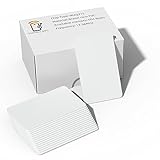
- 【Size】Package contains 100pcs NTAG215 cards, card size: 3.35 x 2.13 x 0.03 inches(54*85.5*0.8mm / Credit card size).
- 【Material】NTAG215 card is made of high-quality environmentally friendly PVC material. The waterproof PVC material can perfectly protect the internal chip. The surface is smooth and shiny, non-toxic, tasteless, safe and reliable.
- 【Chip】Genuine NTAG215 chip Semiconductors, 540 bytes of memory, password protected authentication, high scan strength, easy to program. The 215 chip has a read-write lock function, which can be edited repeatedly or read-only. Tags cannot be edited or reset once they are set as read-only. Service life: 10 years, 100,000 erasing and rewriting
- 【Features】Just hover your phone over the card, data will be sent directly to your phone, no internal energy required, compatible with Tagmo A-mii-bo and all NFC-enabled devices (note that some iPhone models can only passively read data, not actively write data , please understand), you can use them to quickly share your social information, music, connect WiFi, build a smart home, etc. to make your life more colorful. (The card cannot be used in a strong magnetic field)
- 【Professional NFC product seller】If you encounter any problems during the shopping process, you can contact us at any time, TimesKey will sincerely serve you. TimesKey offers many exclusive and popular labels for NFC tags for you to choose, TimesKey welcomes bulk order or customization, please contact us if you need it.
Quick comparison of the four methods
| Method | What changes | Who it is for | Changes the iPhone’s real GPS position? |
|---|---|---|---|
| 1. Change an app’s location access or precision | One app’s access, and whether it gets Precise or Approximate Location | Everyday users | No. It limits what an app receives; it does not set a new position. |
| 2. Turn Location Services off globally or for selected apps | Whether apps can use location at all | Everyday users | No. Location is withheld from apps, not replaced with another spot. |
| 3. Choose another Apple device as the Find My sharing source | The location shared with people through Find My | Everyday users who share location | No. The iPhone’s own GPS is unchanged; the shared location comes from the device you select. |
| 4. Xcode location simulation | The simulated location used by app code during developer testing | Developers | No for the device in general. Simulated input is applied only inside the testing context described below. |
The four methods, one at a time
Method 1: Change an app’s location access or precision
Use this when a specific app asks for more location detail than it needs.
- Open Settings, then tap Privacy & Security.
- Tap Location Services.
- Tap the app you want to adjust.
- Choose the access level you want. To give an app your specific position, leave Precise Location turned on. To share only an approximate area, turn Precise Location off.
Apple’s support page on controlling location information puts it this way: “To allow an app to use your specific location, leave Precise Location turned on.” Approximate Location is a privacy control. It reduces the detail an app receives, but it is not a chosen destination and it is not a GPS spoof.
Method 2: Turn Location Services off globally or for selected apps
Location Services is the master switch for location use on the device. You can turn it off for the whole iPhone or only for selected apps.
- Open Settings, then tap Privacy & Security.
- Tap Location Services.
- To stop all location use, switch off Location Services. To stop it for particular apps only, leave the switch on and set each app to Never on its own screen.
Apple warns that turning Location Services off limits the performance of various Apple and third-party apps, so maps, ride services, and location-based reminders may stop working correctly. There is one exception you should know about: Apple says an iPhone’s location may be used for emergency response when an emergency call is placed, even if Location Services is disabled.
Method 3: Choose another Apple device as the Find My sharing source
This method changes what people see when they check your location in Find My. It does not move the iPhone in your hand.
Rank #2

- 【Size】Package contains 200pcs NTAG215 black NFC cards, card size: 3.35 x 2.13 x 0.03 inches(54*85.5*0.8mm).
- 【Material】NTAG215 card is made of high-quality environmentally friendly PVC material. The waterproof PVC material can perfectly protect the internal chip. The surface is smooth and shiny, non-toxic, tasteless, safe and reliable.
- 【Chip】Genuine NTAG215 Semiconductors, 540 bytes of memory, password protected authentication, high scan strength, easy to program. The NTAG215 chip has a read-write lock function, which can be edited repeatedly or read-only. Tags cannot be edited or reset once they are set as read-only. Service life: 10 years, 100,000 erasing and rewriting (making A-mii-bo can only be written once, not repeatedly erasing and rewriting)
- 【Features】Compatible with Tagmo A-mii-bo and all NFC-enabled devices (note that some iPhone models can only passively read data, not actively write data , please understand), You can use them to quickly share your social information, music, connect WiFi, build a smart home, etc. to make your life more colorful. (The card cannot be used in a strong magnetic field)
- 【Easy to use】Just hover your phone over the card, data will be sent directly to your phone, no internal energy required,Very easy to use!
- Open the Find My app and tap the Me tab.
- Look at the device shown next to Sharing From. This is the device currently supplying the location that is shared.
- Select another Apple device as the location source if you want a different one to supply it, following the options shown on that screen.
Sharing can also be paused or stopped from the same Find My sharing controls. Because the iPhone’s own GPS is unchanged, your Location Services settings still apply to what your phone itself can access.
Method 4: Use Xcode location simulation for developer testing
Xcode is Apple’s development environment for building iPhone and Mac apps. It supports simulated locations so developers can test location-aware features without travelling. A simulated location can be a fixed point or a route played back from a GPX file, which is a standard file format for GPS tracks.
Crashes, No Sound, or Screen Glitches?
Random freezes, missing sound and display glitches usually trace back to one bad driver. Find and replace yours safely.Free scan · under a minutePC Slower Than It Used to Be?
A free scan shows the junk files, broken settings and background clutter dragging Windows down - then fixes them in one click.Free scan · Windows 10 & 11Two scope limits matter:
- When simulated location is set in a test plan, it changes the location only for code running in that test bundle. Apple documents a separate approach for UI automation tests.
- This is a developer workflow inside Xcode. It is not a setting on an everyday iPhone, and it does not change the location your other apps receive.
What none of these methods do
Three common expectations are not supported by Apple’s documentation for these controls:
- Setting a fake GPS position for all apps. None of the four methods does this on a consumer iPhone.
- Using a VPN to change GPS. A VPN changes the internet address that websites and some services see. Services that estimate location from IP addresses may then show a different place, but that is an estimate based on network information. It does not establish a changed GPS position on the iPhone.
- Relying on third-party GPS spoofing apps. Apple’s documentation does not cover tools that claim to fake GPS, and no source reviewed for this article confirms that any such tool works on iOS 27. Do not count on one working, and be cautious about granting any app broad location permission to get there.
Confirm your iOS version before following the menus
Apple’s guide pages for these controls are labeled for iOS 27. That labeling does not by itself confirm whether iOS 27 is publicly released or installed on your device. To check your version:
- Open Settings, then tap General.
- Tap About and read the iOS Version line.
If your version is older, or a menu label differs from the names above, the same controls are usually found under the same top-level sections. Match the Privacy & Security, Location Services, and Find My screens by their function rather than their exact wording.
Quick Recap
Troubleshooting common problems
- An app still shows the wrong area: check Method 1 first. Confirm Precise Location is set the way you intend, then check whether the app itself has a location setting or uses a network-based estimate.
- A feature stopped working after you changed Location Services: return to Method 2 and turn Location Services back on, or re-enable it for the affected app.
- Find My shows a device you do not expect: open the Me tab in Find My and review Sharing From, then choose the device you want.
- Simulated location does not apply in a test: confirm the simulated location is set in the test plan for the test bundle that contains the code you are running. UI automation tests need Apple’s separate approach.
“

