
iTechGuides is reader-supported. When you buy through links on our site, we may earn an affiliate commission. As an Amazon Associate I earn from qualifying purchases. Learn more
No—Logitech’s own background-replacement feature is not offered for Mac. Logitech Support says it does not currently provide background replacement for Mac, so buying a Logitech webcam will not enable Logitech-native blur. To get a blurred background, check the effects in your video-call app or another Mac-compatible video tool.
What Logitech’s Mac support guidance says
Logitech Support’s guidance for the BRIO 4K Pro and C922 states: “Logitech and Personify do not currently offer a background replacement option for Mac.” Its compatibility table also marks Logitech Capture, XSplit VCam, and ChromaCam as not working on Mac. Logitech’s background replacement options
This is a software limitation, not a claim that Logitech webcams cannot be used as cameras on a Mac. A supported camera input and a background effect are separate capabilities.
Why Logitech’s other features do not provide blur
Logitech Capture and XSplit VCam
Logitech Capture’s feature page describes chroma key and a workflow using XSplit VCam, which can remove or blur a background when connected as a source to Capture. However, Logitech’s compatibility table marks both Capture and XSplit VCam as not working on Mac. Capture’s listed requirements include older macOS releases—macOS 11 on Intel and macOS 10.15 or 10.14—and do not establish current support for Apple-silicon Macs. Treat that documented workflow as unsuitable for a Mac rather than as a current workaround. Logitech Capture software information
#1 Best Overall

- Compatible with Nintendo Switch 2’s new GameChat mode
- Auto-Light Balance: RightLight boosts brightness by up to 50%, reducing shadows so you look your best—compared to previous-generation Logitech webcams (1)
- Privacy with a Slide: The integrated webcam cover makes it easy to get total, reliable privacy when you're not on a video call
- Built-In Mic: The built-in microphone lets others hear you clearly during video calls
- Easy Plug-And-Play: The Brio 101 works with most video calling platforms, including Microsoft Teams, Zoom and Google Meet—no hassle; it just works
Logi Tune
Logitech lists macOS 13.0 or later as a desktop system requirement for Logi Tune, but the reviewed Tune page does not list background blur as a feature. Mac compatibility for Tune does not mean it can blur a camera background. Logi Tune software information
RightSight and camera adjustments
RightSight automatically reframes video to keep a person centered; it changes the camera framing, not the background. Logitech’s listed camera controls—such as exposure, white balance, focus, zoom, pan, crop, and image adjustments—tune the image but are not background segmentation or blur controls. Logitech Support’s RightSight explanation · Logitech’s webcam settings guide
Rank #2

- Spectacular video quality: superb resolution, frame rate, color, and detail, featuring autofocus and 5x digital zoom; this Ultra HD webcam supports up to 4K at 30 fps
- Look great in any light: RightLight 3 automatically adjusts exposure and contrast to compensate for glare and backlighting
- Adjustable field of view: Choose from three dFOV presets to perfectly frame your video; frame an ideal head and shoulders view with 65° diagonal, and more of the room with 78° or 90° diagonal
- Sound excellent anywhere: With dual omnidirectional microphones and noise-canceling tech, this webcam with microphone captures clear audio from up to 1.2 meter away while reducing background noise
- Make it your own: The Logi Options+ app (3) simplifies personal device control with zoom in/out, color presets, color adjustments, set manual focus, and easy firmware updates
How to get a blurred background during a Mac call
- Check the effects in the video-call app you plan to use. Look for background blur or replacement in that app’s current video settings. Logitech’s compatibility table lists Skype as working on Mac, but that table does not establish Skype’s current availability or whether a particular version offers blur.
- If the call app has no suitable effect, check a third-party video tool. Logitech directs Mac users toward third-party software, but does not confirm current compatibility or guarantee a particular effect for any specific app.
- Verify the full setup before relying on it. Confirm support for your macOS version and Mac hardware, that the tool accepts your camera, and that it can provide its processed video to your chosen call app. Test the effect in the app and version you will use.
Should you buy a different Logitech webcam to get blur?
Do not buy a BRIO, C922, or another Logitech webcam on the assumption that the camera itself unlocks Logitech-native background blur on Mac. Logitech’s guidance identifies the limitation as software availability. A camera can still serve as the video input while a separate, compatible app provides an effect.
Quick Recap
Best Value

- Compatible with Nintendo Switch 2’s new GameChat mode
- Be Your Best Self on Every Video Call: Full HD 1080p webcam resolution provides natural image quality, so you look like the real you on all meeting apps
- Auto Light Correction: RightLight 2 technology automatically compensates for poor video lighting conditions so you can be seen clearly
- Sound Like You: The mono noise reduction mic suppresses background sound so everyone on the call can hear you easily
- Spin for Instant Privacy: Spin the webcam privacy shutter to block the camera lens when you don’t need to be on screen
Rank #4
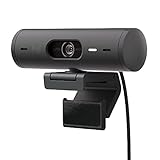
- Compatible with Nintendo Switch 2’s new GameChat mode
- Advanced Image Quality: Full HD 1080p webcam resolution provides outstanding image quality so everyone can see you clearly during meetings
- Auto Light Correction (RightLight 4): RightLight 4 video lighting technology automatically adjusts to the lighting in your environment, so you can be seen clearly even in low light
- Auto-Framing (RightSight): Auto-framing (1)(3) centers the video camera on you, allowing you to stand and move during meetings without leaving the frame
- Show Mode: Present your work or other objects on your desk with Show Mode, which lets you tilt the web camera up or down with one hand
Rank #3

- Compatible with Nintendo Switch 2’s new GameChat mode
- Ultra HD 4K webcam: meet or stream in 4K resolution at 30fps or 1080p at 60fps, with our most advanced webcam sensor yet, with 70% larger pixels (1) for sharp image quality
- AI-enhanced image quality: Experience 2x better face visibility with finer image details in difficult light (2), with auto-exposure, auto white balance, noise reduction, and autofocus
- Curate Your Image: Fine controls (3) on this Ultra HD webcam let you adjust lighting and white balance, such as ISO, Shutter Speed, Tint, and Vibrance, or let Auto mode take care of it
- Let Them Hear Your Every Word: Integrated dual beamforming noise-reducing microphones minimize background noise with the aid of AI to make sure you are clearly heard
Product prices and availability are accurate as of the date/time indicated and are subject to change. Any price and availability information displayed on Amazon at the time of purchase will apply.

