
The Tool Desk
Outbyte Driver Updater FREEScan for outdated or missing drivers - takes under a minuteDriver Scan →Outbyte PC Repair FREEClear out junk files and repair common Windows errorsFree Scan →iTechGuides is reader-supported. When you buy through links on our site, we may earn an affiliate commission. As an Amazon Associate I earn from qualifying purchases. Learn more
To add a texture in SOLIDWORKS, apply a textural appearance to the part, component, feature, or face you want to change, then adjust its mapping and scale. In SOLIDWORKS Visualize, add an image to the appropriate texture channel and choose a projection that suits the model’s shape. The steps and labels differ between SOLIDWORKS Design and Visualize, so the workflows below keep them separate.
Choose the right workflow: SOLIDWORKS Design or Visualize
SOLIDWORKS Design and SOLIDWORKS Visualize both support appearance workflows, but their controls are not interchangeable. In Design, assign an appearance and edit its properties. In Visualize, work with appearances in the Palette and configure texture channels and mapping parameters. The paths below refer to SOLIDWORKS Design 2025 help and Visualize 2025 help unless a cited feature is identified with another help year.
| # | Preview | Product | Price | |
|---|---|---|---|---|
| 1 |

|
3DConnexion 3DX-700059 Spacemouse Compact 3D Mouse | $171.00 | Buy on Amazon |
| 2 |
|
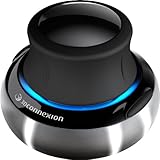
3Dconnexion 3DX-700028 SpaceNavigator 3D Mouse | $171.00 | Buy on Amazon |
| 3 |

|
3Dconnexion SpacePilot Pro 3D Mouse 3DX-700036 | $313.32 | Buy on Amazon |
| 4 |

|
3Dconnexion 3DX-700066 Spacemouse Wireless (With Carry Case And Universal Receiver) | $263.99 | Buy on Amazon |
An appearance controls how a model looks; a material assignment carries physical properties. Changing an appearance does not change the part’s physical properties. See SOLIDWORKS 2026 help on materials and appearances.
Add a surface appearance in SOLIDWORKS Design
Use the Appearances, Scenes, and Decals tools to apply an appearance. Choose the scope deliberately: an appearance can affect a whole part or assembly component, or a selected face, feature, or body. If you want a texture on only one face, select that face before assigning or editing the appearance.
#1 Best Overall
- The space mouse compact was developed to deliver an intuitive, effortless and precise 3D navigation in CAD applications that cannot be experienced by using a standard mouse and keyboard.
- Six-degrees-of-freedom (6Dof) sensor - intuitively and precisely navigate digital models or views. Operating system - Windows 10, Windows 8.1, Windows 7 SP1,Apple macOS 10.14, Apple macOS 10.13, Apple macOS 10.12, Apple OS X 10.11, Apple OS X 10.10. Linux Red Hat Enterprise Linux Workstation 4, 5, Linux Novell SUSE Linux 9.3, 10, 11
- Each of the space mouse compact's two buttons opens its own 3Dconnexion radial menu. They provide direct access to up to 8 of your favorite application commands.
- With its iconic, pure design, the space mouse compact is small enough to fit on every desk while the brushed steel base ensures the device stability for precise 3D navigation.
- 2-Year manufacturer's warranty
- Open the model and display the Appearances, Scenes, and Decals tools.
- Drag an appearance onto the model. When prompted, choose the intended target, such as the part, component, feature, or face.
- To edit an applied appearance, use its context-menu or PropertyManager editing route.
- Check that the appearance is textural. Texture properties and mapping controls apply to textural appearances; a procedural appearance may not expose the same image-mapping options.
For current interface details, consult SOLIDWORKS 2025 help for assigning and editing appearances and SOLIDWORKS 2024 help on appearance types. The official SOLIDWORKS Education curriculum (2023) also describes appearances as the place to control colors and textures, with Mapping used to change mapping style.
Add and configure an image texture in SOLIDWORKS Visualize
In Visualize, create or edit an appearance, add the image to the texture channel that matches the intended effect, then tune the texture and mapping. The Palette’s appearance controls include texture parameters such as tiling and rotation, alongside mapping controls for projection and transforms. The exact controls available depend on the mapping mode.
Rank #2
- Advanced 6 degrees-of-freedom optical sensor
- Simultaneously pan, zoom and rotate 3D models
- 2 programmable function keys
- SpaceNavigator SE model includes commercial use license and full technical support
- Ideal for 3D designers, CAD engineers, architects
- In the Palette, create an appearance or select the one you want to modify.
- Add the image to the appropriate channel: Color for image color or pattern, Specular for surface reflection response, Alpha for transparency-related behavior, or Bump for surface relief effect.
- Choose a mapping mode suited to the geometry and desired projection.
- Adjust tiling and rotation, then use the visual texture manipulator or numerical transform controls when available.
- Save the modified appearance to the library if you want to reuse it.
Visualize Help 2025 documents the appearance-editing workflow in its appearances help. The channel behavior and image-format details are in Visualize Help 2023 on assigning textures.
Match the channel to the effect
| Channel | Use it for | Important distinction |
|---|---|---|
| Color | Image color or a visible pattern | For non-transparent appearances, it can replace the base color; some appearance types combine the base color with the Color texture. |
| Specular | Image-driven specular response | It changes reflection behavior, not the surface’s color pattern. |
| Alpha | Transparency-related behavior | Use it for alpha information rather than as a substitute for a color texture. |
| Bump | A visual surface-relief effect | It affects the rendered surface appearance rather than assigning physical material properties. |
For an image with embedded transparency, Visualize help directs users to PNG or TIFF. The listed texture image formats are JPEG, GIF, TIFF, BMP, and TGA; the transparency instruction is specifically PNG or TIFF.
Rank #3
- Design excellence for engineers
- LCD workflow assistant
- Powerful application control
- Advanced MCAD navigation
- Superior comfort
Choose a mapping mode that fits the model
Mapping determines how an image is projected or wrapped onto geometry. A mode that suits one shape can stretch or misalign a pattern on another, so inspect the result on the actual model rather than judging only from the texture image.
| Mapping mode | When it is a useful choice | What to check |
|---|---|---|
| Planar | A directional projection onto a plane or mainly flat surface | Look for stretching or unexpected projection on surfaces angled away from the projection direction. |
| Box | A box-style projection over multiple faces | Inspect how the image meets at edges and across differently oriented faces. |
| Cylindrical | Cylinder-like forms | Check the wrap and the seam around the circumference. |
| Spherical | Sphere-style projections | Inspect distortion near the poles and where the projection joins. |
| Radial | A radial projection | Check alignment and distortion across the projected surface. |
| Perspective | A perspective projection | Check whether the projection produces the intended appearance from the model’s geometry and view. |
| UV | A model that already has suitable UV coordinates | UV mapping depends on the part’s UV coordinates; it does not use the same texture manipulator as the other listed modes. |
Visualize’s documented modes are UV, Box, Planar, Spherical, Radial, Cylindrical, and Perspective. See Visualize Help 2021 on texture mapping concepts and Visualize Help 2024 on mapping parameters.
Rank #4
- Six-degrees-of-freedom (6Dof) sensor - intuitively and precisely navigate digital models or views.
- Wireless freedom - 3Dconnexion 2.4GHz wireless technology ensures a reliable, real-time connection to your 3D content.
- One month of battery life - space Mouse wireless will operate for up to a Month between charges
- Stylish design - small footprint, elegant brushed steel base, two programmable buttons.
- 2-Year manufacturer's warranty
Set texture size, rotation, and consistency
Use the manipulator for visual adjustment or numerical transform controls for more deliberate positioning, rotation, and scale where the mapping mode supports them. “Fit to Part” sizes a projection to the part’s bounding box, making it a useful starting point rather than a guarantee that the pattern will look correct. “Set to World Scale” is intended to keep pattern size consistent across multiple parts.
Visualize’s mapping and transform behavior is described in the 2024 mapping-parameters help. UV mode is an exception to the shared manipulator workflow: it relies on existing UV coordinates rather than the same texture manipulator available in the other listed mapping modes.
Why a texture may not appear or may look wrong
- UV mode shows no image: UV mapping uses UV coordinates on the part. If suitable UV coordinates are absent, the texture may not appear. Switch to another projection mode to diagnose the issue, or provide suitable UV coordinates.
- The image appears stretched or misplaced: Try a projection better matched to the geometry, then adjust rotation, tiling, and scale. Planar projection can behave differently from cylindrical or spherical projection on curved surfaces.
- The appearance has no image-mapping controls: Confirm that it is a textural appearance. SOLIDWORKS Design distinguishes textural from procedural appearances, and texture properties are editable only for textural appearances.
- Transparency is missing: Use an alpha-capable image format as directed by Visualize help—PNG or TIFF for embedded transparency—and place it in the Alpha channel when the desired effect is transparency-related.
- The pattern size differs between parts: In Visualize, use Set to World Scale when consistent pattern size across parts is the goal.
Use a decal for a logo or label, not a general surface pattern
A decal places an image graphic, such as a logo or label, on a model. A surface texture is part of an appearance and changes how the surface looks. In Visualize, decals added there use planar mapping; imported SOLIDWORKS decals retain their original mappings, and some imported non-planar mapping controls cannot be adjusted in Visualize. See Visualize Help 2024 on decals.
Quick Recap
Product prices and availability are accurate as of the date/time indicated and are subject to change. Any price and availability information displayed on Amazon at the time of purchase will apply.

