

Recommended Free Tools
iTechGuides is reader-supported. When you buy through links on our site, we may earn an affiliate commission. As an Amazon Associate I earn from qualifying purchases. Learn more
Do you want to get the group membership of a user in AD? This guide teaches you 4 methods to accomplish this task.
Option 1: Get AD Group Membership with Active Directory Users and Computers (ADUC)
Active Directory Users and Computers is usually the first go-to tool for most AD SysAdmins. So, it is no surprise that I am starting with it.



Follow the steps below to see the group membership for a user via ADUC.
Free tools Windows power users keep installed
One-click scans. No signup required.
- Open Active Directory Users and Computers on your Windows 10/11 PC or on a Domain Controller.
- When ADUC opens, locate the user you want to get its group membership. Then, right-click the user and select Properties.

- On the Properties page of the user, click the Member of tab. ADUC displays the AD group members that the user belongs.

Option 2: Get AD Group Membership with Active Directory Administrative Center (ADAC)
Active Directory Administrative Center (ADAC) may not be as popular as ADUC, but it is a very useful AD management tool. So, in this section, I will show you how to use ADAC to get the AD group membership for a user.
#1 Best Overall
Here are the steps…
- Open Active Directory Administrative Center. Like I said in the previous section, if you installed RSAT for Active Directory, you could open AD tools, including ADAC, from your Windows 10/11 PC.
- After opening ADAC, navigate to the user you want to get its group membership. Then, right-click the user and select Properties.

- Finally, when the user’s Properties opens, click the Member Of tab. The groups the AD user belongs to will be listed in the Member Of tab.

Option 3: Get AD Group Membership with the DSGet or Net User Command Prompt Commands
It wouldn’t surprise you to learn that you can also list a user’s AD group membership with command prompts. In this section, I’ll show you how to use the DSGet or Net User commands to perform this task.
Follow the steps below to use one of these commands to list the groups an AD user belongs to.
- Open command prompt as administrator – search cmd, then right-click Command Prompt and select run as Administrator.
- When Command Prompt opens, run one of the commands below.
dsget user "CN=Anthony Raj,OU=Writers,DC=itechguides,DC=local" -memberof -expand
The screenshot below shows the result of the DSGet command. As you can see, it displays the user’s group membership in distinguishedName (DN) format.
However, you can extract the name of the group from the CN portion of the DN.
Rank #2

- Mastering Active Directory: Design, deploy, and protect Active Directory Domain Services for Windows Server 2022, 3rd Edition
- ABIS BOOK
- Packt Publishing

net user ARaj
Unlike the DSGet command, the Net User command displays the names of the groups.

Option 4: Get AD Group Membership with PowerShell
If you love to do stuff with PowerShell, you would love this section. I will show you how to use PowerShell to list the AD group membership of a user.
Specifically, you’ll learn how to use the Get-ADPrincipalGroupMembership command to get an AD user’s group membership.
Quick wins for a faster PC:
Scan for outdated or missing drivers - takes under a minuteDriver Scan →Clear out junk files and repair common Windows errorsFree Scan →Here are the steps…
- Open PowerShell as administrator – search powershell, then right-click Windows PowerShell and select run as administrator.
- When PowerShell opens, run the command below to list the membership of the AD user.
Get-ADPrincipalGroupMembership -Identity ARaj
My screenshot below shows that the user, ARaj belongs to two groups – Domain Users and Remote Writers. You can modify the command to display just the names of the groups – see details below this screenshot.
Rank #3

- Used Book in Good Condition

- To display the user’s AD group membership and remove all other irrelevant information, modify the above command as shown below…
Get-ADPrincipalGroupMembership -Identity ARaj | Format-Table name
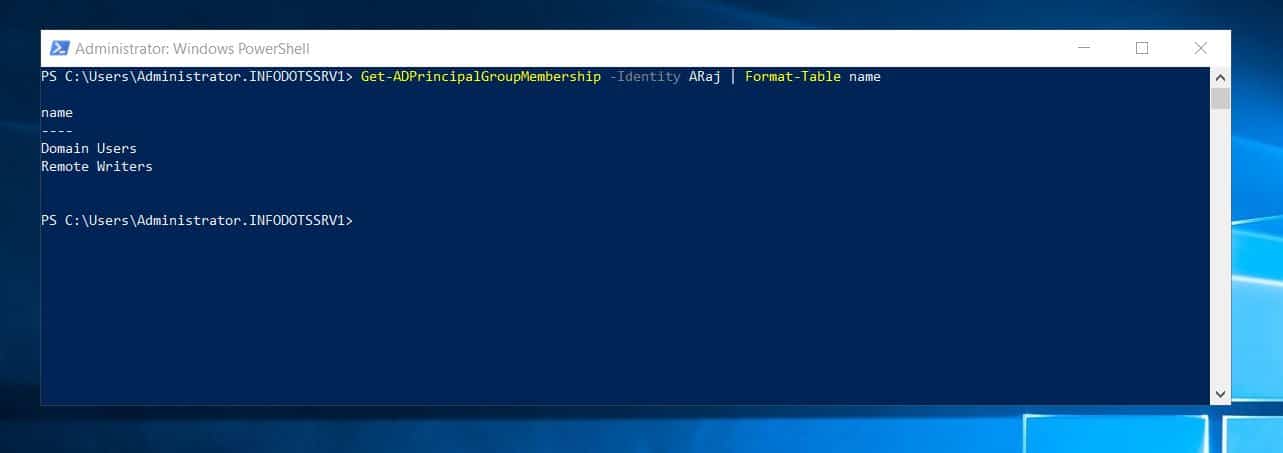
Alternatively, to remove the “name” column and display just the group names, use the command below…
(Get-ADPrincipalGroupMembership -Identity ARaj).name

Frequently Asked Questions
The fastest way to get the group membership of an AD user is via Active Directory Users and Computers (ADUC). To view a user’s AD group membership via ADUC, follow the steps below:
i) Open Active Directory Users and Computers and locate the user you want to see its group membership
ii) Right-click the user and select Properties
iii) Finally, click the Member Of tab. The user’s AD groups are listed in the Member Of tab.
Yes. There are multiple methods to check ad group membership for a computer.
However, the quickest way to get the AD group membership of a computer is via Active Directory Users and Computers (ADUC). To perform this task, open ADUCn and locate the computer object.
Then, right-click the computer object and select Properties. Finally, click the Member Of tab.
To export an AD user’s group membership to a text file, run the Get-ADPrincipalGroupMembership command and pipe the output to the Out-File command
You can use the net group command to see the members of an AD group in CMD.
To get AD Group Details in PowerShell, run the Get-ADGroup command.
Conclusion
SysAdmins get all sorts of requests. So, it shouldn’t surprise you if you get a request to report group membership for all (or certain) users in your domain.
Thankfully, in this guide, I have discussed four methods to get an AD group membership for a user.
Best Value
Specifically, I showed you how to perform this task using Active Directory Users and Computers and Active Directory Administrative Center. Additionally, I also discussed steps to get the group membership of an AD user via command prompt and PowerShell.
I provided multiple ways to perform this task to give you options and I hope you found the article useful. If you did, click on “Yes” beside the “Was this page helpful” question below.
You may also express your thoughts and opinions by using the “Leave a Comment” form at the bottom of this page.
Do these 3 things before closing this tab:
1Clear out junk files and repair common Windows errors2Fix the driver behind crashes, sound loss and screen glitches3Repair Windows errors before they cause bigger problemsFinally, if you enjoyed this article, why not enhance your Active Directory skills by reading more of our Windows PowerShell How-To Guides or Windows PowerShell Explained guides?
Quick Recap
Product prices and availability are accurate as of the date/time indicated and are subject to change. Any price and availability information displayed on Amazon at the time of purchase will apply.


