
Recommended Free Tools
iTechGuides is reader-supported. When you buy through links on our site, we may earn an affiliate commission. As an Amazon Associate I earn from qualifying purchases. Learn more
If your Android phone does not appear in Windows 11, first unlock it and select File Transfer in its USB notification. Then check the cable and USB port. A separate universal “MTP driver” download is not established as the fix: use Windows Update or Device Manager if Windows reports a driver problem, and get any manual driver only from your phone or PC manufacturer.
Make sure Android is set to transfer files
- Unlock your phone and connect it to the PC with USB.
- On the phone, tap the USB notification, often labelled “Charging this device via USB.”
- Select File Transfer, then check whether the phone appears in File Explorer.
Notification wording and menus vary by phone maker and Android version. Google notes that some of its current file-transfer instructions apply only to Android 14 and later; consult its Android file-transfer steps for device-specific details.
Rule out the cable, port, and phone
Some USB cables charge a phone but do not carry data. Try a known data-capable cable and another USB port. If possible, connect the phone to a second computer, and connect another data device to the original PC. These checks help distinguish a phone or cable problem from a Windows driver issue. Google recommends testing another cable and checking the phone and computer ports with other devices.
What’s actually slowing this PC down?
Pick the symptom - the matching free tool is one click away.
Check Windows’ device status before changing drivers
- Right-click Start and open Device Manager.
- Look for the phone under Portable Devices or another relevant category. If it is not listed, check for an Unknown device or an entry with a warning icon.
- Right-click the entry, choose Properties, and note the message and code under Device status.
- Use Microsoft’s Device Manager error-code guidance to choose a remedy for that code. Microsoft’s USB-C troubleshooting guidance also directs users to check the reported code for unrecognized USB devices.
Do not assume every code means the same thing. Microsoft’s guidance varies by status, and Code 28 has separate instructions.
#1 Best Overall

- High-Speed Data Transfer: This USB to USB cable supports USB 3.0 with a data transfer rate of up to 5 Gbps, 10x faster than USB 2.0. The USB A to A cable is ideal for connecting devices like USB switches and KVM switches, offering reliable, high-speed performance for efficient data transfer.
- Universal Compatibility: The USB male to male cable connects computers with a USB 3.0 Type A port (also compatible with USB 2.0) to a variety of USB peripherals. Use the USB A to USB A cable for connecting printers, scanners, keyboards, and more, ensuring broad device compatibility.
- Durable and Flexible Design: Engineered with premium materials, this USB to USB cord features molded strain-relief connectors for added durability and long-lasting performance. The grip treads on the connectors ensure easy plugging and unplugging, even in tight spaces.
- Superior Signal Performance: The USB Type A cable features the combination of gold-plated connectors, bare copper conductors, and foil & braid shielding enhances cable performance, providing error-free data transmission and fast charging speed. Enjoy stable, high-quality connections every time.
- Note on Compatibility: This Male to Male USB 3 cable is designed for connecting peripherals to a computer or laptop. Please note that it does not support connecting two computers directly. Ideal for use with devices such as USB hubs, switches, or external drives.
Update, reinstall, or roll back the driver
Check Windows Update first
Microsoft recommends Windows Update as the main route for driver updates. Open Settings > Windows Update and check for available updates, including optional driver updates if shown. Install relevant updates and restart if Windows requests it.
Update or reinstall from Device Manager
In Device Manager, right-click the affected phone or USB device and choose Update driver. If that does not resolve the issue, uninstall the affected device from Device Manager and restart the PC; Windows can then try to reinstall it.
Rank #2
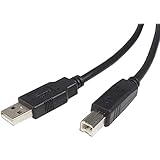
- - M/M
- USB cable
- USB (M) to USB Type B (M)
- USB 2.0
- 3 ft
Roll back a recent driver change
If the connection stopped working after a driver update, open the device’s Properties in Device Manager, select the Driver tab, and choose Roll Back Driver if the option is available.
Use a manufacturer’s driver for manual installation
If Windows Update and Device Manager do not resolve the error, check the official support page for your phone or PC manufacturer. Confirm that a driver is intended for your exact device and matches your Windows version and system architecture. Avoid third-party driver-download sites. Microsoft’s driver update instructions cover these Windows routes and manufacturer-sourced manual installation.
Rank #3
![AINOPE USB to USB Cable, 3.3FT*2Pack USB 3.0 A to A Male to Male Cable [Never Rupture] Double End Type A Cord for Data Transfer, Compatible with Hard Drive Enclosures, Laptop Cooler, KVM, DVD Player](https://m.media-amazon.com/images/I/41sZzg1maDL._SL160_.jpg)
- ⚡ WIDE COMPATIBILITY: AINOPE USB A to USB A cable connects a USB peripheral with USB 3.0 type A port to a computer for speedy file transfer. It compatible with Laptop, Laptop Cooling Pad,Smart TV,USB in car, DVD player, USB 3.0 hub, Monitor, Camera, Wacom, Blue-ray Drive, Set Top Box, 2.5-Inch External Hard Drive Enclosure with Type A port, and most USB 3.0 external hard drives with Type A port.
- ⚡NEVER RUPTURE & NYLON BRAIDED: Unique SR reinforced anti-breaking design, 20,000+ times bending test, premium durability, the solid and sturdy two-shade braided nylon shield gives the cable stronger protection and flexible performance than others and no need to worry about tangling, no more cable breakage worries
- ⚡SUPER SPEEDY AND STABLE TRANSFER: USB 3.0 data transfer rate is up to 5 Gbps, 10 times faster than USB 2.0. Backwards are compatible with computer USB 2.0 and USB 1.1 ports; The tinned copper conductors, Aluminum-foil and braid shielding provides superior cable performance, error-free data transmission
- ⚡PLUG & PLAY: No driver needed for the usb 3.0 A to A cable. Just plug-and-play for hard drive enclosures, laptop cooler, writing tablet, cameras, and other SuperSpeed USB peripherals
- 💓WHAT YOU GET:USB A TO USB A Cable*2 with sticky buckles,which can help you Keep the cable organized
Why an old MTP driver notice is not a Windows 11 download fix
Microsoft’s MTP-specific notice describes a historical Windows 10 version 1607 incident, not a general Windows 11 requirement. A third party released an incorrect WPD driver through Windows Update on March 8, 2017: “Microsoft – WPD – 2/22/2016 12:00:00 AM – 5.2.5326.4762.” Microsoft said it affected a small group of USB-connected phones and media devices using MTP, removed the update that day, and described a fix delivered in July 2018. That history does not establish that Windows 11 users should download a separate MTP driver. See Microsoft’s MTP/WPD support notice.
Quick Recap
Best Value

- Compatible Radio : - Series: BR950, PTX700, PTX760, PTX780. -: HT750, HT1250, HT1250LS, HT1250 LS+, HT1550, HT1550XLS. -MTP Series: MTP700, MTP750, MTP810Ex, MTP850Ex
Rank #4

- 🔍 【Choose The Perfect Length】 USB 3.0 (3.2 Gen 1) A Male to A Male cables of *** 3M/10ft and shorter are passive cables, supporting 5Gbps data transfer and 60W charging. *** 5M/15ft and longer are active cables designed for data transmission, supporting up to 5W power.
- ⚡ 【SuperSpeed 5Gbps Data Transfer】 Supports blazing-fast 5Gbps data sync for industrial equipment, scanners, POS systems, PCs and external storage. Fully compliant with USB 3.2 Gen 1 and backward compatible with USB 2.0/1.1 devices.
- 🔌 【Optional Aux Power for Stable Connections (5M/15ft+)】 This active repeater cable includes a dedicated aux power cable at the device end. Plug it into a USB power adapter or hub to reduce voltage drop over long distances for industrial and security equipment.
- 🛡️ 【Durable Aluminum-Reinforced Build】 The USB-A male to male connectors feature aluminum alloy Housings for superior durability, EMI shielding and efficient heat dissipation, perfect for heavy-duty industrial and professional use.
- 💡 【Ideal Long-Distance Solution & Important Note】 Our USB 3.0 (3.2 Gen 1) active cables provide reliable long-range data transmission for barcode scanners, label printers and POS systems. ***1. Cables ≤ 3M are passive cables and support bidirectional transmission. ***2. Cables ≥ 5M are active cables; the Host End connects to computers/laptops, and the Device End connects to peripherals. ***3. For cables with aux power, connect the auxiliary power cable first for optimal performance before plugging into the host device.
Choose another transfer method if USB is not practical
| Method | Cable | What it requires | What it does not do |
|---|---|---|---|
| USB File Transfer | Yes | A data-capable cable and File Transfer mode on the phone. | It does not bypass a faulty USB connection or repair a Windows driver error. |
| Quick Share | No | Compatible Android and Windows devices and setup; availability and requirements vary. Check Google’s Quick Share guidance for your region and devices. | It does not repair the USB MTP connection. |
| Phone access in File Explorer through Link to Windows | No USB transfer cable required for the paired-phone feature | Windows 11, Android 11 or later, and Link to Windows version 1.24072.258.0 or later. Microsoft says only one mobile device can appear in File Explorer at a time. See Microsoft’s setup instructions. | It does not repair USB MTP; it provides a separate way to access files. |
Product prices and availability are accurate as of the date/time indicated and are subject to change. Any price and availability information displayed on Amazon at the time of purchase will apply.

