
Do these 3 things before closing this tab:
1Scan for outdated or missing drivers - takes under a minute2Repair Windows errors before they cause bigger problems3Fix the driver behind crashes, sound loss and screen glitchesiTechGuides is reader-supported. When you buy through links on our site, we may earn an affiliate commission. As an Amazon Associate I earn from qualifying purchases. Learn more
Some do, but everyday device use is not the same as being taught keyboarding or broader computer skills. A 2024 survey found that schools use different approaches to typing instruction; it does not show that every child learns—or fails to learn—those skills. And while U.S. eighth graders showed gaps in broader digital literacy assessments, those tests did not measure typing speed or whether students know Ctrl+X.
Do kids still learn how to type?
Yes, some schools teach typing, but the evidence does not support saying that children categorically no longer learn it. In a 2024 report on an EdWeek Research Center survey, half of school and district leaders said students learned typing as a skill in regular classroom instruction. Eight percent said their school or district offered a standalone keyboarding class, and another 11% said keyboarding was taught both in a standalone class and in regular classrooms. These are administrator reports about instructional formats—not counts of students, a measure of proficiency, or proof of what any particular child has learned. Education Week’s report on the survey describes those findings.
Keyboarding can be a class or a skill practiced across subjects
A dedicated keyboarding class gives students focused time to learn technique. Practice embedded in ordinary classroom work lets them apply that technique while writing, researching, or completing assignments. The survey figures show that schools report using more than one format; they do not establish which approach produces better results.
What’s actually slowing this PC down?
Pick the symptom - the matching free tool is one click away.
New York State Education Department guidance offers one example of a gradual approach, not a national requirement. In kindergarten and grade 1, students explore keyboards and become familiar with letter and number placement. Grade 2 introduces keys such as Enter, Space, Backspace, Delete, and Shift, along with home-row positioning, posture, and hand placement. In grades 3–4, the guidance calls for direct, consistent instruction and emphasizes technique over speed. Grades 5–6 continue formal or informal instruction. It also recommends practice across subjects while keeping keyboarding alongside instruction in safety, security, ethics, research, creation, communication, and collaboration. See the New York technology literacy guidance.
#1 Best Overall

- Designed to look and feel like a grown-up computer, this first laptop for kids helps build basic computer skills using a full-size QWERTY keyboard and cursor controller
- Explore over 80 activities, including apps like a weekly calendar, notebook, and music player or games that explore subjects including math, science, language arts, music and Spanish
- Fully bilingual, every activity can be played in English or Spanish so kids can be immersed in a new language
- No internet connection is needed; every activity comes pre-loaded and is ready to play offline
- Intended for ages 5+ years; requires 4 AA batteries; batteries included for demo purposes only; new batteries recommended for regular use
Why device use does not prove computer literacy
Using a phone or tablet comfortably does not necessarily mean a student has learned to type on a physical keyboard, manage files, use shortcuts, or judge online information. These are different skills, and familiarity with apps should not be treated as evidence of either competence or incompetence with computers.
The 2023 International Computer and Information Literacy Study (ICILS) assessed eighth graders’ computer and information literacy and computational thinking. It did not directly test touch-typing fluency or shortcut recall. In its 2024 U.S. release, the National Center for Education Statistics reported that 25% of U.S. eighth graders did not reach the lowest computer and information literacy proficiency level. That result describes performance on the assessment; it does not mean that one-quarter cannot use a computer. Three percent reached the highest level, compared with 6% in the Republic of Korea. U.S. results declined in both tested areas since 2018; U.S. students were at the international average in computer and information literacy and below it in computational thinking. The NCES release on ICILS 2023 reports the results, and NCES’s ICILS methods and results page explains the assessment domains.
Rank #2

- Spell-Binding Fun: Dive into the Chuckle & Roar Pop It! ABC & Spelling Keyboard, where the magic of an optical reader lights up the right letters! Kiddos get hands-on guidance, transforming their spelling journey into a playful adventure
- Word Wizardry: With over 100 words to spell, little learners leap from recognizing letters to spelling actual words! This lively leap into early reading turns vocabulary-building into a delightful, screen-free quest, perfect for toddler puzzles ages 2-4
- Mode-tastic Learning: Three exciting modes keep letter practice, spelling, and interactive games ever-fresh! Keep your child's curiosity piqued and their skills growing as they explore this toddler puzzle delight that combines fun with learning
- Travel-Ready Wonder: The compact 5" x 9.75" x 0.1" design with built-in storage makes on-the-go learning a breeze! Whether it's road trips or playdates, this clever kit ensures all pieces stay together, perfect for toddler puzzles ages 2-4
- Sensory Delight: Soft silicone keys provide a tactile treat for little hands, making each press a joyful exploration! This sensory-rich experience encourages fine motor skills, creating learning moments that feel as good as they are educational
NCES Commissioner Peggy G. Carr said digital literacy is becoming as fundamental to education as numeracy and basic literacy, while many U.S. eighth graders struggle with skills such as determining whether online news and information is credible. That broader concern is important, but it is not evidence that students cannot type or use a keyboard shortcut.
The Tool Desk
Outbyte Driver Updater FREEFix the driver behind crashes, sound loss and screen glitchesFind Drivers →Outbyte PC Repair FREERepair Windows errors before they cause bigger problemsFix Now →What does Ctrl+X do?
In many common computer applications, Ctrl+X cuts the selected text or item so you can paste it elsewhere. For example, select a sentence in a document, press Ctrl+X, click a different spot, then press Ctrl+V to paste it there. Cutting removes the selection from its original location as part of the move. By contrast, Ctrl+C copies the selection without removing it, and Ctrl+V pastes the cut or copied content.
Rank #3

- Intelligent Board Game: Pop bubble push fidget toys is a board game that can exercise children's mathematical thinking, reasoning strategy, mental arithmetic, logical thinking and fine motor skills. It can be played with variety of rules. Players press down any number of bubbles in a single row , who press down the last one loses the game.
- Great for Anxiety & Stress Relief: Relieve stress and anxiety by simply playing with the pop bubble sensory fidget toy, or to simply pass the time. It is a great sensory fidget toy for the person with autism, the elderly, adults and children who need to relieve stress. It will effectively help to relieve anxiety and stress, restore the mood. “Pop, Pop, Pop” sounds very enjoyable and decompressed. The push it pop fidgets sensory toy is portable, can be played in a car, restaurant, school, etc.
- Gift for All Ages: A perfect gift for kids, families and friends.The bubble wrap fidget toy with mufti-use, it can be a game tool, it can also be a learning tool, both the elderly and the Kid can quickly learn to use the keyboard, and academic performance can be improved quickly. It can be a fun game and exercise thinking and logic skills. So the pop bubble sensory fidget toy is a great gift.
- Unique keyboard Design: This pop fidget is a great sensory keyboard. Multiple color and shape combinations, suitable for a variety of people and various occasions. Children can not only recognize more colors and shapes and parent-child games, but also learn 26 Letters, and learn how to use the keyboard. The novelty fidget toys set can be fun gifts for birthday party, rewards, educational tool, etc.
- Safety & Durable: Bubble pop is made of the BPA free silicone material with safety tested, it will not cause any harm to kids and pets. It’ s soft, comfortable, washable, durable, and it can be repeatedly pressed for a long time, can be reused and cleaned for a long time. You needn’t worry your kids toys will be broken any more.
Shortcuts can vary by application and operating system, so check the program’s own help if a key combination behaves differently. On a Mac, the usual equivalents use Command: ⌘+X to cut, ⌘+C to copy, and ⌘+V to paste. Microsoft’s common Windows application shortcuts and Office shortcuts for Mac document these conventions and their context.
Other useful shortcuts to practice
- Ctrl+A: Select all.
- Ctrl+Z: Undo the last action.
- Ctrl+F: Find text or an item.
- Ctrl+S: Save.
- Alt+Tab: Switch between open applications in Windows.
These are common Windows combinations, not guarantees for every app. On Mac, many corresponding commands use Command instead of Ctrl.
Rank #4
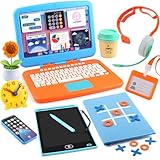
- UNLEASH THEIR INNER CEO: Let imaginations soar with this complete toddler pretend play office set! Features a realistic kids laptop with clickable buttons and 6 Velcro Apps, smartphone, LCD writing tablet, headphones, coffee cup, sunflower, clock, tablet case, ID card and more, everything for realistic career roleplay!
- LIGHTS, SOUNDS & REALISTIC ACTION: Interactive fun keeps playtime exciting! Type on the clickable laptop keyboard, make calls on the toddler phone with fun sounds & lights, "draw" on the mess-free LCD tablet, and check in with their official ID card—just like grown-ups!
- FUN AND EDUCATIONAL TOY: Pretend play builds communication, organization, fine motor skills, and social confidence. Bravilan pretend play for toddlers 3-5 sparks imagination, while the hands-on activities build fine motor skills and early career awareness. Ideal for curious minds eager to explore the world of work!
- HIGH QUALITY, REALISTIC DETAILS: Our toddler playset is crafted from durable materials, ensuring long-lasting play. The laptop folds up and features a keyboard with letters A-Z and numbers 1-10. It comes with six velcro "apps" that can be easily attached and removed. The fake headset with a microphone is designed to resemble real devices. Every detail is carefully designed to be realistic, enhancing the experience for children.
- SPECIAL DESIGN FOR A WONDERFUL GIFT: What makes this office special is not only the realistic laptop with clickable buttons, but also the LCD erasable tablet with a tablet case. It can store writing boards and also serve as a tic-tac-toe game, making the entire kit more engaging. The Play Office Set for Kids is ready to be gifted as a thoughtful present for Christmas, birthday, Easter baskets or other celebrations!
How can you teach a child keyboard skills at home?
You do not need a special workbook to start. Use an available keyboard and keep practice short and purposeful. Focus on accurate, comfortable technique before speed: New York’s guidance explicitly emphasizes technique over speed in grades 3–4.
Quick wins for a faster PC:
Repair Windows errors before they cause bigger problemsFix Now →Scan for outdated or missing drivers - takes under a minuteDriver Scan →Clear out junk files and repair common Windows errorsFree Scan →- Get familiar with the layout. Ask the child to find letters, numbers, Enter, Space, Backspace, Delete, and Shift. For younger children, simply exploring the keys can be a useful first step.
- Practice posture and hand placement. Show a comfortable seated position and where fingers rest on the home row. Correct habits matter more than racing through an exercise.
- Use a real task. Have the child type a few sentences, make a short list, or edit a paragraph. Ask them to use Backspace or Delete to correct a mistake rather than restarting.
- Introduce one shortcut at a time. In a document, demonstrate selecting a word or sentence, copying it with Ctrl+C, and pasting it with Ctrl+V. Then try Ctrl+X to move the selection. Explain that the keys may differ on a Mac or in a particular app.
- Reinforce skills during ordinary work. Invite the child to use keyboarding and shortcuts while writing or completing another computer task. Keep the aim practical use, not a speed record.
Typing is only one component of technology literacy. A balanced education also includes learning how to use information responsibly, communicate and create, and make informed judgments about online content.
Quick Recap
Product prices and availability are accurate as of the date/time indicated and are subject to change. Any price and availability information displayed on Amazon at the time of purchase will apply.

