
What’s actually slowing this PC down?
Pick the symptom - the matching free tool is one click away.
iTechGuides is reader-supported. When you buy through links on our site, we may earn an affiliate commission. As an Amazon Associate I earn from qualifying purchases. Learn more
Contour Touch is a Windows-focused external touchpad designed to sit in front of you, centered with your keyboard, rather than off to one side. It combines a touch surface, wrist rest, and programmable shortcut buttons, with wired USB and wireless Bluetooth versions. Contour lists Windows 10 and Windows 11 support. The available documentation explains its features and setup, but does not establish hands-on performance, long-term comfort, or value against competing devices.
What Contour Touch is—and who it may suit
Contour positions the Touch as a centered alternative to reaching for a mouse or using a laptop touchpad. Its touch surface registers taps and mechanical clicks; the company says it supports standard Windows multi-finger actions such as scrolling, panning, and zooming. The built-in wrist rest and shortcut buttons are part of the same desk-level control surface. Contour Touch product page and Contour’s launch announcement describe those features.
The layout may be worth considering if you want pointer control in front of your body, prefer touch gestures to a mouse, or want physical buttons for recurring commands. It is a less straightforward fit if you need a device documented for macOS or Linux, or if you expect a verified judgment on tracking feel, build quality, comfort over long sessions, or comparative value: the available sources do not establish those points.
Choose wired USB or wireless Bluetooth
| Version | Connection | Setup detail |
|---|---|---|
| Wired | USB | The included cable has a removable USB-A adapter, allowing use of its USB-C connector instead. Contour wired setup guide |
| Wireless | Bluetooth | Pair through Windows Bluetooth settings. The Touch pairs to one device at a time. Contour wireless setup guide and Contour help center |
For wireless re-pairing, hold the Bluetooth button for three seconds, then choose Contour Touch in Windows Bluetooth settings. Contour’s documentation describes a single paired device at a time, so do not assume it can switch among multiple computers without re-pairing. Contour help center
#1 Best Overall
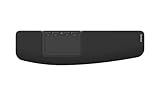
- ✅ ERGONOMIC TOUCHPAD FOR SHOULDER COMFORT: Contour Touch sits beneath your keyboard to eliminate reaching for a mouse. This centralized position helps keep your hands within shoulder width, reducing strain on your neck, shoulders & forearms.
- ✅ FAMILIAR, HIGH-PERFORMANCE INTERACTION: The high-resolution glass touchpad has a smooth surface for precise, effortless finger movements. The click-anywhere feature lets you interact naturally without being limited to specific zones.
- ✅ ADVANCED PRODUCTIVITY: There is native support for the usual Windows multi finger gestures. Scroll, zoom, back and forward navigation to keep you productive while on your computer. And the four shortcut buttons (Copy/Paste, Back/Forward) help you stay efficient too. Contour Touch is designed to be a higher performance trackpad for Windows users, and it is not compatible with Mac.
- ✅ CUSTOMIZABLE EXPERIENCE TO MEET YOUR NEEDS: Touchpad speed settings and commands can be changed in the Windows settings menu or on the Contour Driver, so you can customize your touchpad to your needs. The 4 buttons above the touchpad area are also customizable with Contour Driver.
- ✅ HIGH LEVEL OF COMFORT: With a full-size wrist rest, you get truly comfortable wrist and palm support while using your keyboard. The smooth surface provides frictionless transition between typing and mousing or computer navigation.
Compatibility and Windows controls
Contour lists Windows 10 and Windows 11 as supported operating systems. The supplied product documentation does not establish macOS or Linux compatibility. If the computer is managed by an employer or has restricted Bluetooth or USB access, check its device policies before choosing a connection type. Contour help center
Change cursor speed and gestures
Contour directs users to Windows Settings for cursor speed and touchpad gesture controls. Microsoft’s gesture guide covers tapping to select, two-finger scrolling, pinch-to-zoom, right-click by two-finger tap or lower-right-corner press, and three- or four-finger gestures for navigating windows and desktops. Microsoft notes that some gestures require a Precision Touchpad; the available Contour sources do not establish whether Touch has that classification. Do not infer that every gesture in Microsoft’s guide will therefore be available. Contour help center and Microsoft Support: Windows touch gestures
Rank #2

- ✅ ERGONOMIC TOUCHPAD FOR SHOULDER COMFORT: Contour Touch sits beneath your keyboard to eliminate reaching for a mouse. This centralized position helps keep your hands within shoulder width, reducing strain on your neck, shoulders & forearms.
- ✅ FAMILIAR, HIGH-PERFORMANCE INTERACTION: The high-resolution glass touchpad has a smooth surface for precise, effortless finger movements. The click-anywhere feature lets you interact naturally without being limited to specific zones.
- ✅ ADVANCED PRODUCTIVITY: There is native support for the usual Windows multi finger gestures. Scroll, zoom, back and forward navigation to keep you productive while on your computer. And the four shortcut buttons (Copy/Paste, Back/Forward) help you stay efficient too. Contour Touch is designed to be a higher performance trackpad for Windows users & it's not compatible with Mac.
- ✅ CUSTOMIZABLE EXPERIENCE TO MEET YOUR NEEDS: Touchpad speed settings and commands can be changed in the Windows settings menu or on the Contour Driver, so you can customize your touchpad to your needs. The 4 buttons above the touchpad area are also customizable with Contour Driver.
- ✅ HIGH LEVEL OF COMFORT: With a full-size wrist rest, you get truly comfortable wrist and palm support while using your keyboard. The smooth surface provides frictionless transition between typing and mousing or computer navigation.
Customize the physical buttons
Contour’s software can assign actions such as undo and redo, configure user-defined macros, disable buttons, and update firmware. That customization is separate from the gesture and cursor controls in Windows Settings. Contour help center
Free tools Windows power users keep installed
One-click scans. No signup required.
Turn off tap-to-click or corner right-click
If accidental input is a concern, Contour’s help instructions explain how to disable tap-to-click and the lower-right-corner right-click action through Windows touchpad settings. The exact options can depend on the Windows device and its touchpad controls. Contour help center
Rank #3
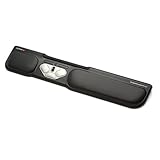
- ✅ ERGONOMIC CENTERED DESIGN FOR PAIN-FREE PRODUCTIVITY : Say goodbye to shoulder, neck, arm & wrist strain. The RollerMouse Pro3 sits directly in front of your keyboard, keeping your hands within shoulder width and eliminating the need to reach, grip or move a mouse - ideal for users with carpal tunnel, tendonitis or who want to prevent repetitive strain injuries (RSI).
- ✅ NO GRIPPING, NO MOVING HANDS, LESS FATIGUE : Control your cursor effortlessly by using any finger. The Rollerbar allows smooth, accurate cursor movement & tap to click functionality - no need to grip or drag a mouse, reducing fatigue & tension.
- ✅ PREVENTION AND RELIEF FOR RSI & CARPAL TUNNEL : RollerMouse Pro3 is designed to reduce repetitive movements, offering a healthier, more comfortable alternative for users facing discomfort or users with carpal tunnel syndrome, Tennis Elbow or similar conditions.
- ✅ WORK FASTER WITH ONE-TOUCH SHORTCUTS : Boost your productivity with built-in Copy and Paste buttons. Customize five programmable buttons to streamline specific tasks in data entry, finance or software that demands extensive mouse use.
- ✅ CUSTOMIZABLE CURSOR SPEED FOR PRECISION & WORKFLOW : Seamlessly transition between 10 adjustable cursor speed settings (800-2400 dpi). Whether you’re working on content navigation and editing, daily emails or spreadsheets, CRM or ERP software or casual browsing, you’ll always have the precision you need.
Set up the centered layout
Contour’s recommended alignment is to line up the keyboard’s H key, the touchpad’s center, the monitor, and your body. It also advises keeping the keyboard close and placing the Touch far enough from the desk edge to leave room for forearm support. Its posture suggestions are to relax the shoulders, keep elbows near the body, hold forearms parallel to the floor, and keep wrists straight. These are manufacturer setup recommendations, not evidence of a proven medical or pain-reduction outcome. Contour wired setup guide and Contour wireless setup guide
Contour says the included SnapLinks can attach the Touch to its Balance Full-Size Keyboard to help with alignment and stability. The documentation establishes that pairing specifically; it does not say SnapLinks attach to arbitrary keyboards. Contour help center
Rank #4

- ✅ CUSTOMIZABLE 5-BUTTON CONTROL: Five programmable buttons and an intuitive scroll wheel put productivity shortcuts at your fingertips. You can change the settings to copy/paste or switch apps with a click and adjust cursor speed between 600 to 4000 DPI for precise design tasks or faster navigation when you need it.
- ✅ AMBIDEXTROUS CENTERED DESIGN: Symmetrical layout works for left- or right-handed users and promotes alternating hands when in use. The centered design encourages you to use your fingertips with light movements to control the cursor – reducing repetitive strain and fatigue over long hours.
- ✅ COMPACT TRAVEL-FRIENDLY MOUSE: The slim, lightweight aluminum build fits easily in any bag, making it perfect for remote work and travel. The included cover folds into a wrist rest for support and protects the mouse on the go, so you have ergonomic comfort anywhere you need.
- ✅ VERSATILE WIRELESS CONNECTIVITY: Enjoy plug-and-play use on both Mac and PC, with no drivers needed – ideal for hybrid work environments and moving between laptop and desktop.
- ✅ CUSTOMIZABLE 5-BUTTON CONTROL: Five programmable buttons and an intuitive scroll wheel put productivity shortcuts at your fingertips. You can change the settings to copy/paste or switch apps with a click and adjust cursor speed between 600 to 4000 DPI for precise design tasks or faster navigation when you need it.
What the available evidence does—and does not—say
Contour’s product page displayed a $119 listing and “Out of stock” in the search result captured for this article. That is a dated listing observation, not confirmation of today’s price or inventory. Check the product page for current availability before buying. Contour Touch product page
The same product page includes a “9 out of 10 users” claim, but the surfaced information does not identify the survey sample, method, or publication year. It is not enough to treat the figure as an established independent statistic. The available material also does not provide an independent hands-on comparison or measured comfort results. Buyers who care about tactile feel, fit, or sustained-use comfort should look for an opportunity to try the device or consult evidence that directly evaluates those points.
Best Value

- ✅ MAXIMUM PAIN RELIEF WHILE YOU’RE WORKING: Balance Full-Size is not only ergonomically enhanced - it’s the perfect partner to Contour Touch. The centrally located touchpad of this ergonomic touchpad is positioned in front of you, so there’s no need to reach to the side. The result is a smoother workflow, less shoulder pain & increased daily comfort.
- ✅ FAMILIAR, HIGH-PERFORMANCE INTERACTION: The high-resolution glass touchpad has a smooth surface for precise, effortless finger movements. The click-anywhere feature lets you interact naturally without being limited to specific zones.
- ✅ EXTRA COMFORTABLE TYPING EXPERIENCE: Balance keyboard features a finely-tuned scissor key system that delivers a smooth, responsive typing feel with every keystroke. & the ergonomically designed keycaps are “dished” to the curve of your fingertips, for greater precision & comfort. The result is softer, faster, more relaxed typing that is the definition of comfort.
- ✅ ADVANCED TOUCHPAD:There is native support for the usual Windows finger commands – scroll, zoom, back & forward navigation to keep you productive while on your computer. Couple Touch's four shortcut buttons (Copy/Paste, Back/Forward) with Balance Fulsize's 18 customizable shortcut keys & you'll be able to take productivity to the next level.
- ✅ HIGH LEVEL OF COMFORT: With a full-size wrist rest, you get truly comfortable wrist & palm support while using your computer. The smooth surface provides frictionless transition between typing & mousing or computer navigation.
Frequently Asked Questions
Will I have to relearn how to use my computer with Contour Touch?
Contour says the Touch works like a traditional touchpad. Its supported operating systems are Windows 10 and Windows 11; gesture availability can vary, and Microsoft notes that some Windows gestures require a Precision Touchpad.
Can I pair the wireless touchpad to multiple devices?
Contour says it pairs to one device at a time. To pair again, hold the Bluetooth button for three seconds and select Contour Touch in Windows Bluetooth settings.
Quick Recap
Product prices and availability are accurate as of the date/time indicated and are subject to change. Any price and availability information displayed on Amazon at the time of purchase will apply.
Do these 3 things before closing this tab:
1Fix the driver behind crashes, sound loss and screen glitches2Repair Windows errors before they cause bigger problems3Scan for outdated or missing drivers - takes under a minute
