
Quick wins for a faster PC:
Scan for outdated or missing drivers - takes under a minuteDriver Scan →Repair Windows errors before they cause bigger problemsFix Now →Fix the driver behind crashes, sound loss and screen glitchesFind Drivers →iTechGuides is reader-supported. When you buy through links on our site, we may earn an affiliate commission. As an Amazon Associate I earn from qualifying purchases. Learn more
Sometimes. In Chrome on Android, Google says the device screen lock—such as a PIN or passcode—is used if the device does not support biometrics. Google does not document a setting that always lets you choose PIN instead of fingerprint or face authentication when biometrics are supported. The answer can also differ when another password manager or app handles autofill.
When Chrome can use your phone PIN
Google Chrome Help says: “If your device doesn’t support biometrics, Chrome uses your default device screen lock like password or passcode instead.” That describes a fallback for devices without biometric support; it is not a general PIN-only override for devices that do support biometrics.
Chrome’s relevant setting is Verify it’s you when filling sensitive info. To find it, open Chrome and go to More → Settings → Passwords and Autofill → Autofill settings. The menu wording or location may change in a Chrome update.
Do these 3 things before closing this tab:
1Scan for outdated or missing drivers - takes under a minute2Clear out junk files and repair common Windows errors3Fix the driver behind crashes, sound loss and screen glitchesWith the setting on, Chrome adds an authentication check when filling sensitive information. If you turn it off, Chrome will not show the screen-lock or biometric authentication step for that autofill. That removes the extra check; it does not switch the check from biometrics to your PIN.
#1 Best Overall
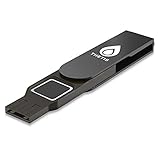
- Embedded Fingerprint Sensor - Advanced embedded fingerprint sensor which facilitates a world-class one-of-a-kind password-less experience. A powerful security chip with state-of-the-art cryptographic algorithms ensures protection of online accounts and passwords.
- Password-less Future - Created with FIDO2 certification, experience a password-less future in an interoperable authentication process and make daily log-in experiences easy, instant, and protective for an advanced and revolutionary style of password-less security. **Note: FIDO2 does not support Mac log-in.
- U2F Backwards Compatibility - Thetis FIDO2 Fingerprint Key is backwards compatible with any and all websites that follow U2F protocols and work side-by-side with the newest Chrome browser and other popular operating systems such as: Windows, MacOS, Linux, and more. Note: Only Enterprise Users using Azure Active Directory can access Windows Hello log-in via Thetis FIDO2 Fingerprint Security Key.
- Multi-layered Authentication - Created with world-renowned HOTP (One Time Password) technology which creates a password-less solution to standard tokens. The leading multi-factored authentication process is with Thetis security key.
- Take It Anywhere - Designed to be small and compact to fit and be taken anywhere: car keys, pocket, purse, etc.
Why another autofill flow may behave differently
Android’s Autofill framework, available from Android 8.0 (API 26), lets autofill services provide credentials to apps. A password manager or other provider can implement its own authentication behavior, so Chrome’s setting does not necessarily control autofill in another browser or app. Google documents support for third-party autofill services in Chrome, but that does not mean every provider has the same PIN options.
Android Developers uses DEVICE_CREDENTIAL for authentication with the screen-lock PIN, pattern, or password. The platform can allow an app to accept that credential, sometimes alongside a strong biometric. This developer capability does not guarantee that a particular password manager offers a consumer-facing PIN-only choice.
Rank #2

- FIDO-ONLY FUNCTIONALITY: Supports FIDO2 (passkeys) and FIDO U2F protocols for passwordless and second-factor authentication. Does not support OTP, TOTP, Smart Card (PIV), or other advanced features - upgrade to YubiKey 5 Series for extended functionality
- SECURE AND CONVENIENT: Passwordless MFA login with the YubiKey Bio authenticator and biometric information using a fingerprint, with a PIN as a fallback. Simply plug in via USB and use your fingerprint to authenticate
- DEVICE & OS COMPATIBILITY: Compatible with Windows, macOS, ChromeOS, and Linux. Works seamlessly with supported services like Google and Microsoft accounts, and major password managers. See the full compatibility list at "Works With YubiKey"
- DURABLE & RELIABLE: Resistant to tampering, water, and crushing. No batteries or network connectivity required, offering dependable authentication without any downtime. Securely manufactured in USA & Sweden
- Yubico Authenticator App - Fingerprint enrollment, passkey management and PIN configuration available via the app app - Upgrade to YubiKey 5 Series to generate one-time-passwords (OTP) via Yubico Authenticator and for advanced compatibility (OATH, PIV)
Android’s Credential Manager is related to autofill but is not the only credential-filling path: enabled credential providers can surface credentials in its UI, while providers not registered with it may continue using the Autofill framework. A prompt’s behavior therefore depends on the app, provider, and route being used.
Recommended Free Tools
Quick Recap
Rank #4
![ineo USB Fingerprint Reader for Windows Hello, Compact Plug and Play Security Key, Silver [Not for Mac]](https://m.media-amazon.com/images/I/41kpVE976ZL._SL160_.jpg)
- Instant Windows Hello Integration: Quickly unlock your Windows 10/11 PC with your fingerprint. No need to type passwords—just one touch for fast and secure access. Works directly with Windows Hello, no extra software needed.
- Plug & Play Simplicity: No drivers needed for genuine Windows systems—just plug it in and it works. Automatically recognized in most cases (95%+ compatibility). Tip: Manual driver update may be required for non-genuine systems.
- USB Fingerprint Reader: A compact metal fingerprint scanner for PCs and laptops that makes logging in quick and easy—just plug it into any USB port and start using it. Its ultra-portable design fits perfectly in your laptop bag.
- Microsoft-Certified Security: Fully supports Windows Hello and the Windows Biometric Framework for safe and reliable login. Features high accuracy (0.001% false acceptance / 0.1% false rejection) to keep your data secure. Also supports password and file encryption for most websites.
- Multi-User Flexibility: Store up to 10 fingerprints—perfect for shared devices at home or work. Enjoy fast and smooth access with lightning-speed authentication in under 0.5 seconds.
Rank #3

- Supports FIDO2 biometric authentication services and FIDO U2F services requiring security key functionality. Secure and flexible authentication across multiple platforms.
- Exceptional biometric performance, 360° readability, and advanced anti-spoofing technology.
- Designed for portability, it comes with a cover to protect the security key when not in use.
- Aligns with cybersecurity measures that comply with key privacy laws and regulations, including GDPR, BIPA, and CCPA. Approved for use in U.S. federal government institutions.
- Passkey compatibility with Microsoft, Google, and Apple for a convenient and secure sign-in experience. Certified for Microsoft Entra ID for secure multifactor integration with Microsoft services.
Check these settings if Chrome asks for a fingerprint
- Confirm the setting: In Chrome, go to More → Settings → Passwords and Autofill → Autofill settings and look for Verify it’s you when filling sensitive info.
- Check whether Chrome documents a fallback for your situation: Google describes using the default screen lock when biometrics are not supported. If biometrics are available, its documentation does not promise a manual PIN-only selection.
- Identify the active provider: If the password is filled in another app or through a non-Google password manager, check that provider’s own authentication settings and documentation.
- Consider device security features: Android’s Identity Check can require biometrics for certain sensitive actions in specified contexts. Google’s help page lists Google Password Manager autofill in apps among those actions, while expressly excepting Chrome from that item. It is a context-specific device feature, not a universal Android autofill rule.
Which situation applies?
| Where you fill a password | What the documentation establishes | What to check |
|---|---|---|
| Chrome, on a device without biometric support | Chrome uses the default device screen lock, such as a password or passcode. | Chrome’s “Verify it’s you when filling sensitive info” setting. |
| Chrome, on a device with biometrics supported | A PIN-only override is not established by Google’s documentation. | The same Chrome setting; turning it off removes the extra authentication prompt rather than replacing it with a PIN. |
| Another app or browser using an autofill provider | Authentication behavior can depend on the provider and the autofill route. | The provider’s own authentication controls and any relevant device security feature. |
Product prices and availability are accurate as of the date/time indicated and are subject to change. Any price and availability information displayed on Amazon at the time of purchase will apply.

