
What’s actually slowing this PC down?
Pick the symptom - the matching free tool is one click away.
iTechGuides is reader-supported. When you buy through links on our site, we may earn an affiliate commission. As an Amazon Associate I earn from qualifying purchases. Learn more
Yes, but not by sending an Icecast mountpoint directly to YouTube. YouTube Live accepts AAC audio when it arrives through a compatible encoder using a documented ingest protocol such as RTMP/RTMPS or HLS. Icecast serves a listener-facing stream, and its project describes AAC as a format that might work but is not officially supported. In practice, you need a compatible encoder or bridge between the Icecast AAC stream and YouTube Live, then must test that exact chain.
Why an Icecast AAC URL is not a YouTube ingest URL
Icecast and YouTube have different roles in the chain. A source client sends media to an Icecast server at a mountpoint; listeners connect to that mountpoint to receive the stream. YouTube’s documented live workflows instead have an encoder send a stream to YouTube over RTMP/RTMPS or HLS. YouTube’s acceptance of AAC describes an audio codec the encoder may send; it does not make an Icecast listener URL a YouTube ingest endpoint. Icecast’s basic setup documentation describes the source, server, and listener roles, while YouTube’s encoder settings guidance lists its live protocols and codecs.
| # | Preview | Product | Price | |
|---|---|---|---|---|
| 1 |
|
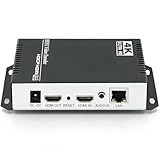
HEVC H265 H264 AVC 4K 1080P HDMI to Ethernet IP Video Audio Encoder Hardware Supports RTSP RTMPS HLS... | $199.00 | Buy on Amazon |
There is a second compatibility caveat: Icecast’s FAQ says AAC might work but is not officially supported. Whether a particular mountpoint can be consumed depends on details such as Icecast version, source client, AAC framing, and the receiving encoder. Treat the combination as something to validate, not a guaranteed format path.
Recommended Free Tools
What YouTube accepts: RTMP/RTMPS or HLS
YouTube documents two relevant ingest choices. In either case, the encoder—not the Icecast mountpoint itself—must create and send the YouTube-facing stream. YouTube recommends testing with similar audio and video before going live and monitoring stream health. Its live encoder settings page recommends stereo audio at 44.1 kHz and 128 kbps; these are recommendations, not universal requirements.
#1 Best Overall
- 【Innovative Product with Leading Technology】- Equipped with an advanced H.265 /H.264 dual encoding chip, supports 4K UHD (3840x2160) video input and output, with a maximum frame rate of 30fps at 4K resolution and up to 120fps at 2K and lower resolutions, delivering a smooth and detailed visual experience. It also supports HDCP 1.4 decryption, easily decoding various HDMI ultra HD video sources, delivering a cinematic visual experience for both professional live streaming and 4K ultra HD content transmission.
- 【Multi-protocol and Multi-platform Compatibility】- Fully compatible with streaming protocols such as HTTP, RTSP, RTMP(S), SRT, HLS(M3U8), MP4, Multicast(UDP, RTP, PTL), ONVIF, FLV, WebRTC, TRTC, ICECAST, it can simultaneously output 4 video streams with different protocols and push them to live streaming platforms such as YouTube, Facebook, Twitch, and Vimeo with one click. Simultaneous live streaming across multiple platforms can be achieved without additional equipment.
- 【Highly Customizable Settings to Meet Individual Needs】- It supports adding static text, scrolling captions, brand logos, and timestamps. Users can freely adjust core parameters such as video resolution, frame rate, and bitrate, and also perform personalized editing functions such as video cropping, rotation, flipping, and mirroring. It supports dual input of HDMI embedded audio and line-in audio, with adjustable sound quality, making your live stream content more distinctive and allowing you to create a unique brand live stream style.
- 【Stable and Efficient Transmission, Easy Operation】- Employing HDMI to Ethernet core connection technology, it ensures stable and reliable network transmission with low latency and no lag, adapting to various network environments. Equipped with an intuitive user interface and detailed instruction manual, no professional technical background is required; setup can be completed quickly after connecting the device. It is also compatible with multiple terminals such as computers and mobile phones for management, and the video stream status can be viewed in real time via a URL.
- 【Lifetime Free Warranty and Technical Supports】- All URayCoder video codecs come with a lifetime free warranty and technical supports, supporting secondary development and feature customization to meet enterprise-level personalized needs. Meanwhile, we providing many kinds of customization services such as shell pattern printing, logo addition, hardware and function development, ensuring reliable quality and worry-free after-sales service.
| Ingest path | Audio and audio settings | Packaging and latency | When it fits |
|---|---|---|---|
| RTMP/RTMPS | YouTube lists AAC or MP3. Its recommended stereo setting is 44.1 kHz at 128 kbps. | Continuous encoder stream; no HLS segment or rolling-playlist requirements are listed on the cited settings page. | The conventional choice for a compatible encoder sending a continuous live stream. |
| HLS | YouTube lists AAC, AC3, and EAC3. Its recommended stereo setting is 44.1 kHz at 128 kbps. | Requires TS segments of 1–4 seconds, a rolling playlist with no more than five outstanding segments, HTTPS POST/PUT, and a stream key configured for HLS. YouTube notes higher latency than RTMP. | Use when the encoder/output workflow is designed for YouTube HLS and can meet its packaging requirements. |
These protocol and format details come from YouTube’s RTMP/RTMPS encoder settings and HLS setup guidance. HLS is not simply an Icecast URL pasted into a different box: the encoder must produce the required segmented output and use an HLS-configured stream key.
How to bridge an Icecast AAC stream to YouTube Live
The steps below describe the workflow implied by the documented roles of Icecast and YouTube. They are not an Icecast-specific, tested recipe: the available documentation does not establish one universal encoder or input configuration for every AAC mountpoint.
- Verify the mountpoint. Play it in a client, then identify its actual stream type, content type, and AAC framing. Do not infer compatibility solely from a URL playing in a browser or media player. Icecast’s FAQ cautions that AAC is not officially supported: Icecast FAQ.
- Choose an encoder or transcoding bridge that can consume that specific input. Configure it to read the Icecast mountpoint. If it cannot ingest the stream as served, add a compatible capture or transcoding step. The bridge must output a complete stream using YouTube’s selected ingest protocol; a plain relay of the Icecast URL is not enough. Icecast’s documented role is serving mountpoints to listeners, while YouTube documents encoder ingest: Icecast basic setup and YouTube encoder settings.
- Set up the YouTube live event and credentials. In YouTube Live Control Room, create or select the stream, choose the appropriate ingest protocol, and copy the stream URL and key into the encoder. YouTube says the watch page is created when the encoder starts sending content. Follow YouTube’s encoder setup workflow and keep the key private.
- Set the audio output. For a conventional stereo RTMP/RTMPS stream, use AAC at 44.1 kHz and 128 kbps as YouTube’s recommended settings. If using HLS, make sure the encoder supports AAC output and meets YouTube’s HLS transport and segment requirements. Verify what the encoder actually emits; the codec chosen at the Icecast source does not prove the bridge preserves or packages it correctly.
- Test before the broadcast. Start the encoder and inspect YouTube’s preview and stream health. Listen for continuous audio, dropouts, channel balance, and synchronization; also check whether metadata or track changes behave as intended for your radio format. YouTube recommends testing and monitoring, but does not provide an Icecast-specific validation procedure: encoder settings guidance.
- Start the public broadcast only after the chain is stable. Confirm YouTube is receiving the feed and that the intended event is live. YouTube states that streams under 12 hours are automatically archived; do not assume that a longer broadcast will be archived in full. See YouTube’s encoder workflow.
Common problems and what to check
- The encoder rejects the Icecast URL: The encoder may not support that mountpoint’s AAC stream or framing. Check the mountpoint’s actual type and the encoder’s supported inputs; add a compatible capture or transcoding stage rather than assuming every AAC URL is ingestible.
- YouTube receives no signal: Check that the encoder is sending to the YouTube stream URL with the matching key, and that the chosen output protocol matches the stream configuration. YouTube’s workflow requires copying the URL and key from Live Control Room into the encoder: Create a live stream with an encoder.
- HLS output is rejected or delayed: Confirm TS segments are 1–4 seconds, the rolling playlist has no more than five outstanding segments, requests use HTTPS POST/PUT, and the stream key is configured for HLS. Expect higher latency than RTMP. See YouTube HLS setup.
- Audio is silent, broken, or intermittent: Inspect the AAC framing and content type at the Icecast mount and confirm the bridge decodes it correctly before it encodes or packages the YouTube output. Icecast does not officially support AAC, so a mountpoint working for one listener does not establish that every encoder can read it: Icecast FAQ.
- Audio quality or compatibility is inconsistent: Check the bridge’s actual output sample rate, channel count, bitrate, and codec against the selected YouTube path. For stereo, YouTube recommends 44.1 kHz and 128 kbps; test the whole chain rather than relying on the source’s stated format: YouTube encoder settings.
Copyright and continuous-radio considerations
Technical acceptance does not establish that you have permission to broadcast the audio. Before streaming music, confirm that your rights or licenses cover live transmission on YouTube and consider the platform’s copyright rules. A technically stable radio feed can still be interrupted or restricted for rights reasons.
Free tools Windows power users keep installed
One-click scans. No signup required.
For a long-running broadcast, distinguish the radio source from the YouTube publishing pipeline: the Icecast mount supplies audio, while the bridge and YouTube encoder connection must remain healthy. Plan how you will detect a failed input or ingest connection and test recovery before relying on unattended operation.
Or let it run in the cloud
If your goal is to keep uploaded radio recordings playing on a YouTube channel, StreamNeo is a separate cloud option: upload a recording or build a playlist, add your YouTube stream key, and go live. It plays uploaded videos rather than taking a live feed from an Icecast mountpoint or camera, so it is not a direct substitute for bridging an active Icecast radio stream.
- Nothing has to stay on at home; the stream runs from the cloud.
- Each slot streams uploaded video as made, up to 4K 60fps, at one flat price per slot.
- It automatically recovers if YouTube drops the stream.
- The first day is free with no card required (one free day per account).
Monthly: $9.99 per month. Learn more at StreamNeo, or start the free day.
Quick Recap
Product prices and availability are accurate as of the date/time indicated and are subject to change. Any price and availability information displayed on Amazon at the time of purchase will apply.

