
iTechGuides is reader-supported. When you buy through links on our site, we may earn an affiliate commission. As an Amazon Associate I earn from qualifying purchases. Learn more
For most internet radio stations, OBS Studio is the best straightforward choice for sending a radio feed to YouTube Live: it combines the station’s audio with artwork, a video loop, or other graphics, then sends the result to YouTube as an encoded video stream. If your station already runs AzuraCast, its Liquidsoap radio-video example may be a better fit for an automated server-side setup. Mixxx and BUTT are useful for sending a DJ feed to an internet-radio server, but they are not, by themselves, equivalent to a YouTube video encoder.
Which software fits your station?
| Station’s situation | Best-fit option | What it does | Main trade-off |
|---|---|---|---|
| You need visuals, scenes, and a desktop YouTube encoder | OBS Studio | Combines a station audio source with a visual presentation and sends the encoded stream to YouTube. | The computer, audio route, and OBS setup must stay running and be maintained during the broadcast. |
| You already operate AzuraCast and want an automated radio-plus-video output | AzuraCast Liquidsoap radio-video example | The project example pairs radio audio with a video loop for an RTMP destination such as YouTube, and can display now-playing text. | It is an example script, not a turnkey integration established as currently supported; it requires server configuration and maintenance. |
| You need to send a live DJ/program feed to an internet-radio server | Mixxx or BUTT | These can be used for DJ connections to Icecast or Shoutcast. | That role does not, on its own, provide the YouTube video-encoding workflow. Route the audio to an encoder such as OBS if you also need YouTube. |
| You want YouTube to keep playing uploaded recordings while your computer is off | StreamNeo | It runs an uploaded video or playlist from the cloud as a YouTube live stream, with any uploaded quality up to 4K 60fps at one flat price per slot; the first day is free. | It plays uploaded videos, not a live microphone, DJ, or radio feed, so it is not a replacement for a live station audio source. |
OBS is the most flexible uncomplicated desktop recommendation for a radio simulcast, based on YouTube’s encoder workflow and Mixxx’s guidance for adding its audio to OBS; this is a practical fit, not a measured reliability or performance winner. Choose according to your existing infrastructure, whether you need a visual loop or song text, how audio reaches the encoder, and who will keep the system running.
Send a radio station to YouTube with OBS
YouTube’s encoder workflow uses a stream URL (also called a server URL) and a stream key from YouTube Studio. An encoder converts the production into a digital format for YouTube; OBS can serve as that encoder and scene builder.
- Choose a clean audio source. Decide where the station feed enters the computer—for example, an audio output from the station system or Mixxx audio routed into OBS. Avoid capturing the whole desktop if notifications, application sounds, or other audio could leak into the broadcast.
- Build an OBS scene. Add the station audio input and a visual, such as station artwork or a video loop. If using a loop, confirm it behaves as intended when it reaches the end. Listen to the audio and check levels before the public stream; keep the signal clear and avoid clipping.
- Create or select the YouTube stream. In YouTube Studio, open the Live Control Room and create a stream or select an existing one. Copy the stream URL/server and stream key shown for that stream.
- Configure OBS’s stream connection. In OBS’s stream settings, enter the YouTube server URL and stream key. Keep the key private: anyone who obtains it may be able to send video to that stream. Use the normal encoder route unless you have a specific reason to use YouTube’s separately documented HLS ingestion path.
- Start the encoder and inspect the preview. Start streaming from OBS, then check the YouTube preview for the expected image and sound. Starting the encoder does not necessarily publish a scheduled stream: if YouTube presents a separate Go live action in Live Control Room, use it when you are ready to begin the public broadcast.
- Plan first-time enablement and the end of the broadcast. YouTube Help says enabling live streaming for the first time can take up to 24 hours. YouTube also says streams under 12 hours are automatically archived. Check the stream’s archive settings and availability for your station’s needs; automatic archiving is not a guarantee that every recording will remain available indefinitely.
Audio and visual checks before going live
- Confirm the encoder is receiving the intended station program, not an unrelated desktop or monitoring signal.
- Listen for clipping, silence, duplicate audio, or an unintended delay between the audio and any video elements.
- Check that the image or loop is appropriate for the whole broadcast, including transitions and loop points.
- Verify the YouTube preview before making the stream public, and confirm whether the scheduled stream needs a separate publish action.
No single bitrate, resolution, or keyframe setting can be responsibly prescribed here: the available guidance establishes the YouTube encoder-and-key setup, but not station-specific values. Select settings your connection, encoder, and source can sustain, and consult YouTube’s current requirements in Live Control Room rather than assuming one setting suits every feed.
#1 Best Overall
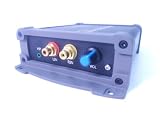
- INTERNET AUDIO ENCODER: Designed for flexible internet audio transmission, enabling live audio streaming, program distribution, network broadcasting, and conference room interconnection without requiring a public IP or self-built media server
- VERSATILE PROTOCOL SUPPORT: Supports multiple network audio streaming protocols including SRT, RTMP, ICECAST, RTP, and MPEG-TS, as well as audio encoding formats such as OPUS, AAC, AAC-HE, MP3, and MP2 for broad compatibility
- RELIABLE AUTO-RECONNECT: Automatically restores the connection after network interruptions or drops, ensuring uninterrupted broadcasting or remote audio playback for emergency systems, surveillance, and chain-store remote broadcasting applications
- FLEXIBLE CONNECTIVITY: Features a stereo analog RCA input (L/R), headphone monitoring output (HP), USB port, Ethernet port, and DC-12V power input. Supports 48kHz sampling rate with adjustable bitrate from 24Kbps to 256Kbps and digital gain control from -12dB to +12dB
- REMOTE MANAGEMENT: Supports HTTP+JSON protocol for remote network configuration and management, IP address announcement, and LAN cross-segment transmission plus remote VPN connectivity for complex network environments
Use AzuraCast and Liquidsoap for a server-side radio video stream
If AzuraCast is already part of your station, evaluate its Liquidsoap radio-video-stream example before building a separate desktop production chain. The example is designed to send radio audio together with a video loop to an RTMP destination such as YouTube, and it can put current-song text on screen.
- Review the current example and confirm it suits your installed AzuraCast/Liquidsoap environment and YouTube destination.
- Configure the radio audio, video loop, and RTMP output for your station. Treat the script as a technical starting point, not a consumer application that is guaranteed to work without adaptation.
- Test the output and now-playing information privately or in a controlled stream before relying on it for a scheduled broadcast.
- Assign an operator to monitor the server, script, and stream and to handle changes or failures.
This path can avoid a dedicated desktop encoder workflow, but it shifts responsibility to the station’s server configuration and ongoing maintenance. The available information does not establish current turnkey support or comparative reliability.
Rank #2

- ADVANCED MULTI-BAND RECEPTION: Equipped with the high-sensitivity TEF6686 chip for automotive-grade signal reception. This receiver supports FM (65-108 MHz), LW, MW, SW (5.9-27 MHz), OIRT, and AIR (Aviation) bands. It features an automatic station search function, saves up to 100 stations in the program list, and supports RDS text decoding for FM broadcasts.
- WIFI INTERNET RADIO & MP3 PLAYER: Connect to WiFi to stream HTTP/HTTPS internet radio stations. It also functions as a multimedia player supporting FAT32 U-disks up to 32GB (MP3, FLAC, WAV, AAC, M4A) with LRC lyric support. Customize your audio experience with multiple built-in EQ modes including Standard, Pop, Rock, Classic, and Bass.
- PC SOUND CARD & CUSTOM CONFIGURATION: Connect to a computer via USB to utilize the device as a high-quality USB Audio sound card. Using the dedicated PC configuration tool, you can easily manage WiFi settings, edit station lists, update weather region codes, and upload a personalized 320x240 PNG boot logo.
- COLOR DISPLAY & INTUITIVE CONTROL: Features a crisp 320x240 TFT color screen displaying an 8-grid main menu, real-time weather (temperature, humidity, wind speed), and an NTP-synced perpetual calendar. Navigation is streamlined via a multi-functional rotary encoder (rotate, short press, double click) and a dedicated power button, avoiding complex multi-button layouts.
- INNOVATIVE 3P EXTERNAL CONTROL: Designed for advanced desktop setups, it includes a 3-pin (H.G.M) external control interface. The "H" pin outputs voltage for timer-based power control of external devices like amplifiers, while the "M" pin acts as a squelch trigger, activating external equipment only when a valid radio signal is received.
Where Mixxx and BUTT fit
Mixxx and BUTT address the internet-radio contribution side of a workflow: sending a DJ or program feed to an Icecast or Shoutcast server. That is different from producing a YouTube video stream. If your station already uses Mixxx, its audio can be added to OBS as an input, while OBS supplies the visual scene and YouTube encoder connection. Do not choose a radio-server client expecting it alone to create and publish a YouTube video stream.
Free tools Windows power users keep installed
One-click scans. No signup required.
Rights and operational considerations
Confirm music rights for YouTube
A station’s permission to play music on its own service does not by itself establish permission to rebroadcast that catalog on YouTube. Rights can depend on the recordings, compositions, territory, licenses, and agreements involved. Verify that your station’s permissions cover the YouTube livestream and any resulting archive before broadcasting; the software does not grant music rights.
Rank #3

- Fully dynamic FM broadcast RDS encoder with up to four independent communication ports
- USB connectivity for local settings and maintenance purposes
- Ethernet connectivity for linking with broadcast automation system
- Control interface based on ASCII commands and UECP protocol
- Supports internet functions and remote monitoring
Account for who keeps the stream running
With OBS, the desktop computer, OBS scene, and audio routing need to remain available for the broadcast. With a Liquidsoap example, the server and script need an operator who can configure and maintain them. Neither route should be treated as self-maintaining merely because it can send a continuous feed.
Troubleshooting common setup problems
| Symptom | Likely cause | What to check |
|---|---|---|
| YouTube receives no stream | The encoder is not started, or the stream URL/key is incorrect or mismatched. | Compare OBS’s configured server URL and key with the selected stream in YouTube Studio, then restart the encoder and inspect Live Control Room. |
| The preview appears, but the stream is not public | A scheduled stream may require a separate YouTube Go live action. | Check Live Control Room for the Go live control after the encoder preview is ready. |
| The video works but the radio is silent | OBS may be listening to the wrong input, or the station feed is not routed into the scene. | Check the selected audio input and its meter, then listen to the preview before publishing. |
| Unrelated sounds appear on air | The scene may capture desktop audio or another unintended source. | Use the intended station feed as the audio source and disable or remove unnecessary capture sources. |
| Song text or the video loop is missing in a Liquidsoap setup | The example script may need configuration for the station’s metadata, loop, or RTMP output. | Review the script and server configuration; do not assume the example is a ready-made supported integration. |
| The station cannot enable a first livestream immediately | First-time live enablement may take up to 24 hours. | Enable and verify livestream access well before the planned broadcast. |
Or let it run in the cloud
If your goal is to keep uploaded radio recordings or a prepared playlist playing as a YouTube live stream—not to transmit a live DJ or studio feed—StreamNeo is a cloud alternative to leaving a desktop encoder running. Upload a recording or build a playlist, add your YouTube stream key once, and go live. Nothing has to stay powered on at home; the uploaded video streams as made, up to 4K 60fps at one price per slot, and StreamNeo automatically recovers if YouTube drops the stream. The first day is free with no card. Monthly pricing is $9.99 per month.
Quick Recap
Start your free StreamNeo day.
Product prices and availability are accurate as of the date/time indicated and are subject to change. Any price and availability information displayed on Amazon at the time of purchase will apply.
Do these 3 things before closing this tab:
1Repair Windows errors before they cause bigger problems2Scan for outdated or missing drivers - takes under a minute3Clear out junk files and repair common Windows errors
