
iTechGuides is reader-supported. When you buy through links on our site, we may earn an affiliate commission. As an Amazon Associate I earn from qualifying purchases. Learn more
The best business card scanner app for iPhone depends on what happens after the scan. Choose HubSpot if you want a free CRM-centered workflow, HiHello if you want to scan paper cards and create digital ones, Covve if follow-up and relationship notes matter, and ScanBizCards if you process conference cards or badges. CamCard is the established general-purpose option, while ABBYY Business Card Reader remains worth considering for traditional multilingual OCR. If you scan only a few cards, Apple’s built-in Live Text or Notes may be all you need.
No app should be called the most accurate overall without a controlled test. OCR quality depends on card design, lighting, language, typography, and how many fields a card contains. The more important question is whether the app sends the captured information to the place where you will actually use it: Contacts, a CRM, an event list, or a follow-up system.
Quick comparison
| App | Best for | Paper cards | Digital cards | Useful exports or integrations | Important caveat |
|---|---|---|---|---|---|
| HubSpot Business Card Scanner | Free CRM-oriented scanning | Yes | Not its main focus | Creates a HubSpot contact and connects with HubSpot sales workflows | Less useful if you want a standalone local address-book scanner |
| HiHello | Paper scanning plus digital business cards | Yes, including bulk and event workflows | Yes; QR, NFC, and link sharing | Salesforce, HubSpot, Dynamics, Zapier, webhooks, SSO, and directory tools | Team features may be excessive for occasional users; check the current iOS requirement |
| Covve | Networking follow-up and lead context | Yes | Yes | Phone Contacts, Excel, Outlook, Google Contacts; notes, groups, locations, and offline capture | Accuracy and speed claims are marketing claims, not independent test results |
| ScanBizCards | Conferences, badges, bulk capture, and CRM export | Yes, including badges and two-sided cards | Yes, through QR and share profiles | HubSpot, Outlook, and an enterprise Salesforce offering referenced in its listing | Legacy feature and award language should be checked against the current app |
| CamCard | A mature general-purpose scanner with AI notes | Yes | Not its primary distinction | Excel and vCard export are documented; current listing adds notes, voice transcription, and summaries | Verify current limits, pricing, exports, and privacy terms in the app |
| ABBYY Business Card Reader | Conventional multilingual OCR | Yes | No major digital-card emphasis identified | Stores contact fields such as names, organizations, phone numbers, and email addresses | Check recent update history and support status before relying on it long term |
App Store prices, free limits, privacy labels, update dates, and device requirements change by storefront, plan, app version, and date. Treat the table as a feature guide rather than a permanent pricing sheet.
What’s actually slowing this PC down?
Pick the symptom - the matching free tool is one click away.
The best iPhone business card scanner apps
1. HubSpot Business Card Scanner — best free CRM-oriented option
If you already use HubSpot, HubSpot business card scanner is the most straightforward choice. HubSpot says its scanner is free on iOS and Android, and the result is created as a contact in HubSpot rather than being limited to a photograph or a loose OCR result.
#1 Best Overall

- Digitize business cards in seconds. Scan, recognize, and save contact information directly turn business cards into accurate digital format in a few seconds.
- Support multiple languages. Recognize business cards in 24 different languages as well.
- Data exchange. Export/ import contacts to/ from Address Book and then to iPhone/ iPod, Microsoft Entourage; and export to vCard, CSV. Text, HTML, image file format or import from vCard, CSV, WorldCard File.
- Manage business cards efficiently. Complete set of management functions provided for editing of information, assigning multiple categories and also adding of individual information and photos.Search by keyword.
- Quickly and efficiently find your contacts with "Text Search" and "Advanced Search" functions. Clicking on the address or website in card information fields will link to the map and contact's website directly.
The scanner parses fields from a card and can associate the contact with a company. From there, the record can feed into HubSpot’s broader sales and follow-up tools. You do not have to adopt every other HubSpot product to use the scanner, but its main value is still the CRM record and the workflow around it.
Choose it when: you want a no-cost starting point for sales contacts, already work in HubSpot, or need captured cards to become usable CRM records immediately.
Skip it when: you only want an isolated, local address-book scanner with no CRM layer. The HubSpot workflow is more useful when your contacts live in HubSpot; it can feel unnecessarily heavy for scanning one or two cards into the iPhone Contacts app.
2. HiHello — best for paper cards and digital business cards together
HiHello is the strongest fit for someone trying to replace paper-card exchange altogether. Its iPhone app combines AI business-card scanning with digital business-card creation, QR-code, NFC, and link sharing, contact management, exports, and event lead capture.
It also offers integrations including Salesforce, HubSpot, Microsoft Dynamics, Zapier, webhooks, SSO, and directory tools. That gives it a wider range than a simple camera-to-contacts utility: a team can receive digital-card leads, scan cards collected at an event, and route the resulting information into an existing sales process.
Choose it when: you want one service for cards you receive and a digital card you share yourself, or when event lead capture and team integrations matter.
Skip it when: you rarely collect cards and do not need digital-card sharing, team administration, or CRM integrations. Its breadth can be unnecessary for occasional personal use.
The U.S. App Store listing describes a free download with paid Professional and Professional + Cards tiers. Compatibility details have appeared differently across platform-specific listings: one current listing reports iOS 15.1 or later, while another reports iOS 16.4 or later. Check the live App Store compatibility panel for the exact version available to your device before installing.
3. Covve — best for networking follow-up and lead context
Covve is designed around what happens after the card is captured. Its scanner supports business cards and QR codes, and the app provides notes, groups, locations, offline lead capture, digital cards, and contact exports. It supports more than 60 languages according to its product information.
Rank #2
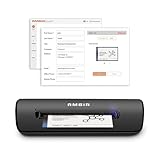
- IMPORT CONTACTS DIRECTLY TO OUTLOOK: Compatibility with Microsoft Outlook makes growing your contact list simple and easy. Scan your business card in just seconds, and the information will be imported directly into your Outlook address book.
- DELETING DUPLICATE CONTACTS: Automatic duplicate detection of Outlook contacts keeps your address book organized and up to date. Never worry about repeating information, and edit contact fields easily if needed.
- AI-POWERED CONTACT RECOGNITION: Enable optional AI processing in AmbirScan to significantly improve accuracy when extracting names, titles, phone numbers, and email addresses from scanned business cards — all processed locally on your PC.
- MULTI-LANGUAGE AI SUPPORT: When AI processing is enabled, AmbirScan's contact extraction supports business cards in English, French, Italian, German, and Spanish — so your global contacts are just a scan away.
- SCAN TO SHARED CONTACT FOLDER: For executive assistants and distributed office environments, scanning contacts to a shared folder allows for easy contact sharing across your organization. Simply set up your shared folder and start scanning.
Exports include phone contacts, Excel, Outlook, and Google Contacts. The ability to attach notes and organize people into groups or locations is particularly useful after a conference, sales visit, or networking meeting, when the card alone does not explain why the contact matters.
If your priority is a business card scanner with follow-up reminders, lead organization, and relationship context, Covve deserves a close look. Its App Store listing shows a free download with in-app purchases and an iOS 16.0-or-later requirement.
Recommended Free Tools
Choose it when: you need to remember where you met someone, add a follow-up note, work offline at events, or organize contacts beyond the basic iPhone address book.
Keep expectations realistic: Covve’s claims about speed or accuracy are the developer’s marketing claims. They should not be treated as independent proof that Covve beats every competing scanner.
4. ScanBizCards — best for conferences, badges, and CRM export
ScanBizCards is built around high-volume networking situations. Its listed features include business-card and conference-badge scanning, unlimited card scans in the app description, iPhone address-book saving, duplicate merging, two-sided cards, notes, QR and share profiles, and human transcription for difficult cards.
It can export to HubSpot and Outlook, and its product information references an enterprise Salesforce AppExchange offering. That combination makes it a practical candidate for trade shows and conferences where the job is not merely to recognize text, but to capture a large number of leads and move them into a sales system.
Crashes, No Sound, or Screen Glitches?
Random freezes, missing sound and display glitches usually trace back to one bad driver. Find and replace yours safely.Free scan · under a minuteWindows Errors? Fix Them Before They Spread
Repair common Windows errors and clear accumulated junk for a smoother, more stable PC - no reinstall needed.Free scan · no reinstallChoose it when: you scan many cards at events, need badge capture, want duplicate handling, or expect to export the results to a CRM.
Check before committing: the listing includes older awards and legacy feature language. Confirm that the specific integrations, transcription options, scan limits, and pricing you need are still present in the current app and plan. An App Store listing alone is not proof that every historical feature remains unchanged.
5. CamCard — best-known mature general-purpose option
CamCard remains a sensible general-purpose choice for readers who want a broadly established business-card app rather than a narrowly focused event or CRM tool. Its current iPhone listing describes business-card recognition, AI notes, voice transcription, file import, and AI-generated summaries.
Rank #3

- BCR901 Simplex (single side) USB Optical Card Scanner. Ultra-compact footprint saves desk space. Mount and use scanner horizontally or vertically.
- Scans medical insurance cards, laminated cards, IDs, photos, etc. (NOTE: Scans cards ONE SIDE at at time.)
- Included Scan-ID LITE app scans and manages database of card images. NOTE: All card information is manually entered. THIS LITE VERSION DOES NOT READ DRIVER LICENSES.
- Direct scanning to PDF, JPEG, TIF formats. Automatically saves scanned images to folder.
- Fully TWAIN compliant - works with numerous bank, medical, healthcare, and other imaging apps. Windows only - NOT MAC compatible.
A separate CamCard iPhone manual documents exporting cards as Excel or vCard files and provides contact-management functions. Those exports can be useful if you want to move captured data into another system rather than remain inside the app.
Quick wins for a faster PC:
Scan for outdated or missing drivers - takes under a minuteDriver Scan →Clear out junk files and repair common Windows errorsFree Scan →CamCard also appears to be expanding from card OCR into a broader AI business assistant. That may be useful if you want notes and summaries around a contact, but it makes older reviews less reliable for deciding what the current app includes.
Choose it when: you want a familiar, broadly featured scanner with newer note-taking and transcription functions.
Verify before paying: current free limits, subscription terms, supported exports, data handling, and privacy disclosures. Do not assume that an older guide’s pricing or feature list still applies.
6. ABBYY Business Card Reader — best traditional multilingual OCR candidate
ABBYY Business Card Reader is the most conventional OCR-focused option in this group. Its U.S. App Store listing identifies it as an iPhone and iPad app that captures and stores contact information from business cards in 25 languages. The recognized fields include names, organizations, phone numbers, and email addresses.
The Tool Desk
Outbyte PC Repair FREERepair Windows errors before they cause bigger problemsFix Now →Outbyte Driver Updater FREEFix the driver behind crashes, sound loss and screen glitchesFind Drivers →Choose it when: multilingual text recognition and a traditional card-to-contact workflow matter more than digital-card sharing, event lead capture, or CRM automation.
Important caution: current development status is less clear than the app’s long-standing reputation suggests. A recent comparative roundup indicated that ABBYY and some other legacy apps may not appear to be under active development. Check the app’s recent update history, support information, compatibility, and privacy documentation before making it the foundation of a long-term contact archive.
Apple’s built-in alternatives: Live Text and Notes
Live Text — best for occasional scans with no download
For a few cards, try Apple’s Live Text before installing a specialist app. Live Text can recognize text in photos, videos, the Camera view, and other supported contexts. You can copy recognized text and use actions such as calling a phone number, emailing an address, opening a website, or adding information to Contacts.
Apple says Live Text requires an iPhone XS, iPhone XR, or later running iOS 15 or later. It is convenient for one-off capture, but it does not create the dedicated business-card database, event tagging, relationship notes, automatic lead context, or CRM workflow that specialist apps provide.
Rank #4

- DESIGNED FOR SPEED: Ambir Card Scanner PS670st in the fastest single sided card scanner on the market. It is designed to scan a card in under two seconds, Creating beautiful quality images in color or in grayscale
- VERTICAL FEED PATH: The vertical feed path of the PS670st makes feeding cards into the scanner incredibly easy. Its unique and compact design allows the scanner to take up less desk space, making it perfect for a busy office
- SUPERIOR IMAGE OUTPUT: High-speed performance without compromising image quality. Create true 600 dpi images that meet or exceed the standards required by third-party software companies
- WINDOWS COMPATIBILITY: The AMBIR PS670st is fully supported for PC users on Windows 10 and 11, and runs on both 32-bit and 64-bit operating systems
- IMAGING SOFTWARE INCLUDED: Enjoy the quick and easy workflow our bundled AmbirScan software solution offers. Enhance your scanning experience with a variety of features like auto-scan, file formatting, and save to cloud
Live Text is also a field-by-field workflow: you may need to decide which text is a name, company, phone number, email address, or address. That is acceptable when the card is simple and the number of cards is small, but it becomes tedious for a stack of cards.
Notes — best for preserving the card image or creating a PDF
Apple Notes can scan documents, scan text into a note, and save document scans as PDFs. It is useful when you want to preserve a visual copy of the card or keep several cards together in a note without adopting another contact database.
Notes is not a dedicated business-card manager. It does not offer the specialist combination of automatic card fields, networking context, event lead management, duplicate merging, digital-card exchange, or CRM export. Use it when the image or PDF is more important than structured contact data.
How to choose the right app
| Your situation | Best starting point | Why |
|---|---|---|
| You already use HubSpot | HubSpot Business Card Scanner | The scan becomes a HubSpot contact and can enter existing sales and follow-up workflows. |
| You want to share a digital card and scan paper cards | HiHello | It combines digital-card creation and sharing with paper-card scanning and event tools. |
| You need notes, locations, groups, and follow-up context | Covve | Its workflow is designed around organizing and acting on networking relationships. |
| You attend trade shows or conferences | ScanBizCards or HiHello | Both document event-oriented workflows; ScanBizCards emphasizes badges and bulk capture, while HiHello adds digital-card and team features. |
| You need multilingual, conventional OCR | ABBYY Business Card Reader | The listing specifies recognition of card information in 25 languages, subject to current support status. |
| You want a mature general-purpose app with AI notes | CamCard | It combines card recognition with file import, voice transcription, notes, and summaries in its current listing. |
| You scan only a few cards | Live Text or Notes | There is no need to add a subscription or third-party contact database for occasional capture. |
What to check before subscribing
Free does not always mean unlimited
HubSpot describes its scanner as free, while HiHello and Covve are listed as free downloads with paid plans or in-app purchases. ScanBizCards describes unlimited scans in its listed app description, but the plan details and other features should be confirmed in the current app. CamCard’s current limits and subscription terms should not be inferred from older documentation, and the dossier does not establish a permanent free allowance for every app.
Free tools Windows power users keep installed
One-click scans. No signup required.
App Store prices can differ by country, currency, storefront, subscription tier, and date. Check the purchase screen rather than relying on a price quoted in an older comparison article. Also distinguish a free download from free exports, unlimited OCR, unlimited storage, or unrestricted CRM integrations.
Exports matter more than OCR alone
A scanner is only useful if you can retrieve the data later. Before choosing, answer these questions:
- Does it save to the iPhone Contacts app, or only to the app’s own database?
- Can it export vCards, Excel files, or another portable format?
- Does it connect directly to your CRM, and is that integration included in your plan?
- How does it handle duplicate contacts?
- Can it capture both sides of a card?
- Can you add notes, tags, groups, locations, or event names?
- Does it work offline, and what happens when the connection returns?
- Can you export or delete your data if you stop using the service?
Privacy deserves a separate check
Business cards can contain client names, direct phone numbers, email addresses, office locations, and other commercially sensitive information. Before uploading them, review the app’s current App Store privacy section and the developer’s privacy policy.
App Store privacy labels are supplied by developers; they are not independent privacy audits. Current listings show that business-card apps may disclose collection or linkage of contact information, identifiers, usage data, diagnostics, photos, or other user content, depending on the app and the features used. Do not assume that a card image stays only on the iPhone or that an app never uploads it unless the current documentation explicitly supports that conclusion.
Do these 3 things before closing this tab:
1Scan for outdated or missing drivers - takes under a minute2Clear out junk files and repair common Windows errors3Fix the driver behind crashes, sound loss and screen glitchesFor sensitive client information, also check whether the app supports account-level deletion, organization controls, export, retention information, and the access permissions it requests. A convenient scanner that cannot give you a clear path to retrieve or remove your data may be a poor business choice.
Best Value

- FAST SPEEDS - Scans color and black and white documents a blazing speed up to 16ppm (1). Color scanning won’t slow you down as the color scan speed is the same as the black and white scan speed.
- ULTRA COMPACT – At less than 1 foot in length and only about 1. 5lbs in weight you can fit this device virtually anywhere (a bag, a purse, even a pocket).
- READY WHENEVER YOU ARE – The DS-640 mobile scanner is powered via an included micro USB 3. 0 cable allowing you to use it even where there is no outlet available. Plug it into you PC or laptop and you are ready to scan.
- WORKS YOUR WAY – Use the Brother free iPrint&Scan desktop app for scanning to multiple “Scan-to” destinations like PC, Network, cloud services, Email and OCR. (2) Supports Windows, Mac and Linux and TWAIN/WIA for PC/ICA for Mac/SANE drivers. (3)
- OPTIMIZE IMAGES AND TEXT – Automatic color detection/adjustment, image rotation (PC only), bleed through prevention/background removal, text enhancement, color drop to enhance scans. Software suite includes document management and OCR software. (4)
Maintenance and compatibility are part of the decision
Being listed in the App Store does not prove that an app is actively maintained. Check the recent version history, developer support page, compatibility panel, and current privacy disclosures. This is especially important for established or legacy products such as ABBYY Business Card Reader and for any app whose documentation contains older awards or feature descriptions.
How to get better scans on an iPhone
Even a capable OCR engine can struggle with a glossy, dark, multilingual, or unusually designed card. Use this workflow when testing an app:
- Use even lighting. Avoid glare from overhead lights and strong shadows across small text.
- Place the card on a contrasting, flat background. Keep the entire card inside the frame, including corners and the second side when relevant.
- Hold the iPhone steady. A stable camera reduces blur and makes repeat scans more consistent.
- Capture both sides. Important phone numbers, addresses, or job titles may be on the reverse.
- Review every important field. Pay special attention to zero versus the letter O, one versus the letter I, punctuation in email addresses, country codes, extensions, and multiple phone numbers.
- Add context immediately. Record where you met the person, the agreed follow-up, the event name, or the relevant project while you still remember it.
- Test the destination. Export one or two contacts to Contacts, Excel, Outlook, Google Contacts, or your CRM before scanning a large pile.
Do not judge an app from one clean card. If accuracy is important, test the same sample cards in each candidate app. Include clean typography, small text, different languages, unusual layouts, QR codes, handwritten notes, two-sided cards, and cards with multiple email addresses or phone numbers. Record field-level errors, correction time, export success, duplicate handling, offline behavior, privacy disclosures, and total cost.
Hardware that can improve a high-volume workflow
Our verdict
Start with the destination, not the camera. HubSpot is the clearest free CRM choice. HiHello is the best all-in-one option for paper and digital cards. Covve is the better fit for relationship notes and follow-up. ScanBizCards is the event-oriented pick. CamCard is a reasonable mature general-purpose option, while ABBYY is a multilingual OCR candidate that needs a maintenance check.
For occasional scanning, use Live Text or Notes first. For business use, perform a small export and privacy test before committing to a paid plan or uploading a large archive of client cards.
Frequently Asked Questions
What is the best free business card scanner for iPhone?
HubSpot Business Card Scanner is the strongest free CRM-oriented option because HubSpot says the scanner is free and turns captured information into a HubSpot contact. If you only need to scan a few cards, Apple Live Text is a simpler no-download alternative. Confirm current limits and plan terms before relying on any free tier.
Can I scan business cards on an iPhone without installing an app?
Yes. Live Text can recognize text in photos, videos, and the Camera view, and it can offer actions such as calling, emailing, opening a website, or adding information to Contacts. Notes can scan text and preserve card images or document scans as PDFs. These tools do not provide the dedicated CRM, event, follow-up, or card-database features of specialist apps.
Are business card scanner apps accurate?
Accuracy varies with lighting, glare, typography, language, card layout, handwritten text, and the number of fields. No app in this comparison should be called the most accurate overall without a controlled test. Always review names, email addresses, phone numbers, extensions, and country codes before saving or exporting.
Which iPhone scanner is best for conferences?
ScanBizCards is the most event-focused choice because its listed features include conference-badge scanning, bulk card capture, duplicate merging, notes, two-sided cards, and CRM exports. HiHello is another strong option if you also want digital-card sharing, event lead capture, and team integrations.
The Bottom Line
Bottom line: choose HubSpot for a free CRM workflow, HiHello for paper-plus-digital cards, Covve for networking follow-up, ScanBizCards for conferences, CamCard for broad general use, and ABBYY for multilingual traditional OCR after checking its current support status. For just a few cards, Live Text or Notes may be the better value.
Quick Recap
Product prices and availability are accurate as of the date/time indicated and are subject to change. Any price and availability information displayed on Amazon at the time of purchase will apply.

