
A keyboard can look intact and still have a dead key. I built KbdCheck to test laptop keys from a bootable USB environment, without relying on the laptop’s installed operating system, browser, or internet connection. The tool shows a keyboard on screen and highlights keys as they register; it also has a basic mouse test.
Why I built a bootable keyboard tester
When refurbishing or repairing a laptop, it is easy to miss a single failed key if you only check the keyboard casually. A browser-based keyboard test can help, but it assumes the computer can start an operating system, run a browser, and—often—connect to the internet. That is inconvenient when a machine is still being repaired, has a damaged or locked-down operating system, or is being checked before setup.
I wanted a repeatable way to test every key before finishing a repair or returning a refurbished laptop. As I put it, “I wanted something I could put on a USB drive, boot on practically any PC and use immediately.” That describes my goal, not a guarantee that KbdCheck works on every computer.
What KbdCheck does
KbdCheck is presented as a minimal bootable Linux environment based on Arch Linux. The article describing it reports an ISO of around 47 MB; that is an approximate size stated in the September 19, 2026 article, not a verified measurement of the current download.
#1 Best Overall

- New Laptop Keyboard Tester Testing Device Machine Tool USB Interface QK-AK5 with Free USB Charging Cable for Apple Samsung Dell HP ASUS Sony Acer Huawei Lenovo and so on
- This is an universal laptop keyboard tester with several test cable connector, you can use it to test any keyboard with cable
- This device is easy to use:1). Connect it to a computer by the USB cable.2). Insert the keyboard cable into the corresponding connector.3). Push the opening button, the device will sound 1 times, which means it starts working.4). Press keys of the keyboard, if every keys sound, it means the keyboard is good, if not, the keyboard has problem. If the sound is long and can not stop, the keyboard might be bad or the cable is not installed correctly or firmly.
- Package included: 1x laptop tester/testing device, 1x USB Charging Cable.
- 30 Days Warranty,No Man-Made Scratch or Damage when Retuning or Exchanging
- Keyboard test: An on-screen keyboard highlights a key when the environment registers its press, so you can deliberately work across the layout.
- Mouse test: A simple test checks pointer movement, buttons, and the scroll wheel.
- Standalone operation: KbdCheck is intended to run from USB without installing software on the laptop, changing its existing operating system, or requiring an internet connection. These are the tool’s stated characteristics, not independently verified compatibility results.
In my refurbishing work, I used it to find a faulty U key on a laptop. That is my reported workshop experience, not a controlled test or a claim that the tool identifies every kind of keyboard fault.
How to test a laptop keyboard with KbdCheck
- Get the ISO and read the official instructions. Check the current KbdCheck download page for availability, release details, system requirements, and the accompanying SHA-256 checksum. The checksum value and current release details are not established here.
- Verify the downloaded image. Compare its SHA-256 hash with the value published by the official source before writing or booting it.
- Write the ISO to a USB flash drive. The stated options are Rufus, Balena Etcher, or the
ddcommand. Follow the chosen utility’s instructions; writing an image erases the selected USB drive, so confirm the target device before proceeding. - Boot the laptop from the USB drive. Use the computer’s boot menu or firmware settings to select the USB device. The exact key or menu path varies by manufacturer and model.
- Check the keyboard systematically. Press each key in turn and confirm the corresponding on-screen key responds. Include letters, numbers, punctuation, function keys, modifiers, and any keys specific to the laptop layout.
- Run the mouse check if needed. Test pointer movement, both buttons, and the scroll wheel in KbdCheck’s mouse interface.
Bootable Linux documentation describes the general process of writing an ISO to USB and starting a live environment, but that does not independently confirm KbdCheck’s behavior on a particular laptop. Arch Linux’s USB flash installation medium guide explains the general media-writing workflow.
Rank #2
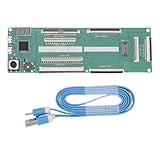
- 【Multiple Interface Compatibility】The laptop keyboard tester is designed with versatile interface support, ensuring seamless compatibility with keyboards from various brands, enabling efficient testing across multiple devices.
- 【Precision Testing with Digital Display】Equipped with a digital display, the tester provides real-time feedback and accurate diagnostics of keyboard functionality, ensuring precise evaluation of each key’s performance.
- 【PCB Construction】Built from PCB material, this keyboard tester is engineered for longevity and resilience. Its robust construction resists wear and tear, ensuring consistent performance and reliability over extended use.
- 【Ultra-Portable Design】Compact and lightweight, the laptop keyboard testing device is great for on-the-go use. Paired with a convenient USB cable, it allows for quick and easy testing in any environment.
- 【Broad Brand Compatibility】Designed for versatility, the laptop keyboard tester supports a wide range of laptop brands and keyboard model, making it an ideal solution for testing diverse devices with a single tool.
Secure Boot is a stated limitation
The article says KbdCheck currently requires Secure Boot to be disabled because its image is not signed for Secure Boot. Check the official download instructions before changing firmware settings: this requirement can change with a future release, and the current state has not been independently confirmed here. If you do disable Secure Boot to boot the tool, understand how to restore your previous firmware setting afterward.
When a bootable test is useful—and what it cannot establish
A USB-based test is especially useful when you need to check input before an operating system is installed or when the installed system cannot be used for testing. It also gives you a consistent place to perform a deliberate key-by-key check instead of depending on a particular browser or network connection.
Quick wins for a faster PC:
Repair Windows errors before they cause bigger problemsFix Now →Scan for outdated or missing drivers - takes under a minuteDriver Scan →Rank #3
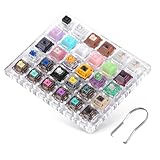
- Comprehensive Switch Collection: DUROCK Switches Tester includes 30 of our most classic and popular switches to try and get to know. Test yourself according to your mood through the different variants and find your favourite DUROCK switch
- Quality Construction with Accessories: The Acrylic Testing Tool is made by precision injection tooling to achieve smooth surface and protective round corner. A free stainless steel switch puller is packed together with the DUROCK switch experience kit for easy replacement
- Exceptional Durability: All these DUROCK switch samples are with gold crosspoint contacts, minimum 50 million keystrokes per switch with no loss of quality, permanently safe switching performance
- Multi-Purpose Desktop Accessory: The DUROCK mechanical keyboard switch Tester can be also a desktop decoration except the testing tool. Also a good gadget that helps relieve nervous energy or anxiety
- Premium Switch Variety: DUROCK Switches Sampler is a must have 30-Key kit with Ice Kings, POK Thocky, ROCK HE Magnetic Switch, Lotus Switches, Premium POM Switches, Silent Shrimp T1, Silent Dolphin Daybreak, Classic L Series Linears and T1 Tactile, Mamba, Speed Silver, and more
A key lighting up shows that KbdCheck registered an input; it does not by itself diagnose why a key fails, prove that every keyboard function behaves correctly in every application, or establish that the laptop is compatible with the tool. If a key does not respond, repeat the check and investigate the laptop’s hardware and firmware separately. KbdCheck is an input-checking utility, not a complete hardware diagnostic system.
Independent reader supportYour contribution helps us test, update, and keep practical guides available for everyone.Check the current download details before booting
The KbdCheck site and download could not be confirmed in the available published information. Current availability, exact ISO size and checksum, release version, supported architectures, and a compatibility list therefore remain unverified. Consult the official KbdCheck source for those details rather than assuming that “practically any PC” means universal support. General live-USB guidance also recommends checking the written media and image checksum; that advice applies to the process, not as validation of this particular ISO. Arch Linux’s USB guide includes general information about writing and checking bootable media.
Quick Recap
Best Value
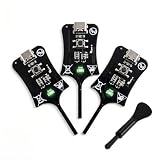
- Instant In-Circuit Fault Detection: Detect bad inductors and coils directly on the board without desoldering or removing components. Hover the sensing tip near the target: green LED lights up for normal operation, no light means a faulty part. Lock the fault point instantly and stop guessing
- Type-C Powered, Zero Setup: Plug into any USB Type-C port-phone charger, power bank, or laptop-and start testing immediately. No batteries, no wall adapters, no drivers, and no calibration. One button, instant results. Suitable for beginners learning board repair and pros who value speed
- High-Sensitivity, Reliable Accuracy: Built with advanced electromagnetic induction to precisely locate weak or damaged inductors on PC and phone motherboards. Helps you pinpoint the root cause of power failures and avoid unnecessary component replacement
- Universal Compatibility: Works across smartphones, tablets, laptops, and desktop PC motherboards. Whether you run a repair shop or fix devices at home, this compact inductance meter is a valuable diagnostic tool for daily electronics troubleshooting
- 3 Testers in Every Box: Stock the Bench, the Bag and the Backup - Each unit is 2.95 1.06 0.21 inches and weighs just 1.6 oz, so keeping one at the bench, one in the go-bag, and one as a spare costs far less than a single bench LCR meter
Rank #4

- 2 in 1 Tester: This memory tester is suitable for DDR4 and DDR5 memory, can easily troubleshoot various hardware faults, suitable for laptop, desktop or server computer.
- LED Light Indication: The memory tester adopts a light emitting tube indication method, and you can easily find the fault point based on the LED brightness indication.
- Dual Power Mode: The tester can be powered by battery (not included) or by inserting standard TYPE C cable into a charging head or power bank. It can charge and discharge simultaneously. The indicator turns red when charging and green when fully charged.
- Multi Functional: The memory tester can test all data cables in memory, when hardware faults occur in these data cable circuits, the brightness of the LED indicator lights will change, regardless of whether they are particularly bright or not.
- Usage Method: Use battery (not included) or Type C cable for power supply. Insert the memory module into the slot of the tester, identify the faulty pin based on the numerical indication of the indicator light, and use a multimeter to determine the specific cause of the fault.
Product prices and availability are accurate as of the date/time indicated and are subject to change. Any price and availability information displayed on Amazon at the time of purchase will apply.

