
Recommended Free Tools
Motherboard audio is built into the computer; a sound card is a separate internal PCIe or external USB device. A separate device may add a connection, processing feature, or headphone amplification that your setup needs, but it is not automatically better-sounding. Compare the exact hardware against your headphones or speakers and the job you want it to do.
What is the difference between motherboard audio and a sound card?
Motherboard audio comes from circuitry built onto the motherboard, with audio connections on the rear panel and, on many PCs, a case-front headphone jack. The codec, number of jacks, and supported connections vary by board. Some boards use three analog jacks; others provide five or a different arrangement. Check the manual and specifications for your exact motherboard rather than judging it by a codec name alone.

A sound card is a separate audio device. An internal model installs in a compatible expansion slot, while an external model connects over USB. For example, Creative lists the Audigy FX Pro as a PCIe card and the Sound BlasterX G6 as a USB-C external sound card/DAC. These form factors can offer different connections and features; “sound card” does not describe one uniform capability.
How should you compare them?
Connections and speaker channels
Start with the equipment you plan to connect. Count the analog outputs, check their assignments, and confirm the device supports your speaker layout. ASUS documents supported motherboard configurations for 2-channel, 4-channel, 5.1-channel, and 7.1-channel speakers, with the appropriate jack mapping. Multi-channel analog output is not exclusive to add-in cards; support depends on the particular board and its configuration.
Outdated Drivers Are Slowing You Down
One free scan finds every outdated or missing driver and matches the right update for your exact hardware.Free scan · exact hardware matchPC Slower Than It Used to Be?
A free scan shows the junk files, broken settings and background clutter dragging Windows down - then fixes them in one click.Free scan · Windows 10 & 11#1 Best Overall

- HIGH-RESOLUTION AUDIO - Delivers ultra-clear playback with 32-bit / 384 kHz and up to 120 dB SNR
- SURROUND SOUND - Supports discrete 7.1-channel analog output for immersive multi-channel audio on your PC
- VERSATILE CONNECTIVITY - Connects effortlessly to multi-channel PC speaker systems, SPDIF output and headset outputs, mic-in, as well as line-in sources
- ALL-NEW CREATIVE NEXUS APP - AutoEq customization that allows users to simulate the frequency response of various headphones for a tailored listening experience
- COMPACT LOW-PROFILE DESIGN - The card is 10.5 cm in length and comes with a half-height bracket to ensure compatibility with smaller cases and different build needs
Also distinguish analog speaker channels from virtual surround or spatial audio. An optical (S/PDIF) connection may carry stereo or pass through encoded multi-channel data, depending on the signal, software, and receiving equipment. It does not guarantee that every source will arrive as discrete surround; check the format and whether the receiver or other endpoint can decode it. Creative’s S/PDIF support information discusses stereo output and encoded multi-channel pass-through.
Headphone amplification
Check the headphone’s specifications and the audio device’s output and amplification specifications. Creative lists built-in headphone amplification on the Audigy FX Pro, but that feature alone does not show that your headphones need it or that the card will sound better with them. The relevant question is whether the particular output can drive your headphones satisfactorily.
Rank #2
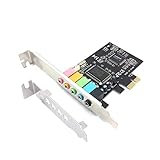
- 1) PCIe sound card, 5.1 stereo audio card
- 2) Easily convert the PC into a cinematic entertainment system by providing a 5.1 3D stereo surrounding sound
- 3) With low profile bracket for 2U case, your best choice of sound card for PC desktop
- 4) 16-bit multimedia digital signal editing decoder inside, Supports 32/64-bit audio processing, recording and playback
Processing and spatial-audio features
Identify the exact processing feature you want and confirm the motherboard or card supports it. ASUS says DTS Sound Unbound support should be checked in the motherboard’s technical specifications. Its guide describes DTS Headphone:X and DTS:X in conjunction with Windows spatial sound, and notes that licensing checks may appear in the application. A codec label or the purchase of a sound card alone does not guarantee access to a particular spatial feature. ASUS’s DTS Sound Unbound guide explains the compatibility check.
Drivers, operating system, and fit
Check driver support for the exact card and operating system before buying. Creative’s Windows 11 compatibility list assigns different compatibility statuses to different internal card models, so an older card should not be assumed to have current driver support. For an internal card, also confirm that your PC has a compatible, available PCIe slot and enough case clearance. An external USB device avoids an internal expansion slot, but still needs operating-system and software support.
Quick wins for a faster PC:
Scan for outdated or missing drivers - takes under a minuteDriver Scan →Repair Windows errors before they cause bigger problemsFix Now →Rank #3

- REFERENCE-GRADE HI-RES AUDIO – Powered by the ESS ES9039Q2M DAC with up to 130 dB SNR, supporting 32-bit / 384 kHz playback for exceptional clarity and detail, far beyond typical onboard audio
- POWER FOR DEMANDING HEADPHONES – Built-in high-performance headphone amplifier delivers up to 350mW @ 32Ω. Easily drives studio-grade headphones
- LOW-LATENCY PERFORMANCE – Supports DSD256 and ASIO 2.3 for high-resolution playback and low-latency audio, ideal for music, gaming, and PC audio workflows.
- PRECISION SOUND PERSONALISATION – 10-band parametric EQ + AutoEq in Creative Nexus add meaningful personalization and offers advanced audio tuning and control
- FLEXIBLE CONNECTIVITY – Coaxial output and optical input for seamless integration with desktop audio setups.
Whole listening setup
What you hear depends on the device implementation, output, connected headphones or speakers, source content, and configuration. Manufacturer specifications establish listed features, not a universal sound-quality ranking between onboard audio and add-in cards. A sample-rate or channel-count figure by itself does not establish an audible improvement.
When is a dedicated sound device useful?
Consider a separate device when you can name a capability your current motherboard lacks or cannot provide satisfactorily. That might be a needed output arrangement, a specific supported processing feature, or headphone amplification. USB can also be a practical option when you do not want or cannot install an internal card. Compare the exact products against that requirement rather than treating the separate device as an automatic upgrade.
Rank #4
If your motherboard already provides the connections and software features you need and works satisfactorily with your headphones or speakers, there is no general reason established here to buy an add-in device. First identify the limitation you want the purchase to solve.
Independent reader supportYour contribution helps us test, update, and keep practical guides available for everyone.What do the product specifications tell you?
| Example | Form factor or listed specification | What it establishes |
|---|---|---|
| Creative Sound Blaster Audigy FX Pro | PCIe; up to 7.1-channel playback and 32-bit/384 kHz playback, according to Creative’s current product listing. | These are manufacturer specifications, not evidence of superior sound or a head-to-head test. |
| Creative Sound BlasterX G6 | USB-C external sound card/DAC, according to Creative’s current product listing. | It is an external-device example; consult the current listing for detailed specifications and system requirements. |
| ASUS motherboard audio guide | Describes 2-channel, 4-channel, 5.1-channel, and 7.1-channel connection setups on supported configurations. | Motherboard audio can support multi-channel analog speakers when the specific board and setup allow it. |
For the exact jack map and setup steps, use the manual for your motherboard. ASUS’s motherboard audio guide shows how supported configurations route front, rear, center/subwoofer, and side speakers, and directs users to select the channel configuration in Realtek Audio Console where supported. If there is no sound, check that Windows has selected the intended output device.
Do these 3 things before closing this tab:
1Scan for outdated or missing drivers - takes under a minute2Repair Windows errors before they cause bigger problems3Fix the driver behind crashes, sound loss and screen glitchesBest Value

- ESS SABRE32 ES9018K2M DAC The speaker line-out is driven by the ES9018K2M with ESS's 32-bit Hyperstream architecture, delivering clean, low-distortion Hi-Res sound up to 24-bit / 96 kHz to your powered speakers, soundbar or amplifier — a real step up from onboard audio.
- Driver-Free, True Plug and Play Built on USB Audio Class 1.0, the ST113 is recognized instantly by Windows, macOS, Linux and Android. No driver CD, no software conflicts, no setup headaches — install it and it just works.
- Optical Isolation Ends the Noise The galvanically isolated optical TOSLINK output blocks the ground-loop hum, hiss and static that plague PC audio, so your external DAC or AV receiver receives a dead-silent digital signal. A coaxial RCA digital output is also included.
- 9-Pin Front-Panel Header for Headphones and Mic A 9-pin front-panel audio header extends headphone out and mic-in to the front of your PC case. Connect your case's front-panel audio cable and get easy, cable-free access for calls, voice chat, gaming and everyday listening.
- Five Ports for Complete Desktop Audio 3.5 mm speaker line-out (for powered speakers / amplifiers), 3.5 mm headphone out, SPDIF optical (TOSLINK) and coaxial (RCA) digital output, and a 3.5 mm microphone input.
How to troubleshoot motherboard audio setup
- Check the board manual. Confirm which rear or front-panel connections support your intended speakers or headphones; jack positions and assignments vary.
- Connect speakers to the correct jacks. For a multi-channel analog setup, follow the board’s jack map for front, rear, center/subwoofer, and side connections.
- Select the speaker configuration. Where supported, choose the channel setup in Realtek Audio Console, following the motherboard vendor’s directions.
- Choose the active Windows output. If audio is absent, verify that Windows is sending sound to the intended motherboard output or connected device.
- For surround over optical, verify the whole signal path. Check the source format, software output or pass-through settings, and whether the receiving equipment can decode the encoded signal.
These steps are board- and software-dependent; use the exact motherboard manual and current device support information when labels or menus differ.
Quick Recap
Product prices and availability are accurate as of the date/time indicated and are subject to change. Any price and availability information displayed on Amazon at the time of purchase will apply.

