
Do these 3 things before closing this tab:
1Clear out junk files and repair common Windows errors2Fix the driver behind crashes, sound loss and screen glitches3Repair Windows errors before they cause bigger problemsIf your iPhone 16 Pro has a black screen or won’t respond, first connect it to a reliable power source and check the charging path. Then force restart it: quickly press and release Volume Up, quickly press and release Volume Down, and hold the Side button until the Apple logo appears. If it still will not start, Apple says it may need service.
1. Check power and charging
A depleted battery or problem with the charging connection can leave the screen black. Connect the iPhone to power using a wall outlet, computer, or suitable power accessory, and check that all connections are secure.
- Inspect the cable and USB power adapter for damage, such as breaks or bent prongs. Do not use damaged accessories.
- Try another wall outlet. If your existing cable may be faulty, try a known-good compatible cable or charger; replacing a cable will not fix a failed battery or other phone hardware fault.
- Check the charging port for debris. Remove it carefully; do not insert metal tools or apply liquid.
Apple’s black-screen guidance recommends charging for one hour before trying again. Its general charging guidance instead describes charging for 30 minutes, force restarting, then charging for another 30 minutes if needed. These are instructions for different contexts, not guaranteed diagnostic thresholds. See Apple’s black-screen troubleshooting steps and charging guidance.
2. Force restart the iPhone 16 Pro
Press the buttons in this order. This is the force-restart sequence Apple specifies for Face ID models and iPhone 8 or later.
Quick wins for a faster PC:
Repair Windows errors before they cause bigger problemsFix Now →Scan for outdated or missing drivers - takes under a minuteDriver Scan →#1 Best Overall

- This battery is compatible with iPhone 16 Pro A3293, A3083, A3292, A3294, to ensure that the battery you purchase is a perfect match for your device, be sure to check the model number of your device before ordering (you can check the model number of your device in the ‘Settings’ of your device).
- This high-quality battery has undergone strict quality inspection before shipment, so you don't have to worry about quality. In addition, with this battery, you will not have to charge your device as often as before, allowing you to travel with more peace of mind.
- This product is packaged securely to ensure it arrives undamaged. The necessary installation tools are included, but installation instructions are not provided.
- We recommend you refer to tutorial videos on YouTube for battery replacement. Please note that we cannot accept returns or exchanges for any damage caused by improper handling. Thank you for your understanding.
- We provide the best service to our customers.please contact us immediately via Amazon message if you need any assistance.we will reply to you within 24 hrs. We highly appreciate your kind patience.
- Quickly press and release the Volume Up button.
- Quickly press and release the Volume Down button.
- Press and hold the Side button until the Apple logo appears. It may take longer than 10 seconds; release the button when you see the logo.
Follow Apple’s force restart instructions if you need more detail.
3. If startup is stuck, consider recovery mode
Recovery mode is relevant when the iPhone cannot update or restore normally, the computer does not recognize it, or the screen displays “Connect to computer.” It is not a guaranteed fix for a phone with no signs of life.
Rank #2
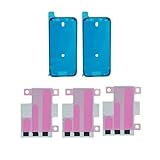
- Complete Adhesive Kit for iPhone 16 Pro Repairs: Includes 2 pre-cut screen seal strips and 3 easy-release battery tapes—everything needed for screen reassembly and battery replacement for iPhone 16 Pro (Models A3294, A3083, A3292, A3293). No second orders, no missing parts.
- Helps Maintain Environmental Sealing After Repair: Opening the device breaks the original seal. Our pre-cut screen adhesives help reseal against dust and light moisture exposure after reassembly. Essential for maintaining device integrity post-repair. Note: Does not restore original IP68 rating. Avoid submersion.
- Easy-Release Battery Strips – No More Tearing: Upgraded adhesive design provides ultra-secure hold yet releases cleanly when needed. Our engineered adhesive pulls away smoothly—no residue, no battery damage, no frustration. Three strips give you backup for DIY confidence.
- Pre-Cut Precision Fit with Clear Direction Markers: Each adhesive strip features precision pre-cut design matching your device's exact dimensions. Eliminates cutting mistakes and alignment confusion that plague generic adhesives. First-time installers and professional repair shops achieve perfect results every time.
- Professional Installation Recommended – Tools & Battery Not Included: This kit is designed for users with some technical experience. For a successful repair, essential tools (Pentalobe P2 & Phillips screwdrivers, plastic spudgers, suction cup, tweezers, heat source) and a replacement battery are required (not included).
- Connect the iPhone to a current Mac or Windows computer. Open Finder on a Mac or Apple Devices on a PC.
- Quickly press and release Volume Up, then quickly press and release Volume Down.
- Press and hold the Side button until the Connect to computer screen appears.
- If the computer offers Update or Restore and you have not tried Update, choose Update first.
Restore reinstalls iOS and erases all data on the iPhone. For Apple’s full procedure and recovery-mode guidance, see If you can’t update or restore your iPhone.
Independent reader supportYour contribution helps us test, update, and keep practical guides available for everyone.4. Know when to seek service
Contact Apple or an Apple-certified service provider if the iPhone remains unresponsive after charging and a force restart, a button is broken or stuck, or the computer cannot complete Update or Restore. Apple says service may be needed in these situations; its guidance does not establish a repair price or turnaround time.
Recommended Free Tools
Quick Recap
Rank #3
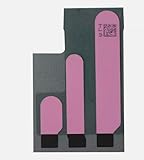
- 100% brand new and high quality.
- Compatible with iPhone 16 Pro.
- Each part is tested before shipment.
- 5x Battery Adhesive Replacement Part Repair Replace For Apple iPhone 16 Pro
- If you have any question, please contact us. We will offer an excellent after-sell service.
Quick decision guide
| What you observe | Next step |
|---|---|
| No visible response and the battery may be depleted | Check the cable, adapter, outlet, and port; charge the phone, then try a force restart. |
| Black screen or frozen phone | Quickly press and release Volume Up, quickly press and release Volume Down, then hold Side until the Apple logo appears. |
| Connect to computer screen or failed normal update or restore | Use recovery mode with Finder or Apple Devices; try Update before Restore when available and not already tried. |
| Restore is the only offered option or you choose it | Be aware that Restore erases all data on the iPhone. |
| Still will not turn on, button is stuck, or recovery fails | Seek service from Apple or an Apple-certified service provider. |
Product prices and availability are accurate as of the date/time indicated and are subject to change. Any price and availability information displayed on Amazon at the time of purchase will apply.

