
To use remote functions on a supported Samsung oven, first connect it to SmartThings, then close the oven door and tap Smart Control on the appliance when you want to enable remote operation. Pairing the oven and enabling Smart Control for a cooking session are separate steps. Menus and available functions vary by model, country, and software version.
Before you start: check the model and the type of control panel
Confirm that your oven supports SmartThings and Smart Control, and use the manual for your exact model if its menus or button labels differ. Samsung’s instructions show more than one pairing method:

- Touch-screen models: pairing may be under Settings > Easy Connection > Connect.
- Some models with physical controls: press and hold Smart Control until AP appears on the display.
These are model-specific examples, not a universal sequence. Samsung’s regional setup instructions are available for Australia and Spain.
Connect the oven to SmartThings
- Install or open the SmartThings app and sign in to your Samsung account.
- In the app, start adding a device. Choose the oven and follow the prompts to assign it to a room or location.
- Put the oven into pairing mode using the method for your model: on some touch-screen ovens, go to Settings > Easy Connection > Connect; on some physical-control models, press and hold Smart Control until AP appears.
- Choose your home Wi-Fi network in the app and follow the remaining prompts until the oven is registered to your Samsung account. Samsung’s UK setup guide specifies a 2.4 GHz network and recommends using the same router for the phone and appliance during setup; the guide was last updated in 2021, so follow the current app prompts and your model’s manual if they differ: Samsung UK oven setup guide.
Once registration is complete, the oven is paired with SmartThings. That alone does not necessarily authorize remote control for a cooking session.
Free tools Windows power users keep installed
One-click scans. No signup required.
#1 Best Overall

- SAVE TIME W/ DUAL CONVECTION: Dual convection saves you time by cooking food quickly and more evenly, ensuring that your food is cooked evenly and to perfection
- CRISP FOOD W/ STEAM COOK: Elevate your cooking game with the Steam Cook feature, which delivers precise amounts of moisture at the right times to create dishes with a perfectly crisp, golden-brown exterior and tender, juicy interior
- ALL SHINE & LARGE CAPACITY: Fingerprint resistant, for an everyday beautiful finish; This large 5.1 cu. ft. wall oven fits multiple meals at one time, or it can easily accommodate big casserole dishes or roasting pans
- WI-FI CONNECTIVITY: Monitor and adjust cook time and temperature of your oven, right from your smartphone through the SmartThings App**
- VOICE CONTROL: Control your oven by voice when you’re busy doing other things by using your favorite virtual assistant, whether it’s Bixby, Alexa or Google***
Enable Smart Control for remote operation
- Close the oven door.
- Tap Smart Control on the oven’s display or control panel. The oven should then allow the remote functions supported by that model in its SmartThings device card.
Samsung says remote authority is cleared when the door is opened or cooking is completed or canceled. Enable Smart Control again if you want remote operation afterward. See Samsung’s US SmartThings range guidance and Smart Control instructions for model-dependent details.
Gas and electric ovens do not have the same remote-start rules
In the United States, Samsung states: “For safety reasons, you cannot turn on a gas oven remotely.” A gas oven must be started using its local control panel. That restriction is distinct from other supported app functions, such as adjusting or turning off an oven after it has been started locally.
Rank #2

- SENSOR COOKING: Samsung Sensor Cook automatically adjusts cooking time for optimal results. From soup to frozen dinners, you'll get great results every time.
- LARGE CAPACITY: With 1.9 cu. ft. of space, Samsung's largest capacity countertop microwave gives you plenty of room for any food you need to heat.
- CERAMIC INTERIOR: This durable ceramic enamil interior is scratch resistant, easy to clean and maintain.
- COOKING PRESETS: A variety of preset cooking options puts convenient meals with fresh ingredients at your fingertips.
- OPTIONAL TRIM KIT: Made from high-quality stainless steel, the Trim Kit accessory (sold seperately) gives you the flexibility to install the microwave oven in a wall or cabinet space.
Samsung says some electric ranges may support remote start after they are paired and Smart Control is enabled. Do not assume your electric model supports every app function: capabilities depend on the appliance model and market. Samsung’s US guidance describes those distinctions.
If SmartThings cannot find or control the oven
- Check the setup route: update the SmartThings app and follow the device-specific prompts. Samsung notes that the available path can depend on whether the oven was previously set up, is already connected to a network, or was registered by a previous owner. See Samsung’s setup guidance.
- Check Wi-Fi signal: Samsung warns that a weak signal can impair SmartThings functions. Confirm the oven is within reliable range of the router.
- Check registration: if someone else registered the oven, use Samsung’s ownership or household-invitation process rather than assuming a factory reset is necessary. Samsung Colombia’s Smart Control guidance explains that app functions and the remote state depend on the model and setup.
- Check the control state: if the oven door was opened or a cooking session ended or was canceled, tap Smart Control again before trying remote operation.
What the app can do varies by model
Samsung Colombia describes monitoring and turning the oven off when Smart Control is inactive, and lists monitoring, turning the oven on or off, and error detection when it is active. Those functions are specific to the models and market covered by that support page; they should not be treated as a feature list for every Samsung oven. Check your model’s SmartThings card and manual for the controls it supports.
Crashes, No Sound, or Screen Glitches?
Random freezes, missing sound and display glitches usually trace back to one bad driver. Find and replace yours safely.Free scan · under a minutePC Slower Than It Used to Be?
A free scan shows the junk files, broken settings and background clutter dragging Windows down - then fixes them in one click.Free scan · Windows 10 & 11Quick Recap
Rank #4
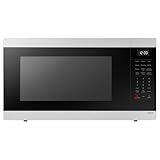
- SENSOR COOKING: Samsung Sensor Cook automatically adjusts cooking time for optimal results. From soup to frozen dinners, you'll get great results every time.
- LARGE CAPACITY: With 1.9 cu. ft. of space, Samsung's largest capacity countertop microwave gives you plenty of room for any food you need to heat.
- CERAMIC INTERIOR: This durable ceramic enamil interior is scratch resistant, easy to clean and maintain.
- COOKING PRESETS: A variety of preset cooking options puts convenient meals with fresh ingredients at your fingertips.
- OPTIONAL TRIM KIT: Made from high-quality stainless steel, the Trim Kit accessory (sold seperately) gives you the flexibility to install the microwave oven in a wall or cabinet space.
Rank #3
Product prices and availability are accurate as of the date/time indicated and are subject to change. Any price and availability information displayed on Amazon at the time of purchase will apply.

