
To change a video’s format, first check what is inside the file—not just its extension. If the video and audio codecs already work with your device and only the container is unsuitable, remux the file without re-encoding. If the codecs or required features are unsupported, transcode it to compatible settings. Keep the original until you have checked the converted video, audio, subtitles, duration, and synchronization.
What “video format” means
A video file is a package of separately encoded streams. The container—such as MP4, MKV, or WebM—organizes the video, audio, and possibly subtitles and other features. A codec encodes an individual stream; H.264 is a video codec, for example, while AAC is an audio codec. An .mp4 extension therefore does not, by itself, tell you which codecs the file contains or guarantee that a particular device can play it. HandBrake’s documentation explains that containers organize streams and that supported features vary among container formats: HandBrake container documentation.
Should you remux or transcode?
Choose the operation that fixes the incompatibility while changing as little as possible. FFmpeg calls copying encoded packets without decoding or encoding “streamcopy”; it can change the container or select streams without re-encoding. Because the media is not re-encoded, streamcopy avoids quality loss from a new encode. It can fail if the target container cannot accept the streams or features, and it cannot apply filters. See FFmpeg’s streamcopy documentation.
| Approach | Best fit | Trade-off |
|---|---|---|
| Remux / streamcopy | The target supports the existing video and audio codecs, but needs a different container. | Does not re-encode the streams, but may fail if the target container cannot carry them or their features. [FFmpeg] |
| Transcode / re-encode | The target does not support a source codec, resolution, or other required stream feature. | Re-encodes media, so it is not inherently lossless; choose settings for the target and check the result. [FFmpeg; VLC 3.0 documentation] |
VLC’s 3.0 documentation describes conversion as re-encoding audio, video, and subtitle streams before muxing them into a container. Its examples are version-specific, so confirm the available controls and output settings in the version you use: VLC conversion documentation.
Do these 3 things before closing this tab:
1Clear out junk files and repair common Windows errors2Scan for outdated or missing drivers - takes under a minute3Repair Windows errors before they cause bigger problems#1 Best Overall

- AV TO USB Converter: Capture videos and audios from VHS, VCR, Hi8, DV tapes to a PC, with the help of our USB Video Converter. Save room while digitizing your favorite old memories
- Quality Capture Card: Our USB Video Capture Card converting anolog RCA composite input into HD 720P USB output and capturing audio without any sound card. Advanced signal processing technology provides you with great precision, colors, resolutions, and details.
- Plug and Play: Automatically install the driver once you hook up this RCA to USB Converter to a PC. No external power is needed. User-friendly and easy to operate
- Wide Compatibility: The Video Capture Card can work with video devices with RCA connector or S-Video connector, such as VHS, VCR, Hi8, camcorder, compatible with Windows and Mac OS. Support video formats like NTSC, PAL, and support brightness, contrast, hue, and saturation control
- Note: The Video Converter is used with acquisition software. We recommend OBS Studio or PotPlayer for Windows, and QuickTime Player for Mac. They can be downloaded for free online. Please operate according to the steps in User Manual or contact us if you have any questions
How to choose compatible output settings
- Inspect the source. Identify its container, video codec, audio codec, subtitle streams, resolution, and frame rate. A media-information utility or a conversion app’s source details can help.
- Check the receiving device or service. Use its current support documentation for accepted containers, codecs, resolutions, frame rates, audio formats, and subtitle types. Do not assume that every MP4 file will work everywhere.
- Try streamcopy when only the container is the problem. Keep the encoded streams if the target supports them. If the operation fails, the target container may not support a stream or feature you need.
- Transcode only when necessary. Select codecs and settings that meet the target’s requirements. Re-encoding can affect quality; higher output resolution cannot restore detail missing from the source.
- Play the output before replacing the source. Check the full duration, picture, sound, synchronization, subtitles, frame rate, and audio channels. Preserve the original until the new file works in the intended app or device.
MP4 with H.264 video and AAC audio is described as an option in NASA PDS4 guidance for cases where an application does not support H.264 and/or AAC encoding and a conversion to MP4 is needed. That is contextual guidance, not a guarantee for every device; check the actual playback target’s requirements: NASA PDS4 video file formats guidance.
Which video conversion software should you use?
| Option | Useful for | What to watch |
|---|---|---|
| HandBrake | A graphical workflow for transcoding common video files with presets. | Presets can alter resolution, frame rate, and audio selection. It can open many common source formats, but an editing project may need to be exported to a video file first. [Supported source formats; Official presets] |
| FFmpeg | Command-line conversion, streamcopy, stream selection, and repeatable jobs. | Available codecs depend on the installed build and its enabled libraries. [Streamcopy; Codec documentation] |
| VLC | A documented transcode workflow for people already using VLC. | The cited instructions are for VLC 3.0 and describe re-encoding; check the selected streams and output parameters. [VLC 3.0 conversion documentation] |
HandBrake: inspect the preset before starting
HandBrake’s presets are starting points, not neutral file wrappers. Its documentation says presets may downscale higher-resolution sources, limit peak frame rate, apply audio settings, or omit discrete surround sound when a preset includes only stereo. Fast 1080p30 is described by HandBrake as a beginner starting point with broad compatibility; that recommendation applies to HandBrake’s preset, not to every source or playback target. Review the chosen preset’s dimensions, frame-rate behavior, and audio tracks before encoding: HandBrake official presets.
Rank #2

- This Video Capture Card Can transfer video and audio from VHS, VCR, DVD, Hi8, DV tapes, camcorders, or other video source devices with RCA or S-Video interfaces to your PC or Mac synchronously.
- Convert analog RCA/S-Video audio and video signal input to high-definition 1080P/30fps USB-A/USB-C output, digitize and save your good memories with your friends and family on your computer, share with your friends and family, leaving precious memories
- Plug and play, easy to operate, just connect the RCA or S-Video interface of your video recorder to the USB-A/USB-C interface of your computer or notebook and it can be used without any driver. Note: It needs to be used with the acquisition software
- Compatible with USB-A/USB-C interfaces, not limited by computer interfaces, compatible with Windows and Mac OS, supports NTSC, PAL and other video formats, and supports brightness, contrast, hue and saturation control
- Note: This video converter needs to be used with capture software, which can be downloaded free of chargge . We recommend OBS Studio or PotPlayer for Windows and QuickTime Player for Mac. Please feel free to contact us if you need technical support.
FFmpeg: use streamcopy only when the streams fit
FFmpeg is useful when you need to control which streams are included or repeat a job consistently. Streamcopy changes the container without decoding and re-encoding the selected streams. If you need filters or new codecs, streamcopy is not the right operation; use a transcode instead. Check your installed build because encoder and decoder availability varies: FFmpeg streamcopy and FFmpeg codec documentation.
VLC: understand that conversion means re-encoding
The VLC 3.0 guide describes a conversion process that transcodes streams and then muxes them into a selected container, with parameters such as bitrate, frame rate, sample rate, and channels. Treat it as a re-encoding workflow, not a way to change only the wrapper: VLC 3.0 conversion guide.
Rank #3

- [HDMI Capture & Analog Video Convert] Turn your nostalgic analog footage into digital files effortlessly! This 2-in-1 device owns two separate functions: it acts as a professional VHS to digital converter to digitize videos from VCR, RCA, AV, S-Video, Video8 and Hi8 camcorders in original source resolution without automatic HD improvement; meanwhile it functions as an HDMI capture card that supports 4K HDMI input and outputs real 1080P recorded videos, perfectly helping you save vintage family memories and record clear high-definition screen content.
- 【Live Streaming & Gaming】Level up your content creation! As a HDMI video capture device, it seamlessly streams PS5/Xbox/Nintendo Switch gameplay to Twitch/YouTube. Also works as an analog to digital audio converter for converting cassette tapes while broadcasting retro gaming sessions.
- 【Auto Upscale to HD】Revive low-resolution tapes! Our video capture card automatically upscales VHS/VCR/8mm/Hi8 footage via OBS software. Whether converting VHS to DVD or digitizing Hi8 tapes, enjoy studio-quality results without technical skills
- 【USB Universal Compatibility】Works instantly with PC/Mac/Linux/Android! This USB capture card includes a USB-A adapter and supports OBS/VLC/TikTok Preserve VHS tapes, stream DSLR videos, or convert cassettes—with one compact analog to digital converter.Digital Conversion: converts VHS tapes, Hi8, and V8 camera footage to digital format for burning to DVDs.
- ❤️𝗡𝗼𝘁𝗲: ①This device needs to work with video capture software,Please download OBS, Potplayer, Vmix, and other video capture software on your computer before using the capture card. we recommend OBS or PotPlayer for Windows, QuickTime Player for Mac(Software comes with MAC OS), perfect for video recording, live broadcasts
How to convert an analog tape or disc
VHS, Beta, Video8/Hi8, LaserDisc, and other analog sources are not digital files that conversion software can open directly. First capture the playback signal to a computer using suitable hardware and capture software that exports a common digital video file. Then open that captured file in a converter if you need a different digital format. HandBrake’s guidance names Blackmagic Design Intensity as an example of a hardware recording device, but it is not a current compatibility list; match capture hardware to the source connection and your computer: HandBrake analog capture guidance.
Quick Recap
Best Value
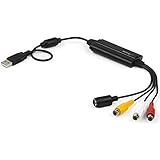
- SD VIDEO CAPTURE: USB video capture adapter converts composite/S-Video & RCA 2ch audio into digital media; supports 30fps @720x480i (NTSC)/25fps @720x576 (PAL/SECAM) & MPEG-1/MPEG-2/MPEG-4 encoding
- SOFTWARE COMPATIBILITY: USB 2.0 video capture cable drivers are TWAIN compatible for use w/ third-party software; incl. software provides an out of the box solution for Windows (7-10) computers
- CAPTURE & SHARE: Using third-party software (OBS, etc.) you can capture standard def 480i video and stream on services like YouTube (or other social media platforms) or in training & resource centers
- PORTABLE DESIGN: USB bus-powered USB video capture device is compact & lightweight, so you can easily take it from your media room or classroom while in the office, working from home or on the go
- ANALOG TO DIGITAL VIDEO CONVERTER: Use the intuitive Windows software (included) to easily capture video from your VCR/BETA, camcorder or home videos VHS to Digital/DVD or PC storage
Rank #4

- VHS to Digital Converter: This RCA to USB converter is a VHS to digital converter for PC. Convert VHS to digital and capture video/audio from VHS, VCR, Hi8, Mini DV/DV, and DVD to PC. This VHS to digital converter helps digitize old memories and save space.
- Quality Capture Card: This USB video capture card is a quality video capture card and RCA to USB video capture card. It converts analog RCA composite input to 720P USB output. This video capture card captures audio without a sound card and provides precise colors, resolution, and details.
- Plug and Play: Automatically install the driver once you hook up this RCA to USB Converter to a PC. No external power is needed. User-friendly and easy to operate
- Broad Compatibility: This video capture card works with RCA or S-Video devices: VHS, VCR, Hi8, Mini DV, DVD, camcorder, tape player, PC, and TV. Use it for VHS to digital, Hi8 to digital, Mini DV to digital, VCR to digital, and camcorder to PC. Compatible with Windows Vista and Mac OS; supports NTSC/PAL and brightness, contrast, hue, and saturation control.
- Software & Support: This Video Converter is used with video acquisition software. We recommend OBS Studio or PotPlayer for Windows, and QuickTime Player for Mac OS, all of which can be downloaded for free online. Please operate according to the steps in the User Manual, or contact our support team anytime if you have any questions.
Product prices and availability are accurate as of the date/time indicated and are subject to change. Any price and availability information displayed on Amazon at the time of purchase will apply.

