
Free tools Windows power users keep installed
One-click scans. No signup required.
3D virtual photography means composing and saving a still image using a camera inside a digital scene. You can photograph a world made by a video game, build and render your own scene, or explore a production environment in VR to plan shots. The right route depends on how much control you need: a game’s photo mode is the simplest way to capture an existing world, while a 3D tool gives you control over the scene itself.
What 3D virtual photography is—and what it is not
A virtual photograph is made by placing and aiming a digital camera in a rendered 3D environment. The image may come from a game, a scene created in a 3D application or engine, or a production environment used for planning. As with conventional photography, the result depends on choices such as camera position, framing, perspective, light, and mood.
Virtual production is related but has a different purpose. It uses game-engine environments to help plan or support film and television work. Epic describes visualization workflows including previs, pitchvis, techvis, stuntvis, and postvis in its Virtual Production Visualization Guide. Photographing a game world for a standalone image does not, by itself, make the work virtual production.
Choose the workflow that matches your goal
| Workflow | Best suited to | Scene control | What you need |
|---|---|---|---|
| Game photo mode or supported capture integration | Capturing a world that already exists in a game | Limited to the camera and image controls that game or integration exposes | A game with photo mode or a supported capture integration; requirements vary by title |
| Original 3D scene | Creating a subject, setting, or composition of your own | Control over the scene and camera, subject to the selected tool and assets | A 3D creation tool or engine, scene assets, and time to learn the workflow |
| VR virtual scouting | Exploring and composing shots in a production environment with a team | Immersive navigation and shot planning in a prepared environment | For Epic’s documented tools: Unreal Engine 5.4 or higher, Windows, a VR-capable PC, and a supported headset |
These approaches serve different purposes, not different quality tiers. Start by deciding whether you want to capture a world you cannot change, author a scene you control, or collaborate on production planning.
#1 Best Overall

- Think bold. A collection of stickers that capture the Insta360 spirit, freely pasted wherever you like. In the Box: 1x Insta360 X3, 1x Charge Cable, 1x Protective Pouch, 1x Lens Cloth, and 1x User Guide.
- NEW ERA 360 ACTION CAMERA: Insta360 X3 combines 5.7k 360 with all the power of a 4K action camera together. Unbelievable potential!
- 5.7K 360 CAPTURE & REFRAMING: Insta360 X3 captures 360 Active HDR video, with all the benefits of a traditional action camera. Choose your favorite angle after the fact with easy reframing in the AI-powered Insta360 app.
- 4K WIDE-ANGLE SHOTS: Shoot wide-angle footage in maximum resolution with 4K30fps or a super-wide 170° field of view with 2.7K60fps MaxView.
- KEEP FOOTAGE STABLE & LEVEL: FlowState Stabilization and Horizon Lock algorithms work together to deliver incredibly smooth videos.
How to take a photo in a 3D game world
- Check the game’s capture options. Look for a built-in photo mode or documented support for a capture integration. Features and controls differ by game, so do not assume that a particular camera or export option is available.
- Find the moment and enter photo mode. Explore the scene, pause or activate the mode as the game instructs, and decide what should be the subject.
- Set the camera and composition. If the game permits camera movement, adjust position, angle, and framing. Consider perspective and visual balance rather than simply centering the subject.
- Adjust the available image controls. Change exposure or post-processing only if those controls are provided. Some integrations offer more than a game’s standard mode, but their features are not universal.
- Save and check the capture. Use the game’s or integration’s save process, then verify the resulting image and resolution meet your needs.
NVIDIA’s historical Ansel feature introduction describes the aim of free-camera game capture. Epic’s Unreal Engine 4.27 documentation for the NVIDIA Ansel Photography Plugin lists free-camera positioning, super-resolution, post-processing, and 360 capture. These are examples from a legacy integration, not a promise that current games—or every Ansel-supported title—provide all those options.
How to create and render an original 3D photograph
- Choose a 3D tool or engine and prepare a scene. Build the environment yourself or obtain assets you can use. A prebuilt scene can help you focus on camera and lighting, while creating one from scratch gives you more control.
- Place the subject and camera. Decide what the image should communicate, then set the viewpoint, framing, and perspective. Small changes in camera height or angle can substantially alter how the subject reads.
- Shape the light and materials. Arrange lighting for the intended mood and adjust materials and background so the subject remains legible. These choices are part of making the image, not merely technical setup.
- Render a still and review it. Inspect the output for framing, lighting, and unwanted visual elements. Refine the scene or camera and render again if needed.
This route offers control over both the environment and the camera, but it requires learning the chosen software and managing render performance. Computer requirements depend on the engine, assets, and settings; check the current official requirements for the specific tool rather than relying on a universal minimum specification. Epic’s visualization guide provides context for engine-based production visualization, but it is not a benchmark comparing consumer tools or hardware.
Rank #2

- Lab-Grade Indoor Accuracy, ±3mm at 1m – Achieve sub-millimeter precision with structured light technology. Perfect for 3D modeling, VR AR gesture recognition, and AI vision tasks. Zero blind spot measurements in controlled lab, warehouse, or industrial settings. long-range (8m) for logistics or high-res RGB (1280x720) for enhanced visual data. 3d camera outputs include point clouds, depth maps, IR, and RGB.
- High-Efficiency Processing for Real-Time Robotics – Powered by Orbbec ASIC, Astra Pro robot camera delivers artifact-free, high-fidelity depth at 1280×1024 @ 7 fps and RGB at 1280×720 @ 30 fps simultaneously. With a 0.6–8m ranges, optimization excels in lag-free applications like SLAM, automation, obstacle avoidance, and pose estimation—positioning Astra Pro as the premier camera for indoor robotic control where every millisecond counts.
- Seamless Multi-Camera Sync for Scalable Systems – Synchronize up to 30 sensors at 30 fps with zero frame drops — enabling true 360° environment scanning, large-scale motion tracking, and sub-millisecond multi-robot coordination. In multi-agent robotics, perfect timing of robot parts isn’t a feature… it’s the decisive advantagefor robotics developers.
- Ultra-Low Power & Portable – Battery life can make or break mobile robotics. Power draw <3W and weight as low as 310g—battery-friendly for AMR, AGV, drones, mobile platforms, and field research setups. Compact size enables integration into embedded systems and wearable devices, streamlining development for on-the-go perception in research prototypes or field-deployable bots.
- Plug-and-Play Integration for Fast Prototyping – USB 2.0 single-cable connection (power + data), direct drop-in replacement for legacy systems. The camera works with Windows, Linux, and Android operating systems. The camera is compatible with OpenNI SDK, Astra SDK, ROS1/ ROS2, enabling fast integration into mobile robots, industrial PCs, embedded platforms, and AI vision applications
When VR virtual scouting makes sense
Virtual scouting is a production workflow for exploring a prepared environment, composing shots, blocking scenes, and sharing images with a production team. Looking around and positioning a camera in a headset can make spatial exploration more intuitive, but it adds headset, software, and computer compatibility requirements. It is useful when immersive navigation materially helps the work—not a prerequisite for ordinary game photo modes or for creating every kind of virtual photograph.
Epic’s current Virtual Scouting in Unreal Engine documentation specifies Unreal Engine 5.4 or higher, Windows, and a VR-capable PC for its documented tools. It lists Meta Quest 2, Meta Quest 3, Meta Quest Pro, Oculus Rift S, and Valve Index. Treat that as compatibility information for Epic’s documented workflow, not as a universal headset list for virtual photography; check the live documentation before choosing equipment because requirements and supported devices can change.
Recommended Free Tools
Rank #3
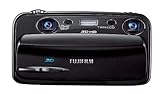
- Capture high-resolution images in 2D and 3D
- Record HD 3D movies (720p resolution); dual 10-megapixel CCD and lens system
- 3.5-inch widescreen autostereoscopic LCD displays images and movies in 3D instantly, with no glasses required
- mini-HDMI output jack offers easy connection to a compatible 3D HDTV; view images and movies instantly in 3D
- Capture images and movies to SD/SDHC memory cards (not included)
How to compare tools and equipment
There is no single best setup for every virtual photographer. Compare options against the image and workflow you actually need:
- Camera control: Can you move freely, or only select from fixed angles? Can you change perspective or framing?
- Scene control: Can you alter lighting, materials, weather, or layout, or are you limited to the game’s existing world?
- Output: Does the tool save still images at the resolution and in the format you need? Is panoramic or 360 output important?
- Access and learning: Is an existing game’s photo mode sufficient, or do you need to learn a 3D application or engine and manage scene assets?
- Compatibility and compute: Check the exact software version, operating system, graphics hardware, and—if using VR—headset support. Larger scenes and more demanding settings can require more resources.
- Comfort and collaboration: Consider whether headset-based navigation helps with shot placement enough to justify the additional setup, especially if the work involves a production team.
A VR headset is relevant if you choose an immersive scouting workflow; it is not required just to photograph a game. Likewise, a graphics card requirement documented for a particular integration or VR workflow does not establish a current best graphics card for all 3D photography. The cited documentation does not provide a controlled, head-to-head comparison of tools or image quality.
Quick Recap
Rank #4
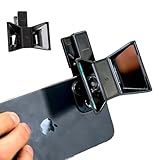
- TURN YOUR DEVICE INTO A 3D MASTERPIECE MACHINE: Clip on the OPIC Spatial Phone lens to instantly transform your smartphone, tablet, or laptop into a powerful 3D content creation tool—no additional camera required. Its adjustable clip and spacer system ensure a perfect fit every time.
- ELEVATE YOUR CREATIVE GAME: Capture stunning stereoscopic 3D photos and videos with the OPIC Spatial adapter, which enhances your phone camera lens to create visuals that leap off the screen. Powered by OPIC’s patented software, your content is optimized for crystal-clear Virtual Reality viewing, giving you a professional edge.
- SEAMLESS 3D LIVESTREAMING TO THE WORLD: Host real-time 3D livestreams to VR headset, Meta Quest 3, Apply Vision Pro users across the globe. With OPIC Spatial Phone lenses, you don’t just capture memories—you invite others to experience them with you.
- FUTURE-PROOF PATENTED DESIGN FOR ANY DEVICE: Upgrading your phone? No problem! The OPIC Spatial, a cutting-edge cell phone camera lens, features a versatile clip that adjusts smoothly to fit your new device, ensuring your investment stands the test of time.
- EASY TO USE, NO TECH EXPERTISE NEEDED: Designed with simplicity in mind, OPIC Spatial, a phone camera zoom lens clips on in seconds and works effortlessly with the OPIC 3D app to optimize your footage.
Product prices and availability are accurate as of the date/time indicated and are subject to change. Any price and availability information displayed on Amazon at the time of purchase will apply.

