
Free tools Windows power users keep installed
One-click scans. No signup required.
You can set a Galaxy phone’s Side button to do more than launch Camera or call an assistant. Go to Settings > Advanced features > Side button (called Side key on some devices), then choose actions for double press and long press. Depending on your device, a double press can jump straight to a feature inside an app, such as starting a recording or opening a camera mode.
The exact choices vary by model, software version, region and carrier, so treat the options below as possibilities to check on your Galaxy rather than a guaranteed list. Samsung’s UK guide and US support guide show examples and setup details.
How to change what the Galaxy Side button does
- Open Settings.
- Tap Advanced features, then Side button or Side key.
- Tap Double press and switch it on if necessary.
- Choose an available app or feature. If a gear icon appears beside an app, tap it to see whether you can select a specific in-app action.
- Return to the Side button settings, tap Long press, and choose an available assistant or the power-off menu.
- Try each shortcut, and check that you know how to reach the power menu if long press is assigned to an assistant.
Samsung notes that menus and available features can differ by device and software. Its support pages also describe other ways to reach power controls, including the Quick panel and pressing the Side button with Volume Down.
Useful double-press shortcuts to try
Samsung’s current examples go beyond opening an app. The choices that appear on your phone may differ, and some task-level actions depend on a gear menu being available for the selected app.
What’s actually slowing this PC down?
Pick the symptom - the matching free tool is one click away.
#1 Best Overall
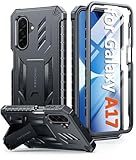
- Compatibility: ONLY Fit Samsung Galaxy A17-5G 6.7 Inch. Not for A15/A14. WON'T fit any other phone models. Please confirm your model before purchasing. NOTE: Before putting on our phone case (with built-in screen protector), remove the tempered glass screen protector from your phone first
- Built-in Screen Protector: Comes with a seamlessly integrated, bubble-free screen protector. It safeguards your Galaxy A17's display from daily scratches, scuffs, and impacts without the hassle of separate installation
- Built-in Kickstand: The built-in kickstand supports both landscape (for videos) and portrait (for reading) viewing angles. When closed, the stand lies completely flat against the back, ensuring a smooth, snag-free profile
- 20FT Military-Grade Drop Tested: Whether it’s slipping from your hand while texting (4-5ft), or an accidental drop during a walk or hike, this Galaxy A17 Case is built to absorb the impact. The 4-corner airbag and shock-absorbing TPU provide 360 cushioning, backed by a rigorous 20ft military-grade test standard
- Comfortable: The A17 Case features a sophisticated, non-slip matte texture that resists fingerprints and provides a secure, comfortable hold. The durable TPU material offers both protection and a pleasing tactility
| Shortcut | What it can do | What to check |
|---|---|---|
| Flashlight | Turn on the flashlight with a double press. | Choose Flashlight if it appears in the feature list. |
| Magnifier | Open Magnifier directly. | Samsung lists it in its current US options; availability can vary. |
| Voice Recorder | Start recording without first navigating through the app. | Select Voice Recorder, then choose Start recording if its gear menu offers that action. |
| Samsung Notes | Start a voice note. | Look for a voice-note action in the app’s gear menu. |
| Camera | Open a chosen camera function, such as selfie mode. | Use the gear menu to see which camera actions are listed. |
| Samsung Capture | Open a capture tool such as AI select. | Check whether Samsung Capture and the relevant action appear on your device. |
| Modes and Routines | Start a routine, with Sleep as one Samsung-listed example. | Choose the routine shown in the gear menu, if available. |
| Samsung Wallet | Open Wallet quickly. | Samsung lists Wallet in its UK guide; it may not appear in every country or configuration. |
| Installed app | Launch an app you use often. | Some apps offer a gear menu with a direct action; others may only open the app. |
Choose what a long press should do
A long press can launch an assistant or show the power-off menu, depending on the selected setting and software. The choice matters because assigning an assistant changes the usual way to open power controls with the Side button.
Use Gemini or another available assistant
Samsung says that from One UI 7 onward, the default long-press action is Gemini. Its current UK overview describes Gemini, or Google Assistant where Gemini is unavailable. Available assistant choices depend on the phone and its configuration.
Rank #2

- Compatibility: Samsung Galaxy A15 Case cares for every detail with precise cutouts allow easy access to all ports, speakers, cameras, buttons, and other functions. Won't compatible with any other phone models. Notice: Due to the metal ring on the back, the case will 𝗡𝗢𝗧 𝘄𝗼𝗿𝗸 𝘄𝗶𝘁𝗵 𝗪𝗶𝗿𝗲𝗹𝗲𝘀𝘀 𝗖𝗵𝗮𝗿𝗴𝗶𝗻𝗴 𝗳𝘂𝗻𝗰𝘁𝗶𝗼𝗻
- 𝗜𝗻𝘀𝘁𝗮𝗹𝗹𝗮𝘁𝗶𝗼𝗻 𝗧𝗶𝗽𝘀: This case has a 2-in-1 polycarbonate front cover, frame, and back cover. 𝗖𝗿𝘂𝗰𝗶𝗮𝗹𝗹𝘆, 𝗱𝗲𝘁𝗮𝗰𝗵 𝘁𝗵𝗲 𝗳𝗿𝗼𝗻𝘁 𝗰𝗼𝘃𝗲𝗿 𝗳𝗶𝗿𝘀𝘁. After applying the film, install the front cover onto your phone. 𝗜𝗳 𝘆𝗼𝘂 𝗲𝗻𝗰𝗼𝘂𝗻𝘁𝗲𝗿 𝗱𝗶𝗳𝗳𝗶𝗰𝘂𝗹𝘁𝗶𝗲𝘀 𝗶𝗻𝘀𝘁𝗮𝗹𝗹𝗶𝗻𝗴 𝗶𝘁, 𝗰𝗼𝗻𝘁𝗮𝗰𝘁 𝗰𝘂𝘀𝘁𝗼𝗺𝗲𝗿 𝘀𝗲𝗿𝘃𝗶𝗰𝗲
- Tempered Glass Screen Protector : The Samsung Galaxy A15 phone case presents [2 Packs] advanced HD clarity 9H hardness ultra resistant tempered glass screen protector. The Samsung Galaxy A15 5G phone case front cover provides 360-degree all-round protection for your phone, effectively prevents screen scratches, supports fingerprint recognition, and improved touch-smooth surface for better handheld experience
- Premium Material Construction: Our phone cases are made of high - quality, impact - resistant polycarbonate. This combo offers great durability, withstanding daily bumps, drops, and scratches to protect your phone long - term. The materials are robust, rarely cracking or deforming
- Weather and Chemical Resistance: Our phone cases are built to withstand physical impacts, elements, and common chemicals. They resist sunlight, humidity, and spills of water, coffee, or hand - sanitizer. This protection against environmental factors and chemicals enhances durability and longevity, ensuring optimal performance and year - round phone safety
Get Bixby back on the Side button
Open Settings > Advanced features > Side button > Long press, then select Bixby if it is offered. Samsung explains the One UI 7 default change in its One UI 7 support article.
Keep long press for the power menu
If you prefer the familiar press-and-hold route to power options, select the power-off menu instead of an assistant where that choice is available. If long press opens an assistant, Samsung documents the Quick panel and the Side button plus Volume Down as alternatives for power controls.
Rank #3

- Compatibility: Engineered exclusively for Samsung Galaxy S25 FE with precision cutouts that give full access to ports, speakers, and buttons without interfering with wireless charging. Our 24/7 dedicated support team resolves any model or quality concerns instantly.
- Military-Grade Dual-Layer Protection: A shock-absorbing TPU interior with reinforced corner airbags and a heat-dissipating honeycomb core is wrapped in a hard polycarbonate outer shell. Certified 14ft drop protection guards your phone against high-impact falls onto concrete warehouse floors and rocky hiking terrain.
- 360 Screen Defense with Tempered Glass: Each case includes a separate HD tempered glass protector that delivers full edge-to-edge coverage while preserving original touch sensitivity and clarity. It shields against pocket-key scratches and face-down drops on gym tiles or concrete floors.
- Practical Design for Secure Grip: Textured side panels and a non-slip matte back provide a confident hold during sweaty gym workouts, one-handed texting, and fast-paced daily commutes. The fingerprint-resistant finish stays clean, and soft-touch buttons deliver crisp, responsive feedback.
- All-Scenario Versatility: The minimalist, low-profile matte design blends effortlessly into any environment, from business commutes to weekend hikes. It pairs rugged durability with everyday pocketability for heavy-duty protection without the bulk.
Other Side button behavior and combinations
Samsung’s UK guide describes a single press as waking or locking the screen, a double press as opening the selected app or feature, and a long press as launching Gemini under its stated configuration. It also documents pressing Side button and Volume Down together: a short press takes a screenshot, while a long press brings up power-off or Emergency SOS. Button behavior and combinations can differ across devices.
Why your Galaxy may show different options
- Model and software: Samsung warns that supported features and screens vary by device model and software version.
- Region and carrier: The available actions can also differ by region or carrier, and a Wallet or assistant option should not be assumed to appear everywhere.
- Button type: Samsung’s US guide distinguishes newer Side button devices from older phones with a dedicated Bixby button, including the Note 9, S8 series, and S10 and earlier.
- One UI version: One UI 7 changes the documented default long-press action to Gemini; Samsung provides a setting to choose Bixby where available.
If a shortcut in this article is missing, check the Side button screen on your phone rather than assuming a setting is broken. Samsung’s guides cover customizing the button and model- and OS-dependent controls.
Quick Recap
Product prices and availability are accurate as of the date/time indicated and are subject to change. Any price and availability information displayed on Amazon at the time of purchase will apply.

