
Do these 3 things before closing this tab:
1Scan for outdated or missing drivers - takes under a minute2Clear out junk files and repair common Windows errors3Fix the driver behind crashes, sound loss and screen glitchesiTechGuides is reader-supported. When you buy through links on our site, we may earn an affiliate commission. As an Amazon Associate I earn from qualifying purchases. Learn more
To broadcast prerecorded videos in order and repeat them as one 4K 60fps YouTube Live stream, build the playlist in OBS Studio with a VLC Video source: put the files in order, turn on Loop Playlist, and leave Shuffle Playlist off. Then connect OBS to YouTube Live Control Room with your stream URL and key. YouTube’s watch-page loop control only repeats playback for a viewer; it does not create or transmit a live broadcast.
Build the loop in OBS, not on YouTube’s watch page
“YouTube Live playlist” can refer to different things. For a live broadcast made from local video files, OBS sends the ordered sequence to YouTube as an encoder output. A YouTube watch-page playlist loop is a viewer playback setting, not a way to make your channel broadcast those files. YouTube’s encoder workflow uses the stream URL and key from Live Control Room (YouTube Live encoder setup; watch-page playlist looping).
This guide uses OBS Studio’s VLC Video source. VLC must be installed for that source to appear in OBS (OBS media sources documentation).
Create an ordered, repeating playlist in OBS
- Install VLC. Install VLC on the computer that will run OBS, then reopen OBS if it was already running.
- Add a VLC Video source. In the scene for your broadcast, use the Sources panel’s add control and choose VLC Video. If it is not listed, confirm VLC is installed.
- Add and order the files. In the source’s playlist controls, add the video files you want to broadcast. Arrange them in the intended sequence; the first item plays first.
- Set the repeat behavior. Enable Loop Playlist so playback returns to the beginning after the last file. Keep Shuffle Playlist disabled so OBS preserves the file-list order.
- Check the scene output. Confirm the video fits the canvas as intended and that the source’s audio is routed into the broadcast mix. Play through representative sections before going live, including transitions between files.
These playlist controls belong to OBS’s VLC Video source. They do not change a playlist on YouTube’s watch page.
#1 Best Overall

- 【SIMPLE, POWERFUL, COMPACT】- Easily play videos, photos, and music files from USB drives, hard drives, and SD cards. Simple and intuitive to use with no complicated settings. Takes up very little space - it’s smaller than a deck of playing cards!
- 【4K/UHD VIDEO PLAYBACK】- Stunning HDMI video quality up to 2160p/60Hz with support for the latest video formats such as H.265/HEVC. Feeds digital surround sound to home theater receivers for a cinema-like movie experience. Includes analog AV output for connecting to an older TV or for sending audio to a stereo system.
- 【READS USB DRIVES AND SD CARDS】- Reads USB flash drives and hard drives up to 8TB and SD cards up to 1TB. Supports FAT32, exFAT, and NTFS file systems. Automatic playback, continuous looping and repeat, and the ability to resume video playback from the last stop point.
- 【TRIGGER SENSOR INPUT】- Ability to loop one video continuously and play a different video when triggered by an optional push-button or motion sensor. Build an interactive digital signage display, art gallery or museum on-demand video player, or a Halloween special effect in just a few steps. Push-button and motion sensors sold separately.
- 【MEDIA FORMAT SUPPORT】 - Video: MP4, MKV, AVI, TS/TP, MOV, VOB, and M2TS files using H.265/HEVC, H.264/AVC, VC1, or MPEG2/4 codecs, up to 4096x2304p@30fps, 10-bit color, and 200mbps. Photos: JPG, JPEG, BMP, GIF (non-animated), PNG. Music: MP3, WMA, OGG, FLAC, APE, AAC
Connect OBS to YouTube Live and start the event
- Open YouTube Live Control Room and create or select the live event. Copy the event’s stream URL and stream key from the encoder settings (YouTube encoder setup instructions).
- In OBS, open Settings > Stream, select YouTube if available, and enter or select the stream key and server details shown for the event. Use the values displayed in Live Control Room rather than assuming a saved key or URL is the right one.
- Set OBS to output 3840 × 2160 at 60 frames per second if your files, computer, encoder, and upload connection can sustain it. Check the current YouTube guidance for your chosen ingest codec before setting bitrate.
- Start the encoder output in OBS. Wait for the incoming preview in Live Control Room, check the audio and video, and then click Go live there to start the public event.
- While the event is live, watch YouTube’s stream-health indicators and check that OBS continues sending the expected output.
Choose 4K 60fps settings and bitrate carefully
YouTube’s encoder guidance covers 4K/2160p at 60fps and recommends matching settings to the encoder and connection, testing before broadcast, and monitoring stream health. Its published bitrate recommendations differ across the English and localized versions of the guidance retrieved for this article: one rendering lists H.264 at 35 Mbps and AV1/H.265 at 10–40 Mbps; another lists H.264 at a 14 Mbps minimum and 50 Mbps recommended, and AV1/H.265 at a 10 Mbps minimum and 35 Mbps recommended. These are YouTube recommendations, not independent test results, and the conflicting values should not be treated as one universal setting. Check the current Live Control Room guidance for the selected ingest codec and encoder before choosing a bitrate (YouTube live encoder settings).
For 4K/2160p, the English guidance retrieved says low-latency optimization is unavailable and the stream uses normal latency. If a low delay is essential, verify the options available for your resolution before scheduling the broadcast.
Rank #2

- 【CPU and Image Processing Engine】 zidoo Z9X 8K equipped with Amlogic S928X-K ARM Cortex-A76+Cortex-A55 (Quad-core) high-performance processor., 6G DDR4 +64G eMMC. New VPU video processing engine support almost all Dolby Vision formats with direct metadata output, DV VS10 image processing engine, output low latency high-quality DV (LLDV), get good image quality
- 【 ZIUI 】Support global 4K GUl display, base on Android 11, Support OTA Update and Multi-language. APP, movies, music in Android world are waitting for you. Exclusive Zidoo Controller APP for iOS and Android mobile phones, iPad landscape mode and Android tablet landscape mode.
- 【Meet Blu-ray And Hi-Fi Need】8K HDR Media Player. 8K@60Hz,12Bit, support AV1/VP9/H.265/AVS3/AVS2, BD/UHD BDMV/ISO, MKV, TS etc, HDR(HDR10/HLG/HDR10+/Dolby Vision), Atmos, trueHD audio pass-through output. AUDIO lossless playback. Master-level DSD: SACD ISO, DFF, DSF. Lossless CD: WAV, APE, FLAC. up to DSD512/PCM 192KHZ sampling rate, HDMI and SPDIF output, fully meet your audio Hi-Fi need. No 3D output
- 【Sufficient Expansion Ability】Smooth Media Player. Z9X 8K has SATA3.0x1, USB3.0X3, USB2.0X2 both support hard drive up to 24TB, Bluetooth 5.2, Gigabit network transmission, 2.4G+5G dual-band WiFi 6, NFS, SMB v1/v2/v3, UPnP, Web DAV, and built-in SMB service, stream easily from PC and NAS, Phone.
- 【ZIDOO Service Support】ZIDOO is a team that has been serving the home audio-visual industry for a long time. Any problem with zidoo device use, please feel free to email the seller. A home theater Forum on our official website. We attach great importance to your suggestions and opinions. Welcome to ZIDOO
- Match the whole chain: A 4K60 file alone does not guarantee a 4K60 live output. OBS’s output settings, encoder capacity, connection, and YouTube ingest settings all need to support the chosen format.
- Test motion and audio: Use representative footage, including fast movement and quieter passages, to check for dropped frames, encoding strain, clipping, silence, or mismatched audio.
- Test the upload connection: Leave headroom rather than setting the stream bitrate at the connection’s practical limit. A stable, sustained upload matters more than a short speed-test peak.
- Check stream health during transmission: A successful preview is useful, but does not guarantee the stream will remain healthy throughout a long event.
Understand what keeps repeating—and what does not
- OBS playlist loop: Repeats the source’s prerecorded files inside the live program. This is the control needed for an ordered broadcast loop.
- YouTube watch-page loop: Repeats playback of a playlist for an individual viewer; it does not send video from your channel as a live stream (YouTube playlist playback help).
- YouTube HLS Media Playlist: In YouTube’s HLS ingestion documentation, this is a manifest used to describe how stream segments are reassembled in order. It is not an OBS list of prerecorded program videos (YouTube HLS ingestion guide).
- Live Redirect: Hands viewers off to a Premiere or another live stream after the current stream ends. It does not restart the current OBS playlist inside the same broadcast (YouTube Live Redirect help).
The OBS method only sends video while OBS and the computer are running and connected. Looping the source does not make an encoder output continue after the encoder stops.
Recommended Free Tools
Check rights and YouTube policy before looping content
Only stream videos and audio you have the rights and permissions to broadcast. A playlist that repeats does not change copyright obligations, and permission to use a recording in one context does not automatically establish permission to rebroadcast it as a live stream. Review YouTube’s current copyright and monetization rules for your channel and content before scheduling the event. Reused-content and monetization eligibility are separate from whether OBS can technically loop the files; do not assume that a technically valid stream is automatically eligible for monetization.
Rank #3
![SoundBeast 4K HD Video Capture Box - Capture or Live Stream Video (with Audio) from HDMI [Content-Protected Sources Not Supported], AV, VHS, VCR, DVD, Camcorders, Hi8, MiniDV - 5' LCD & Speaker](https://m.media-amazon.com/images/I/415+khTCOAL._SL160_.jpg)
- Capture HD Video At Up To True 4K 30 FPS or 1080P 60 FPS (With Audio) From Up To 4K60 HDMI Video Sources - Or Live Stream Via USB Using PC & OBS (Windows only; Mac/XSplit Not Supported)
- IMPORTANT: Does NOT display, record, or live stream HDMI video sources that are copyrighted or content-protected. The device will show a black screen from these video sources.
- Capture SD Video At Up To 480P (with Audio) From AV, RCA, VHS, VCR, DVD, Camcorders, Hi8, MiniDV - Or Live Stream Via USB Using PC & OBS (Windows only; Mac/XSplit Not Supported)
- No Computer Required - See Your Video On The Large 5" Preview LCD w/ Built-In Speaker - Records Videos In MP4 Format On SD Card, USB Flash Drive, or USB Hard Drive (Not Included)
- Includes Remote Control, Charger, HDMI Cable, AV Adapter, USB Cable, and 2-Year Warranty & Tech Support From SoundBeast, a USA-Based Small Business
Troubleshoot common problems
- VLC Video is missing in OBS: Install VLC, then restart OBS so it can detect the VLC installation.
- Files play in the wrong order: Check the order in the VLC Video source’s file list and make sure Shuffle Playlist is off.
- The playlist stops at the end: Open the VLC Video source settings and enable Loop Playlist.
- YouTube shows no preview: Confirm OBS is streaming to the event’s current stream URL and key, start the encoder output, and allow time for the preview to appear. Check YouTube’s stream-health messages for a specific ingest issue.
- The preview works but the event is not live: After confirming the preview, start the event with Go live in Live Control Room.
- Video stutters or stream health degrades: Check OBS rendering and encoding load, connection stability, and the selected output bitrate. Retest with YouTube’s current codec-specific guidance rather than relying on a bitrate value from a different localized rendering.
- Audio is absent or uneven: Check the source’s audio output and OBS mixer levels, then test transitions and representative sections before restarting the event.
Or let it run in the cloud
If you do not want a computer and home connection to keep sending the broadcast, StreamNeo is a cloud service for keeping a YouTube channel live from uploaded videos. Upload a recording or build a playlist, add your YouTube stream key once, and go live. It plays uploaded videos rather than broadcasting from a camera.
- Nothing has to stay on at home; the stream runs from the cloud.
- Any quality up to 4K 60fps streams as uploaded, at one flat price per slot, without re-encoding or quality tiers.
- StreamNeo automatically recovers if YouTube drops the stream.
- The first day is free with no card required.
Monthly service is $9.99 per month. Start your free StreamNeo day.
Quick Recap
Best Value
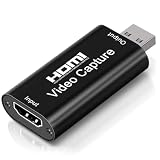
- 4K Upgraded Version High Speed & Full HD: The Audio Capture Card is up to 4K@60HZ High Definition Input, Output max resolution 19201080@60Hz. Record videos directly to the hard disk without time delay. Video Capture is suitable for devices with HDMI signal output, such as PS4 and Switch etc. USB capture card supports 1080P 60fps High Quality Recording and live streaming also. Tips: Please connect with 4k HDMI Cable that can be achieved 3840x2160@60Hz Input (Unencrypted HDMI interface)
- Real-time Preview & Screen Sharing: The Audio Video Capture Card can capture both video & audio simultaneously and transmit audio and video signals to computers and smart phones for preview and storage. The capture card provides a fast and economical way to share content in conference rooms and online meetings via software OBS. 4K Capture widely used for high definition acquisition, teaching recording, imaging, meeting, and facebook portal tv recorder
- Plug and Play & Easy to Use: As a portable plug and play streaming capture card, it does not need to install any driver and supply external power. You can connect the DSLR, camcorder, or action Cam link to your PC or Mac for recording easily. High definition reproduction of video delicate colors, vivid picture. The capture Adapter is compact and portable, suitable for outdoor and indoor live broadcasting
- Low Latency Technology: The 4k Capture Card enables real-time streaming with low latency technology, allowing smooth gameplay and live streaming experiences. The device ensures stable capture with smooth video and audio transmission without delay during your gaming or streaming sessions
- Wide Compatibility: The Video Capture adopted an advanced chip with wide compatibility. It supports most acquisition software, such as VLC, OBS, Amcap etc; supports streaming or recording high-definition pictures of game consoles, meetings or other videos/audios to your computer through third-party capture software; Or live broadcast via the internet easily. Compatible with Windows, Android and MacOS. USB 2.0 high-speed transmission port makes it easier for you to have real-time streaming
Rank #4

- The NEUMI ATOM 4K is the easy and affordable way to add video, photo, and music playback to any TV, new or old, at up to 4K Ultra-HD quality. Just attach a USB drive or SD card with your media files, select a file, and play! It is simple and intuitive to use with no complicated settings or controls. Turn on its automatic playback and resume capability and you won’t even need to pick up the remote.
- HDMI 4K/60fps Ultra-HD Quality - The ATOM 4K offers stunning video quality through its HDMI output that supports up to 2160p/60Hz resolution, with support for the latest video formats such as H.265/HEVC. It can feed digital surround sound to your home theater receiver for a cinema-like listening experience. Additionally, the ATOM 4K provides analog AV output for connecting to an older TV, or for sending audio to a stereo system.
- Reads USB Drives and SD Cards - Simply copy your videos, photos, or music files onto a USB drive or an SD card, insert it into the ATOM 4K, and you are ready to play those files using an easy-to-navigate menu. Got a lot of media files? No problem! The ATOM 4K can read USB drives up to 4TB or Micro SD cards up to 512GB. Popular file systems are supported, including FAT32, exFAT and NTFS.
- Fully Automatic Playback - Turn on its automatic playback feature and the ATOM 4K will find and play media files on its own without any user input. It will also remember where you stopped watching on a video and resume playing from the stop point. Combined with the ability to loop and repeat videos continuously, the ATOM 4K is a perfect player for simple digital signage.
- Media Format Support - Video: MP4, MKV, AVI, TS/TP, MOV, VOB, and M2TS files using H.265/HEVC, H.264/AVC, VC1 or MPEG2/4 codecs, up to 4096x2304p@60fps resolution, 10-bit color, and 250mbps. Photos: JPG, JPEG, BMP, GIF (non-animated), PNG. Music: MP3, WMA, OGG, FLAC, APE, AAC
Product prices and availability are accurate as of the date/time indicated and are subject to change. Any price and availability information displayed on Amazon at the time of purchase will apply.
The Tool Desk
Outbyte Driver Updater FREEScan for outdated or missing drivers - takes under a minuteDriver Scan →Outbyte PC Repair FREERepair Windows errors before they cause bigger problemsFix Now →
