
Crashes, No Sound, or Screen Glitches?
Random freezes, missing sound and display glitches usually trace back to one bad driver. Find and replace yours safely.Free scan · under a minutePC Slower Than It Used to Be?
A free scan shows the junk files, broken settings and background clutter dragging Windows down - then fixes them in one click.Free scan · Windows 10 & 11Plasma Bigscreen, KDE’s open-source interface for TVs and living-room PCs, is moving forward again: after missing the initial Plasma 6 release, it has been ported to Plasma 6 and Qt 6, and KDE lists it in the Plasma 6.7 release stream. The project is designed for remote-first use, but whether it is a good fit depends on your Linux distribution, hardware, apps, and preferred remote.
What is Plasma Bigscreen?
Plasma Bigscreen is a TV-oriented Linux interface from KDE for televisions, home-theater PCs (HTPCs), and set-top boxes. It provides a large-screen home interface, app launching, settings, and customization, rather than being a TV operating system tied to one specific device. KDE describes the project as open source and intended to support third-party software and open standards.
The project’s recent revival followed a gap: contributor Devin Lin wrote on July 10, 2025, that Bigscreen had not been ported in time for the Plasma 6 megarelease and was therefore dropped from it. The work that followed included a Plasma 6 and Qt 6 port, interface and settings changes, and restored functionality. KDE’s Q3 2025 newsletter described the project as “revitalized with a redesigned interface, updated codebase for Plasma 6 compatibility, restored functionality, and a renewed call for community contributions.”
What does the Plasma 6.7 status mean?
KDE’s May 14, 2026 Plasma 6.7 beta announcement lists plasma-bigscreen among two new repositories and invites testers to report bugs. KDE’s Plasma 6.7.0 package information includes plasma-bigscreen-6.7.0, and the project homepage presents Plasma 6.7. Together, these are concrete signs that Bigscreen has entered the 6.7 release stream—not a promise that every Linux distribution or device already provides a ready-to-install, polished TV experience.
#1 Best Overall
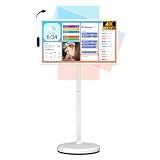
- 32'' 4K Touchscreen for Big-Screen Fun: Turn any room into a large interactive display for streaming, browsing, recipes, workouts, gaming, video calls, kids’ learning, or work. The 3840 x 2160 UHD display with responsive 10-point touch makes this rolling touchscreen TV feel like a giant Android tablet for the whole family.
- Android 16 with Google Play: Powered by Android 16 with Google EDLA certification, this portable smart TV gives families and professionals access to Google Play, Google Assistant, YouTube, Netflix, Prime Video, Disney+, Hulu, Zoom, and more. 8GB RAM, up to 8GB extended memory, and 256GB storage support smooth app use, media playback, and multitasking.
- Cord-Free Entertainment for Flexible Viewing: The built-in 15000mAh rechargeable battery delivers up to 6 hours of cordless entertainment, so you can watch without staying near an outlet. The smooth rolling stand moves easily from the bedroom to the living room, kitchen, home office, or covered patio, making it ideal for spaces where fixed TVs are inconvenient.
- Wireless Mirroring & Wired HDMI Connection: Mirror content wirelessly from a phone, tablet, or laptop, or connect compatible devices via HDMI. Easily enjoy media, presentations, and work content on a larger 32-inch screen. Note: mirroring supports full-screen and local media, but not AirPlay, Google Cast, or streaming casting services.
- More Than a Portable TV: Use the ApoloSign Dashboard to turn this 32-inch portable touchscreen TV into a digital photo frame, family calendar, chore chart, fitness display, classroom screen, menu board, or business kiosk. A practical smart display for families, home offices, classrooms, gyms, salons, showrooms, Airbnb hosts, and small businesses.
KDE has not established an authoritative user count or adoption statistic for Bigscreen. Its release and contribution activity are better indicators of current project status than claims about how widely it is used.
How do I install Plasma Bigscreen?
There is no single universal installer: availability and setup depend on the Linux distribution and device. The project’s get-started documentation describes distribution-specific paths for Fedora, Arch Linux, postmarketOS, NixOS, and KDE neon.
Rank #2

- The Movingstyle Essential moves with you thanks to its height-adjustable rolling stand, making it easy to roll your Smart Monitor from room to room for next-level entertainment and everyday use
- Monitor pivots, swivels, and tilts to match your preferred viewing angle
- 4K UHD resolution delivers stunning picture clarity
- Access your favorite content instantly via built-in Smart TV Apps
- NQM AI Processor delivers an advanced, AI-powered experience and 4K UHD resolution brings content to life with incredible clarity.
| Distribution or route | What the project documents | What to expect |
|---|---|---|
| Fedora | Package-based installation | Use the documented Fedora package route; exact steps depend on the installed system and documentation version. |
| Arch Linux | Package-based installation | Use the documented Arch package route and account for the distribution’s rolling-release updates. |
| postmarketOS | Image integration | You create an image; the project does not offer a ready-made ISO in the documented path. |
| NixOS | Packaging support | Follow the project’s NixOS documentation for the applicable configuration. |
| KDE neon | Development images | This is a development-oriented route, so it may suit testing better than a set-and-forget living-room installation. |
Before installing, check the current instructions for your distribution and confirm that the host Linux system supports your device. Bigscreen is intended to run on hardware supported by its underlying Linux OS; the project does not imply that every TV, mini PC, or set-top box is compatible.
Can I use a Bluetooth air mouse with Plasma Bigscreen?
Yes. A Bluetooth air remote or air mouse can act like a keyboard, making it a practical input option when the device pairs with the host Linux system. The exact behavior depends on the remote’s buttons and how the operating system recognizes it. For a TV interface, check that the controls you need—especially navigation, Back, and Home—are usable before relying on a particular model.
Rank #3

- 【Smart Android 11 System】: This 14-inch portable TV operates on Android 11, providing smartphone-like features with 2GB of RAM and 16GB of storage. small smart tv comes preloaded with popular apps and offers access to thousands more through the app store. No TV stick is needed—just connect to Wi-Fi to watch movies and videos. This compact TV is a flexible alternative to traditional televisions.
- 【Versatile Connectivity】: The small smart tv easily connects via Wi-Fi, Bluetooth, HDMI, USB, and SD card. It can pair with TV sticks, gaming consoles, or stereo systems
- 【Touchscreen & Remote Control】: You can navigate the small TV using the HD touchscreen when nearby or use the included remote control for convenient operation from a distance, making kitchen tv simple and user-friendly.
- 【HD Display with HiFi Sound】: Enjoy sharp visuals on a screen with a native 720p resolution that supports 1080p playback and 4K decoding. Combined with HiFi audio, the portable TV delivers clear sound for an immersive viewing experience.
- 【Compact & Portable Design】: At just 14 inches, this mini TV fits perfectly in small spaces such as kitchen counters, RVs, or compact bedrooms, making kitchen tv ideal for apartments or use on the go.
Does Plasma Bigscreen work with a TV remote?
It can accept button input from a TV remote through HDMI-CEC, the standard used by many TVs and connected devices to communicate over HDMI. Support is not uniform: manufacturers implement CEC differently, and some televisions intercept Home or Back instead of passing those buttons to the computer. A third-party remote may be more predictable if essential buttons do not reach Bigscreen.
Do I need an HDMI-CEC adapter?
Often, yes, if you want to use a TV remote with a computer. The project’s input guide says most computers need an adapter for CEC; some hardware may provide compatible support without one. Verify your computer’s capabilities and adapter compatibility rather than assuming that an HDMI port alone enables CEC.
Rank #4

- Integrated Smart Operating System: Rywob smart TV comes with an integrated operating system that enables you to enjoy your favorite TV shows or movies with ease. The full HD quality (up to 1080p) enhances the viewing experience
- Built-in Rechargeable Battery: Rywob battery operated tv built-in 4000mAh rechargeable battery, giving you up to 4 hours of continuous screen time. Whether you're on long trip, camping, or dealing with a sudden power outage, this TV can accompany you
- High Definition Display with Dual Speakers: Enjoy the visual feast brought by the 15.6 inch HD screen, every detail is clear, built-in double speakers provide you with better audio-visual enjoyment and this small portable TV also has a wide viewing angle
- Complete Package Included: 15.6inch Portable TV, Antenna, AV Line, Car Charger, Charger, User Manual, Control, Power Antenna
- Antenna Signal Optimization: The strength of the antenna signal depends on the strength of the local signal tower. Placing the antenna near the window or outdoors will get stronger signal reception
Can I use a game controller or phone?
Bigscreen can use game controllers through plasma-bigscreen-inputhandler, which translates controller input for navigation. KDE Connect is another option: it can turn a phone into a remote and provide remote keyboard and mouse input. These alternatives are useful when a TV’s CEC implementation is unreliable or the computer lacks convenient remote-control hardware.
How should I decide whether Bigscreen is right for my setup?
Bigscreen is most promising if you want an open-source living-room interface and are comfortable choosing and maintaining the Linux system beneath it. Evaluate the setup across these practical factors:
Recommended Free Tools
Best Value

- Bright, clear picture: Bring entertainment to life on our 24" flat screen TV with bright 720p HD—perfect for bedrooms, kitchens, and beyond. Roku Smart Picture cleans up incoming TV signals, optimizes them, and chooses the right picture mode.
- Seamless streaming: With fast Wi-Fi and apps that launch in a snap, Roku Select Series TVs get you to your entertainment quickly. You get excellent picture quality, clear sound, automatic updates, and more. It’s simple to use. Hard to outgrow.
- TV, simplified: With setup that only takes minutes, a simple-to-navigate Home Screen, and an uncluttered remote control that does all you need—Roku makes it easier to watch the TV you love.
- A world of free entertainment: Enjoy a huge selection of free live TV, news, sports, movies, shows, and much more—all just a click away.
- More streaming, less searching: With personalized picks right on your Home Screen, quick access to the sports and entertainment you watch most, and fast and easy search in one place—the days of endless scrolling are over.
- Openness and privacy: KDE presents Bigscreen as open source and privacy-aware. Review the operating system and individual apps too; the shell alone does not determine the privacy behavior of the entire setup.
- Distribution and hardware availability: The documented installation routes cover several Linux distributions, but not all are turnkey. Compatibility follows the host operating system and device support.
- Remote and controller support: Keyboard-like Bluetooth remotes, game controllers, HDMI-CEC, and KDE Connect offer options, each with different setup needs and limitations.
- App ecosystem: Bigscreen is an interface, not a bundled streaming catalog. Check whether the apps and services you want are available and comfortable to navigate from a couch.
- Installation effort: A distribution package can be simpler than building a postmarketOS image or using a development image. Choose a route that matches your Linux experience and tolerance for maintenance.
- Community activity and release cadence: The Plasma 6 port, beta testing request, and 6.7 package listing show renewed development. They do not guarantee a fixed release schedule or support level for every distribution.
How can I contribute to Plasma Bigscreen?
KDE’s contribution paths include code, interface design, translation, testing, bug reports, and distribution work. The project points contributors to KDE Invent for source code, Matrix for discussion, KDE localization for translations, and its bug-reporting process for issues and feedback. You do not need to be a programmer to test a build, report a reproducible problem, or help with language and distribution support.
Developers building living-room apps can use frameworks including Qt/Qt Quick, Electron/Tauri, or Flutter. Whatever the toolkit, the project recommends designing for arrow-key navigation and ensuring Esc or Back returns users through the interface in a predictable way.
Quick Recap
Product prices and availability are accurate as of the date/time indicated and are subject to change. Any price and availability information displayed on Amazon at the time of purchase will apply.

