
Recommended Free Tools
To automatically screenshot a webpage, launch a browser from a script, open the page, wait for the state you need, then call the browser’s screenshot method with an output path. Playwright and Puppeteer both support page and element captures; Playwright also offers full-page, clipped, masked, and scaled screenshots. For reliable results, set a fixed viewport and wait for the content that matters—not merely for navigation to finish.
Choose the capture that answers your question
Before writing the script, decide what the image is meant to show. A viewport screenshot records the visible browser area; a full-page screenshot records the scrollable document; an element screenshot isolates a selected component. Keep these as separate artifact types in a test suite: they serve different review and debugging purposes.
- Viewport: Useful for a typical user-visible state or a consistent visual test.
- Full page: Useful for reviewing a long page in one file. Lazy-loaded content may need additional scrolling or loading before capture.
- Element: Useful for a component-level check or focused documentation image. Use a stable selector.
- Clipped region: Useful when a specific rectangle matters more than the whole page.
Automatically take screenshots with Playwright
Install Playwright and its browser binaries in the project, then run this JavaScript example. It creates the artifact directory, fixes the viewport, navigates to a page, and saves viewport, full-page, and element images.
const { chromium } = require('playwright');
const fs = require('node:fs/promises');

(async () => {
  const browser = await chromium.launch();
  try {
    const page = await browser.newPage({
      viewport: { width: 1440, height: 900 },
      deviceScaleFactor: 1
    });
    await fs.mkdir('artifacts', { recursive: true });
    await page.goto('https://example.com', { waitUntil: 'networkidle' });
    await page.screenshot({ path: 'artifacts/home.png' });
    await page.screenshot({ path: 'artifacts/home-full.png', fullPage: true });
    await page.locator('header').screenshot({ path: 'artifacts/header.png' });
  } finally {
    await browser.close();
  }
})();
Playwright’s documented screenshot patterns include saving to a file, returning a buffer, capturing the full page, and capturing a locator or element. See the Playwright screenshots guide. The example uses networkidle as a starting point; for an application with persistent network activity or delayed client rendering, wait for a meaningful page-specific signal instead.
#1 Best Overall
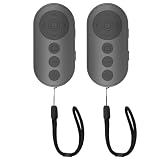
- 【Zoom In/Out & Front Rear Camera Switch】This remote camera shutter features wireless zoom control—It has zoom feature can wirelessly zoom in and out on phone camera when taking photos and videos both in system camera and tiktok app camera. Press '+' button zoom in,Press '-' button zoom out. Noted: Some Front cameras do not have zoom function
- 【Multi-Function: Tiktok Short Video & E-Book Control】More than a photo remote for Android/iPhone, this upgraded remote lets you scroll & control tiktok app (play/pause, double-tap to like),Adjust volume & capture screenshots hands-free and turn e-book pages (compatible with most e-reader apps; not for Kindle devices)
- 【Universal Compatibility&Stable Wireless Connection 】This multi-device remote works flawlessly with iOS 14.8+ and Android 11+ smartphones.Featuring advanced wireless technology, it maintains a stable 33-foot range - perfect for hands-free vlogging, group photos, and live streaming.
- 【Rechargeable & Long-Lasting Battery】Enjoy uninterrupted shooting with a high-capacity rechargeable battery that supports 2,000+ operations per charge. The USB-C charging ensures fast power-ups, while the ultra-lightweight (28g) design slips easily into your pocket or bag—perfect for travel, vlogging, and daily use.
- 【Detachable Lanyard & Hands-Free Convenience】Includes a lanyard to secure the remote to your wrist or bag. Ideal for hands-free shooting, live streaming, and content creation!
Capture a buffer instead of writing a file
When another step will upload, compare, or transform the image, retain the bytes in memory:
const image = await page.screenshot({ type: 'png' });
// Pass image to the next step, or write it with fs.writeFile().
Control dimensions and output
Playwright’s CLI supports custom filenames, PNG, JPEG, and WebP output, full-page capture, and device scaling; see the CLI documentation. In the Page API, fullPage: true captures the scrollable page. scale: 'css' produces one output pixel per CSS pixel; device scaling produces a higher-resolution image. The API also supports a rectangular clip, JPEG or WebP quality, transparent background through omitBackground, masking, and animation controls. Consult the Page screenshot API for the current option details.
Automatically take screenshots with Puppeteer
Puppeteer follows the same basic sequence: launch Chromium, create a page, navigate, and call page.screenshot(). Its official guide documents saving a page screenshot to an explicit path, and ElementHandle.screenshot() can capture a selected element.
Rank #2

- 🎮【Compatible with Nintendo Switch】PERFECT COMPATIBILITY: Wireless controller is fully compatible with Nintendo Switch/Switch 2/Switch Lite/ Switch OLED /Windows PC and perfect support Nintendo and video games.(Note: This function can be used to wake up the original Switch, but not the second generation.)
- 🎮【ENHANCED GAMING EXPERIENCE】: Enjoy an immersive gaming experience with built-in dual motion motors and TURBO function. Choose from 3-level turbo speeds (8, 15, or 25 rounds/second) and the automatic shooting function for precision gameplay. The latest motion sensing technology and feedback technology ensures rapid response to movements.
- 🎮【WIRELESS AND RELIABLE】: Our high-performance wireless technology ensures a reliable signal within 10 meters, with strong anti-interference capability. Equipped with 4 LEDs indicating functions and controller buttons, this controller also boasts an excellent dual analog joystick design for seamless gameplay.
- 🎮【EXCELLENT HAND FEELING】: The wireless controller is built with ergonomic and lightweight construction, make it comfortable even for long hours of continuous play. The gamepad comes with non-slip design, which will never slip off even if your hand sweats during intense gameplay.
- 🎮【Long battery life】: The switch pro controller f with 1000 MAH large capacity battery, but it just need 2-3 hours to charge fully. Switch controllers pro can run for 10 hours, make sure you can enjoy games longer without interruption.
const puppeteer = require('puppeteer');
const fs = require('node:fs/promises');

(async () => {
  const browser = await puppeteer.launch();
  try {
    const page = await browser.newPage();
    await page.setViewport({ width: 1440, height: 900 });
    await fs.mkdir('artifacts', { recursive: true });
    await page.goto('https://news.ycombinator.com', { waitUntil: 'networkidle2' });
    await page.screenshot({ path: 'artifacts/page.png' });
    const header = await page.waitForSelector('body');
    await header.screenshot({ path: 'artifacts/body.png' });
  } finally {
    await browser.close();
  }
})();
The example uses body as a simple selector so it can run on the target page, but a specific component selector is usually more useful for an element artifact. See the Puppeteer screenshot guide and ElementHandle screenshot API.
The Tool Desk
Outbyte Driver Updater FREEScan for outdated or missing drivers - takes under a minuteDriver Scan →Outbyte PC Repair FREEClear out junk files and repair common Windows errorsFree Scan →Wait for the state you actually need
A navigation event does not guarantee that fonts, images, API-backed content, or animations have settled. Select a wait condition that corresponds to the screenshot’s purpose:
- For a page whose content appears after a known action, wait for that content’s selector.
- For an application state that updates asynchronously, wait for a visible value or other explicit condition your test controls.
- Use a delay only when the site genuinely requires a fixed settling interval; arbitrary sleeps make tests slower and can still be too short.
- For a full-page capture with lazy images, make sure the relevant images have loaded before taking the screenshot.
A useful pattern is to wait for the element you intend to capture before taking its screenshot. For example, in Playwright use await page.locator('[data-testid="report"]').waitFor(), then screenshot that locator. The selector must match the application you are testing.
Rank #3

- 【Multi Platform Compatible】This switch controllers is fully compatible with Nintendo Switch/Switch 2/Switch Lite/Switch OLED/Windows/PC/Android/iOS, No need to install any driver. Wide compatibility and lower latency, from fast-paced action titles to casual multiplayer games for a seamless gaming experience. all functions are fully usable, including: Dual Vibration, 6-Axis Gyroscope, Screenshot, Wake up, Hall effect buttons, Motion Sensor and Turbo.
- 【Fast & Safe Charging Dock】The included charging dock ensures quick and reliable charging for 2 pack switch controllers and 4 joycon controllers(not with Switch 2 joycon). Built-in safety features prevent overcharging and overheating, keeping your gear protected.
- 【Cool and Colorful RGB Lighting】This switch 2 pro controller has a built-in 6-axis gyroscope chip for precise motion control, It features 7 colors of RGB lighting (red, orange, yellow, green, cyan, blue, violet) and 4 light modes (dazzle, monochrome, monochrome breathing, monochrome breathing cycle). You can change the lighting colors and modes depending on the game genre or your personal preferences, Elevate your gaming atmosphere.
- 【4 Level Vibration & Turbo Function】The switch 2 controller equipped with dual vibration motors with adjustable intensity (100%/75%/50%/Off), Experience true-to-life feedback from crashes and explosions. Supports customizable rapid-fire for A/B/X/Y and 7 other keys, with three adjustable speed levels. Perfect for shooting and action games, no more frantic button mashing.
- 【Long Battery Life】JORREP switch controllers with 800mAh large capacity rechargeable battery, it just need 2-3 hours to charge fully. Switch controllers can run for 10 hours supports play-while-charging, ensures uninterrupted gameplay. Features low-battery alerts and auto-sleep after 5 minutes of inactivity.
Make screenshot tests more stable in CI
Visual tests are sensitive to differences that ordinary functional assertions ignore. Standardize the environment and remove expected variation before treating an image difference as a failure.
- Fix the viewport and scale. Specify viewport dimensions and device scale factor so output dimensions do not depend on defaults.
- Wait for meaningful readiness. Ensure the relevant text, images, fonts, and application data are present, rather than assuming navigation completion is enough.
- Control animation. Disable or finish animations for comparisons. Playwright’s screenshot assertion API provides animation handling and waits for two consecutive screenshots to be identical before comparison; see screenshot assertions.
- Mask changing or sensitive regions. Timestamps, ads, user names, or other dynamic content can create noise or expose data in stored artifacts. Playwright supports screenshot masks; see the screenshot API and visual comparisons guide.
- Use stable selectors and prepare paths. Prefer selectors intended for tests over brittle layout-dependent selectors, and create the output directory before saving.
- Keep artifact types distinct. A viewport capture, full-page capture, and element capture answer different review questions; label them accordingly.
Use a screenshot assertion when the objective is to detect visual regressions, not just to save an image for documentation. The assertion workflow can compare against a reference image and apply the framework’s screenshot-specific controls.
Run captures repeatedly and handle failures
For scheduled captures or a collection of URLs, put the navigation and screenshot steps in a loop or test job, use predictable filenames, and record which URL and state produced each artifact. Always close the browser in a finally block, as in the examples, so a failed navigation or screenshot does not leave the process running.
Rank #4

- Wireless Connection: ACK05 wireless shortcut keyboard supports bluetooth 5.0 connection directly, which is Good Design Award 2023 Winners, providing you a more flexible and clean workspace. You can also connect it via a Bluetooth dongle or USB cable. Total three ways connection bring you stable and fast transmission, also can meet your different work scenarios
- Please Note: If you do not download the driver, it can only be used as a regular shortcut keyboard. However, if you wish to customize the keys or program it, you must download the driver and configure it accordingly. If your device is an iPad or runs on iOS, after receiving the product, you need to download the "Shortcut Remote" app on your device in order to properly set up and use this product properly
- Compact Size with Large 1000 mAh Battery: The Wireless Shortcut Remote features a thin profile and weighs only 75 g, easy for one hand to hold. With built-in 1000 mAh battery ensures the continuous working for about 300 hours. Ready to speed up your creation whenever you grab it
- Customize up to forty Shortcuts: The Wireless Shortcut Remote has ten keys. You are allowed to customize four sets through the driver -- up to forty shortcuts. To switch between the sets, you only need to press a single key. Its capability to work with different applications makes itself a powerful productivity tool not only for creation, but also for study, work, and gaming
- Anti-Ghosting Performance: The Mini Keydial features a new technology of Anti-ghosting for all ten keys, you can control with multi-keys at the same time, which will give you more customizable possibilities
Browser-based screenshots require a working browser installation and an environment able to reach the target page. In CI, install the browser version expected by the automation package, retain useful error output, and store artifacts when a test fails. Avoid treating every failed image write as a page issue: navigation, selector waits, missing output directories, and browser launch failures are separate failure points.
Independent reader supportYour contribution helps us test, update, and keep practical guides available for everyone.Troubleshooting common screenshot problems
- The screenshot is blank or missing page content. The page may still be rendering after navigation. Wait for a selector or application state tied to the content, then capture again.
- Images are missing in a full-page image. Lazy-loaded images may not have been requested yet. Scroll through the page or otherwise trigger the relevant content, wait for image loading, then capture.
- The screenshot differs between runs. Fix viewport and device scale, control animations, wait for dynamic data to settle, and mask content that is expected to vary.
- An element screenshot fails or captures the wrong area. Confirm the selector is unique and that the element exists and is visible before capturing. Use a stable test selector rather than a fragile positional selector.
- The script cannot save the image. Ensure the destination directory exists and that the process can write there; use an explicit artifact path.
- The browser process remains after an error. Close it in a
finallyblock so cleanup still runs after navigation or capture failures.
Or skip the browser setup
ScreenshotNeo provides a website screenshot API and MCP server for developers. A single GET request accepts a URL and returns PNG, JPEG, WebP, or PDF output. It can accept cookie or consent banners as a visitor and remove more than 60 known consent platforms, newsletter popups, and chat widgets before capture; each of those steps can be disabled. Bot checks and CAPTCHAs, blank pages, timeouts, failed loads, and cache hits are not billed, and response headers identify the page verdict and billing status. AI agents can use its MCP tools take_screenshot, get_page_info, and capture_pdf.
curl -G "https://api.screenshotneo.com/v1/shot" -d access_key=YOUR_API_KEY --data-urlencode url=https://example.com -o shot.webpSee the ScreenshotNeo API documentation for request options. Its plans include 1,000 screenshots a month free with no card; paid plans start at $5 for 3,000. Learn about ScreenshotNeo or sign up for 1,000 free screenshots a month with no card.
Which method should you use?
Use Playwright or Puppeteer when screenshots are part of a browser test, depend on scripted interactions, or need to run alongside your application’s test logic. Use a screenshot API when you want a direct URL-to-image request without managing browser setup in the calling script. In either case, reliability comes from controlling viewport, readiness, animation, and changing content—not from taking the screenshot call sooner.
Frequently Asked Questions
Can browser automation capture only one element?
Yes. Playwright can screenshot a locator or element, and Puppeteer supports an element screenshot through ElementHandle.
Can screenshots be used for visual regression testing?
Yes. Playwright provides screenshot assertions for comparisons against reference images, with controls for animation and other screenshot behavior.
Quick Recap
Product prices and availability are accurate as of the date/time indicated and are subject to change. Any price and availability information displayed on Amazon at the time of purchase will apply.

