
Quick wins for a faster PC:
Scan for outdated or missing drivers - takes under a minuteDriver Scan →Clear out junk files and repair common Windows errorsFree Scan →Fix the driver behind crashes, sound loss and screen glitchesFind Drivers →To create an iMessage poll on iOS 26, open Messages, open an iMessage conversation, tap the Add button beside the message field, choose Polls, enter up to 12 choices, and tap Send. Participants can select one, several, all, or none of the choices, add their own options, and view votes as they arrive.
What you need before creating an iMessage poll
Polls are built into Apple’s Messages app in iOS 26, but they work only in iMessage conversations. They are not interactive polls in SMS, MMS, or other non-iMessage conversations.
| Device or software | Poll support |
|---|---|
| iPhone | iOS 26 or later |
| iPad | iPadOS 26 or later |
| Mac | macOS Tahoe or later |
| Apple Watch | watchOS 26 or later |
| Apple Vision Pro | visionOS 26 or later |
Anyone who wants to start, view, or vote in an interactive poll must be using iMessage on one of these supported systems. However, it is not accurate to say that every participant must already be running iOS 26 before a poll can be sent. People on older software, or people in an unsupported messaging conversation, receive a regular message indicating that a poll was sent, but they cannot interact with the poll.
For Apple’s current compatibility details and instructions, see the iPhone User Guide for Messages polls.
Recommended Free Tools
#1 Best Overall

- Cell Phone Sticker, Compatible with iPhone/All Smart Phones/Tablets/Laptops/All Electronic Devices, Suitable for Anyone -4.2 x 2.4 x 0.015 inches - (6 Pack)
How to create a poll in iMessage
- Open the Messages app.
- Open an existing conversation or start a new one.
- Tap the Add button next to the message field.
- Tap Polls.
- Tap each choice row and enter an option.
- When the poll is ready, tap the Send button.
A poll can contain a maximum of 12 options. Because eligible participants can add choices after the poll is sent, write the question so that additional options can be added without changing its meaning. For example, “Which day works for you?” is more flexible than a question that assumes the original list is complete.
Using Apple Intelligence to suggest poll ideas
When Apple Intelligence is enabled, it can suggest ideas for poll choices or questions. Apple Intelligence is optional: it is not required to create, send, view, or vote in an iMessage poll. Its availability depends on the supported iPhone, language, and region.
How to vote in an iMessage poll
- Open the conversation containing the poll.
- Tap an option to vote for it.
- Tap the same option again if you want to remove your vote.
Apple’s native Messages polls are not restricted to one answer. Each participant can vote for none, one, several, or all of the available options. This makes the feature suitable for questions such as “Which dates can you attend?” as well as simple preference polls.
Votes appear in the poll as participants submit them, so you do not need to send a separate message asking people to report their choices.
How to add a choice to an existing poll
Any participant who can use the interactive poll can add another choice:
- Open the conversation containing the poll.
- Tap Add Choice.
- Enter the new option.
- Tap the Send button.
A newly added choice starts with no votes. Adding an option does not automatically vote for it. The person who added it must tap the new choice separately to cast a vote.
Rank #2
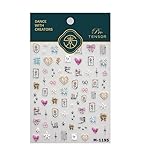
- 1.Convenient Packaging: Each sheet is individually packed in its plastic, ensuring easy organization and storage, making them perfect for on-the-go crafting, school projects, or creative endeavors
- 2.Endless Creativity: Whether decorating headphones, stationery, books, calendars, sketchbooks, notebooks, or even making cards, these stickers add a touch of charm and personality to any surface
- 3.Quality Craftsmanship: Crafted with care, these colorful puffies stickers are designed to spark imagination and creativity, making them a delightful addition to any crafting or gifting occasion
- 4.Sticker Characteristics: Multiple Styles and Color Diversity
- 5.1*3D Relief Design Sticker
The poll remains limited to 12 total options. Once the limit is reached, participants cannot add more choices unless an existing option can be changed or removed through a control Apple documents in a future update.
How to see poll results and who voted
- Open the conversation containing the poll.
- Touch and hold the poll.
- Tap Poll Details.
Poll Details shows how people voted and identifies participants who have not voted yet. The poll itself also updates as votes arrive.
How to manage an iMessage poll after sending it
Management in Apple’s current iMessage poll implementation is participant-driven rather than creator-only:
- Participants can vote: They can select multiple choices and remove their own selections by tapping them again.
- Participants can add choices: Any participant who can interact with the poll can add an option, up to the 12-choice limit.
- Results update automatically: Votes appear in the poll as they are submitted.
- Details are available: Touch and hold the poll and choose Poll Details to see votes and people who have not voted.
Apple’s current iPhone guide documents adding choices, voting, and viewing poll details, but it does not document controls for editing an existing choice, closing a poll, declaring a winner, or changing the voting rules after sending. If the poll needs a deadline or a final decision, include that information in the poll question or send a follow-up message. Do not assume that the person who created the poll can lock it or prevent other participants from adding choices.
If the Polls option is missing
First check that the Polls iMessage app is enabled:
- Open Settings.
- Tap Apps.
- Tap Messages.
- Tap iMessage Apps.
- Turn on Polls.
After enabling it, return to Messages, tap the Add button beside the message field, and look for Polls. You can also touch and hold an app in the Messages app drawer to rearrange the app’s position. Apple provides additional guidance for managing iMessage apps in its Messages app support article.
Do these 3 things before closing this tab:
1Clear out junk files and repair common Windows errors2Scan for outdated or missing drivers - takes under a minute3Repair Windows errors before they cause bigger problemsRank #3

- 1.Convenient Packaging: Each sheet is individually packed in its plastic, ensuring easy organization and storage, making them perfect for on-the-go crafting, school projects, or creative endeavors
- 2.Endless Creativity: Whether decorating headphones, stationery, books, calendars, sketchbooks, notebooks, or even making cards, these stickers add a touch of charm and personality to any surface
- 3.Quality Craftsmanship: Crafted with care, these colorful puffies stickers are designed to spark imagination and creativity, making them a delightful addition to any crafting or gifting occasion
- 4.Sticker Characteristics: Multiple Styles and Color Diversity
- 5.1*3D Relief Design Sticker
Polls still does not appear
Check these points in order:
- Confirm the software version: The iPhone must be running iOS 26 or later. The equivalent supported versions are iPadOS 26, macOS Tahoe, watchOS 26, or visionOS 26 and later.
- Check the conversation type: The conversation must be using iMessage. Blue message bubbles indicate iMessage; green bubbles generally indicate SMS/MMS. Polls are not interactive in SMS or MMS conversations.
- Check iMessage app settings: Make sure Settings > Apps > Messages > iMessage Apps > Polls is turned on.
- Check the app drawer: Polls may be enabled but positioned farther along in the Messages app drawer. Rearrange the apps by touching and holding an app.
On a supported device and an iMessage conversation, you do not need to install an older third-party “polls for iMessage” app to use Apple’s built-in feature.
Independent reader supportYour contribution helps us test, update, and keep practical guides available for everyone.Important limits and practical tips
- Maximum of 12 choices: Keep the initial list focused and leave room for participants to add legitimate alternatives.
- Multiple selections are allowed: Tell participants whether they should choose all applicable options or simply select their favorites, because the poll itself does not impose a one-answer limit.
- Anyone eligible can add a choice: A participant may add an option you did not intend to include, so make the question and scope clear.
- New choices begin unselected: Adding an option and voting for it are separate actions.
- Unsupported participants cannot interact: People on older systems or in non-iMessage conversations may see a notice that a poll was sent rather than the interactive poll.
- No documented post-send controls for closing or editing: If the result must be finalized at a specific time, state the deadline in the message and confirm the outcome separately.
Frequently Asked Questions
Do all participants need iOS 26 to receive an iMessage poll?
No. A poll can be sent in an iMessage conversation even if some participants are using older software. Those participants receive a regular message saying that a poll was sent, but they cannot view or interact with the poll. Interactive poll support requires iOS 26 or later, iPadOS 26 or later, macOS Tahoe or later, watchOS 26 or later, or visionOS 26 or later.
Can each person vote for more than one option?
Yes. iMessage polls allow a participant to vote for none, one, several, or all choices. Tap a selected choice again to remove your vote.
Can participants add their own options?
Yes. An eligible participant can tap Add Choice, enter an option, and send it. The new choice has no vote until the person who added it taps the option separately. The poll cannot exceed 12 total choices.
Can I close an iMessage poll or declare a winner?
Apple’s current iPhone guide documents voting, adding choices, and viewing Poll Details, but it does not document controls for closing a poll, declaring a winner, editing an existing choice, or changing voting rules after the poll is sent. Use a deadline in the question and a follow-up message when a final decision is needed.
The Bottom Line
iMessage polls in iOS 26 are created from Messages > Add > Polls, support up to 12 choices, and allow multiple selections. Eligible participants can add choices and view live results, while Poll Details shows who voted and who has not. If Polls is missing, enable it under Settings > Apps > Messages > iMessage Apps and confirm that the conversation is using iMessage.
Quick Recap
Product prices and availability are accurate as of the date/time indicated and are subject to change. Any price and availability information displayed on Amazon at the time of purchase will apply.

