
Free tools Windows power users keep installed
One-click scans. No signup required.
Minecraft narration can be turned off in different places depending on the edition: Java Edition has a narrator shortcut and Accessibility setting, while Bedrock Edition has separate text-to-speech controls for its interface and chat. If speech continues outside Minecraft, turn off the device’s screen reader instead.
Use the Java instructions for Minecraft: Java Edition and the Bedrock instructions for Minecraft for Windows, consoles, mobile devices, and Chromebook.
1. Turn off the Java narrator with the keyboard shortcut
In Java Edition, the narrator shortcut is Ctrl+B on Windows or Linux and Command+B on macOS.
- Click the Minecraft window so it is the active application.
- Press the shortcut for your operating system.
- Repeat it until Minecraft displays “Narrator: Off”.
The shortcut cycles through four modes rather than simply switching narration on or off:
Quick wins for a faster PC:
Repair Windows errors before they cause bigger problemsFix Now →Scan for outdated or missing drivers - takes under a minuteDriver Scan →#1 Best Overall

- Digital Stereo Sound: Fine-tuned drivers provide enhanced digital audio for music, calls, meetings and more
- Rotating Noise Canceling Mic: Minimizes unwanted background noise for clear conversations; the rotating boom arm can be tucked out of the way when you’re not using it
- Handy In-line Controls: Simple in-line controls on the headset cable let you adjust the volume or mute calls without disruption
- Plug-and-Play USB Computer Headset: Simply plug the USB-A connector into your computer and you’re ready to talk or listen without the need to install software
- Padded Comfort: Comfortable headphones with adjustable headband features swivel-mounted, leatherette ear cushions for hours of comfort and is easy to clean
| Mode | What Minecraft reads |
|---|---|
| Off | Nothing through the Minecraft narrator |
| All | Chat and system messages |
| Chat | Player chat |
| System | UI text, command output, notifications, and other system messages |
Press the shortcut repeatedly until the status message specifically says Narrator: Off. If nothing happens, exit chat or another text field, focus the Minecraft window, and try again. A modded client or launcher can also intercept the shortcut.
2. Disable the narrator in Java Accessibility Settings
Use the menu if you prefer not to cycle through narrator modes or if the keyboard shortcut is inconvenient.
From the main menu
- Open Options.
- Select Accessibility Settings.
- Set Narrator to Off.
- Select Done.
While playing
- Press Esc to open the pause menu.
- Choose Options.
- Open Accessibility Settings.
- Set Narrator to Off, then select Done.
Java Edition also has a separate Narrator Hotkey setting. Disable it to prevent the shortcut from activating narration accidentally. This setting was added in Java Edition 1.20.2; Java 1.20.2 and later do not require a mod to disable the shortcut.
3. Turn off text-to-speech in Bedrock Edition
Bedrock does not use Java’s narrator shortcut as a universal solution. It has separate controls for UI text and chat.
Rank #2

- USB-powered (5V) speakers plug directly into your computer for portable convenience
- Turn the speakers on and adjust the volume using one simple control (located on the front of the speakers); volume control includes On/Standby
- Simple plug-and-play setup (no drivers needed); can be used with headphones via the 3.5mm jack connector
- Frequency range of 103 Hz - 20 KHz; 2.2 watts of total RMS power (1.1 watts per speaker)
- Measures 2.76 by 3.55 by 5.3 inches (LxWxH); weighs approximately 1.4 pounds;
- Open Settings.
- Select Accessibility.
- Turn off Text-to-Speech for UI.
- Turn off Text-to-Speech for Chat.
- If your version shows Enable UI Screen Reader, turn that off too.
You can reach the same screen from inside a world by pausing the game, selecting Settings, and opening Accessibility. Labels may vary by platform and game update. Look for Accessibility switches containing Text to Speech, UI, Chat, or Screen Reader.
These Bedrock instructions apply to Minecraft for Windows, Xbox, PlayStation, Nintendo Switch, iPhone and iPad, Android, and Chromebook. On Windows, Minecraft: Java Edition and Minecraft for Windows are separate editions with different narration controls.
4. Turn off the device’s screen reader
If the voice also reads your desktop, console dashboard, system menus, or other apps, it may be a system-level screen reader rather than Minecraft’s narrator. Use the relevant device instructions below.
| Device | How to turn off the screen reader |
|---|---|
| Windows 10/11 | Press Windows+Ctrl+Enter, or open Settings → Accessibility → Narrator and switch Narrator off. If it returns at startup, also disable Start Narrator before sign-in and Start Narrator after sign-in. |
| macOS | Press Command+F5, or open System Settings → Accessibility → VoiceOver and turn VoiceOver off. |
| Xbox | Press the Xbox button, then open Profile & system → Settings → Accessibility → Narrator and turn Narrator off. Some systems also support holding the Xbox button and pressing the Menu button. |
| PlayStation 5 | Open Settings → Accessibility → Screen Reader, then turn off Enable Screen Reader. |
| iPhone or iPad | Open Settings → Accessibility → VoiceOver and turn VoiceOver off. The accessibility shortcut is usually a triple-click of the Side button or Home button. |
| Nintendo Switch | Switch does not provide a full system-wide screen reader equivalent to Windows Narrator or Xbox Narrator. Control Minecraft narration through Minecraft → Settings → Accessibility. |
What to do when narration is only partly disabled
Only chat is being read aloud
In Java Edition, the narrator is probably set to Chat or All. Press the narrator shortcut until it reports Narrator: Off, or set Options → Accessibility Settings → Narrator to Off. In Bedrock, turn off Text-to-Speech for Chat.
What’s actually slowing this PC down?
Pick the symptom - the matching free tool is one click away.
Rank #3

- Wide Compatibility: The 1Mii Computer Speakers can work with any devices that has a standard 3.5mm AUX audio out jack, any brands or models of Windows(7/8/10/11) or Linux PCs, MacOS laptops, desktop monitors, laptops.
- Enhanced Stereo Sound: Built-in dual 3W stereo speakers of the desktop speakers can deliver you loud, clear vocals and all the details you want to hear clearly, providing immersive Hi-Fi audio listening and immersive gaming experience. The 3.5mm wired speaker is perfect for you to enjoy wonderful movies, videos, music and games. For best audio quality, use a USB power adapter to reduce static.
- Rotary Volume Control Knob: With the front rotary knob of the PC speakers, you can steplessly adjust the volume level as you wish. No matter loud and immersive action movie or quiet and peaceful music, the desk speakers can always satisfy your needs. No need to find out the volume setting on your device and no complicate operations, just rotate and enjoy.
- Mini and Space-saving for Desk: The PC speaker size is only 26 x 6 x 6.3 cm/ 10.2 x 2.4 x 2.5 in, it can fit into any corner on your desk, table, shelf or other narrow space under your desktop monitor or PC. Under the laptop speakers are anti-slip silicone pads to prevent unwanted scratches from your furniture or electronics. Elegant and delicate design, simple but classic to match your room style.
- Plug and Play: Just connect the speaker with your powered device or DC power adapter via USB-A cable, then plug the 3.5mm audio cable into the 3.5mm AUX out jack, rotate the volume knob to moderate volume level. For some device you might need to switch the audio output to the speaker. Then the computer speakers for desktop pc are ready to play stereo music for you. The USB-A and AUX audio cables are connected as one for neat organization, also you can divide them as you like. Warm Tips: The speaker is not compatible with some products, please check whether your device has an AUX outport before purchase. The USB charging cable and 3.5mm audio cable must be inserted at the same time to work.
Menus are read, but chat is not
In Bedrock, disable Text-to-Speech for UI or Enable UI Screen Reader, depending on the controls shown in your version. If the voice also reads content outside Minecraft, turn off the device-level screen reader instead.
Subtitles remain visible
That is normal. Subtitles are separate from narration, so turning off the narrator does not remove subtitles, chat, multiplayer messages, or chat visibility. To hide subtitles too, change the subtitles option in Minecraft’s video or accessibility settings.
The narrator keeps switching on accidentally
In Java Edition, open Options → Accessibility Settings and disable Narrator Hotkey. Bedrock players should use the Accessibility switches rather than the Java Ctrl+B shortcut.
There is no Minecraft command for this
Minecraft does not provide a current / command for disabling the narrator. Use Java’s keyboard shortcut or Accessibility Settings, Bedrock’s text-to-speech settings, or the device’s screen-reader controls.
Rank #4

- Stereo Headset with Microphone for Classroom or Home - The Cyber Acoustics AC-5002 stereo wired headset with microphone delivers clear audio for lessons, calls, and everyday listening. A unidirectional noise-canceling microphone reduces background distractions, making this headset with microphone for PC ideal for K-12 classrooms, online learning, and home use.
- Adjustable Computer Headset with Durable Braided Cable – Designed for all-day comfort, the Cyber Acoustics AC-5002 wired headset with microphone features an adjustable headband, flexible boom mic that can be worn on the left or right, and soft leatherette earpads. The braided TuffCord cable resists tangles and wear, making this computer headset ideal for classrooms, home offices, and daily use.
- Connects to Gaming Console Controllers – Use this wired gaming headset with compatible Xbox and PlayStation controllers using the integrated 3.5mm connector. Enjoy reliable audio and voice chat for PS5, PS4, Xbox Series X|S, and Xbox One gaming.
- Plug-and-Play 3.5mm Headset for PC and Laptop - The Cyber Acoustics AC-5002 computer headset with microphone connects instantly with a standard 3.5mm audio jack, requiring no drivers or installation. This wired headset with mic works easily with PCs, Macs, laptops, tablets, and other devices with a 3.5mm connection.
- Complete Cyber Acoustics Headset Package - Includes the Cyber Acoustics AC-5002 Analog Stereo Headset and User Guide, backed by a 1-year warranty. Designed for classrooms, offices, and home learning, this Cyber Acoustics headset provides dependable audio and long-lasting performance.
FAQ
What is the shortcut to turn off the narrator in Minecraft Java?
Press Ctrl+B on Windows or Linux, or Command+B on macOS. Repeat it until Minecraft displays “Narrator: Off.”
Why does Ctrl+B not turn off Minecraft narration?
Java’s shortcut cycles between Off, All, Chat, and System. Press it repeatedly until “Narrator: Off” appears. Make sure Minecraft is the active window and that you are not typing in chat or another text field.
How do I turn off the narrator in Minecraft Bedrock?
Open Settings → Accessibility, then disable Text-to-Speech for UI and Text-to-Speech for Chat. Turn off Enable UI Screen Reader too if your version includes it.
Do I need a mod to disable the Java narrator hotkey?
No. Java Edition 1.20.2 and later includes a Narrator Hotkey option under Options → Accessibility Settings. Disable it to prevent accidental shortcut activation.
Best Value
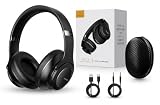
- 2-IN-1 HEADPHONES & WIRELESS SPEAKER Enjoy private listening in headphone mode or rotate the earcups to switch into Bluetooth speaker mode and share your music with friends and family. A unique design that combines two devices in one.
- POWERFUL SOUND WITH 3 EQ MODES Dual 40mm dynamic drivers deliver deep bass, clear vocals, and balanced audio. Choose between Bass Boost, Balanced, or High Definition sound modes to match your music, movies, and daily listening preferences.
- BLUETOOTH 5.3 & TF CARD PLAYBACK Experience a fast and stable wireless connection up to 33 feet. Insert a TF card and enjoy your favorite music without needing a phone, making it perfect for travel, workouts, and everyday use.
- CLEAR CALLS & ALL-DAY COMFORT Built-in microphone supports hands-free calling while soft protein leather ear cushions, memory foam padding, and an adjustable headband provide lasting comfort for work, study, travel, and entertainment.
- 18 HOURS PLAYTIME & PREMIUM GIFT PACKAGE Recharge with modern USB-C charging and enjoy extended listening. Includes a premium carrying case and elegant retail packaging, making it a thoughtful gift for men, women, teens, students, and music lovers.
Why is Minecraft still talking after I turn off its narrator?
A system-level screen reader may be active. Turn off Windows Narrator, macOS VoiceOver, Xbox Narrator, PlayStation Screen Reader, or iPhone/iPad VoiceOver if the voice also reads menus and apps outside Minecraft.
The Bottom Line
Java Edition: Press Ctrl+B on Windows or Linux, or Command+B on macOS, until you see “Narrator: Off”. You can also use Options → Accessibility Settings → Narrator → Off. To prevent accidental activation, disable Narrator Hotkey.
Bedrock Edition: Open Settings → Accessibility and turn off the UI and chat text-to-speech options. If speech continues outside Minecraft, turn off your device’s screen reader.
Quick Recap
Product prices and availability are accurate as of the date/time indicated and are subject to change. Any price and availability information displayed on Amazon at the time of purchase will apply.

