
Do these 3 things before closing this tab:
1Scan for outdated or missing drivers - takes under a minute2Repair Windows errors before they cause bigger problems3Fix the driver behind crashes, sound loss and screen glitchesCyberPowerPC PCs do not use one universal RGB controller. To change lighting, first identify whether it is controlled by a case button or remote, the motherboard, Windows Dynamic Lighting, or the component’s own software; the right method depends on the hardware and its connections.
For an MA-01 case, use its side buttons and knobs. For other systems, check your order details or invoice for the motherboard and component brands, then use the matching utility if the lighting is connected to that device. Fans connected only to a case hub may not appear in motherboard software.
Identify which lighting you want to change
- Case fans change with a case button or remote: they are probably connected to a standalone case or fan controller. The button behavior varies; a button near the power button may be Reset, so stop if pressing it restarts the PC.
- Devices appear in motherboard RGB software: those devices are likely connected to the motherboard or otherwise supported by its utility.
- Keyboard, mouse, RAM, cooler, or graphics card lighting does not follow the case: it may have a separate controller or require software from that component’s manufacturer.
- MA-01 case: use its physical controls; the case guide describes analog buttons and knobs rather than a Windows RGB app.
CyberPowerPC’s support downloads list utilities from component makers including Gigabyte, ASUS, ASRock, MSI, Corsair, NZXT, XPG, and Thermaltake. Choose software for the exact component, not just the PC brand. CyberPowerPC’s drivers and software downloads
Use a case button or remote
If your PC has a physical RGB controller, use the button labeled LED, RGB, or with a lighting icon. Depending on the controller, a press may cycle colors or effects, while a long press may turn lights off or switch modes. The exact behavior varies by case.
Recommended Free Tools
#1 Best Overall

- Adjustable Lighting: Control the LED strip lights with a remote control for dynamic color changes and animations.
- Compatible with Popular Motherboards: Works with Asus Aura, Gigabyte RGB Fusion, MSI Mystic Light, and ASRock RGB LED.
- Easy Installation: Magnetic backing and double-sided adhesive allow for secure mounting on any flat surface without screws or clips.
- Dimmable and Adjustable Speed: 5-level brightness in static mode and adjustable speed in dynamic mode for customizable lighting.
- Includes Key Controller and Extension Cables: Get a remote control, 2 extension cables, and a 5V SATA connection cable to connect multiple LED strips.
If the system came with a wireless RGB remote, use it to control a remote-operated hub. Such a hub may not be visible to Windows or motherboard RGB software. Do not assume a button beside the power button is for lighting: if pressing it restarts the computer, it is likely Reset.
Change RGB with the controls on an MA-01 case
The MA-01 case has three buttons and three analog knobs on its side. Button 3 switches between the two knob modes.
Mode 1: presets, brightness, and effects
Tap Button 3 to switch to Mode 1, which uses preset colors and effects.
| Control | Function in Mode 1 |
|---|---|
| Knob 1 | Selects one of 15 preset colors |
| Knob 2 | Adjusts brightness |
| Knob 3 | Selects an effect profile |
Knob 3 cycles through Single Solid Color, Breathing, 1-Color Effect, 2-Color Effect, and Spectrum Effect.
Mode 2: create a custom RGB color
Tap Button 3 to switch to Mode 2, where each knob controls one color channel.
| Control | Channel | Range |
|---|---|---|
| Knob 1 | Red | 0–255 |
| Knob 2 | Green | 0–255 |
| Knob 3 | Blue | 0–255 |
Turn a knob clockwise to increase its channel and counterclockwise to decrease it.
Rank #2

- 360° Four-Side Glow Without Dark SpotsThis RGB lighting sleeve features high-density LED beads that deliver even, seamless illumination from all sides with no dark areas, creating a brighter, more stylish look for your PC interior and gaming setup.
- Soft Flexible Design for Neat PC LayoutMade of smooth, bendable TPE and silicone material, this LED light cover fits easily and curves gently for tidy interior arrangement. The integrated lighting design enhances visual style while keeping your PC setup clean and streamlined.
- Matte Black Finish for Premium Gaming BuildsFull matte black styling blends perfectly with dark-themed computer builds and glass-side cases. The uniform black appearance delivers a high-end, cohesive look that elevates any custom gaming rig.
- 5V 3Pin ARGB Sync With Controller IncludedSupports standard 5V 3-pin addressable RGB synchronization for dynamic lighting effects, color modes, and immersive visual style. A compact controller is included for easy operation even without compatible system support.
- Complete Kit For Easy PC Interior UpgradeThis all-in-one LED lighting set includes everything needed for quick installation and enhanced interior styling. It fits most mid-to-full size computer cases and helps create a clean, professional, and eye-catching gaming environment.
Save and recall MA-01 lighting settings
| Action | Button 1 | Button 2 |
|---|---|---|
| Tap | Recalls Memory 1 | Recalls Memory 2 |
| Hold for 2 seconds | Saves the current color and effect to Memory 1 | Saves the current color and effect to Memory 2 |
Hold Button 3 for 2 seconds to reset the color to default white.
Use motherboard RGB software
Motherboard software controls compatible devices connected to or supported by that motherboard. Fan power and LED lighting can use separate connections: a fan may spin while its lights are connected to a separate case controller. Before changing wiring, shut down the PC and unplug it. Match the connector to the correct header; 5 V 3-pin ARGB and 12 V 4-pin RGB are different standards and must not be interchanged.
Free tools Windows power users keep installed
One-click scans. No signup required.
Gigabyte motherboard
Install GIGABYTE Control Center (GCC), then open Device → RGB Fusion. On the RGB Fusion page, select a detected device and lighting zone, choose a color and effect, and use Sync All to synchronize supported devices. Use a device’s Sync On/Off setting to include or exclude it from synchronization. GIGABYTE Control Center
RGB Fusion in GCC is the newer integrated interface; RGB Fusion 2 is the older standalone utility. If both control the same device, the utility used last can take precedence, so close or avoid competing utilities if settings keep changing.
MSI motherboard
Install MSI Center and add Mystic Light. Open Features → Mystic Light or, depending on the MSI Center build, Installed → Mystic Light. Select a product and LED area, choose the effect and settings, then click Apply. Use ALL SYNC or the chain icon to synchronize compatible devices; disconnect the chain to control one device independently. MSI Mystic Light instructions
Check the header type before connecting lighting: MSI identifies JRGB as 4-pin 12 V non-addressable RGB and JRAINBOW as 3-pin 5 V addressable RGB. Do not connect a 5 V ARGB device to a 12 V RGB header.
Windows Errors? Fix Them Before They Spread
Repair common Windows errors and clear accumulated junk for a smoother, more stable PC - no reinstall needed.Free scan · no reinstallCrashes, No Sound, or Screen Glitches?
Random freezes, missing sound and display glitches usually trace back to one bad driver. Find and replace yours safely.Free scan · under a minuteRank #3

- Illuminate your GT502 Horizon with vibrant surrounding lighting
- Easy installation with magnetic design
- High durability that can last up to 20,000 hours
- Aura Sync compatibility that lets you coordinate colors and lighting effects with a huge range of hardware
- Available in black or white, perfectly designed to match black or white PC builds
ASUS motherboard
Use Armoury Crate. Open Aura Sync for compatible devices as a group, or use Device → Lighting to control an individual unsynchronized device. Individual-device changes do not synchronize other lighting devices. ASUS Aura Sync support
ASRock motherboard
Install ASRock Polychrome RGB or Polychrome SYNC from the support page for your motherboard. The utility includes a color wheel, an ON switch, a Style menu, and Apply All. ASRock’s documented effects include Static, Breathing, Strobe, Cycling, Random, Random Cycling, Music, and Wave. ASRock Polychrome guide
For Intel Z890 systems, ASRock says to use Polychrome RGB version 2.0.190 or newer if motherboard RGB cannot be adjusted in BIOS. ASRock support
Use Windows Dynamic Lighting
Windows Dynamic Lighting works only with compatible devices that expose the HID LampArray standard. On a supported Windows 11 system, open Settings → Personalization → Dynamic Lighting. A conventional fan hub controlled only by a case button generally will not appear there. If a manufacturer app and Windows both control a device, lighting priority can affect which setting wins. Microsoft Dynamic Lighting device guidance
Rewire fans for motherboard RGB control
If you want motherboard software to control fans connected to a case hub, CyberPowerPC documents rewiring their lighting leads to a compatible motherboard header. Do this only if the connectors and header match. If you are unsure, consult the motherboard manual or CyberPowerPC support.
- Shut down the PC and unplug its power cable.
- Open the case and locate the fan lighting cables and existing hub or case-button connection.
- Find a compatible motherboard header, often labeled ARGB or DLED, and confirm its voltage and pin layout in the motherboard manual.
- Disconnect the lighting leads from the existing controller and connect them to the correctly matched header. Do not force a connector.
- Close the case, reconnect power, start the PC, and use the motherboard’s RGB utility.
If the motherboard has no compatible ARGB header, CyberPowerPC recommends an ARGB hub with its own controller. CyberPowerPC fan rewiring guide
Rank #4

- Give Your PC a Personal Touch: Make your case truly stand out with interconnected mini RGB lighting panels configurable in your own custom layouts.
- 81 RGB LEDs with Light Diffusion: Includes nine triangular RGB lighting panels, each lit by nine bright RGB LEDs, in a sturdy, light-diffusing casing that softens and blends light for a continuous and smooth effect.
- CORSAIR iCUE Lighting Node PRO Included: Fully customize your lighting with an included RGB lighting controller and powerful CORSAIR iCUE software.
- Simple Magnetic Attachment: Panels magnetically attach to each other and any steel surface, making installation and reconfiguration a breeze.
- Create Stunning Three-Dimensional Designs: Eight included low-profile connectors and two corner hinges enable attachment at varying angles.
Fix RGB software that detects nothing
- Check the PC invoice or order details to confirm the motherboard model and the correct component utility.
- Confirm whether the fans are connected to the motherboard or only to a standalone hub, remote, or case-button controller.
- Check the connector and header type: 4-pin 12 V RGB and 3-pin 5 V ARGB are not interchangeable.
- Close competing RGB utilities. Some utilities can overwrite another app’s settings; Gigabyte documents this issue for RGB Fusion in GCC and RGB Fusion 2.
- With the PC shut down and unplugged, check that compatible lighting cables are seated and aligned correctly.
- Install the latest utility for the exact motherboard or component, then check whether it detects the device.
If only some lights change, the remaining devices may use a different controller or software. If the software changes settings but the lights do not respond, check the connection, selected device, and whether another RGB program is overriding the setting.
Change keyboard lighting
NOHI 2 keyboard
On the NOHI 2 keyboard, hold FN and press a number from 1 to 0 to select lighting modes. The keyboard may also have a dedicated lighting key between FN and the arrow keys. Available options depend on the keyboard’s design; consult its manual for supported modes.
Quick wins for a faster PC:
Clear out junk files and repair common Windows errorsFree Scan →Fix the driver behind crashes, sound loss and screen glitchesFind Drivers →Repair Windows errors before they cause bigger problemsFix Now →CK60 mechanical gaming keyboard
In the CK60 software, open the DEVICE tab, select FN1 Layer, and choose the Lighting icon. Select a mode. To customize per-key lighting, choose Custom, select a key and color, and adjust the available settings. The article’s source does not provide a complete set of CK60 shortcut mappings, so use the keyboard manual for shortcuts rather than relying on an incomplete list.
Independent reader supportYour contribution helps us test, update, and keep practical guides available for everyone.Gigabyte B850 RGB recovery
CyberPowerPC’s Gigabyte RGB Fix is a recovery procedure for the specific motherboard MB-492-625, GIGABYTE B850 GAMING WIFI6, intended to repair a potentially corrupted ITE5711 controller. It is not a general RGB setup step. Use it only when CyberPowerPC support has confirmed that the procedure applies to your system. CyberPowerPC Gigabyte RGB Fix
Do not run the controller fix on another motherboard or without confirmation that the controller is affected. Do not power off the PC during flashing; follow CyberPowerPC’s instructions and support guidance.
FAQ
Why does my CyberPowerPC RGB software detect no fans?
The fan lighting may be connected only to a case button, remote, or standalone hub rather than the motherboard. Use that controller, or rewire the lighting leads to a compatible motherboard header.
Best Value
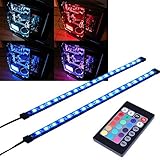
- EASY INSTALL: Magnetic Ensconced on LED Strip Light, and The Flexible Strip Easy to Bend, Easy to Install on Your Computer (Suitable for Iron Surface Only)
- HIGH BRIGHTNESS: 5050 RGB Color Changeable LED Computer Decor Light is Super Brighter Than The Normal LED Strips to Achieve Best Lighting Effect for Your PC Computer
- MULTIPLE MODES: 24 Key IR Remote Controller, with 4 Dynamic Light Modes and 16 Static Light Colours
- SATA POWER SUPPLY: Support All the PSU models
- SOFTWARE CONTROL: Support to ASUS AURA RGB or MSI Mystic Light etc
Why are my fans spinning but not lighting up?
Fan power and LED lighting can use separate connections. Check whether the lighting lead is connected and whether the controller or header is compatible.
Can I change every CyberPowerPC device’s RGB with one app?
No. The case, motherboard, graphics card, RAM, cooler, keyboard, and mouse may use different controllers or manufacturer utilities. Identify the component and use its supported control method.
What if my motherboard has no ARGB header?
CyberPowerPC recommends an ARGB hub with its own controller when the motherboard lacks a compatible header. Confirm connector and voltage compatibility before connecting a hub.
Why do my RGB settings keep changing back?
Another RGB utility or Windows Dynamic Lighting may also be controlling the device. Close competing utilities and check which app has lighting priority.
What’s actually slowing this PC down?
Pick the symptom - the matching free tool is one click away.
Should I run Gigabyte RGB Fix on any Gigabyte motherboard?
No. CyberPowerPC limits the recovery to the listed MB-492-625 GIGABYTE B850 GAMING WIFI6 system when the ITE5711 issue is confirmed, typically with support guidance.
The Bottom Line
Use the MA-01’s buttons and knobs for that case, a case button or remote for a standalone controller, and the matching manufacturer utility for motherboard-connected components. Check connector compatibility before rewiring, and treat CyberPowerPC’s Gigabyte RGB Fix as a support-directed repair for one specific motherboard.

