
Calibre is a free desktop app for organizing, converting, and transferring ebooks. Connect a Kindle by USB, add a DRM-free book to Calibre, and select Send to device; Calibre can convert the book to a format the connected reader understands if needed. Wait for the transfer to finish, then use Eject device before unplugging.
This guide explains the USB workflow, format choices, wireless alternatives, and fixes for common Kindle transfer problems.
Before you begin
Install Calibre from the official download page. Editions are available for Windows, macOS, Linux, and as a Portable version. The current FAQ and most main manual pages identify 9.13.0 as the current release; the installed version appears on the bottom line of Calibre’s main window.
You will also need:
- Your Kindle and a USB data cable. Some cables provide power only and cannot transfer files.
- An ebook that is not blocked by DRM.
- A desktop computer with enough storage for Calibre’s library and converted copies.
Calibre does not convert DRM-protected books. Do not assume every ebook purchased for Kindle can be opened, converted, or transferred through Calibre. If a book is protected, use the retailer’s supported delivery or reading method.
Quick wins for a faster PC:
Clear out junk files and repair common Windows errorsFree Scan →Scan for outdated or missing drivers - takes under a minuteDriver Scan →#1 Best Overall

- Fit for PS4 controller, DualShock 4, PS4 Slim/Pro, and Xbox One controllers (for Xbox Elite Wireless Controller models 1537, 1697, 1708, 1698). Fit for Kindle Gen 2-10 (2009-2019), Kindle Paperwhite Gen 5-10 (2012-2018), Kindle Oasis, Voyage, DX, Touch. Fit for Amazon Kindle Tablet Fire 7 (2017/2019), Fire HD 8 (2015/2017/2018), Fire HD 10 (2015/2017)
- Fit for Roku Streaming Stick 3500X, 3600X, 3800X, Streaming Stick 4K/4K+ 3820R, 3820R2, 3820X, 3820X2, 3821R, 3821R2, 3821X, 3821X2, Express 3700X, 3700R, 3900X, 3930X, 3930EU, 3930R, 3930S4, 3930RW, 3932X, 3932RD, 3940X, 3940X2, 3940RW, 3940CA2, 3960X, 3960R, Express+ 3710X, 3910X, 3910RW, 3931X, 3931RW, 3941X, 3941X2. Fit for Premiere 3920X, 3920R, 3920RW, Premiere+ 3921X Express 4K+. Fit for Fire TV Stick 1st 2nd Gen, Fire TV Stick Lite, Fire TV Stick Basic Edition, Fire TV Stick 4K Max
- Compatibility notice!! This Micro-USB cable is not compatible with USB-C devices or controllers, such as PS5 DualSense, Xbox Series X/S (Models 1914 and 1797), Xbox 360, Roku Ultra, and Fire TV Cube. Not fit for Kindle with a USB-C connector. Please double-check your device’s port before purchasing
- 24 months manufacturer warranty
- Supports fast 2A charging and 480 Mbps data transfer with 22 AWG low-impedance wires — safe, stable, and built for long-term performance
How to transfer a book to Kindle over USB
1. Add the book to Calibre
- Open Calibre.
- Drag the ebook into the Calibre window, or click Add books and choose the file.
- Select the book in the library list.
Calibre copies the book into its managed library. Avoid manually rearranging files inside the Calibre library folder. Calibre controls that folder structure, and changing filenames or folders outside the application can break the library.
2. Check or edit the metadata
Select the book and click Edit metadata. Check the title, author, series, and cover. A clean title and author make the Kindle library easier to search.
You can also use Download metadata or replace the cover manually. Metadata changes affect the copy Calibre sends, but they do not change the original file outside the Calibre library.
3. Convert the book if needed
Select the book and click Convert books. In the upper-right corner of the conversion window, choose the output format, then click OK.
Free tools Windows power users keep installed
One-click scans. No signup required.
For a Kindle, AZW3 is a practical choice for a local USB transfer. EPUB is a preferred source format when converting. MOBI remains supported, but it is an older format and is not the automatic answer for every Kindle.
You do not always have to convert first. When you use Send to device, Calibre can automatically convert the book to a format the connected reader understands.
4. Connect the Kindle
- Unlock the Kindle if necessary.
- Connect it to the computer with the USB cable.
- Wait for Calibre to detect it; detection normally takes 10–20 seconds.
When detection succeeds, a device toolbar icon appears. The Kindle may also show a USB-drive screen while it is connected.
5. Send the book
- Select the book in Calibre.
- Click Send to device.
- Wait for the transfer job to finish in Calibre’s job indicator.
Do not unplug the Kindle while a transfer is still running. If Calibre converts the book as part of the send operation, wait for both conversion and transfer to complete.
Rank #2

- [END THE FRAYING CYCLE] Original plastic cords inevitably split at the connector. We engineered an extended strain relief joint encased in a space grey aluminum shell and high-density nylon braid. Withstands 25,000+ bends without tearing.
- [SECURE CLICK-LOCK FIT] Tired of loose Micro USBs falling out? Precision stainless steel pins lock firmly with an audible click. The stepped connector bypasses thick rugged cases. Zero dropouts during intense gaming or constant recording.
- [ZERO LATENCY PLAY & CHARGE] Built with a 22 AWG copper core and double-layer shielding to block interference, delivering stable 2.4A power for lag-free gaming. The aluminum housing actively dissipates heat to prevent battery degradation.
- [PET-PROOF & TANGLE-FREE ARMOR] Is your setup a graveyard of chewed wires? This heavy-duty braided jacket resists sharp pet teeth. Toss it into a crammed backpack—it unrolls perfectly straight without knotting, built for daily abuse.
- [24/7 CONTINUOUS POWER] Flawlessly powers outdoor security cameras and dash cams continuously without unexpected power drops. Revives PS4 controllers and classic Androids. Backed by a 3-year responsive care plan for complete peace of mind.
6. Eject the Kindle
Right-click Send to device, then select Eject device. Once the device disappears from Calibre, disconnect the USB cable.
On the Kindle, open the library and allow time for the new book to appear. The Kindle may need to index the file before it becomes searchable.
Choosing the right Kindle format
| Format | Typical use | Important note |
|---|---|---|
| EPUB | Preferred source format and a widely used modern ebook format | Calibre can convert it for a connected Kindle when necessary |
| AZW3 | Direct USB transfer to many Kindle models | A practical local-transfer target |
| MOBI | Legacy Kindle compatibility | Older format; use it when a particular device or workflow requires it |
| Documents whose fixed layout must remain unchanged | A poor source for reflowable Kindle ebooks; complex layouts may convert badly |
Calibre’s conversion process is a pipeline: it reads the source through an input plugin, converts the content to XHTML, applies transformations, and creates the requested output format. Conversion quality depends heavily on the source. EPUB generally gives Calibre more usable structure than PDF.
For a more controlled conversion, use the dialog’s sections such as Look & feel, Page setup, Heuristic processing, Search & replace, Structure detection, and Table of Contents. Format-specific settings appear in the same dialog.
What’s actually slowing this PC down?
Pick the symptom - the matching free tool is one click away.
Convert books in bulk
To convert several books at once:
- Select multiple books in the library. Use Ctrl-click on Windows/Linux or Command-click on macOS.
- Right-click the selection’s Convert books action.
- Choose Bulk convert.
- Choose the output format and review the available options.
- Start the conversion.
Bulk conversion is useful when preparing a group of EPUB files for USB transfer. It is less useful when each source needs different cleanup settings.
Edit the converted ebook
If conversion produces a bad chapter break, incorrect heading, missing image, or unwanted text, right-click the book and select Edit book. Calibre’s editor can work with formats such as EPUB and AZW3.
Make a backup or duplicate before extensive editing. An ebook can be structurally valid while still displaying poorly on a particular Kindle, so test the edited file on the device after saving it.
Use the Send to device menu correctly
The main Send to device button performs the default transfer action. Right-click it to see the complete set of device actions:
PC Slower Than It Used to Be?
A free scan shows the junk files, broken settings and background clutter dragging Windows down - then fixes them in one click.Free scan · Windows 10 & 11Crashes, No Sound, or Screen Glitches?
Random freezes, missing sound and display glitches usually trace back to one bad driver. Find and replace yours safely.Free scan · under a minuteRank #3

- Designed for use with Fire Tablets and Kindles with Micro USB ports.
- Not compatible with Tablet and Kindles devices that have USB-C charging ports.
- 5ft USB to Micro-USB Cable
- What's in the box: 1 USB to Micro-USB Cable
- Send to main memory
- Send to card (A)
- Send to card (B)
- Send specific format to
- Eject device
- Set default send to device action
- Send and delete from library
- Fetch Annotations (experimental)
Use Send specific format to when a book has multiple formats in Calibre and you want to choose one explicitly rather than relying on the default.
Calibre’s device filename and folder template are configured at Preferences → Import/export → Sending books to devices. This is where you can adjust how authors, titles, and folders are represented on the Kindle.
Send books without a USB cable
Option 1: Send by email
Calibre can email books through a configured mail account. Open Preferences → Sharing → Sharing books by email. Calibre’s current FAQ documents a Use GMX setup button. GMX may also require SMTP to be enabled at Settings → POP3 & IMAP → Send and receive emails via external program.
The sending address must be approved in your Amazon or Kindle email settings. Amazon may send a confirmation message that you must approve before delivery completes.
Calibre limits this service to one book every five minutes by default. Change the interval at Preferences → Advanced → Tweaks. Antivirus software or a firewall can block the outgoing SMTP connection.
Calibre’s current FAQ says Amazon does not allow email delivery of AZW3 and new-style KF8 MOBI files. Treat this as guidance for Calibre’s email workflow, not as a universal statement about every current Send to Kindle method; check Amazon’s current supported formats for the delivery option you plan to use.
Option 2: Use the Content server
The Content server lets another device on the same network browse and download books from your Calibre library.
- In Calibre, click Connect/share → Start Content server.
- On the same computer, open http://127.0.0.1:8080 in a browser.
- From another device, use the computer’s displayed local IP address, such as http://192.168.1.5:8080.
- Browse to the book and download a compatible format.
For an old or limited browser, append /mobile, for example http://192.168.1.5:8080/mobile. The server normally uses port 8080. Older Kindle 1, Kindle 2, and Kindle DX models may require port 80 instead.
Recommended Free Tools
Rank #4
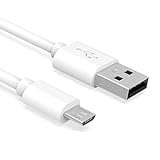
- Important Notes: There are different types or variations of cables used to charge kindles and fire tablets. Please read product details below to know which USB type or variation to buy.
- Choose the Micro USB cable for old generation Kindle Paperwhite, Oasis e-readers Fire HD tablets released 2019 and older (2nd generation to 10th generation). See product description for more details.
- Choose the USB-C cable for new generation Kindle Paperwhite e-readers and Fire released after 2020 (11th generation or newer), Scribe, Fire Max 11, Kindle Colorsoft. See product description for more details.
- General rule for choosing the right cable: For Amazon Kindle and Fire HD tablets released 2019 and older, use micro USB. For Amazon Kindle and Fire HD tablets released after 2020, use USB-C.
- Product includes one (1) USB charge cable for Amazon Kindle Paperwhite, DX, Keyboard, Oasis, Scribe, Fire HD Tablets and kids e-readers.
If the server is reachable beyond your private network, enable authentication at Preferences → Sharing → Sharing over the net → Require username and password to access the content server. Exposing the server without authentication can expose your library to anyone who can reach it.
Fix a Kindle that Calibre does not detect
- Connect only one supported ebook device at a time.
- Check whether Windows Explorer or macOS Finder sees the Kindle. If the operating system does not see it, try a different USB port, cable, or computer before changing Calibre settings.
- Check Preferences → Ignored Devices and make sure the Kindle is not listed.
- With the Kindle attached, open Preferences → Miscellaneous → Debug device detection and run the diagnostic.
- On macOS, check System Settings → Privacy & Security → Files and Folders for file-access permissions.
- For 2024 Kindle models and newer on macOS or Linux, consult Calibre’s device-integration documentation for the USB-cable guidance.
Fix books that do not appear on Kindle
A transferred book may be present but not immediately visible because the Kindle is indexing it. Give it time, especially after sending several books.
If indexing repeatedly crashes, one file may be causing the problem. Amazon does not provide a direct way to identify the offending file. The documented recovery is to reset the Kindle or remove the files, then resend books one at a time until the problematic book is identified.
For a troublesome MOBI file, try converting MOBI to MOBI or MOBI to AZW3 in Calibre and send the new copy.
Fix missing Kindle covers
On some e-ink Kindles, a sideloaded cover appears briefly and is later replaced with a generic cover. Calibre’s FAQ attributes this to an Amazon bug. For books sent with Calibre 4.17 or later, use this workaround:
- Send the book to the Kindle.
- Disconnect the Kindle and let the cover disappear.
- Reconnect the Kindle to Calibre so it can restore the thumbnail.
This workaround requires Kindle firmware 5.12.5 or later, released in April 2020.
For Kindle ColorSoft and newer devices, covers may not appear in the book list. Calibre’s documented workaround is Preferences → Output options → MOBI output → Enable sharing of book content. This marks the files as Personal Documents. It can also disable features such as Whispersync.
Independent reader supportYour contribution helps us test, update, and keep practical guides available for everyone.Can Calibre manage Kindle collections?
Not natively over USB. Kindle does not provide a supported USB mechanism for Calibre to manipulate collections. Older collection plugins are not generally suitable for newer Kindle models because Amazon removed the required capability from models including Kindle Touch and Kindle Fire.
Do these 3 things before closing this tab:
1Scan for outdated or missing drivers - takes under a minute2Repair Windows errors before they cause bigger problems3Fix the driver behind crashes, sound loss and screen glitchesBest Value

- IN THE BOX: (1) 10-foot USB 2.0 cable with A Male to Micro B connectors
- COMPATIBILITY: USB-A printers and hard drives; Micro-B Android phones and tablets
- PERFORMANCE: Supports up to 480 Mbps data transmission speed; charging capability up to 2100 mA
- USES: Ideal for charging Android phones and tablets or connecting PC peripherals such as hard drives, printers, and more
- DURABLE DESIGN: Gold-plated connectors resist corrosion for signal purity; thin and flexible cable with compact connector head works with nearly all cases
Command-line conversion with ebook-convert
For repeatable conversions or batch scripts, use Calibre’s ebook-convert command. The output format is determined by the output filename extension:
ebook-convert input_file output_file [options]
For example, to convert EPUB to AZW3:
ebook-convert “book.epub” “book.azw3”
To see options for a particular input and output pair, run:
ebook-convert myfile.input_format myfile.output_format -h
Available Kindle-oriented output profiles include kindle, kindle_dx, kindle_fire, kindle_oasis, kindle_pw, kindle_pw3, kindle_scribe, and kindle_voyage. Calibre’s manual says profiles are rarely necessary for modern devices, so start without one unless a specific device needs it.
FAQ
Do I have to convert every book to MOBI before sending it to Kindle?
No. Calibre supports EPUB, AZW3, MOBI, PDF, and other formats, and can automatically convert a book when sending it to a connected reader if necessary. AZW3 is a practical local USB target; MOBI is an older format.
Why will Calibre not convert my Kindle purchase?
The book may be DRM-protected. Calibre does not convert DRM-protected books. Use the retailer’s supported app or delivery method rather than trying to process the protected file.
Why is my Kindle visible in Finder or Explorer but not in Calibre?
Check Preferences → Ignored Devices, connect only one supported device, and run Preferences → Miscellaneous → Debug device detection. On macOS, also check System Settings → Privacy & Security → Files and Folders.
Why did the book transfer but not show up?
The Kindle may still be indexing it. If indexing crashes, remove the books or reset the device and resend them one at a time. Reconvert a problematic MOBI file from MOBI to MOBI or MOBI to AZW3.
The Tool Desk
Outbyte Driver Updater FREEFix the driver behind crashes, sound loss and screen glitchesFind Drivers →Outbyte PC Repair FREERepair Windows errors before they cause bigger problemsFix Now →Can Calibre organize my Kindle collections?
Calibre does not natively manage Kindle collections over USB. Newer Kindle models do not provide the supported mechanism required for that feature.
The Bottom Line
For most USB transfers, the reliable sequence is: add the book to Calibre, correct its metadata, convert to AZW3 if you want an explicit Kindle-ready copy, connect the Kindle, click Send to device, wait for the job to finish, and use Eject device before unplugging. EPUB can remain your source format, DRM-protected files cannot be converted by Calibre, and Kindle indexing or Amazon cover behavior can delay or change what you see on the device.
Quick Recap
Product prices and availability are accurate as of the date/time indicated and are subject to change. Any price and availability information displayed on Amazon at the time of purchase will apply.

