
Crashes, No Sound, or Screen Glitches?
Random freezes, missing sound and display glitches usually trace back to one bad driver. Find and replace yours safely.Free scan · under a minutePC Slower Than It Used to Be?
A free scan shows the junk files, broken settings and background clutter dragging Windows down - then fixes them in one click.Free scan · Windows 10 & 11Display Driver Uninstaller (DDU) 18.1.4.2 is a Windows utility from Wagnardsoft that removes AMD, NVIDIA, or Intel display drivers and attempts to clear related leftovers. Use it when a standard uninstall fails or when you need a more thorough cleanup—not as a required step for every routine driver update.
What DDU does
DDU removes display drivers and attempts to remove associated files, folders, registry keys, and driver-store components. Its purpose is troubleshooting and thorough cleanup; it is not a replacement you must use whenever you update a graphics driver. The Wagnardsoft 18.1.4.2 release page describes its scope and recommendations.
| # | Preview | Product | Price | |
|---|---|---|---|---|
| 1 |
|
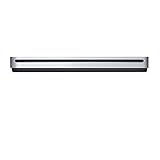
Apple USB SuperDrive | $72.25 | Buy on Amazon |
DDU is software, not a physical item. The instructions below are the publisher’s guidance; they do not guarantee that the same result will occur on every PC.
When to use DDU instead of a standard uninstall
| Approach | Best fit | Cleanup scope | Preparation |
|---|---|---|---|
| Windows or graphics-vendor uninstall option | Routine driver removal or a normal update when the existing installation is working as expected. | Standard uninstall; the reviewed sources do not specify a comparable list of components it removes. | Follow the relevant Windows or vendor procedure. |
| DDU | A standard uninstall has failed, or you specifically want a more thorough cleanup before reinstalling or changing graphics drivers. | Attempts to remove driver-related leftovers, including files, folders, registry keys, and driver-store components. | Wagnardsoft recommends a backup or restore point and prefers Safe Mode. Prepare the intended driver and, if using BitLocker, have the recovery key available. |
DDU is not mandatory just because you are installing a newer driver or changing a GPU. Wagnardsoft says the existing driver does not need to be uninstalled before running DDU. If a standard uninstall is sufficient, DDU’s deeper cleanup may be unnecessary.
Recommended Free Tools
#1 Best Overall
- The sleek, compact USB SuperDrive.
- Whether you’re at the office or on the road, you can play and burn both CDs and DVDs with the Apple USB SuperDrive. It’s perfect when you want to watch a DVD movie, install software, create backup discs, and more.
- Only slightly bigger than a CD case, the Apple USB SuperDrive slips easily into your travel bag when you hit the road and takes up little space on your desk or tray table when you’re working.
- You’ll never have to worry about lost cables with the Apple USB SuperDrive. It connects to your Mac* with a single USB Type-A cable that’s built into the SuperDrive. There’s no separate power adapter, and it works whether your Mac is plugged in or running on battery power.
- The Apple USB SuperDrive is compatible with Mac models from 2008 and later that don't have a built-in optical drive.
Before running DDU 18.1.4.2
- Check the version’s stated requirements. Wagnardsoft lists .NET Framework 4.8 and Windows 7, 8, 8.1, 10, or 11, in 32- or 64-bit editions. The publisher says use with Insider Preview builds is at the user’s risk. These are the requirements stated for 18.1.4.2, not independent compatibility testing or a claim about later releases.
- Download the intended graphics driver first. This leaves you ready to reinstall after cleanup. See the Wagnardsoft usage guide for its preparation guidance.
- Create a backup or system restore point. This is a precaution recommended by the publisher before using a system-cleanup utility.
- Plan for Safe Mode. DDU can run in normal Windows mode, but Wagnardsoft recommends Safe Mode for stability. If BitLocker is enabled, keep the recovery key available: the publisher says Windows may request it when entering Safe Mode.
- Use a local disk. The usage guide advises extracting DDU onto a local drive rather than a network drive.
- Check security software handling. Wagnardsoft advises excluding the DDU folder from security software to avoid issues. Apply that instruction only as needed and in line with your security policy.
How to use DDU carefully
- Get DDU from Wagnardsoft and extract it to a local disk. Avoid running it from a network location, as the publisher’s guide advises.
- Make sure the replacement driver is already downloaded. Choose the driver for the GPU and Windows installation you intend to use.
- Create a backup or restore point. Do this before making driver and system changes.
- Enter Windows Safe Mode if practical. Wagnardsoft says normal mode is possible but recommends Safe Mode for stability. Have your BitLocker recovery key ready if applicable.
- Launch the extracted DDU executable and select the relevant GPU vendor. DDU supports AMD, NVIDIA, and Intel display drivers. Intel’s DDU instructions also describe using Safe Mode and launching the extracted executable for Intel graphics.
- Choose the cleanup action appropriate to your situation. If you are removing a driver to reinstall it, the publisher’s project guidance recommends Clean and restart. Follow the utility’s current on-screen options and avoid selecting a different device type by mistake.
- After Windows restarts, install the prepared driver. Use the installer for the intended GPU and Windows version.
These steps reflect publisher and vendor instructions, not a guarantee that cleanup will resolve a particular fault. Wagnardsoft also states that NVIDIA, AMD, and Intel are not responsible for DDU.
What changed in version 18.1.4.2
Wagnardsoft’s release notes for 18.1.4.2 list these changes:
- Fixes for potential combo-box selection issues.
- Intel cleanup no longer removes a non-associated IGS Software Component.
- Improved NVIDIA WSL cleanup targeting additional NVIDIA-related files in
System32lxss. - Monitor cleanup enhancements.
- Hungarian translation updates.
These are release-note details for 18.1.4.2. Check the publisher’s page for details before applying them to any later version.
Quick Recap
Product prices and availability are accurate as of the date/time indicated and are subject to change. Any price and availability information displayed on Amazon at the time of purchase will apply.

