
Do these 3 things before closing this tab:
1Fix the driver behind crashes, sound loss and screen glitches2Repair Windows errors before they cause bigger problems3Scan for outdated or missing drivers - takes under a minuteTo prevent the PAE kernel from loading in Windows Server 2003, add /NOPAE to the applicable operating-system entry in Boot.ini. If PAE remains enabled, check whether Data Execution Prevention (DEP) or a hot-add memory configuration is enabling it automatically.
Before changing Boot.ini
Windows Server 2003 uses Boot.ini for this startup setting. First identify the entry that starts the installation you intend to change, then save a recoverable copy of the existing file. Editing the wrong entry may leave the intended installation unchanged; a mistaken edit can also affect startup.


Microsoft’s Boot.ini switch reference explains that startup switches change how Windows starts. Make the change only if you understand its effect on the server’s memory use and applications.
Add /NOPAE to the Windows Server 2003 entry
- Open the existing
Boot.inifile using an account with permission to change it. - Find the operating-system entry for the Windows Server 2003 installation you want to affect.
- Add
/NOPAEto the end of that entry’s options, separated from the existing options by a space. Preserve the entry’s other settings. - Save the file and restart the server during an appropriate maintenance window. Confirm that the intended Windows Server 2003 installation starts.
Microsoft documents /NOPAE as the switch to disable PAE in Windows Server 2003; /PAE is the switch to enable it. See Microsoft Learn’s Physical Address Extension guidance. Do not substitute modern BCDEdit instructions for this Windows Server 2003 procedure.
#1 Best Overall
If PAE still appears to be enabled
Microsoft documents two conditions in which Windows can enable PAE automatically. Review the relevant configuration rather than adding switches indiscriminately.
DEP is enabled
On a computer that supports hardware DEP, enabling DEP can cause PAE to be enabled automatically. Microsoft’s Windows Server 2003 guidance identifies /EXECUTE as the switch to disable DEP. Changing DEP affects a separate security feature, so use this option only if disabling DEP is acceptable for the server. The switch is documented on the same Microsoft PAE page.
Rank #2
Hot-add memory is configured above 4 GB
PAE may also be enabled automatically when the computer is configured for hot-add memory above 4 GB. Check whether that configuration is required before changing it. Microsoft describes the interaction between PAE and Address Windowing Extensions (AWE) in its article on large memory support in Windows Server 2003 and Windows 2000.
Independent reader supportYour contribution helps us test, update, and keep practical guides available for everyone.Understand the memory trade-off
PAE allows supported 32-bit Windows Server editions to address physical memory beyond 4 GB. Depending on the processor’s physical address size, Microsoft’s PAE documentation describes supported 32-bit Windows Server systems as able to use up to 64 GB or 128 GB. Compatible applications may use extended physical memory through AWE. Disabling PAE can therefore affect the memory available to the operating system or applications; the precise effect depends on the Windows edition, hardware, and application configuration.
Rank #3
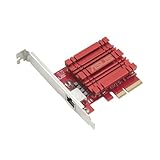
- Hyper-fast 10Gbps networking delivers up to 10X-faster data-transfer speeds for bandwidth-demanding tasks
- Full compatibility with current network standards, including 10/5/2.5/1Gbps and 100Mbps, for seamless backward compatibility
- Windows and Linux support for flexible OS integration with Windows 10/8.1/8/7 and Linux Kernel 4.4/4.2/3.6/3.2
- RJ45 port easily upgrades your desktop to 10Gbps networking using standard copper network Cables
- Prioritize your data with built-in Quality-of-Service (QoS) technology, allowing you to prioritize bandwidth and supported data packets for a smooth online experience
Before applying /NOPAE, check whether the server or an application relies on memory above 4 GB, AWE, or hot-add memory. If the change prevents the server from starting as intended, restore the saved Boot.ini copy and restart.
Quick Recap
Rank #4

- Used Book in Good Condition
Product prices and availability are accurate as of the date/time indicated and are subject to change. Any price and availability information displayed on Amazon at the time of purchase will apply.

