
Choose a USB hub by matching it to your desktop’s available USB port, the speed and connector needs of your devices, and their power demands. Count the ports you need, check the hub’s own data and power specifications, and plan where it will sit. A USB-C-shaped plug alone does not guarantee a particular speed or charging capability.
1. Inventory your desktop’s ports and devices
Before comparing hubs, identify the USB ports on the PC and list what you want to connect. Check the computer’s documentation or inspect its rear and front panels; the motherboard or PC manufacturer’s specifications can help identify the ports if the markings are unclear.
- Record the connector type available for the hub’s upstream connection, such as USB-A or USB-C.
- List the devices you will attach, including any that need a particular data rate, charging, or substantial power.
- Note whether the hub will connect to a port on the front or back of the PC and how far it must reach.
The hub’s upstream connector must match a port on the desktop, either directly or through a compatible cable. Connector shape by itself does not establish the port’s data speed or power capabilities.
2. Match the speed across the whole connection
Consider the complete path: the desktop port, the hub, its cable, and the connected device. The connection runs at the lowest speed capability in that chain; a faster hub cannot upgrade a slower PC port or peripheral. USB-IF lists USB 3.2 rates of 5, 10, and 20 Gbps and describes the standard as backward compatible, with connected products operating at the lowest common speed capability (USB-IF USB 3.2 overview).
#1 Best Overall

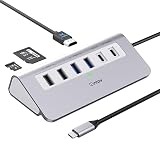
- Hybrid USB C Hub: This usb hub features 1*USB-C 3.2 10Gbps + 2 USB A 3.2 10Gbps, 4 USB-A 3.0 5Gbps and 2 USB-C PD 45W Fast Charging Ports(Not support data transmission) , use the usb hub for pc to extend your laptop, desktop, gaming host and more. Note: Powered usb hub do not support video output function.⚠️Note: The usb hub powered is not recommended for charging computers or other high-power devices.
- 10Gbps Fast Data Transfer: The USB 3.2 hub provides lightning fast data transfer via USB 3.2 port (10Gbps) or USB 3.0 port (5Gbps), allowing you to easily transfer HD photos, videos, and any files in seconds.Suitable for video editing, social media video editing, photography enthusiasts, educators, researchers, and office workers Note: Do not use multiple SSD drives simultaneously
- PD 45W Fast Charging: This usb hub for laptop provides dedicated 2 PD 45W charging ports, can quickly charge your iPhone17/ 16/15 series, iPad, mobile phones and other type-c devices. Note: when you use the powered usb hub, please insert the provided power adapter to charge your device via hub. ⚠️Note: The PD 45W Charging Ports does not support data transfer .
- Ergonomic Design: The aluminium one-piece USB port hub has a unique ergonomic 28-degree made with 50%+ recycled materials angled triangular shape and feet on the bottom to make plugging and unplugging USB devices easier and more stable on the desktop.Note:It is recommended that you avoid using multiple removable drives simultaneously.
- Universal Compatibility: Intpw powered usb c hub includes a USB C to C cable in the package, compatible with most USB-C laptops and PC, such as M1/M2/M3/M4/M5 MacBook Air/Pro, iMac, XPS, Surface Pro.Friendly Note: This design perfectly fits 99% of standard-sized USB-C devices (including regular-thickness USB-C flash drives, phone/tablet cables, etc.). If you're using a custom USB-C device with a thicker port housing, please contact us for compatibility advice.
Use the hub’s stated data rate rather than relying on a vague label or the appearance of its connector. If a device’s performance matters, verify that every part of its connection path supports the rate you need. A hub with a higher stated rate may still work with slower equipment, but the slower link sets the operating speed.
3. Choose enough downstream ports
Count the devices you plan to connect at the same time, then consider likely additions. Compare that total with the hub’s downstream port count and types: a hub may offer a mix of USB-A and USB-C ports rather than a set of interchangeable connections.
Rank #2

- Smart Charging Ports: 2 Extra 5V/2.4A charging ports supporting 2.4A output specially designed for smart charging. Charges most USB charging equipment, regardless of large batteries such as smartphones or tablets, or mini-battery equipment such as smart portable devices, at full speed.
- Faster Speed with USB 3.0: USB 3.0 ports offer transfer speeds of up to 5Gbps, 10 times faster than USB 2.0. This 7-port USB 3.0 data hub can instantly expand 1 USB 3.0 port to 7 USB 3.0 data ports for keyboard, mouse, printer, hard drivers and other USB devices.
- TP-Link Charging technology intelligently identifies connected devices, automatically delivering the smart charge to your smartphones, tablets or devices with a USB charging connector, minimizing charging time.
- Protect Both Your Equipment and Your Data: UH720 has a sophisticated circuit design with multiple overheat, overload, overvoltage and short circuit protections. A built-in surge protector keeps both your devices and your data safe in the data transfer process.
- UH720 supports hot-swap USB ports that can be safely connected and disconnected while the computer is on and running.
There is no universally ideal port count. Choose for your actual equipment and leave room if you expect to add peripherals; also check that the ports are the right type for those devices or their cables.
4. Decide whether the hub needs external power
A hub can draw power through its upstream connection, from a separate power source, or through a combination of sources. USB-IF’s 2023 white paper on upstream-facing-port-powered hubs discusses these distinctions and power allocation (USB-IF white paper, Rev 0.9).
What’s actually slowing this PC down?
Pick the symptom - the matching free tool is one click away.
Rank #3

- 【4 Ports USB 3.0 Hub】Acer USB Hub extends your device with 4 additional USB 3.0 ports, ideal for connecting USB peripherals such as flash drive, mouse, keyboard, printer
- 【5Gbps Data Transfer】The USB splitter is designed with 4 USB 3.0 data ports, you can transfer movies, photos, and files in seconds at speed up to 5Gbps. When connecting hard drives to transfer files, you need to power the hub through the 5V USB C port to ensure stable and fast data transmission
- 【Excellent Technical Design】Build-in advanced GL3510 chip with good thermal design, keeping your devices and data safe. Plug and play, no driver needed, supporting 4 ports to work simultaneously to improve your work efficiency
- 【Portable Design】Acer multiport USB adapter is slim and lightweight with a 2ft cable, making it easy to put into bag or briefcase with your laptop while traveling and business trips. LED light can clearly tell you whether it works or not
- 【Wide Compatibility】Crafted with a high-quality housing for enhanced durability and heat dissipation, this USB-A expansion is compatible with Acer, XPS, PS4, Xbox, Laptops, and works on macOS, Windows, ChromeOS, Linux
A bus-powered hub may suit a modest setup, while an externally powered hub is worth considering when you plan to connect several peripherals or devices with higher power demands. Neither label alone tells you what a particular model can supply: check its specified total output and per-port ratings, along with the included power adapter’s requirements.
Do not substitute an arbitrary adapter. If a replacement is needed, match the manufacturer’s specified voltage, current, polarity, and connector.
Rank #4
- 9-IN-1 USB C Hub: USB C docking station has perfectly combined most functions you need, includes 4K@60Hz HDMI, PD 100W pass-through charging for laptop, USB-C 3.0 & 2 USB-A 3.0 5Gbps data, 2 USB 2.0, SD/TF 3.0 104MB/s Slots—perfect for work, study, or travel. USB-C Cable Length is about 19.7". Long enough to connect your laptop. ⚠️Note: USB-C PD port not support data transfer and video output.
- Brillant 4K@60Hz Display: intpw usb hub for pc can stream 4K@60Hz video to HDTV, Monitors or projectors via HDMI port, presenting you a visually stunning movies, high-definition online meetings. Perfect for education, recreation, work, fitness, gaming and more. ⚠️Note: Please plug in your laptop's power adapter before connecting monitor. USB-C devices should support USB Type-C DP Alt Mode or thunderbolt, otherwise will won’t output images on monitors or screens.
- High-Speed Data Transfer: 3 USB 3.0 Ports transfer speed up to 5Gbps. USB C to hdmi takes only a few seconds to transfer photos or videos to your laptop. 2 USB 2.0 can connect to your keyboard and mouse. USB 3.0/2.0 data port not recommend for charging/video/audio.⚠️Note: USB-C 3.0 port does not support charging and video output.
- PD 100W Fast Charging: Using 100W USB-C PD charging port to charge your MacBook Pro/Air or other USB C laptop. Note: For a better experience, when you use the powered usb hub, please use your orginal power supply or at least 65W power supply to charge your laptop via usb port hub. ⚠️Note: power adapter is not included and PD port not support data transfer and video output.
- Wide Compatibility: intpw usb hub for pc is compatible with almost type-c devices such as MacBook Pro/Air, MacBook M1, M2,M3, iMac, Macbook Neo, iPad Pro, iPhone 17/16/15 Series etc. ⚠️Note: Doesn't unplug or plug the PD charger when using the usb hub usb c. This prevents the device from being disconnected, the HDMI connection screen is not displayed, and data transferred from external USB devices is lost.
5. Treat data transfer and charging as separate requirements
A hub’s data capability does not tell you how much charging power it provides. Check the product’s specifications for charging support and per-port output, and confirm that the desktop, hub, cable, and device support the charging arrangement you need.
USB Power Delivery (USB PD) negotiates power and supports power management. USB-IF describes PD 3.1 as enabling up to 240 W over a full-featured USB Type-C cable and connector; its stated fixed-voltage capability levels include 140 W at 28 V, 180 W at 36 V, and 240 W at 48 V (USB-IF USB Power Delivery). These are standard-level capabilities, not a rating for an ordinary hub or a promise about power from a desktop PC. Do not assume a USB-C port or hub offers them unless the relevant product specifications say so.
Best Value
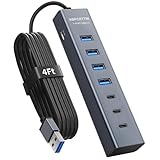
- ⚠️Note: This Device Only Supports Data Transmission, Not Charging !!!
- 【7-Port Aluminum USB Hub】Expand your connectivity with ABFCRTTW’s sleek and durable usb hub! Featuring 7 high-speed ports (4 USB-A & 3 USB-C), this usb 3.0 hub is perfect for your desk usb hub needs. The sturdy aluminum casing ensures heat dissipation and longevity, making it ideal for pc usb hub setups. Say goodbye to port shortages and hello to seamless multitasking!
- 【4Ft Extra-Long Cable】 No more straining to reach your devices! This usb extender hub comes with a generous 4-foot cable, crafted from premium flexible material for tangle-free convenience. Perfect for usb hub for desktop setups, it gives you the freedom to organize your workspace without limitations.
- 【Blazing-Fast 5Gbps USB 3.0】 Transfer files at lightning speed—10x faster than USB 2.0! Whether it’s large videos, photos, or documents, this usb to usb c adapter ensures rapid data syncing for your hard drives, keyboards, and more. Ideal for professionals who demand efficiency
- 【15W Type-C Port for High-Performance Devices】Equipped with a 5V/3A Type-C port, this USB splitter ensures your high-power devices like external hard drives and USB fans get the stable power they need. Say goodbye to power shortages and hello to uninterrupted performance.
6. Check placement, cable reach, and extra features
Decide whether the hub will sit on the desk, under it, or elsewhere, then check the supplied cable’s reach and where its ports and power input are located. Front-facing ports can be convenient for devices you plug in often; a hub placed out of sight may need more cable length and accessible controls or connections.
Only pay for added functions you will use. If you need Ethernet, a card reader, or another feature, verify that the specific hub lists it and check its specifications rather than assuming it is included.
7. Compare candidate hubs before buying
Once you know your setup, compare models against the same checklist. For compliance or interoperability claims, look for information that can be verified through USB-IF’s USB 3.2 compliance resources.
- Upstream connector and compatibility with an available desktop port.
- Stated data rate, taking the slowest important device and the full connection path into account.
- Downstream port count and types.
- Bus-powered or externally powered design.
- Manufacturer-stated total and per-port power output, including any explicit charging support.
- Cable length, placement, and access to the ports you use most.
- Any listed extras you genuinely need, such as Ethernet or card reading.
An exact model recommendation depends on your desktop’s ports, device list, power needs, budget, and placement constraints. Without those details, compare product specifications against your setup rather than treating one hub as a universal fit.
Do these 3 things before closing this tab:
1Fix the driver behind crashes, sound loss and screen glitches2Clear out junk files and repair common Windows errors3Scan for outdated or missing drivers - takes under a minuteQuick Recap
Product prices and availability are accurate as of the date/time indicated and are subject to change. Any price and availability information displayed on Amazon at the time of purchase will apply.

