
If your Sonos surrounds do not appear in the app, show as not configured, or seem silent, start by checking their setup and audio settings—not by replacing them. Add each speaker to your Sonos system as its own room, then assign the pair to the Beam with the app’s Set up Surrounds flow. If they are already configured, check the surround levels and the audio format from your TV or source.
First, check how the problem appears
- Surround speakers are missing from the Beam room: confirm they are set up on the Sonos system as separate rooms, then assign them to the Beam.
- The app says “not configured”: check power and connectivity, then reboot the products and router.
- The speakers appear configured but seem quiet: check the Surrounds switch and the separate TV and music levels.
- They work with some content but not other content: investigate the TV or source device’s audio output format.
Add or re-add surrounds to the Beam
Both the Beam and the intended surround speakers must already be set up on the Sonos system as separate rooms. If the speakers are currently a stereo pair, separate that pair before assigning them as surrounds. Sonos says surrounds connect wirelessly to the home theater product and should be in the same room with line of sight to it. See Sonos’ surround setup instructions for the current compatibility guidance.
In the current Sonos app
- Open Settings.
- Select the Beam room.
- Choose Set up Surrounds and follow the prompts.
In the S1 app
- Open Settings > System.
- Select the home theater room.
- Choose Set up Surrounds and follow the prompts.
Fix a “not configured” status
Sonos says this status can indicate that the home theater product has lost communication with its surrounds. Work through these checks in order:
- Make sure the Beam and each surround speaker’s power cord is firmly connected to a working outlet. Press Play/Pause and check whether the status light reacts; Sonos suggests this as a way to confirm that a product is powered and responding.
- Reboot the Beam and surround speakers.
- Restart the router: disconnect its power, wait 10 seconds, then reconnect it.
- Check the app again. If the home theater is still not configured, remove the surrounds and add them again using Set up Surrounds.
Wireless interference is another possible cause, but it cannot be identified from the status alone. Sonos recommends considering measures such as changing wireless channels and moving Sonos products away from certain electronics. Follow Sonos’ wireless interference steps rather than assuming interference is the problem.
The Tool Desk
Outbyte PC Repair FREEClear out junk files and repair common Windows errorsFree Scan →Outbyte Driver Updater FREEFix the driver behind crashes, sound loss and screen glitchesFind Drivers →#1 Best Overall

- Enrich your entertainment experience with vibrant bass, crystal clear dialogue, and a panoramic soundstage.
- Experience a 3D surround sound effect with Dolby Atmos.
- Stream music, radio, podcasts, and audiobooks from all your favorite services when the TV is off.
- Control with the Sonos app, your TV remote, Apple AirPlay 2, and your voice.
- Effortless setup with only two cables and smart Trueplay tuning.
Check the surround audio settings when speakers seem silent
Open Settings, select the Beam room, then go to Sound > Surround Audio. Confirm that Surrounds is on. TV and music have separate level controls, so a setting that works for one type of playback may not suit the other.
- TV Level: adjusts surround output for television audio.
- Surround Distance: adjusts the distance setting for the surrounds in relation to the listening position.
- Music Level: adjusts surround output for music.
- Music Playback: choose Ambient for subtle, low-volume surround sound or Full for full-range audio at the same volume as the home theater speaker.
The Ambient/Full music playback choice does not apply to TV audio or Dolby Atmos music. Sonos explains these controls in its surround audio settings guide.
Rank #2

- Enrich your entertainment experience with vibrant bass, crystal clear dialogue, and a panoramic soundstage.
- Experience a 3D surround sound effect with Dolby Atmos.
- Stream music, radio, podcasts, and audiobooks from all your favorite services when the TV is off.
- Control with the Sonos app, your TV remote, Apple AirPlay 2, and your voice.
- Effortless setup with only two cables and smart Trueplay tuning.
Check Beam generation and app compatibility
Beam generation matters if you use the S1 Controller app. Beam Gen 2 is not compatible with S1; Beam Gen 1 works with both S1 and the latest Sonos app. The Beam must be set up through the Sonos app before it can play TV audio. If you are unsure which app is appropriate, check Sonos’ Beam setup instructions.
When surrounds work for some sources but not others
A surround setup can be configured correctly while a particular TV input or source device sends an audio format that does not produce the expected surround output. Sonos lists Dolby Digital 5.0/5.1 and DTS Digital Surround among supported home theater surround formats. DTS is unavailable for products using S1. Check the audio output setting on the TV and source device, and consult their manuals if the available options are unclear.
Rank #3
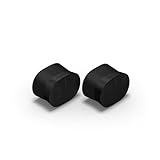
- Feel sound like never before with a pair of breakthrough speakers designed from the inside out for a next-level spatial audio experience.
- Fill two rooms of your home with Dolby Atmos Music, or pair these speakers together in the same room for an all-encompassing soundstage.
- Bring every scene and song to life when you use them as rear satellite speakers with your Sonos Arc Ultra, Arc, or Beam (Gen 2) soundbar.
- Get set up in minutes with help from the Sonos app, then stream all your favorite audio content with WiFi and Bluetooth.
- Enjoy hands-free control of your listening and more with Sonos Voice Control and Amazon Alexa.
Beam’s HDMI ARC connection is needed for CEC and supported voice control. Optical audio can carry sound but does not provide those controls. For details on connection requirements and formats, see Sonos’ TV requirements for home theater products.
Independent reader supportYour contribution helps us test, update, and keep practical guides available for everyone.When to replace a speaker—or contact Sonos
Do not buy replacements just because surrounds are quiet or show as unconfigured: setup, network communication, and audio-level settings can cause those symptoms. First confirm that the speakers are compatible with your Beam and that the setup steps above do not resolve the issue. Sonos’ surround setup page links to its compatibility guidance; verify the exact models there rather than assuming a speaker is supported.
Rank #4

- Featuring six optimally positioned drivers all around the front, sides, and top to support Dolby Atmos Music, the breakthrough acoustic design projects sound from wall to wall and floor to ceiling, immersing you in every dimension of the song.
- No matter where you are or what you play, the listening experience is nothing short of extraordinary. Custom waveguides disperse sound right, left, forward, and above, creating a sensationally spacious stereo soundstage you can enjoy all around the room.
- Stream from all your favorite services over WiFi. Pair a Bluetooth device with the press of a button. Connect a turntable or other audio source using an auxiliary cable and the Sonos Line-In Adapter.
- Experience mind-bending multichannel surround sound when you pair two speakers with Sonos Arc or Beam (Gen 2). Supercharged by Dolby Atmos, the lateral and overhead channels in each product create an all-encompassing soundstage to envelop you in the story.
- Enjoy free music, original content, and thousands of live stations on Sonos Radio. Play music with hands-free ease and unmatched privacy using Sonos Voice Control. Plus, access new features and services with regular software updates.
If the setup remains unresolved after the power, reboot, router, and re-add steps, contact Sonos by phone or live chat, or ask for help in the Sonos community forum. Include the Beam generation, surround models, app status, and any status-light behavior to make the problem easier to diagnose.
Quick Recap
Best Value

- 7.1.2 Dolby Atmos with upward-firing drivers.
- Clear dialogue and AI-powered Speech Enhancement.
- Low-profile design blends into the room.
- Wider soundstage with clearer separation.
- Trueplay tunes sound for your room and setup.
Product prices and availability are accurate as of the date/time indicated and are subject to change. Any price and availability information displayed on Amazon at the time of purchase will apply.
What’s actually slowing this PC down?
Pick the symptom - the matching free tool is one click away.

