
Quick wins for a faster PC:
Clear out junk files and repair common Windows errorsFree Scan →Scan for outdated or missing drivers - takes under a minuteDriver Scan →Repair Windows errors before they cause bigger problemsFix Now →Start by checking your router’s per-device traffic report. It can show whether the coffee maker is using noticeable internet data, but it does not prove the brewer is slowing your Wi-Fi or reduce its traffic by itself. “Bandwidth” may mean data transferred over time or the network capacity available to devices; those are different problems and need different fixes.
First, work out what “too much bandwidth” means
If you have an internet data cap, the question is how much data the maker uploads or downloads. If your internet feels slow, the cause may instead be Wi-Fi congestion, a weak signal, or another device. If the coffee maker drops offline or responds slowly in its app, that points to a connection problem rather than necessarily high data use.


There is no authoritative published baseline in the available sources for typical smart coffee-maker data use. Do not treat figures for other smart devices as a coffee-maker estimate: Sense’s figure applies to its energy-monitoring product, and Leviton’s figures apply to its smart switches (Sense; Leviton).
Check the coffee maker’s traffic in your router
- Open your router or mesh system’s app or administration page and find its client list, connected devices, or traffic-usage report. Look for the coffee maker by its device name; if you are unsure which entry it is, compare the listed device details with the maker’s app or manual.
- Record the reported upload and download traffic over several days, if the router supports per-device reporting. A single reading may not show a useful pattern.
- Check what the report includes and when it updates. For supported Deco and Tether models, TP-Link documents device traffic reports by day and week; the available detail depends on the model. TP-Link also notes that smart-home devices may not expose in-depth statistics and that traffic data can lag by 1–5 minutes. Its support article says, “Traffic usage data is not updated in real time” (TP-Link support, updated August 10, 2026).
- Compare the brewer’s readings with the problem you are trying to solve. If its traffic is low, look at other devices or Wi-Fi coverage rather than assuming the coffee maker is responsible.
A traffic report is a diagnostic, not a bandwidth limiter. If your current router cannot show device-level usage, a router that offers per-device statistics is one possible diagnostic option; support and reporting detail vary by model.
PC Slower Than It Used to Be?
A free scan shows the junk files, broken settings and background clutter dragging Windows down - then fixes them in one click.Free scan · Windows 10 & 11Crashes, No Sound, or Screen Glitches?
Random freezes, missing sound and display glitches usually trace back to one bad driver. Find and replace yours safely.Free scan · under a minute#1 Best Overall

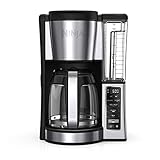
- 12-CUP DURALIFE GLASS CARAFE: The sturdy 12-cup* carafe has measurement markings for accurate filling and an easy-grip handle for comfortable pouring. *Cup equals approximately 5 ounces (varies by brewing technique).
- SNEAK-A-CUP FEATURE TO PREVENT DRIPS: This feature temporarily stops the flow of coffee so you can pour your first cup before brewing ends without making a mess.
- EASY-VIEW WATER WINDOW: The front-facing window shows you the exact amount of water that will turn into coffee, and the brew basket requires a standard paper coffee filter for proper operation.
- DIGITAL CONTROLS WITH RUBBERIZED FEEL: Large, rubberized buttons give you full control of the coffeemaker, and the easy-read screen displays the clock, brew time, and programming options.
- QUICKTOUCH PROGRAMMING WITH AUTO SHUTOFF: Easily program the 24-hour auto brew feature so you can wake up to a fresh pot of coffee or whenever you desire. 2-Hour Auto Shutoff for added safety and peace of mind with every use.
Choose a fix that matches the problem
| Option | What it can do | Trade-off or limit |
|---|---|---|
| Measure device traffic in the router | Help identify whether the maker is transferring noticeable data. | Does not reduce traffic or establish that the device is causing slow internet; feature detail varies by router. |
| Turn off a connected feature | May reduce or stop use associated with that feature, if the maker offers a control. | Available controls and their effects depend on the model and firmware. |
| Disconnect or deactivate the maker’s Wi-Fi | Stops the appliance’s network connection while it is disconnected. | App, remote, cloud, or other connected features may stop working; confirm what local brewing still supports. |
| Improve Wi-Fi signal | May help an unreliable connection caused by weak coverage. | A repeater or powerline Wi-Fi adapter is a signal aid, not an established way to cut data use. |
Review the coffee maker’s connected features
Use the maker’s own manual and app to look for settings related to Wi-Fi, remote start, cloud services, or automatic ordering. Turn off only a feature you do not need and whose effect the manufacturer documents. Connected functions are not, by themselves, evidence of unusually high data use: for example, Keurig lists app controls, remote brewing, voice commands, and SMART Auto-Delivery as features of the K-Supreme Plus SMART (Keurig product page).
Disconnect Wi-Fi only if losing connected features is acceptable
The exact procedure is model-specific. The Bosch BCM8450UC manual says Wi-Fi can be switched between “Activated” and “Deactivated” and describes disconnecting the appliance from the network. For that model, disconnection means it cannot be operated using Home Connect, and Wi-Fi and remote start are switched off (Bosch BCM8450UC manual). That is an example for one Bosch model, not a universal menu path or a guarantee about other brewers.
Rank #2

- BREW BY THE CUP OR CARAFE: Brews both K-Cup pods and coffee grounds.
- MULTISTREAM TECHNOLOGY: Saturates the grounds evenly to extract full flavor and aroma in every cup, hot or cold.
- BREW OVER ICE: Adjusts temperature for maximum flavor and less ice melt for single-cup iced coffees and teas.
- STRONG BREW & EXTRA HOT FUNCTIONALITY: Brews a stronger, more intense-flavored cup and the extra hot feature brews a hotter single cup.
- MULTIPLE BREW SIZES: Brew 6, 8, 10, or 12oz single cups or 6, 8, 10, or 12-cup carafes. 12-cup glass carafe specially designed to limit dripping.
Before changing the setting, check your own manual for how to deactivate or disconnect Wi-Fi and what functions will be lost. Afterward, verify whether ordinary brewing still works at the machine and whether the app or remote controls you rely on remain available.
Independent reader supportYour contribution helps us test, update, and keep practical guides available for everyone.If the problem is a weak or unreliable connection
Check the placement and router guidance for your coffee maker before buying equipment or disabling its connection. Thermador’s Home Connect guidance identifies weak signal as a possible connection issue and suggests a repeater or powerline Wi-Fi adapter as signal aids ( What’s actually slowing this PC down? Pick the symptom - the matching free tool is one click away.

