
Use AI to understand what a shopper wants and propose a cart; use your trusted server-side application to decide what can actually be bought and charged. For a typical one-time order, validate the cart, create a Stripe Checkout Session in payment mode with explicit line items, and handle order follow-up from Stripe’s checkout.session.completed event.
How the AI-assisted purchase flow works
- Collect shopping preferences. Let the shopper describe products, options, quantities, budget, or other preferences in natural language.
- Turn the request into a proposed cart. The AI can suggest items or help the shopper select from your catalog. Present the proposed products and quantities clearly so the shopper can review them.
- Validate the cart in your application. On your server, resolve product identifiers against your catalog and check current prices, quantities, stock, and merchant rules. Do not use an AI-generated price or product description as the authority for what to charge.
- Create a fresh Checkout Session on the server. Configure it for the transaction and redirect the shopper to Stripe-hosted Checkout, or use an embedded Checkout approach.
- Process the payment outcome and order follow-up. Use Stripe’s completion event to coordinate post-payment work, such as sending an order confirmation.
Stripe describes a Checkout Session as the customer’s session for a one-time purchase or subscription. Its Checkout Sessions API reference recommends creating a new Session each time a customer attempts to pay.
Choose the Checkout interface
Stripe offers a hosted Checkout page, an embedded payment form, and embedded components using Elements with the Checkout Sessions API. The hosted option redirects the shopper to a Stripe-hosted page; embedded approaches keep the payment UI on your website. Compare the options against your desired payment flow and interface needs using Stripe’s Checkout integration documentation, which links to current feature details.
| Approach | Where the payment UI appears | What to consider |
|---|---|---|
| Stripe-hosted Checkout | On a Stripe-hosted page | Your server creates the Session and sends the customer to its URL. Check Stripe’s current documentation for feature availability relevant to your flow. |
| Embedded payment form | Within your website | Choose this when keeping the payment form on your site is part of the integration need; confirm current feature details in Stripe’s documentation. |
| Embedded components with Elements and the Checkout Sessions API | Within your website | Choose this when you need an embedded approach; confirm current feature details in Stripe’s documentation. |
Set the Session mode and line items
For a standard one-time ecommerce order, create the Session with mode: "payment" and explicit line_items. Stripe’s API reference lists three modes: payment for one-time purchases, subscription for recurring purchases, and setup for saving payment details to charge later. Line items are required for payment and subscription Sessions. Use the mode that matches the actual transaction rather than treating every AI-assisted order as a one-time payment.
Recommended Free Tools
#1 Best Overall

- Get your money as soon as the next business day.
- Get set up quickly with no long-term commitments. Download the Square Point of Sale app for free, create an account, and start taking payments anywhere.
- Run your business all in one place with the free Square Point of Sale app. Track your sales, manage inventory, accept tips, send receipts digitally, and more.
- Works with Apple devices with a Lightning connector.
Pass line items based on the validated catalog products and quantities. Stripe documents creating the Session on your server; keeping product and price decisions in trusted application logic is the practical way to prevent a suggested cart from becoming an unverified charge. The retrieved Stripe documentation does not describe a special AI Checkout feature or an AI-specific standard.
Connect the Session to your order
Choose Session fields to fit your actual order process. The Session create API documents fields including client_reference_id for referencing a customer or cart in internal systems, metadata for structured key-value information, customer identifiers or email, automatic tax, shipping collection and shipping options, and success or return URLs. Some fields are conditionally required or disallowed depending on the Session mode and interface configuration, so do not copy a configuration without checking its conditions.
Rank #2

- Pay one transparent rate per swipe for Visa, Mastercard, Discover and American Express.
- Works in conjunction with most downloadable Square point-of-sale apps on your device. Customers can pay, tip and sign directly on your device. Track payments in cash, gift cards and more. Also lets you send receipts via e-mail or text message, makes it easy to apply discounts, keeps a data and sales history log and more.
- Accepts magstripe credit card payments, including those from Visa, Mastercard, Discover and American Express (fees apply).
- App sends deposits to your bank account within 1 to 2 business days, or enjoy instant deposits (fees apply).
A useful implementation pattern is to associate the Session with an internal cart or order record using an appropriate reference, then use the resulting Stripe event to coordinate order follow-up. Stripe’s existing-customer Checkout guide describes a website button calling a server-side endpoint to create a Session. Stripe sends checkout.session.completed when a customer completes a Checkout Session payment; the guide gives sending an order confirmation email as an example of follow-up work.
Handle completion with Stripe’s event flow
Do not treat a shopper’s arrival at a browser success page as, by itself, proof that your order should be fulfilled. Use Stripe’s documented checkout.session.completed event to coordinate post-payment actions. The event-driven approach ties follow-up to Stripe’s payment completion signal rather than relying only on a redirect in the customer’s browser.
Quick Recap
Best Value

- MSR90 is a USB emulation keyboard interface that not need any driver or software,USB simply plug and play
- Reads up to 3 tracks of information,can reads ISO7811, AAMVA, CA DMV and most other card data formats
- Threaded inserts for mounting. LED indicator, green light is on when connecting,green light blinks when cards swiped
- Bi-directional swipe reading, superior reading of high jitter, scratched, and worn magstripe cards, reliable for over 1,000,000 card swipes
- Configuration software makes configuration changes easy,works with: Windows OS and Mac OS
Rank #4

- Accept all major credit and debit cards for one low rate.
- Accepts Visa, Mastercard, Discover, and American Express—no hidden fees.
- Track your earnings and view your complete sales history from the free Square Point of Sale app.
- Works with Apple and Android devices that have a 3.5 mm headphone jack. No charging needed
Rank #3
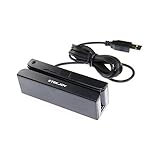
- USB interface, keyboard emulation, no need to install software to read, configuration software for changing settings available.
- Read data from all 3 tracks, high and low coercivity cards, ISO7811, AAMVA, CA DMV and most magnetic card data formats.
- Work on Windows, Mac and other USB capable systems. Work with TXT, notepad, Word, Excel, POS systems and son on.
- Compact size, with 145cm USB cord, two 3mm-diameter screw holes for fixing at the bottom, a LED indicator light
- Perfect for POS, Banking, Loyalty, Access Control, ID verification and other applications.
Product prices and availability are accurate as of the date/time indicated and are subject to change. Any price and availability information displayed on Amazon at the time of purchase will apply.

