
To use a Garmin golf watch, select the Golf activity, let it acquire satellites, choose the correct course, and use its hole view for distances. Turn on scoring to record each hole; after the round, sync the watch to review the scorecard and any supported shot data. Course downloads, map updates, and advanced features vary by model, so use your watch’s manual for its exact controls.
Get the course onto your watch
Some Garmin golf watches have courses preloaded. On others, you download a course through Garmin Golf or Garmin Connect, or update maps using Garmin Express or the watch’s Map Manager. These are different workflows for different devices, not interchangeable steps for every watch.
Download through Garmin Golf
- Open the Garmin Golf app and make sure the watch is connected through Garmin Connect.
- On the watch, start the Golf activity and wait for it to acquire satellites.
- Select the course when the watch presents nearby options, then follow the watch and app prompts to transfer it. Garmin says this workflow can show the 20 closest courses.
See Garmin’s Garmin Golf app course-download instructions for compatible watches.
Download through Garmin Connect
For devices using Garmin Connect’s course-download workflow, download the course in the app and sync the watch. Garmin says the watch shows the five closest courses based on its GPS location. Follow Garmin’s Garmin Connect instructions rather than assuming the Garmin Golf steps apply.
Free tools Windows power users keep installed
One-click scans. No signup required.
#1 Best Overall

- New round watch design with a high-resolution sunlight-readable display
- Battery life: up to 30 hours in GPS Mode
- More than 42,000 courses preloaded from around the world
- Keep score right on the watch and upload directly to the Garmin Golf app (when paired with a compatible smartphone) to participate in weekly leaderboards
- Automatically keep track of your score and how far you hit with each club with compatible Approach CT10 club tracking sensors (sold separately)
If a course will not transfer, confirm the watch appears connected in Garmin Connect and that the connection is stable, then try again. Garmin lists CourseView coverage at over 43,000 courses worldwide, but coverage and storage capacity can differ by device. For updates, Garmin says all Approach devices can use Garmin Express for software and map updates; some receive software updates through Garmin Golf, and some can update CourseView maps using Map Manager over Wi-Fi. Check Garmin’s update guidance for your model.
Start a round and read the distance view
- Start the Golf activity using the controls for your watch model.
- Wait for satellite acquisition, then select the correct course when prompted.
- Use the hole view to see the course information and distances available on your device. Confirm the displayed hole matches the one you are playing.
Garmin’s activity controls and screen options differ across watches; consult the owner’s manual for the exact button presses and available views.
Rank #2

- Slim design with a stunning 1.2” color AMOLED display that brings 43,000+ preloaded courses to life on your wrist
- Get distance to the front, middle and back of the green and navigate bunkers, water hazards and layups with hazard view
- Pair with optional Approach CT1 or CT10 club trackers (sold separately) for shot-tracking capabilities, so you have a clearer picture of which parts of your game to focus on
- Easily keep score as you play, and upload to the Garmin Golf smartphone app for advanced stat tracking and handicap calculation
- Leave your phone in the cart and get smart notifications sent to your wrist — including emails, texts and alerts when paired with your iPhone or Android smartphone
What PlaysLike means
PlaysLike Distance is an adjusted green distance, not simply the raw distance to the target: Garmin describes it as accounting for elevation. Some compatible models can also factor in wind speed and direction and air density, which Garmin bases on temperature, humidity, and air pressure. Inputs, settings, and any Garmin Golf Membership requirement depend on the watch. Check your model’s manual and PlaysLike settings before relying on the figure. Garmin explains the feature in its PlaysLike Distance guide.
If the yardage looks wrong
- Satellite conditions: A limited view of the sky can interfere with satellite lock.
- Course data: Remodeling or stale map information can leave distances out of date.
- Pin position: A manually moved pin changes the target distance.
- Adjusted distance: PlaysLike may be enabled, so the displayed number can differ from an unadjusted yardage.
Garmin’s troubleshooting guidance for an Approach handheld describes a discrepancy of five yards or less as acceptable for a consumer-grade product. That is Garmin support guidance, not a watch-specific performance test or a guarantee of accuracy for every model. See Garmin’s distance troubleshooting page.
Recommended Free Tools
Rank #3

- Slim design with a stunning 1.2” color AMOLED display that brings 43,000+ preloaded courses to life on your wrist
- Get distance to the front, middle and back of the green and navigate bunkers, water hazards and layups with hazard view
- Pair with optional Approach CT1 or CT10 club trackers (sold separately) for shot-tracking capabilities, so you have a clearer picture of which parts of your game to focus on
- Easily keep score as you play, and upload to the Garmin Golf smartphone app for advanced stat tracking and handicap calculation
- Leave your phone in the cart and get smart notifications sent to your wrist — including emails, texts and alerts when paired with your iPhone or Android smartphone
Keep score during the round
Enable scoring in the Golf activity settings available on your watch. When scoring is enabled, Garmin says the watch prompts you to enter a score after each hole; the score defaults to par and can be changed manually. Check the hole number before entering a score, and review the entry so a missed or mistaken tap does not carry into the next hole.
Depending on device support and settings, Garmin golf devices may also track statistics such as putts, fairways in regulation, penalties, and greens in regulation. Not every model supports every statistic. Garmin describes the model-dependent features in its golf scoring and AutoShot guide.
Rank #4

- Stunning 1.2” color AMOLED display brings 43,000+ preloaded courses to life on your wrist
- Be comfortable on and off the course with the lightweight ComfortFit nylon strap
- Battery life: up to 10 days in smartwatch mode and up to 15 hours in GPS mode
- Get distance to the front, middle and back of the green and navigate bunkers, water hazards and layups with hazard view
- Playslike Distance feature tells you how far each shot truly is, with adjusted yardage for elevation changes
Use AutoShot only if your watch supports it
AutoShot is optional and model-dependent; it is not required for maps, distances, or manual scorekeeping. Garmin says it detects shots using swing speed and ball impact and records shot distances. For it to work as described, scoring must be enabled, the watch must be on the correct hole at tee-off, the score must be entered before teeing off on the next hole, and the watch must be worn on the lead wrist. Garmin says a missed shot can be added manually.
Club Prompt on supported devices can associate a club with a shot, helping build club-distance averages. CT10 sensors are not needed for basic yardages or manual scoring; Garmin specifically lists a full set of Approach CT10 sensors as required for AutoShot detection on the Approach G12 and S12. Requirements differ by model.
Best Value
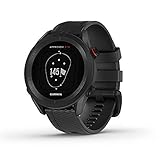
- New round watch design with a high-resolution sunlight-readable display
- More than 42,000 courses preloaded from around the world
- Provides yardages to the front, back and middle of the green, as well as to hazards and doglegs
- Keep score right on the watch and upload directly to the Garmin Golf app (when paired with a compatible smartphone) to participate in weekly leaderboards
- Automatically keep track of your score and how far you hit with each club with compatible Approach CT10 club tracking sensors (sold separately)
Review the scorecard after play
Sync the watch after the round to review the scorecard and supported shot information in Garmin Golf or Garmin Connect. AutoShot data upload requires pairing and syncing through a compatible app or Garmin Express. If shot details are missing, check the watch’s model-specific feature support and confirm it completed a sync.
Quick Recap
Product prices and availability are accurate as of the date/time indicated and are subject to change. Any price and availability information displayed on Amazon at the time of purchase will apply.

