
The Tool Desk
Outbyte Driver Updater FREEScan for outdated or missing drivers - takes under a minuteDriver Scan →Outbyte PC Repair FREERepair Windows errors before they cause bigger problemsFix Now →iTechGuides is reader-supported. When you buy through links on our site, we may earn an affiliate commission. As an Amazon Associate I earn from qualifying purchases. Learn more
The best keyboard and mouse adapter for PS5 depends on the game and connection method: XIM MATRIX is the strongest documented premium option, Brook Sniper 2 is a newer cross-platform alternative, and Titan Two suits advanced remapping. However, many PS5 games accept neither native nor converted keyboard-and-mouse input, so an adapter is not universally necessary.
This updated guide replaces the misleading “Tested 2024” claim with verified manufacturer documentation and clearly separates native PS5 support, controller emulation, Remote Play, authentication, and legacy compatibility. No product below is presented as independently hands-on tested.
Key takeaways
- XIM MATRIX is the strongest documented premium choice for PS5, using a local-network Remote Play connection with Ethernet recommended; its official price was observed at $124.99 USD and its store page showed it sold out when checked.
- Brook Sniper 2 is a newer cross-platform converter for PS5, but it may require a USB-connected controller, firmware updates on a computer, app configuration, and external 5V power for some peripherals.
- Titan Two provides extensive remapping and scripting, while Cronus Zen offers similar programmable features with an explicit manufacturer warning that users may be banned or blocked without notice.
- IOGEAR KeyMander 2 3Play is a cheaper, PS4-era option whose PS5 setup requires Remote Play or a Beloader Pro-type bridge according to IOGEAR.
- Hama Speedshot Ultimate should be treated as a legacy, verify-before-buying product because its available official compatibility document is PS4-oriented rather than evidence of current native PS5 support.
- If a game supports keyboard and mouse directly, connecting compatible USB or Bluetooth devices to the PS5 is usually simpler than adding an adapter.
What is the best keyboard and mouse adapter for PS5?
XIM MATRIX is the best-documented premium keyboard-and-mouse adapter for PS5 in the available evidence. XIM documents a PS5 workflow based on Remote Play over the local network, with Ethernet recommended, and supports keyboard, mouse, controller, gyro, and configurable input combinations. Brook Sniper 2 is the more attractive newer cross-platform alternative, while Titan Two is better suited to advanced remapping and accessibility projects.
Quick wins for a faster PC:
Clear out junk files and repair common Windows errorsFree Scan →Fix the driver behind crashes, sound loss and screen glitchesFind Drivers →Repair Windows errors before they cause bigger problemsFix Now →That ranking does not mean XIM MATRIX works in every PS5 game or that it is the easiest option. A PS5 adapter can technically connect while a game rejects keyboard input, limits matchmaking, or behaves differently between its PS4 and PS5 versions. Before buying, check whether the game supports keyboard and mouse natively.
#1 Best Overall

- Specially Designed for PS5: This keyboard and mouse adapter set is designed specifically for PS5, PS5 Slim, and PS5 Pro consoles. Additionally, this PS5 general adapter is also compatible with HITBOX, XIM Matrix, ReaSnow S1, and Raspberry Pi
- Plug and Play: This keyboard and mouse converter with PS5 adapter requires no complicated apps, no remote PS5 console, and no original PS5 controller setup required —Play Directly!
- 1000Hz Polling Rate: Our PS5 General adapter brings you an ultra-low latency gaming experience, with a 1000Hz response rate ensuring instant response to every command.
- Ultimate Gaming Experience: Our ps5 keyboard and mouse adapter can help you play games with wired or 2.4G wireless keyboard and mouse, replacing your original wireless controller, provide you with precise control without delay and enhancing game fun! This PS5 converter perfect for FPS, TPS, RPG and RTS games. for Call of duty (COD), PUBG, Fortnte and most shooting games.[Does not support Bluetooth keyboard and mouse]
- Supporting Functions: This keyboard and mouse converter for PS5 supports Adjust Mouse Sensitivity, Adjust Curve Sensitivity, Invert Y-axis Setting, Switch Fire Modes and Change Default Key functions.[This feature only allows button swapping within the system's predefined options. Full key remapping or macro functionality is not supported.]
Quick comparison
| Adapter | Best for | Current PS5 method | Extra hardware or requirements | Setup | Scripts or macros | Verdict |
|---|---|---|---|---|---|---|
| XIM MATRIX | Serious FPS players and detailed aiming configuration | Local-network Remote Play workflow documented by XIM | Ethernet recommended; compatible controller may be required; Manager app and firmware-capable computer | Advanced | Yes, including Smart Actions | Best documented premium option |
| Brook Sniper 2 | Multi-platform buyers and newer setups | Manufacturer-documented PS5 converter | USB controller communication; mobile app; computer for firmware; possible external 5V power | Moderate | Configurable mappings; verify exact features | Best newer cross-platform alternative |
| Titan Two | Advanced remapping and accessibility | PS5 support with authentication requirements documented by Titan/ConsoleTuner | Gtuner IV, cables, and potentially a third-party PS4 controller for native PS5 games | Advanced | Yes | Powerful specialist choice |
| Cronus Zen | Controller crossover and feature-heavy configuration | Manufacturer claims PS5 compatibility and keyboard/mouse conversion | Original licensed controller for authentication and configuration software | Moderate to advanced | Yes, including GamePacks and scripts | Use with strong fair-play caution |
| IOGEAR KeyMander 2 3Play | Budget buyers and PS4-focused use | Remote Play or Beloader Pro-type solution required for PS5, according to IOGEAR | KeyMander app and possible bridge hardware | Advanced | Configuration features; verify current behavior | Conditional legacy budget option |
| Hama Speedshot Ultimate | Only buyers who independently verify legacy hardware | No clearly documented current native PS5 workflow in the available official evidence | Legacy compatibility information; current setup uncertain | Unknown | Not established by current evidence | Verify before buying; generally avoid |
Do you need a keyboard and mouse adapter for PS5?
You do not need an adapter when your game supports keyboard and mouse natively and your peripherals work directly with the console. Sony documents USB and Bluetooth keyboard-and-mouse connections, but Sony also warns that not all devices are compatible and individual games determine whether the controls can be used.
Connect a USB keyboard or mouse, then open Settings → Accessories → Other Accessories. For Bluetooth devices, open Settings → Accessories → General → Bluetooth Accessories, put the device into pairing mode, and select it from the PS5 list. A device appearing in the Bluetooth menu does not prove that a game will accept it.
An adapter becomes relevant in three different situations:
Free tools Windows power users keep installed
One-click scans. No signup required.
- Native keyboard and mouse: the PS5 and game receive ordinary keyboard-and-mouse input directly. This is normally the simplest and least complicated arrangement.
- Input conversion: the adapter translates keyboard and mouse movements into controller signals. This can make keyboard and mouse usable in games without native support, but game rules and compatibility still apply.
- Remote Play or bridge connection: the adapter communicates with the PS5 through a local network or an additional authentication device. This is not the same as a basic plug-in USB converter.
When a game supports keyboard and mouse directly, native input may be preferable because it avoids authentication controllers, profiles, firmware issues, network setup, and the possibility that converted controller input behaves differently from genuine keyboard-and-mouse input.
What does “PS5 compatible” actually mean?
“PS5 compatible” is not one technical category. A product listing can use the phrase to describe direct native-PS5 support, PS4 games running on PS5, Remote Play, controller authentication, or a bridge-device arrangement. Use the following distinctions before comparing products.
| Compatibility label | What the label means | What the buyer should verify |
|---|---|---|
| Native PS5 support | The adapter has a documented method for use with current PS5 games. | Required controller, network, firmware, and the specific game. |
| Requires DualSense | A genuine PS5 controller is needed for authentication or pass-through. | Whether the controller must remain wired and which port is required. |
| Requires PS4 controller | A genuine or compatible PS4 controller may be required for authentication. | Whether the requirement applies to native PS5 games only or all games. |
| Requires Ethernet or Remote Play | The adapter communicates with the PS5 through the local network. | Ethernet ports, router arrangement, registration, and reconnection behavior. |
| Requires bridge hardware | An additional device, such as a Beloader-type bridge, is part of the setup. | The bridge’s current support, cost, power, and firmware. |
| PS4-only or legacy | The available documentation establishes PS4 compatibility but not current native PS5 operation. | Do not infer PS5 support from an old PS4 compatibility list. |
| Game-dependent | The hardware may connect, but each game can accept, restrict, or reject converted input. | Current game documentation, control settings, version, and multiplayer policy. |
Always distinguish four separate questions: does the console detect the device, does the adapter convert the input, does the game officially support keyboard and mouse, and does the game permit converted controller input? A positive answer to the first question does not answer the other three.
1. XIM MATRIX: best documented premium option
XIM MATRIX is the strongest-supported high-end option in the available documentation. XIM’s official PS5 guide describes a local-network Remote Play connection, and XIM recommends wired Ethernet for the console and adapter. The XIM MATRIX product documentation also covers keyboard, mouse, controller, gyro, and configurable input combinations.
The official XIM store listed XIM MATRIX at $124.99 USD when checked, but the product page showed the device as sold out. That price is a dated availability snapshot, not a guaranteed current price or stock status. The complete setup can cost more because network connectivity, a compatible controller, and additional cables may be required.
The XIM Manager app requires iOS 13, Android 6, or Windows 10 x64 and newer. XIM’s firmware-update requirements include Windows 10/11 x64 or macOS 10.11 and newer, according to the official XIM MATRIX product information.
Who should buy XIM MATRIX?
XIM MATRIX is best for an experienced FPS player who wants detailed sensitivity and aiming configuration and is comfortable managing profiles, networking, registration, and firmware. XIM MATRIX is not the best match for someone who wants to plug in a keyboard and mouse with no app or network setup.
What are XIM MATRIX’s drawbacks?
XIM MATRIX requires a more involved PS5 workflow than a direct USB connection. The product also includes advanced Smart Actions and macro-like functionality. Those features can create competitive-integrity and game-policy concerns, so buyers should use only permitted remapping and accessibility functions and check the rules of each game and service.
2. Brook Sniper 2: best newer cross-platform alternative
Brook Sniper 2 is the best newer cross-platform alternative in this comparison. Brook markets Sniper 2 for PS5, PS4, Xbox Series X|S, Xbox One, Nintendo Switch, PC, Android, and iOS, and its official support FAQ explains PS5 connection, firmware, power, and peripheral-compatibility issues.
Rank #2

- 【Wide Compatibility】 Works seamlessly with PlayStation 5 (via Remote Play), PlayStation 4, Xbox One, PC and Nintendo Switch Console. Connects via USB and is recognized as a standard controller for reliable performance across platforms.
- 【Built-in PS5 Mode Ethernet Por】 No additional adapter is required when connecting to PS5. This game adapter requires a direct connection to the local network (staying on the same LAN as the PS5 console) and connects to the PS5 remotely to play games
- 【Flex Mapping Function】 Allows for seamless switching between native keyboard and mouse mode and converter mode, enabling you to smoothly open your inventory and quickly pick up items in-game without key conflicts
- 【Advanced Functionality】 With the exclusive GEEKVICE App, you can customize Game Key Mapping, Sensitivity, Optimized Professional Curve with support for up to 15 coordinate points, Flex Mapping, Button Macro, Smart Rocker Macro, and Firmware Upgrades
- 【Read before use】 1. To use MONSTER you need to connect to the official original controller, otherwise the connection may fail. 2. For keyboard and mouse compatibility, please visit the official website
Brook supports wired and selected 2.4-GHz wireless keyboard-and-mouse arrangements. Brook advises buyers to check its compatibility list before purchasing, to update firmware on a Windows or Mac computer rather than on the console, and to set the PS5 controller communication method to Use USB Cable. Some keyboards may require BIOS mode, and some setups may need an external 5V power supply.
Sniper 2 uses a dedicated mobile app for configuration. The app can be convenient for a buyer who wants one converter across several platforms, but compatibility depends on the exact keyboard, mouse, wireless dongle, power draw, firmware, and controller arrangement.
Who should buy Brook Sniper 2?
Brook Sniper 2 suits buyers who want a comparatively new, compact cross-platform converter and prefer mobile configuration. Brook’s official pages support the product’s platform and setup claims, but the available evidence does not establish independent end-to-end latency measurements.
Brook’s “zero latency” language is a manufacturer claim, not an independently verified benchmark. Do not interpret that claim as proof that every wireless or wired setup has zero measurable delay.
3. Titan Two: best for advanced remapping and accessibility
Titan Two is the most flexible specialist option for advanced remapping, controller conversion, and accessibility configurations. Titan Two documentation describes PS5 support, keyboard-and-mouse input, HID-compliant peripheral support, GamePacks, remapping, scripts, macros, and controller conversion.
Titan documentation states that native PS5 games may require a third-party PS4 controller for authentication. The official Titan Two setup guides also describe direct keyboard-and-mouse connection methods and configuration through Gtuner IV. Titan documentation lists USB polling up to 1000 Hz or 1 ms, but that figure is not the same as independently measured end-to-end input latency from mouse movement to on-screen response.
Most HID-compliant keyboards and mice may work, but peripherals that need proprietary drivers, onboard software, unusual onboard profiles, or substantial power can fail. A keyboard lighting system or USB hub can add another source of trouble.
Do these 3 things before closing this tab:
1Fix the driver behind crashes, sound loss and screen glitches2Clear out junk files and repair common Windows errors3Scan for outdated or missing drivers - takes under a minuteWho should buy Titan Two?
Titan Two is appropriate for enthusiasts, accessibility-focused users, and people building complex remapping projects. Titan Two is excessive for a casual player who wants only basic mouse movement and keyboard buttons.
Use scripts only for legitimate remapping or accessibility purposes allowed by the game. Do not use recoil automation, rapid-fire, aim assistance, or other gameplay automation in competitive games. Such features can violate game rules even when the adapter technically supports them.
4. Cronus Zen: configurable, but the riskiest recommendation
Cronus Zen is a feature-heavy programmable adapter, not an unconditional recommendation for competitive PS5 gaming. Cronus advertises PS5 compatibility, keyboard-and-mouse conversion, cross-console controller support, scripts, and GamePacks on its official site. Cronus also says that users may be banned or blocked without notice.
Cronus Zen uses an original licensed controller for console authentication, and buyers need configuration software in addition to the adapter and keyboard and mouse. The manufacturer’s warranty information shown in the researched material listed a 90-day warranty.
When does Cronus Zen make sense?
Cronus Zen may interest users focused on controller crossover, permitted remapping, or accessibility configuration. Cronus Zen is a poor fit for a player who simply wants reliable PC-style controls without policy uncertainty.
Rank #3

- True Plug-and-Play – No Controller, No Software, No Remote Play: Simply plug the adapter into your PS5, connect your keyboard and mouse, and play; No extra controller required – unlike many other converters that force you to tether an original controller; No complex apps, no unreliable remote play, no tedious configuration; Just instant, pure K&M gaming on your PS5
- Universal PS5 Compatibility & Smart Signal Conversion: This keyboard and mouse adapter for PS5 works flawlessly with PS5, PS5 Slim, and PS5 Pro; It intelligently converts your keyboard/mouse inputs into native controller signals – no remote play, no emulation tricks; The included P5 general adapter ensures a stable handshake with your console, letting you enjoy PS5 games with familiar keyboard and mouse controls
- On-the-Fly Sensitivity Tuning for Precision Aim: Fine-tune your aim without pausing the action; Hold Ctrl and scroll the mouse wheel in-game to instantly adjust general look sensitivity and non-ADS aiming sensitivity; Release Ctrl to lock; ADS sensitivity adjusts separately while aiming down sights – perfect for Apex, COD, Fortnite, and all FPS titles
- Dominate FPS, RPG & Adventure Games with Familiar K&M: Elevate your gameplay in popular titles like Apex Legends, Call of Duty, Fortnite, and more; This keyboard mouse converter for PS5 gives you enhanced aiming precision, faster building, and superior movement
- Ultimate Performance with Near-Zero Latency: Featuring a 1000Hz polling rate, our keyboard and mouse adapter with p5general provides ultra-fast signal transmission for near-zero input lag; Experience instant cursor movement and keystroke recognition, giving you a critical competitive edge in fast-paced titles
The presence of GamePacks, macros, anti-recoil profiles, rapid-fire functions, or automation is not a reason to recommend those functions. Check the rules for the specific game, tournament, platform, and online service before using any programmable feature. A manufacturer’s compatibility statement does not grant permission to automate gameplay.
5. IOGEAR KeyMander 2 3Play: budget option with important conditions
IOGEAR KeyMander 2 3Play is a budget legacy option, not a straightforward native-PS5 adapter. IOGEAR’s support documentation says PS5 use requires Remote Play or a Beloader Pro-type solution. The product is primarily a PS4-era device, so the additional bridge or network setup can remove much of its apparent price advantage.
The official price observed in the research was $39.99 on sale, compared with a $99.95 regular price. Those prices are snapshots and can vary by region, date, stock, and retailer. The buyer also needs to account for the KeyMander app and any required bridge hardware.
Who should buy KeyMander 2?
KeyMander 2 makes sense mainly for a budget buyer who already owns the necessary bridge hardware, accepts Remote Play or a more complicated arrangement, or primarily uses PS4 games. KeyMander 2 is a poor choice for a new PS5 buyer expecting native, plug-and-play operation.
6. Hama Speedshot Ultimate: legacy option to verify before buying
Hama Speedshot Ultimate should not be treated as a current peer to XIM MATRIX, Brook Sniper 2, or Titan Two. The available official Hama compatibility document is old and lists PS4-era devices rather than a clearly documented current native-PS5 workflow.
Hama Speedshot Ultimate is included because older adapters continue to appear in retailer listings and outdated “best adapter” articles. A PS4 compatibility document does not establish current native PS5 compatibility. Unless a seller or manufacturer provides current, product-specific PS5 instructions—or the editorial team independently verifies the device on current PS5 firmware—treat Hama Speedshot Ultimate as a risk rather than a recommendation.
Buyers who find Hama Speedshot Ultimate in a marketplace should confirm the exact model, return policy, firmware support, PS5 connection method, controller requirement, and game compatibility before spending money. “Works with PS4” is not sufficient evidence.
Recommended Free Tools
How should you choose among the six adapters?
Choose based on the PS5 connection method and your use case rather than the number of advertised features.
| Your priority | Most suitable direction | Why | Main caution |
|---|---|---|---|
| Best documented premium PS5 workflow | XIM MATRIX | Current XIM documentation explains a PS5 local-network Remote Play method. | Advanced setup, network dependence, variable availability, and policy concerns around Smart Actions. |
| Newer multi-platform converter | Brook Sniper 2 | Brook lists PS5 and several other platforms and provides current support guidance. | Check peripheral compatibility, USB controller settings, firmware, and power. |
| Accessibility and advanced remapping | Titan Two | Gtuner IV, remapping, controller conversion, and programmable configurations offer broad control. | Authentication and scripting make setup and policy compliance more complicated. |
| Controller crossover and programmable features | Cronus Zen | Supports controller conversion and a broad script/GamePack ecosystem. | Cronus explicitly warns about possible bans or blocks; avoid prohibited automation. |
| Lowest apparent device price | KeyMander 2 3Play | The researched official price was $39.99 sale or $99.95 regular. | PS5 use requires Remote Play or bridge hardware, so calculate total cost. |
| Old marketplace listing | Do not buy without verification | Hama Speedshot Ultimate lacks clear current native-PS5 evidence in the supplied documentation. | PS4 compatibility does not prove PS5 compatibility. |
Calculate the total setup cost
The real cost is usually:
Adapter + authentication controller + bridge device, if needed + Ethernet cable + required cables or power supply + configuration device.
For example, XIM MATRIX’s observed $124.99 USD device price does not necessarily represent the complete PS5 setup because XIM specifies network connectivity, may require a compatible controller, and notes that some cables or hardware may not be included. KeyMander 2’s lower device price may also be misleading if a Beloader-type bridge must be purchased separately.
How do you set up a keyboard and mouse directly on PS5?
- Connect a USB keyboard or mouse to the PS5, or put a Bluetooth device into pairing mode.
- For USB settings, open Settings → Accessories → Other Accessories.
- For Bluetooth pairing, open Settings → Accessories → General → Bluetooth Accessories.
- Select the device and configure available keyboard or mouse options.
- Open the game’s own control settings and check whether keyboard-and-mouse input is supported.
Sony’s PS5 keyboard-and-mouse support page explains that USB and Bluetooth devices can be connected but that compatibility is not universal. The game—not merely the PS5 settings screen—determines whether the controls are usable.
PC Slower Than It Used to Be?
A free scan shows the junk files, broken settings and background clutter dragging Windows down - then fixes them in one click.Free scan · Windows 10 & 11Outdated Drivers Are Slowing You Down
One free scan finds every outdated or missing driver and matches the right update for your exact hardware.Free scan · exact hardware matchHow do you set up XIM MATRIX on PS5?
XIM MATRIX’s PS5 workflow uses the local network and Remote Play rather than sending the game’s video over the public internet, according to XIM’s PS5 setup guide.
Rank #4

- Multi-platform compatibility: The AIMZENIX BLADER keyboard and mouse adapter is compatible with Switch 2, NS, Xbox One, Xbox Series X/S, PS 4. The BLADER simulate keyboard and mouse inputs as controller signals, providing you with more flexible control on gaming consoles
- Shortcut key mapping and sensitivity: With shortcut key customization and sensitivity adjustment, this keyboard and mouse adapter allows you to personalize your gaming experience and improve game accuracy. Enjoy improved precision, speed, and control for FPS, TPS, and RTS games. Please refer to the manual or video tutorial for details on the mapping editing function
- Plug and Play: The BLADER keyboard mouse adapter offers a plug-and-play setup, making it easy to connect your keyboard and mouse to your Xbox, Switch, or PlayStation console. No complicated installation or additional software required(Connecting to the game console requires the corresponding original controller)
- Additional Requirements: 1. The mouse switching technology of BLADER will assume that the "view sensitivity" and other related options are maximized in your gameplay settings. In any case, it must be turned up to maximize your aiming performance. 2. Connecting to the game console requires the corresponding original controller, and the authorized controller is not supported
- Read before Use: 1. BLADER does not support mice that require driver installation. 2. Please note that after the controller is connected to the console through the blader, the 3.5mm headphone jack on the controller will become invalid
- Connect XIM MATRIX to the local network, preferably with Ethernet.
- Connect supported keyboard and mouse devices to XIM MATRIX.
- Open XIM MATRIX Manager on a supported iOS, Android, Windows, or macOS device as appropriate for configuration and firmware tasks.
- Create or load a PS5 configuration and select the required controller or DualSense output arrangement.
- Complete XIM’s registration process and follow the current PS5 guide.
- Apply the game’s required sensitivity settings and save the profile.
- Test reconnection after the PS5 wakes from rest mode before relying on the setup for a long session.
XIM MATRIX is not a simple “connect three USB plugs and play” accessory. Network status, controller authentication, firmware, profiles, and the game’s input behavior all affect the result.
How do you set up Brook Sniper 2 on PS5?
Brook Sniper 2 requires a product-specific setup involving firmware, a USB-connected controller, the Brook app, and potentially external power.
- Update Sniper 2 firmware on a Windows or Mac computer if the device requires an update; Brook says firmware updating cannot be performed on the console.
- On PS5, set the controller communication method to Use USB Cable.
- Connect the required controller, keyboard, and mouse according to Brook’s current instructions.
- Use the Brook app to configure mappings and sensitivity.
- If the keyboard or mouse does not respond, check Brook’s compatibility list and try BIOS mode for a keyboard that requires it.
- Add an external 5V power supply if the connected peripherals draw more power than the adapter can provide.
Brook’s Sniper Series FAQ is the appropriate source for exact connection and power requirements because wireless dongles, RGB lighting, and individual peripheral models can change the result.
What’s actually slowing this PC down?
Pick the symptom - the matching free tool is one click away.
How do you set up Titan Two on PS5?
Titan Two is an advanced configuration device that normally requires Gtuner IV, documented cables, and an authentication controller for some native PS5 games.
- Install and use Gtuner IV to configure the output protocol.
- Connect the keyboard and mouse to the documented Titan Two input ports.
- Connect any required authentication controller, including a third-party PS4 controller where the PS5 setup guide specifies one.
- Follow the PS5-specific instructions in Titan’s setup documentation.
- Load only legitimate remapping or accessibility configurations.
- Test the setup in a supported game and verify that the selected profile matches the game version.
Titan Two can be powerful precisely because it is programmable. That flexibility also means more opportunities for authentication errors, incompatible peripherals, incorrect profiles, and violations of game rules.
Why does a keyboard or mouse power on but do nothing?
A powered keyboard or mouse can still fail because of outdated firmware, an unsupported peripheral, BIOS-mode requirements, insufficient power, incorrect console mode, missing authentication, or a game that does not accept the selected input method.
- Update the adapter firmware using the manufacturer’s supported computer or app.
- Check the exact keyboard, mouse, and wireless dongle against the manufacturer’s compatibility list.
- Try keyboard BIOS mode if the adapter documentation recommends it.
- Add external 5V power where the adapter manufacturer specifies it.
- Use a wired keyboard and mouse to eliminate Bluetooth or wireless-dongle problems.
- Confirm that the PS5 controller communication setting is Use USB Cable when the adapter requires it.
- Connect the required authentication controller and verify the correct console mode.
- Test a game with confirmed keyboard-and-mouse support rather than assuming the adapter is defective.
Brook specifically documents firmware updates, BIOS mode, compatibility checks, and external power as relevant troubleshooting steps in its official Sniper Series FAQ.
Why does the adapter work in menus but not in a game?
The most likely explanation is that the game does not support keyboard and mouse or does not accept the adapter’s converted controller signals. Console-level detection does not guarantee game-level compatibility.
- Check the game’s current support documentation and in-game control menu.
- Test a game known to offer keyboard-and-mouse controls.
- Check whether the PS4 and PS5 versions have different input support.
- Confirm that the adapter profile matches the exact game and console version.
- Check whether multiplayer matchmaking or platform rules restrict converted input.
Do not publish or rely on a universal list of compatible PS5 games without checking each title’s current documentation. Game support changes, and a PS4 version may behave differently from a native PS5 version.
What causes disconnections after PS5 rest mode?
Rest-mode failures commonly involve a disconnected authentication controller, a changed controller communication setting, a lost network connection, stale registration, or outdated firmware or app configuration.
- Fully power-cycle the PS5 and adapter.
- Reconnect the authentication controller by USB.
- Confirm Ethernet or local-network status.
- Reopen the adapter’s configuration app and verify the active profile.
- Re-register the adapter if the manufacturer’s current instructions require registration.
Test waking the PS5 from rest mode before an important session because a setup that works after a cold boot may still need reconnection after sleep.
What should you do when wireless devices disconnect?
Test a wired keyboard and mouse first. Wireless reliability depends on the exact Bluetooth device or 2.4-GHz dongle, adapter firmware, power draw, USB interference, and whether the adapter supports that device.
Best Value
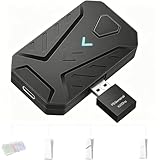
- ⌨️Plug and Play: 2-in-1 design, includes a keyboard/mouse converter and a P5 General Adapter, No need for PS Remote Play streaming or Ethernet cables, abandoning the network binding drawback of competitors; Plug-and-play with direct PS5 console connection, compatible with all models (PS5/PS5 Slim/PS5 Pro) for a hassle-free and simplified operation
- 🖱️1000Hz Ultra-Low Latency, On Par with Original Controllers : Megadream Keyboard and Mouse Adapter for PS5 build in professional 1000Hz transmission rate delivers zero-input-lag keyboard and mouse signal feedback; Instant response for aiming, shooting and movement, giving you a competitive edge in FPS games
- 🎮Multi-Device Compatibility Unlocked, Expand Gaming Scenarios: The Keyboard and Mouse Coverter for PS5 Pro supports wired/2.4G keyboards and mice, convert the gamepad signal to keyboard and mouse signal, replace game controller to operate the game, providing players with better game control methods, and enhancing the fun of the game; Perfect for PU-BG, For-tnite, Call of duty
- 🖱️Pro-Grade Customization, Adapt to All Games: The PS5 Keyboard and Mouse Adapter features DIY key mapping, with adjustable mouse sensitivity, adjustable curve sensitivity, fire modes switching (single shot or turbo rapid fire) and mouse Y-axis reverse; The default PS5 key layout ensures a seamless transition, meeting the operational needs of different games
- 🎁Portable and Durable: The converter adapter for mouse and keyboard is small in size, beautiful in appearance, and good in grip; It is a must for gamers; Made of tough PVC material, very strong and sturdy, and can withstand repeated plugging and unplugging
- Try separate 2.4-GHz dongles instead of Bluetooth if supported.
- Use peripherals with onboard memory and no proprietary driver requirement.
- Disable unnecessary RGB lighting or connect an external power supply where appropriate.
- Remove a USB hub and connect devices directly to the adapter.
- Retest with fewer accessories attached.
Do not claim that wireless performance equals wired performance without independent testing on the exact hardware combination.
What happens to headsets and microphones?
Headset and microphone behavior depends on the adapter’s controller-authentication path, USB ports, and audio routing. An adapter that handles keyboard and mouse correctly may still complicate game chat or party chat.
Before keeping the setup, test a USB headset, a 3.5-mm headset connected through the controller, microphone input, game chat, party chat, and any wireless headset. XIM’s PS5 documentation indicates that controller connections and ports matter when using a headset, so audio should be tested rather than assumed.
Are keyboard and mouse adapters allowed in online games?
There is no universal permission that covers every adapter, game, tournament, or online service. Direct native keyboard-and-mouse support is different from controller emulation, and ordinary remapping is different from recoil control, rapid fire, macros, or automated gameplay.
Cronus explicitly warns on its official site that users may be banned or blocked without notice. Programmable features on Cronus Zen, Titan Two, or XIM MATRIX should therefore be treated as a policy risk. Use only functions allowed by the specific game and service, especially in competitive online play. Accessibility and single-player remapping can be a different use case, but the relevant rules still apply.
What alternatives are better than an adapter?
The best alternative is often a direct USB or Bluetooth keyboard and mouse when the game supports native input. Direct connection avoids adapter cost, controller authentication, network configuration, bridge hardware, and profile management.
Other alternatives include playing the PC version when available, using an official accessibility controller or approved remapping feature, choosing a game with native console keyboard-and-mouse support, or accepting Remote Play only when its setup and trade-offs fit the use case. No alternative can add keyboard-and-mouse controls to a game that intentionally supports only controllers without introducing some form of conversion.
Quick wins for a faster PC:
Repair Windows errors before they cause bigger problemsFix Now →Scan for outdated or missing drivers - takes under a minuteDriver Scan →Frequently Asked Questions
Can you use a keyboard and mouse on PS5 without an adapter?
Yes. The PS5 supports compatible USB and Bluetooth keyboards and mice through Settings → Accessories, but individual games decide whether keyboard-and-mouse input is usable. A direct connection is preferable when the game supports native input.
Does a PS5 keyboard-and-mouse adapter work in every game?
No. An adapter may connect to the console and convert input, but each game can support, restrict, or reject native or converted keyboard-and-mouse control. Check the game’s current documentation and in-game settings.
Is XIM MATRIX better than Brook Sniper 2 for PS5?
XIM MATRIX has the clearest documented premium PS5 workflow in the supplied evidence, but Brook Sniper 2 is a newer cross-platform alternative that may be simpler for some buyers. XIM MATRIX requires local-network setup, while Brook requires product-specific controller, firmware, app, compatibility, and possible power checks.
Is KeyMander 2 compatible with PS5?
IOGEAR documents PS5 use through Remote Play or a Beloader Pro-type solution rather than straightforward native plug-and-play operation. KeyMander 2 is therefore a conditional budget or PS4-focused option, and the cost of required bridge hardware must be included.
What’s actually slowing this PC down?
Pick the symptom - the matching free tool is one click away.
Can using Cronus Zen or another programmable adapter cause a ban?
Yes, bans or blocks are possible depending on the game and service. Cronus expressly warns that users may be banned or blocked without notice, so avoid prohibited macros, recoil control, rapid fire, and automation and check the rules for the specific game.
The Bottom Line
Bottom line: Buy XIM MATRIX if you want the best-documented premium PS5 workflow and accept network configuration. Choose Brook Sniper 2 for a newer cross-platform converter, or Titan Two for advanced remapping and accessibility. Treat Cronus Zen as a policy-sensitive programmable device, KeyMander 2 as a conditional legacy budget option, and Hama Speedshot Ultimate as verify-before-buying legacy hardware. If your game supports keyboard and mouse natively, connect compatible peripherals directly to the PS5 instead.

