
GIMP is the best free all-purpose Photoshop alternative for Ubuntu and most other Linux distributions. Choose Krita instead for digital painting and illustration, or Photopea when you need a Photoshop-like interface and PSD support in a browser without installing software.
Which Photoshop alternative should you choose?
| Editor | Best for | Linux model | Cost and licensing | Main limitation |
|---|---|---|---|---|
| GIMP | Photography, compositing, retouching, color work and format conversion | Native desktop application | Free; GPLv3 or later | Its interface and workflow differ from Photoshop, so migration requires some learning |
| Krita | Digital painting, illustration, comics and brush-heavy work | Native desktop application | Free and open source; GNU GPL | Less specialized for advanced photo-retouching workflows |
| Photopea | Quick edits, PSD handoffs and a familiar Photoshop-style browser workflow | Runs in a modern web browser | Free tier with advertising | Depends on browser use and may not suit privacy-sensitive or fully offline workflows |
1. GIMP: the best general Photoshop replacement on Linux
GIMP is the safest default for most Ubuntu users who want a free desktop image editor. The project describes it as a free and open-source image editor for GNU/Linux and other platforms, covering photo manipulation, image composition, authoring, color management and digital or printed media.
What GIMP is good at
- Photo retouching, cloning and enhancement
- Selections, masks, layers and compositing
- Color correction and managed-color workflows
- Thumbnails, web graphics and other raster designs
- Opening, editing and converting common image formats
- Batch-oriented and repeatable format-conversion tasks
GIMP is distributed under the GNU General Public License version 3 or later. That license permits users to use, distribute, study and modify the software.
What to expect when moving from Photoshop
GIMP is not a disguised Linux build of Photoshop. Menus, shortcuts, panel organization and some tool behavior are different. Those differences reflect GIMP’s own project design, not a missing Windows or macOS port. Plan for a short adjustment period if you already rely on Photoshop habits.
#1 Best Overall

- Word-first 16K Pressure Levels: The upgraded stylus features 16,384 levels of pressure sensitivity and supports up to 60 degrees of tilt, delivering smoother lines and shading for a natural drawing experience. With no battery or charging needed, it operates like a real pen, making it easy for beginners to create effortlessly. This functionality helps novice artists develop their skills and explore their creativity without the intimidation of complex tools
- Designed for Beginners: This drawing pad desinged with 8 customizable shortcuts for both right and left-hand users, express keys create a highly ergonomic and convenient work platform
- Perfectly Adapted for Android: The XPPen Deco 01 V3 art tablet supports connections with Android devices running version 10.0 and above. It is recommended to download the XPPen Tools Android application, which adapts to your smartphone's screen aspect ratio, ensuring accurate mapping. It also supports mapping on Android screens with different aspect ratios in portrait mode
- Large Drawing Space, Bigger Bold Inspiration: This expansive drawing pad has10 x 6.25-inch helps you break through the limit between shortcut keys and drawing area
- Easy Connectivity for Beginners: The Deco 01 V3 offers USB-C to USB-C connectivity, plus adapters for USB C. This ensures easy connection to various devices, allowing beginner artists to set up quickly and focus on their creativity without compatibility concerns. Whether using a laptop, tablet, or desktop, the Deco 01 V3 provides a seamless experience, making it an ideal choice for those just starting their digital art journey
How to install GIMP on Ubuntu
- Open the official GIMP project download page or your Ubuntu release’s trusted package source.
- Choose the package format recommended for your distribution and release.
- Install it through Ubuntu’s package manager or the project’s documented method.
- Launch GIMP and check that your tablet, color-management hardware and preferred file formats work before moving a production project.
Use the project’s current download instructions rather than copying an old version number or an unofficial repackager’s package.
2. Krita: the best choice for painting and illustration
Krita is the stronger choice when the work is driven by a brush rather than by photographic correction. Its project presents it as a professional free and open-source painting program, licensed under the GNU GPL.
Rank #2

- Customize Your Workflow: The 6 customizable press keys on Huion H640P drawing tablet for pc let you assign your most-used commands—like undo, zoom, brush switch, or save—so you can keep your hands on the tablet and your mind on the art. Whether you're a digital painter switching brushes, or a comic artist zooming in and out, these keys keep your workflow smooth and uninterrupted. Plus, the Huion driver lets you save different shortcut profiles for different apps, so you never have to reconfigure when switching software.
- Professional Pen Performance: Huion H640P drawing pad for computer comes with the battery-free PW100 stylus that's always ready when inspiration strikes. With 8192 levels of pressure sensitivity, every light sketch, or bold stroke responds naturally to your hand—just like a real pen. The 5080 LPI resolution and 233 PPS report rate deliver lag-free, precise strokes, so you can draw confidently without second-guessing your cursor. The pen side buttons help you switch between pen and eraser instantly.
- Compact and Portable: Huion H640P computer graphics tablet features a compact, ultra-portable design at just 0.3 inches thin and 0.61 lbs light, so it slides easily into your backpack—perfect for sketching in coffee shops, taking notes in class, or editing on the go between home and studio. The 6x4 inch active area offers enough room for natural pen movements while fitting comfortably on crowded desks, or lecture hall seats.
- Stable Compatibility: Huion H640P graphic drawing tablet works seamlessly with Mac, Windows, Linux PCs, and Android smartphones/tablets (OS version 6.0 or later). Left-handed friendly, and you just need to flip the tablet and adjust the settings in the driver. Please note: H640P does NOT support iPhone/iPad.
- Move Beyond the Mouse: Huion Inspiroy H640P is a pen tablet that replaces your mouse for more natural, precise control. Freehand draw, take notes, or even play OSU—everything you do with a mouse, you can do better with a pen. The precise tip makes it ideal for detailed photo editing, graphic design, or signing PDF. Meanwhile, the ergonomic pen grip helps you avoid the strain that comes from hours of using a mouse.
Where Krita fits best
- Concept art and illustration
- Comics and line-art workflows
- Texture painting
- Brush-based studies and finished paintings
- Workflows that benefit from a pressure-sensitive pen
A published 2026 comparison lists 100 brush types, nine brush engines and a brush stabilizer. Those are figures from that comparison, not an independent benchmark, but they indicate why Krita is often preferred for brush-centered work.
Tablet support and the optional hardware path
A pressure-sensitive drawing tablet can make Krita substantially more natural for painting. The Huion HS64 is cited as an entry-level option in an Ubuntu-focused roundup. It is optional: you do not need a tablet to use Krita, and neither GIMP nor Photopea requires one. Verify the current Linux driver situation, regional listing and price before buying any model.
Do these 3 things before closing this tab:
1Scan for outdated or missing drivers - takes under a minute2Repair Windows errors before they cause bigger problems3Fix the driver behind crashes, sound loss and screen glitchesRank #3

- Working Area Configuration - HUION art tablet equips with a 10 x 6.25 inches working area, providing the user with the most comfortable size to work; the 10mm slim structure and minimalist design of appearance make the drawing tablet more attractive.
- Tilt Function Battery-free Stylus: This computer graphics tablet come with a battery-free stylus PW100, no need to charge, allowing for constant uninterrupted drawing. ±60° tilt support enables imitation of lines input with diverse drawing gestures, with accuracy ensured.
- Press Keys:12 programmable press keys plus 16 programmable soft keys, you can set shortcut keys on drawing tablet's driver based on your preferences, such as erase, zoom in/out, scroll up and down, and so on.
- Compatibility: HUION graphics tablet supports Windows 7 or later/ macOS 10.12 or later/ Android 6.0 or later/ Linux (Ubuntu). A USB adapter is required to connect to a Mac computer. H1060P supports various mainstream design and drawing software, including PS, SAI, AI, CDR, etc. (Please note: The H1060P is compatible with Ubuntu, but it requires the use of the Xorg display server. Wayland is not supported.)
- NOTE: You can easily connect your phone to the art tablet via the OTG connector; while iPhone and iPad are NOT at the moment. The cursor will not show up in the SAMSUNG Galaxy S series at present. If you are not sure whether the product is compatible with your Phone or any help, please contact us.
Krita’s trade-off for photographers
Krita can edit raster images, but it is not the closest fit for a photographer who primarily needs retouching, cloning, compositing and color correction. Choose GIMP for that general-purpose photo workload unless painting is the central task.
3. Photopea: the fastest Photoshop-like PSD workflow
Photopea runs in a browser, so it needs no Linux installation. That makes it useful on Ubuntu machines where you cannot install packages, on Chromebooks and for occasional editing.
Rank #4

- Battery-Free Pen: StarG640 drawing tablet is the perfect replacement for a traditional mouse! The XPPen advanced Battery-free PN01 stylus does not require charging, allowing for constant uninterrupted Draw and Play, making lines flow quicker and smoother, enhancing overall performance
- Ideal for Online Education: XPPen G640 graphics tablet is designed for digital drawing, painting, sketching, E-signatures, online teaching, remote work, photo editing, it's compatible with Microsoft Office apps like Word, PowerPoint, OneNote, Zoom, Xsplit etc. Works perfect than a mouse, visually present your handwritten notes, signatures precisely
- Compact and Portable: The G640 art tablet is only 2 mm thick, it's as slim as all primary level graphic tablets, allowing you to carry it with you on the go
- Chromebook Supported: XPPen G640 digital drawing tablet is ready to work seamlessly with Chromebook devices now, so you can create information-rich content and collaborate with teachers and classmates on Google Jamboard’s whiteboard; Take notes quickly and conveniently with Google Keep, and effortlessly sketch diagrams with the Google Canvas
- Multipurpose Use: Designed for playing OSU! Game, digital drawing, painting, sketch, sign documents digitally, this writing tablet also compatible with Microsoft Office programs like Word, PowerPoint, OneNote and more. Create mind-maps, draw diagrams or take notes as replacement for mouse
Why PSD users choose it
The cited comparison reports support for JPG, PNG, RAW, Sketch, GIMP and Photoshop PSD files, along with layers, masks, blend modes and familiar selection tools. This combination makes Photopea a practical way to inspect or revise a PSD when Photoshop is unavailable.
Limits of the browser model
- The free tier includes advertising.
- A modern browser is required.
- Connectivity, browser performance and local-file handling become part of the workflow.
- It is less suitable when you need a deeply integrated, fully offline desktop editor.
- Consider the privacy implications of opening sensitive images in a web application.
For a one-off PSD handoff or a quick crop and export, those compromises may be worthwhile. For a large offline photo library or a long-running production workflow, a native editor is usually easier to manage.
Best Value
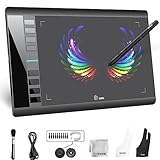
- Large 10x6 Inch Active Drawing Space: The UGEE M708 V3 drawing tablet offers a spacious 10x6 inch active area with a papery texture surface, providing a smooth, lag-free drawing experience for digital art creation, sketching, and photo editing. This mature and well-crafted product ensures exceptional quality and durability for long-term use.
- 8192 Levels Pressure Sensitivity: Equipped with a battery-free stylus featuring 8192 levels of pressure sensitivity, this digital drawing tablet delivers precise control over line thickness and opacity, perfect for professional artists and hobbyists alike. Its proven design guarantees consistent performance and reliability.
- Universal Compatibility: Compatible with Windows 11/10/8/7, Mac OS X 10.10 or above, and Chrome OS 88 (or later), Linux. Works seamlessly with popular creative software like Photoshop, Illustrator, Corel Painter, Autodesk MAYA, and more, making it an ideal graphics tablet for PC. Its mature technology ensures seamless integration with your workflow.
- 8 Customizable Shortcut Keys: The Ugee M708 drawing tablet is designed with 8 ergonomic shortcut keys for quick access to functions like undo, zoom, brush size adjustment, and eraser, enhancing productivity and workflow efficiency. Its refined design makes it a trusted tool for creators.
- Paper-Like Drawing Experience: The UGEE M708 tablet’s papery texture surface and tilt-supporting stylus provide a natural, realistic drawing experience, mimicking the feel of traditional paper and pen. This well-established product offers a premium drawing experience for all skill levels.
How to decide between GIMP, Krita and Photopea
Choose by the work, not by the brand name
- Mostly photographs, composites or color correction: start with GIMP.
- Mostly painting, illustration or comics: choose Krita, especially with a pressure-sensitive tablet.
- Mostly PSD files or occasional browser edits: use Photopea.
Check the installation requirement
GIMP and Krita are installed desktop applications. Photopea needs only a compatible browser, which is convenient on locked-down systems but introduces browser and connectivity dependencies.
Check file compatibility before committing
If a client or colleague sends PSD files, open representative files first and inspect layers, masks, blend modes, text and effects. File-format support does not guarantee that every Photoshop-specific feature will render identically.
Check input hardware
Mouse and keyboard editing is sufficient for GIMP and Photopea. Krita’s painting strengths become easier to use with pressure-sensitive pen hardware, but purchasing a tablet is unnecessary if you are not drawing.
Installation and compatibility checklist
- Download GIMP or Krita from the official project site or your distribution’s trusted package source.
- Do not treat third-party repackagers as the canonical download path.
- Use the current instructions for your Ubuntu release instead of hard-coding an old package or version number.
- Test a copy of an important PSD or RAW file before changing your production workflow.
- Confirm fonts, color profiles, tablet input and export formats on the machine you will actually use.
- For Photopea, update your browser and decide whether its advertising and online model fit the images you handle.
Bottom line
Install GIMP first if you want one free, native Linux editor for general photo editing and compositing. Pick Krita when painting and illustration are the priority, and consider an entry-level pressure-sensitive tablet only for that path. Use Photopea when browser access and Photoshop-style PSD handling matter more than an offline desktop workflow.
Quick Recap
Product prices and availability are accurate as of the date/time indicated and are subject to change. Any price and availability information displayed on Amazon at the time of purchase will apply.

