
Do these 3 things before closing this tab:
1Clear out junk files and repair common Windows errors2Scan for outdated or missing drivers - takes under a minute3Repair Windows errors before they cause bigger problemsiTechGuides is reader-supported. When you buy through links on our site, we may earn an affiliate commission. As an Amazon Associate I earn from qualifying purchases. Learn more
If your TV looks dim or washed out in Game Mode, first check energy-saving settings and the picture preset, then determine whether the problem affects all content, only one HDMI input, or only HDR. Game Mode prioritizes responsiveness by reducing some image processing; it does not universally make TVs dim. The right fix depends on the TV model, signal, and settings.
First identify when the picture looks wrong
Compare the same scene under the conditions that seem relevant. Check whether the symptom appears across all content, only while gaming, only on one input, or only when HDR is active. Also note whether the TV’s own menus look normal and whether the problem began after a setting change, new connection, or software update. TV menus and external video can use different picture paths, so a normal-looking menu is a clue, not proof that the screen is working correctly.
Test settings while the affected HDMI input is selected. Some manufacturers save picture adjustments separately for each input and picture mode, so changing a setting elsewhere may not affect the game you are viewing.
What’s actually slowing this PC down?
Pick the symptom - the matching free tool is one click away.
Rule out power-saving settings and the picture preset
Energy-saving controls can reduce screen light output. On LG TVs, LG’s US dim-picture guidance, dated July 28, 2026, identifies Eco or Auto Power Save picture modes and Energy Saving settings as possible causes. Try a standard picture preset as a comparison and turn Energy Saving Step off. Standard is a starting point, not a universal calibration target.
#1 Best Overall

- Functional Applications: led strip lights mainly used for TV decoration, led lights for tv light, improve image clarity
- 16 colors and 4 dynamic modes: tv led backlight, dimmable. Come with 24 key IR remote, use the remote to choose the color. Control distance is 8-10m
- Relieves the eye strain: led light strip reducing the eyestrain caused by differences in picture brightness, when watching tv or playing games
- Installation: 180 degree foldable. Tape and fixing buckle installation
- The product is powered by the TV usb 5v interface
LG menu paths differ by webOS generation: the energy-saving control may be under System or General on newer sets, or under Support or Picture on older ones. Look up the path for your exact model and software version. Other manufacturers use different names for eco, power-saving, or ambient-light controls.
Adjust the control that matches the problem
“Brightness” may mean overall light output or the level of dark parts of the image. Those are not interchangeable controls. TCL’s Canada settings guide distinguishes overall TV brightness, Backlight (overall screen light intensity), and Brightness (the dark level of black areas). Samsung’s US picture-settings guide likewise lists Backlight and Brightness as separate controls, alongside Contrast, Gamma, Color, and HDMI Black Level.
Rank #2

- A Symphony of RGBIC Lighting: Govee RGBIC technology realizes the color segmentation display of the TV lights behind, creating more dynamic and gorgeous lighting effects. Experience more vibrant colors in your TV lights and upgrade your visuals.
- App & Voice Control: Manage the LED TV lights via app or smart voice control with Alexa & Google Assistant. ( Please note that it won't capture colors automatically and support 2.4G only.)
- Multiple Preset Scenes: Govee Home App offers 99+ preset scene modes and 11 music modes, from which you can choose the lighting effects that suit your mood or the atmosphere around you to enhance your viewing.
- Music Sync: Govee TV LED Backlight includes a built-in mic, making the color and brightness sync with the music. Experience breathtaking lighting effects that dance with any audio as though you're at a concert.
- Flexible Installation: The 12.5ft TV backlight can easily cover 4 sides of any 55-65 inch TV. It is recommended to use the cable clips to secure the TV LED strip lights to make them snugly fit your TVs.
- If the whole picture needs more light, look for Backlight or the model’s overall screen-light control.
- If black areas look lifted or crushed, adjust the black-level or Brightness control cautiously rather than raising the backlight.
- If the image looks washed out, avoid pushing brightness or contrast to maximum: that can lift blacks, hide shadow detail, or distort color.
Make one small change at a time while viewing the affected game scene, and note the original value so you can restore it. Menu names and the effect of each control vary by model.
Free tools Windows power users keep installed
One-click scans. No signup required.
If only HDR looks dim, check tone mapping
Confirm that the game and source device are actually outputting HDR and that the TV has switched to an HDR picture mode. If only HDR looks wrong, avoid changing unrelated SDR picture settings until you have checked the HDR-specific options.
Rank #3
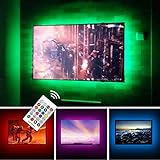
- TV lights for better TV viewing or video games experience and Relieve Eye Strain. Help to make a more comfortable environment when long watch watching and playing TV games
- Custom Version TV Backlight, can cover ALL the four sides of 70 to 82 inch TV
- Wireless RF Remote, 360 degree and 60ft MAX. control range, 17 colors(include white), with fade/flash mode
- Powered by USB of your TV, it will ON/OFF with your TV, but can not change with your TV's color; TV lights will remember the last color when off.
- LED strips itself is black, not noticeable; Easy to install, take 5 to 10 minutes
On supported LG TVs, Game Optimizer offers tone-mapping choices. LG’s US HGiG guidance, dated July 17, 2026, says HGiG can look darker than Tone Mapping ON. That difference is not by itself evidence of a fault or proof that one option is best for every viewer. HGiG is available only when an HDMI device is connected and Game Optimizer is selected; support also depends on the TV model, console, and game. Compare the available options with the same scene, then rerun the console’s HDR calibration using that console’s instructions if you changed tone mapping.
Check the HDMI input and signal settings
- Confirm that the console or PC is connected to the intended HDMI input and that the cable is firmly seated at both ends.
- With that input selected, check whether the TV requires an enhanced-signal option. Samsung’s Game Mode guidance for India, updated August 7, 2026, says to enable Input Signal Plus for the HDMI port carrying the game device if it did not activate automatically. Feature availability and menu labels vary by model and software.
- Check the source device’s output settings and the TV’s input settings together. A mismatch in signal-range settings can affect how blacks and highlights appear; do not change HDMI Black Level without checking the source’s range setting and the TV model’s instructions.
Consider replacing a cable only if it is damaged, loose, or cannot support the signal features you intend to use. A new cable is not a general fix for Game Mode dimness or washed-out color.
Rank #4

- Immersive Visual Experience: Elevate your viewing with our innovative TV backlight sync to screen system. Advanced sensors capture screen colors and seamlessly sync the TV LED lights for a captivating, immersive experience that brings your entertainment to life.
- Instant Backlight Sync: Enjoy instant synchronization with reactive LED lights for TV. Advanced sensors that ensure every color change on your screen is mirrored in the backlight without delay. Automatic on/off detection adds convenience.
- Premium LEDs: Enjoy vibrant, adjustable brightness and color saturation with high-quality full-color LEDs. With a 14.7ft customizable length, the TV LED backlight boasts a longevity of up to 50,000 hours.
- Smart App Control: Customize and control your tv lights that change with tv effortlessly through the user-friendly uLamp app, offering personalized scene settings and seamless color adjustments, crafting the ideal ambiance for every moment.
- Versatile Ambiance Modes: Transform any space with 24 dynamic light scenes and 6 music-synchronized effects, including options for holidays, moods, games, videos, and more. These smart TV lights sync seamlessly to provide the perfect ambiance lighting for home theaters, gaming, music enjoyment, and festive decor.
Compare modes systematically, then reset selectively
Use the same game scene and change one variable at a time. Useful comparisons include SDR versus HDR, Game Mode versus the usual picture mode, energy saving on versus off, and tone-mapping options where available. Settings can be stored per input and picture mode, so keep the same input selected while comparing. Preserve or record custom values before making changes.
If settings have accumulated and you cannot identify the cause, reset picture settings for the affected picture mode or input. Samsung documents a Reset Picture option, and LG provides picture-reset paths; the exact route varies by model. A picture reset can erase your adjustments, so use it only after noting settings you want to keep.
When the problem may need service
If the picture remains dark after reversible setting and connection checks, contact the TV manufacturer with the model number, software version, input, source device, and whether the signal is SDR or HDR. LG advises seeking support if the TV’s menus are too dark to read or only part of the screen is dark, because those symptoms may indicate an internal issue. Do not open the TV or assume a panel replacement is needed based on dimness alone.
Quick Recap
Product prices and availability are accurate as of the date/time indicated and are subject to change. Any price and availability information displayed on Amazon at the time of purchase will apply.

