
iTechGuides is reader-supported. When you buy through links on our site, we may earn an affiliate commission. As an Amazon Associate I earn from qualifying purchases. Learn more
Google Maps usually uses the most power when its map stays visible and continuously redraws during navigation. GPS, location updates and cellular-radio communication add to the load, especially when mobile reception is weak. Google’s navigation guidance identifies screen rendering as the largest power category in mobile navigation apps, but there is no official, universal percentage for each Google Maps setting.
The safest battery reductions are to dim or briefly hide the screen when you can still navigate safely, limit Maps to foreground location access when you do not need background features, keep the phone cool and charge during long drives. Do not disable location during active turn-by-turn navigation: directions depend on it.
Which Google Maps settings use the most battery?
Battery drain during navigation comes from several systems working at once. The exact order and severity vary with your phone, display, signal strength, temperature, route and navigation mode, but Google’s developer guidance identifies the main categories.
The continuously visible map and screen rendering
Google states: “Screen rendering usually causes the highest power consumption in mobile navigation apps.” A moving map must redraw roads, labels, traffic, your position and the route while the display and graphics hardware remain active. A bright screen that stays on for an entire trip can therefore consume more energy than a map that is briefly checked and then hidden.
#1 Best Overall

- 67W 3-Port Super Fast Car Charger: Total 67 Watt USB C car charger Support PD 37W Max (USB C) and QC 30W Max (USB-A) output, can fast Charge for Most USB-A and USBC Devices Simultaneously. One car charger for all your USB A & USBC devices, your ideal travel companion
- 3X Fast Charge Speed: with upgrade PD and QC Fast Charging Technology, it can rapid charging for iPhone and Samsung or other phones from 0-50% in about 30 minutes, up to 3X faster than before, even can fast charge for Macbook air and iPad in high speed
- Broad Compatibility: with USB-C and USB-A output, can charge almost all USB Devices, compatible with iPhone 18 Pro/18 Pro Max, iPhone Duo, iPhone 17/17 Pro Max, iPhone Air, iPhone 16/16e/16 Pro Max/16 Plus, iPhone 15/15 Pro Max/15 Plus, iPad, Samsung Galaxy S26/S25/S24/S23/S22/S21/S20, Note 20/10/9, Google Pixel 11/10/9/8/7/6/5, android Cell Phone and other devices
- Safe & Reliable: USB C Car Charger Cigarette Lighter with intelligent chip inside, the Car Charger Adapter provides multi protections against over-current, over-voltage, over-heating and short-circuit. will automatically stop charging when power is full; the product shell made by ABS + PC fireproof material, ensure Protect your device and charge safely all the time
- What You Get: 1 x 67W 3-Ports USB-C & USB-A car charger Adapter + 1 x 3FT USB C to USB C Cable (Color: Black), 1-Year Replacement
This is why reducing screen-on time is usually more effective than changing an obscure account setting. It does not mean you should operate a phone unsafely while driving. Set up the route before moving, use a proper mount and only lock or background the app when you can continue safely by voice prompts or another permitted method.
GPS and location updates
Maps needs a stream of location information to calculate your position, show movement and provide turn prompts. GPS and other location sensors consume power while they are active. More frequent updates can be necessary for precise navigation, so cutting location access during a route can make directions fail rather than provide a useful battery trade-off.
Cellular-radio communication and weak reception
Navigation can communicate over the cellular network to obtain or refresh map data, traffic information and other online features. Google notes that a phone navigating with poor cellular coverage can use more power than one near a base station because the radio works harder to maintain communication. A weak signal is not a Google Maps toggle you can fix in the app; downloading an area for offline use before a trip can reduce reliance on live data, but offline navigation still uses the screen, GPS and the phone’s other hardware.
What’s actually slowing this PC down?
Pick the symptom - the matching free tool is one click away.
Location sharing and other background activity
Location sharing and similar features can request location when Maps is not visibly open. Google identifies background location as necessary for some features, including Google Maps Location Sharing. If you do not use those features, reviewing Maps’ background permission is a reasonable way to reduce unnecessary work. The available documentation does not provide a fixed battery saving figure for removing it.
What can you safely change while navigating?
1. Reduce screen-on time without compromising safety
Google recommends locking the phone or putting the navigation app in the background as power-saving approaches. Do this only when you can still follow directions safely. Voice guidance, a vehicle display or a co-driver checking the route can make a hidden screen practical; if you need to see the next turn, leave the map visible.
Rank #2

- Universal High-Speed Charging: PowerIQ 3.0 ensures rapid charging for USB-C phones, tablets, and more with fast charging capabilities.
- Space-Saving Design: Ultra-Compact build provides easy access to other dashboard functionalities while supporting fast charging for your devices.
- Wide Device Compatibility: Effortlessly powers USB-C devices with fast charging technology, enhancing user experience across gadgets.
- Safe and Reliable Charging: Built-in safety technology helps protect devices with safeguards for stable, high-speed charging.
- What You Get: PowerDrive III Duo car charger, welcome guide, our worry-free 18-month warranty, and friendly customer service.
- Set the route and confirm the destination before driving.
- Mount the phone where it is visible without blocking your view.
- Use voice guidance and lock or background Maps during portions of the trip when visual guidance is unnecessary.
- Wake the screen only when you are safely stopped or when a passenger can check it.
2. Lower brightness or use an appropriate display mode
Lowering brightness reduces display power when the screen must remain on. Google’s Android guidance also mentions dark mode for OLED or AMOLED screens and adaptive brightness. Use the setting that keeps text and turns legible in your lighting; a screen that is too dim can create a safety problem and force you to keep it on longer.
3. Keep the phone cool
Heat affects navigation power use and performance. Avoid leaving the phone in direct sun, on a hot dashboard or under a case that traps heat while it is navigating and charging. Move it into shade and allow airflow around it. Cooling is a practical operating measure, not a Maps permission switch.
4. Charge during long sessions when necessary
Google lists in-vehicle charging as a way to handle heavy navigation use. A car charger does not make Maps consume less power; it supplies energy while the app is doing demanding work. Use a suitable charger and cable for your phone, and keep the device positioned so charging does not overheat it.
Android: limit Maps’ location access without breaking navigation
On Pixel documentation, the per-app controls are under Settings > Location > App location permissions. Other Android versions and manufacturers may use slightly different labels.
Use “Allow only while using the app” when background Maps is unnecessary
- Open Settings.
- Tap Location.
- Open App location permissions.
- Select Maps.
- Choose Allow only while using the app if you need location for navigation but do not rely on background Maps features.
“Allow only while using the app” makes location available while Maps is being used. It is more targeted than switching the phone’s entire location service off. Start navigation after granting this permission and verify that the blue position marker updates and turn prompts work.
Rank #3

- 67W 3-Port Car Charger USB C Fast Charge: KENHAO 67 Watt Cigarette lighter USB charger support PD 37W Max (USB C) and QC 30W Max (USB-A) output, can fast charge for most USB-A and USB-C devices simultaneously. One Multiport car charger accessories para carro for all your USB A & USB C devices, your ideal travel essentials companion
- Super Fast & Powerful Charging: with upgrade PD and QC3.0 Car Charger Fast Charging Technology, 12V-24V USB outlet can rapid charging for phones, even can fast charge for Macbook air or for iPad in high speed. USB C car charger adapter can charge for iPhone 18/17/16/15/14/13/12 series and most android devices from 0% to 60% in 35 minutes
- Safe & Reliable: Equip with the intelligent chip, the Car phone charger provides multi protections against over-current, over-voltage, over-heating and short-circuit. USB C car charger will automatically stop charging when power is full. The all-metal housing delivers superior heat dissipation and a sturdy shock-resistant design, ensuring safety and durability
- Broad Compatibility: Cell phone automobile chargers with Two USB-C and One USB-A Port output, can charge almost all USB Devices, compatible with iPhone 18 Pro/18 Pro Max/iPhone Duo, 17/Air/16/16e/15/14/13/12 Pro Max/Plus, XS/XR/X/8/7/6, iPad, Samsung Galaxy S26/S25/S24/S23/S22, Note 20/10/9, Google Pixel 10/9/8/7/6/5/4XL, Smart watches, driving recorder, GPS navigation, car vacuum cleaner, and more. Also fits all 12V-24V vehicles, cars, sedans, trucks, SUVs
- What You Get: 1-Pack 67W 3-Ports USB-C & USB-A Car Charger Accessories for women and men, One-Year Replacement. This is a practical truck accessories or car essential item designed for your daily commutes, road trips, and family travels
When Android should retain background access
Keep a background-capable permission if you use a feature that needs Maps to obtain location when you are not actively looking at the app. Google specifically lists Location Sharing among features that can require background location. Removing the permission can stop or delay that feature. The correct choice depends on whether you use it, not on a guaranteed battery percentage.
PC Slower Than It Used to Be?
A free scan shows the junk files, broken settings and background clutter dragging Windows down - then fixes them in one click.Free scan · Windows 10 & 11Crashes, No Sound, or Screen Glitches?
Random freezes, missing sound and display glitches usually trace back to one bad driver. Find and replace yours safely.Free scan · under a minuteDo not deny location during an active route
Denying Maps location prevents it from using location, including while the app is in use. That can remove the position information required for turn-by-turn guidance. If you need to save power mid-trip, reduce the display load or charge the phone instead of cutting the sensor that navigation depends on.
iPhone: review Google Maps permissions in Location Services
Apple’s documented path is Settings > Privacy & Security > Location Services. From there, select Google Maps and review its access level.
Choose the narrowest permission that matches your use
- Open Settings.
- Tap Privacy & Security.
- Tap Location Services and make sure the service itself is enabled for navigation.
- Select Google Maps.
- Keep location available for active navigation; choose a foreground-limited option when you do not use background-dependent features and your iOS version offers that choice.
Apple explains that apps with While In Use access may ask to use location in the background. When background access is allowed, iOS periodically reminds you and shows those locations on a map. Review those reminders as a privacy and behavior check, not as proof of a specific battery saving.
Why turning off iPhone Location Services is a blunt fix
Turning off Location Services prevents apps from accessing location through that service and can limit the performance of various apps. It also prevents Google Maps from providing normal location-based navigation. Use the per-app control when your goal is to stop background Maps access; reserve the device-wide switch for situations where you intentionally want location disabled for many apps.
Free tools Windows power users keep installed
One-click scans. No signup required.
Rank #4

- Triple-Port 167.5W Max: Seamlessly power up all your essential devices with the first USB-C port delivering a powerful 100W, the second USB-C port providing 45W, and the USB-A port adding an additional 22.5W.
- Ultra-Fast 100W USB-C1 Port: With the first USB-C port offering 100W, quickly charge your 16-inch MacBook Pro from 0 to 50% in only 47 minutes.
- Reliable 45W USB-C2 Port: The second USB-C port offers 45W max of power, providing fast and reliable charging for iPhones and Samsung devices, keeping you connected without any delays.
- Tiny and Mighty: Designed to be unobtrusive, this super-compact charger won't clutter your car's interior.
- What You Get: Anker Car Charger (167.5W, 3 Ports), 3.3 ft USB-C to USB-C cable, welcome guide, 18-month warranty, and our friendly customer service.
Should you turn off Location Accuracy, Wi‑Fi scanning or Bluetooth scanning?
Android Location Accuracy combines available Wi‑Fi access points, cell towers, GPS and device sensors to estimate location more quickly and accurately, particularly when GPS is obscured or unavailable. Wi‑Fi and Bluetooth scanning can provide additional signals for location.
The reviewed Google documentation does not establish that disabling Location Accuracy, Wi‑Fi scanning or Bluetooth scanning improves Maps battery life overall. Turning them off can reduce accuracy or alter location behavior, especially indoors, between tall buildings or when GPS reception is poor. Avoid a blanket battery recommendation. If you are troubleshooting, change one setting at a time, test the route you actually use and restore the setting if position updates become slower or less accurate.
Does Google Maps drain battery in the background?
It can, but “background” covers different situations. A route that continues while the screen is locked still needs location updates and may use radio resources. A permission that allows background location can support Location Sharing or another feature even when you are not viewing the map. Those activities are different from a dormant app that has no active navigation or background feature.
To diagnose your own phone, open its Battery settings and inspect Maps’ usage for the period in question. Compare the time Maps was on screen with the time it was allowed to run in the background, and note whether the phone had poor reception or was hot. This device-level record is more useful than applying a universal drain percentage, because Google has not published a setting-by-setting battery ranking for the consumer Maps app.
The Tool Desk
Outbyte Driver Updater FREEScan for outdated or missing drivers - takes under a minuteDriver Scan →Outbyte PC Repair FREERepair Windows errors before they cause bigger problemsFix Now →Timeline is a privacy control, not a proven battery-saving switch
Google describes Timeline as an account setting that regularly saves precise location to a personal map when enabled, including when Google apps are not being used. Google says Timeline is off by default. Turning it off does not control location saved by other activity settings or by other Google products, so it is not a master location switch.
Best Value
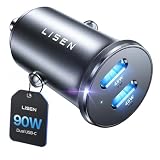
- THROW AWAY THE OLD A+C CAR CHARGER: What sets the LISEN usb c cigarette lighter adapter fast charger for iphone Duo & 18 pro max apart is its dual USB-C ports, each capable of delivering up to 45W of power. This configuration is particularly beneficial for users looking to fast charge two high-power devices at once, such as an iPhone 17 Pro Max and an iPad Pro. The simultaneous 45W output is a game-changer, significantly reducing charging times and ensuring your devices are ready to go when you are
- DUAL USB C FOR VERSATILE CHARGING: The LISEN 90W cigarette lighter adapter usb c car charger for iPhone 18 Pro Max 12v lives up to its promise of super fast charging. It supports Power Delivery (PD) 3.0. In practical terms, this means it can charge an iPhone 18 Pro from 0 to 83% in just about 30 minutes, a claim that holds up under testing. The charger is equally adept at handling other PD-compatible devices, ensuring that everything from smartphones to tablets receives an efficient power boost
- PREMIUM METAL ALLOY SHELL: The LISEN 90W usb c car charger adapter for iPhone 18 Pro Max fast charging impresses right out of the box with its sleek, all-metal design. Not only does the metal construction give it a premium feel and look, but it also aids in heat dissipation, ensuring the charger stays cool even when powering two devices simultaneously
- SMALL SIZE, BIG POWER: The tiny thumb-sized (2.1" (L) x 0.9" (W)) body fits most car 12V cigarette lighter usb c charger, providing a trim, less cluttered look. Its mini size is noteworthy, making it unobtrusive and a perfect fit for most car interiors without sacrificing accessibility
- UL AND FCC CERTIFICATION: LISEN iPhone Duo & iPhone18 Pro Max Car Charger USB C Fast Charging equipped with the intelligent power management chip, and passed UL, CE, FCC, and RoHS certifications. Made with PC fuel barrier V-0 grade material, it won 't get heat, is flame retardant, and is environmentally friendly
Google gives a frequency example: while you are using navigation in Google Maps, Timeline might be collected multiple times per minute; when the phone is inactive, collection might occur once every few hours. Those are descriptions of collection frequency, not measurements of battery consumption. They do not establish that Timeline is the largest user of power or that disabling it will cure Maps drain.
Turn Timeline off if you do not want that location history saved. Keep it on if you rely on the history feature. Make that choice for privacy and record-keeping rather than expecting a guaranteed battery improvement.
A safe setting plan for common situations
| Situation | Recommended change | What remains available |
|---|---|---|
| Active turn-by-turn navigation | Keep location permission; reduce brightness or hide the screen only when safe; keep the phone cool. | Position updates and directions continue while Maps can access location. |
| Navigation on a long drive | Use a vehicle charger if needed and avoid heat while charging. | Charging offsets consumption but does not reduce Maps’ power demand. |
| Maps is not being used and background features are unnecessary | Set Android Maps access to “Allow only while using the app,” or review Google Maps under iPhone Location Services. | Foreground navigation works when permission is granted; background-dependent features may stop. |
| You want to change location history | Review Timeline in your Google Account settings. | Timeline collection changes; other Google activity and app permissions are separate. |
| You have poor cellular reception | Expect higher radio demand; prepare map data before leaving coverage where practical. | GPS-based positioning still has its own power cost, and live features may be limited offline. |
Common mistakes and how to recover
Turning off all location before a trip
Symptom: Maps cannot establish or update your position. Fix: Re-enable device location, then grant Google Maps permission while the app is in use. Start navigation again and check that the position marker moves.
Do these 3 things before closing this tab:
1Repair Windows errors before they cause bigger problems2Fix the driver behind crashes, sound loss and screen glitches3Clear out junk files and repair common Windows errorsRemoving background access and expecting every feature to continue
Symptom: Location Sharing or another background-dependent function stops updating. Fix: Restore the app’s background permission if you need that feature, or keep foreground-only access and accept that it works only while Maps is being used.
Disabling accuracy-related services for an unproven saving
Symptom: Position fixes take longer or become less precise. Fix: Re-enable Location Accuracy and any scanning option your phone uses, then test again. The available guidance does not promise a net battery benefit from disabling them.
Assuming Timeline is responsible for every battery spike
Symptom: Battery drain continues after Timeline is disabled. Fix: Check the phone’s Battery screen, screen-on time, reception, temperature and whether an active route or sharing session is running. Timeline is not documented as a universal Maps battery remedy.
The practical answer
Start with the screen: keep it dimmer and on for less time when doing so is safe. Next, remove background location only when you do not use features that require it. Keep location enabled for navigation, avoid overheating and charge during unusually long routes. Treat Timeline, Location Accuracy and scanning controls as privacy or accuracy decisions unless your own battery report shows a clear, repeatable effect.
Quick Recap
Product prices and availability are accurate as of the date/time indicated and are subject to change. Any price and availability information displayed on Amazon at the time of purchase will apply.

