
Do these 3 things before closing this tab:
1Repair Windows errors before they cause bigger problems2Fix the driver behind crashes, sound loss and screen glitches3Clear out junk files and repair common Windows errorsiTechGuides is reader-supported. When you buy through links on our site, we may earn an affiliate commission. As an Amazon Associate I earn from qualifying purchases. Learn more
A portable terminal setup does not require identical apps or configuration files on every computer. It works by keeping the same mental model: the terminal is the host that displays a session, the shell interprets commands, and a profile tells the host how to start a command-line program. Share habits and suitable defaults, but adapt launch settings and startup files to each operating system and shell.
Terminal vs. shell: what is the difference?
A terminal is the application that presents a command-line session: it renders text, accepts input, and manages the window or tab. A shell is a command-line program that interprets what you type and runs commands. They are separate layers, even when an app makes them appear as one.
Microsoft describes Windows Terminal as “basically a host that enables you to run multiple command-line apps or shells side-by-side in customizable environment using tabs or window panes.” In other words, Windows Terminal does not replace PowerShell, Command Prompt, or a Linux shell; it can host them. A graphical terminal can display streams from command-line clients, of which a shell is one kind.
What’s actually slowing this PC down?
Pick the symptom - the matching free tool is one click away.
Use a shared model, not a single configuration file
Think of the setup as three connected choices: which terminal host is available on the computer, which shell or command-line client you need, and how the host launches it. A profile is the bridge between host and client: it can specify the executable or command and, where supported, settings such as the starting directory.
#1 Best Overall

- With Square Terminal, you can ring up sales, accept payments, and print receipts, all with one device. Use it at the counter or ring up customers anywhere in your store.
- Accept all major credit and debit cards and pay one low rate with no hidden fees and no long-term contracts.
- Process chip cards in just two seconds.
- Get your money as soon as the next business day.
- Use it cordlessly with the built-in battery, designed to last all day.
- Host: the terminal application that provides the window, tabs, panes, rendering, and input.
- Shell or client: the program that runs inside the terminal, such as PowerShell, Command Prompt, or a Linux shell.
- Profile: the host’s launch configuration for a particular client, potentially including its command and working directory.
This distinction helps portability. You can carry preferences such as readable text, familiar shortcuts, and a consistent prompt where supported. But the executable path, profile syntax, and shell initialization remain platform- or shell-specific. A PowerShell profile and a bash or zsh startup file are not interchangeable.
Choose the command environment before the terminal
Start by deciding what commands and environment you need. If you need native Windows administration or PowerShell scripting, use PowerShell; if you need Windows’ traditional command interpreter, use Command Prompt. If your workflow depends on a Linux distribution and its tools, use a Linux shell through WSL on Windows. The terminal host is the layer you choose to present that environment.
Rank #2

- With Square Handheld, you can accept payments, take tableside orders, or scan barcodes anywhere. With a slim design and comfortable grip, the POS is easy to carry in your palm or pocket. Square Handheld is designed to withstand water splashes and dust. Add an optional protective case for accidental drops. A long-lasting battery and offline payments let you keep selling.
- Slim, pocketable, and lightweight so you can accept payments wherever your customers are.
- Take tableside orders, bust lines, or use the built-in barcode scanner, all with one sleek device.
- A battery that can power through your shift and offline payments let you keep selling, even if your internet is down.
- Accept all major credit and debit cards and pay one simple rate with no hidden fees and no long-term contracts required.
Windows Terminal is one Windows host, not a requirement for command-line work. When the relevant clients are installed, it can host PowerShell, Command Prompt, WSL distributions, Azure Cloud Shell, and Git Bash. Its profiles can launch executables, commands, batch files, or SSH connections. Availability depends on having the selected client or environment installed and configured.
Recommended Free Tools
For Windows Terminal installation, Microsoft recommends the Store for the stable release. Preview is a separate option that receives features before they typically reach the stable app; choose it only if you want that earlier feature stream. Microsoft’s Windows Terminal FAQ explains supported clients and installation choices.
Rank #3

- Get your money as soon as the next business day.
- Get set up quickly with no long-term commitments. Download the Square Point of Sale app for free, create an account, and start taking payments anywhere.
- Run your business all in one place with the free Square Point of Sale app. Track your sales, manage inventory, accept tips, send receipts digitally, and more.
- Works with Apple devices with a Lightning connector.
Organize settings into shared defaults and per-profile choices
In Windows Terminal, put settings intended for every profile in shared defaults, and keep launch details or exceptions in the individual profile. This avoids repeating common appearance and behavior settings while preserving the differences between shells.
- Shared defaults: consider common font, theme, and other general presentation preferences.
- Per-profile settings: specify the command or executable, working directory, or any behavior that should differ for one client.
- Host-level behavior: customize tabs, panes, and keyboard shortcuts to suit how you move among sessions.
Windows Terminal supports customization of themes, fonts, tabs, panes, and shortcuts. For the exact settings structure and launch options, use the appearance settings documentation and command-line arguments documentation. Treat this as a Windows Terminal organization pattern, not a common format guaranteed to work in every terminal application.
Rank #4
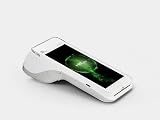
- 5.5″ IPS Touchscreen
- Laser Scanner Options
- PCI PTS 5.x
- PAXBiz powered by Android
- High-speed thermal printer
Keep shell startup configuration with its shell
A terminal profile starts a client; the client’s own startup configuration initializes that shell. Keep PowerShell profile logic with PowerShell, and bash or zsh initialization with the relevant shell’s startup files. Their conventions and login or non-login behavior can differ, so do not copy a startup file across shells and expect it to work unchanged.
Microsoft’s shell integration guidance covers CMD, PowerShell, and zsh, and documents bash integration. Prompt integration is especially sensitive to existing customizations. Microsoft cautions that existing assignments to PROMPT_COMMAND, PS0, PS1, or PS2 can produce unpredictable results. Try an integration in a clean shell before adding it to a heavily customized startup configuration. See Shell integration in Windows Terminal for shell-specific instructions.
Best Value

- An intuitive interface to easily accept payments and manage your sales.
- Strong, reliable Wi-Fi connection. Free SIM card and mobile data so you can process payments anywhere.
- Great battery capability with an additional charging station.
- A truly portable device. Stay in control of your business, wherever you go.
- Support when you need it. Get in touch with our US-based support through phone, email and chat.
Use Windows plus WSL as a concrete example
Microsoft’s WSL Comfort Shell project illustrates how to layer a setup rather than assume one universal installer. It combines a Windows-side installer with an Ubuntu bootstrap for Windows 11, WSL, and Ubuntu. The documented setup offers bash or zsh, optional Starship, modern command-line utilities, dotfile setup, and Cascadia Code Nerd Fonts.
That example is specifically documented for Windows 11 with WSL and Ubuntu; it is a pattern, not a cross-platform recipe for macOS or every Linux distribution. Its components also have distinct roles: WSL and Ubuntu provide the Linux environment, the shell interprets commands, the prompt and utilities customize that environment, and a terminal host presents the session. The WSL Comfort Shell README describes the project and its prerequisites.
Make the setup readable without making fonts a prerequisite
A font choice affects how text and symbols look; it does not determine whether a terminal or shell works. Cascadia Code is used in Microsoft’s Windows Terminal shared-settings example, while the WSL Comfort Shell example installs Cascadia Code Nerd Fonts. Nerd Fonts add glyphs used by some prompts and tools. If a prompt symbol appears as a box or missing character, check whether the selected font contains that glyph and is actually applied to the profile in use.
Quick wins for a faster PC:
Fix the driver behind crashes, sound loss and screen glitchesFind Drivers →Repair Windows errors before they cause bigger problemsFix Now →A practical portability checklist
- Identify the target environment. Decide whether you need a native shell, a Linux environment through WSL, or another installed command-line client.
- Select a terminal host available on that operating system. Do not assume a host or its settings format exists on every platform.
- Create a profile that launches the intended client. Set its command and working directory where the host supports those options.
- Separate common preferences from exceptions. Use shared defaults for settings that genuinely apply to every profile and individual settings for launch behavior or shell-specific differences.
- Configure initialization in the shell’s own files. Check whether the shell starts as a login or non-login session before placing initialization in a particular file.
- Test integrations and rendering in a clean session. Confirm prompt hooks behave correctly and that the chosen font renders the symbols your prompt uses.
The result is portable in intent: familiar workflows and selected preferences travel with you, while the host’s profile and each shell’s startup configuration are adapted to the machine.
Quick Recap
Product prices and availability are accurate as of the date/time indicated and are subject to change. Any price and availability information displayed on Amazon at the time of purchase will apply.

