
iTechGuides is reader-supported. When you buy through links on our site, we may earn an affiliate commission. As an Amazon Associate I earn from qualifying purchases. Learn more
A bright screen left on for a long time and demanding tasks such as navigation, video, or graphics-heavy games are common major battery drains. But there is no universal fastest-draining activity: your phone’s battery-usage screen is the best way to find what is consuming power on your device.
What usually drains a phone battery quickly?
Battery use depends on the phone, its settings, signal conditions, and what you are doing. The following are common high-drain situations, not a measured ranking across all phones.
Bright, sustained screen use
A screen that stays on for a long time uses power, and higher brightness can increase consumption. Apple’s troubleshooting guidance identifies high screen brightness as energy-consuming. Lowering brightness and shortening the screen timeout can help when you need to stretch a charge. Apple’s battery-drain guidance discusses brightness as a possible cause.
Crashes, No Sound, or Screen Glitches?
Random freezes, missing sound and display glitches usually trace back to one bad driver. Find and replace yours safely.Free scan · under a minutePC Slower Than It Used to Be?
A free scan shows the junk files, broken settings and background clutter dragging Windows down - then fixes them in one click.Free scan · Windows 10 & 11Navigation, video, games, and camera use
Navigation can keep the screen, location services, and other phone components active. Streaming video, graphics-heavy games, and camera use can also place sustained demands on the display and processing hardware. Google lists navigation, video, music streaming, hotspot use, camera use, and highly interactive or graphics-heavy games among activities that can use battery quickly. These examples are useful clues, not a universal order of impact. Google’s Android battery guidance describes these use cases.
#1 Best Overall

- Ultra-Slim & Light weight Design: At just 0.63 inches thick and 8.11oz, this is the slim and light 10000mAh power bank. Perfect for travel, it easily fits in your pocket or bag without adding bulk.
- 22.5W USB-C Fast Charging: Equipped with USB-C input and output, this power bank supports PD3.0 and QC4+ fast charging, delivering up to 22.5W of power. Charge your iPhone to 65% in just 30 minutes or power up multiple devices quickly.
- 3 Output & Dual Input: Features 3 outputs (2 USB-A + 1 USB-C) and 1 inputs (USB-C ), allowing you to charge up to three devices simultaneously. Ideal for smartphones, tablets, earbuds, and more.
- Wide Compatibility: Works seamlessly with a wide range of devices,Compatible with iPhone 17/16/15/14/13/12, Samsung Galaxy, Google Pixel, iPads, AirPods, Android tablets, and other USB-C devices.
- Advanced Safety & LED Display: Built with an 8-Layer Protection System to prevent overcharging, overheating, and short circuits. The LED digital display shows the remaining battery percentage, so you’re never caught off guard by a low battery.
Hotspot and mobile signal conditions
Sharing a phone’s connection through a hotspot uses power, as can searching for service or operating where cellular coverage is poor. Apple notes that low-signal conditions affect battery life; a stronger signal or Wi-Fi when available may help. If you expect to be without coverage for an extended period and do not need connectivity, Airplane Mode is an option—but calls, messages, and mobile data will be unavailable until you turn connectivity back on. Apple’s guidance on battery drain covers low coverage and Airplane Mode.
Background work and notifications
An app does not have to be open on screen to use power. Background work can include directions, music playback, photo syncing, and mail fetching; notifications can also wake the device. On iPhone, the Battery screen can show whether an app used power on screen or in the background, helping distinguish visible use from work you did not notice. Apple explains the iPhone battery-usage breakdown.
Location access is not automatically the biggest drain. Navigation with the screen on is different from an app checking location in the background, and the effect depends on the app and how it uses location. Turning location off indiscriminately can prevent features that rely on it from working.
What’s actually slowing this PC down?
Pick the symptom - the matching free tool is one click away.
Rank #2
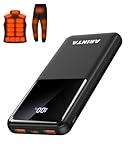
- 📱 Compatible with 5V USB Heated Clothing – This battery is compatible with 5V heated vests, jackets, and other heated clothing. Its professionally customized chip provides continuous, stable output, making it safe and reliable. The 10000mAh capacity gives you up to 7 hours of power, while the slim body makes it easy to carry in your pocket.
- ⚡PD Super-Fast Charging: Rapidly power up compatible devices with USB-C Power Delivery (PD 20W)—recharge an iPhone 15 to 60% in~30 minutes. Dual USB-A ports also deliver 22.5W speeds for Android Smartphones.
- 🔋 2-3 Full Phone Charges: The 10,000mAh high-capacity battery reliably recharges an iPhone 15 twice, a Samsung Galaxy 1.8 times, or an iPad once—perfect for travel or daily use.
- 🔌 Triple-Port Simultaneous Charging: Power 3 devices at once with dual 22.5W USB-A ports + 20W USB-C PD port. Ideal for phones, tablets, earbuds, or smartwatches without slowdowns.
- 📊Precision LED Digital Display: Track exact remaining power down to 1%—no guessing. Includes a visual fast-charge indicator (e.g., green light for PD/QC activation).
Heat and battery condition
Heat is a separate factor from app activity: Google warns that a phone’s battery drains faster when the device is hot, even when it is not in use, and that heat can damage the battery. If the phone is unusually warm, move it out of direct sun and stop intensive use while it cools. Google’s Android battery guidance addresses heat.
An older or degraded battery may also hold less charge than before. That is different from one app suddenly consuming power, so a single day of fast drain is not enough to diagnose battery failure. Apple’s battery-health information can help identify whether service may be appropriate. Apple’s battery usage and health guide explains battery-health information and service indications.
How to find what is draining your phone
On iPhone
- Open Settings → Battery.
- Review the battery-usage chart and the listed apps or system activities. Apple’s Daily Usage view compares the current day with recent days, while App and System Activity Usage breaks down use by app and system task.
- Tap an app or activity to inspect its on-screen and background time. Consider whether the result fits your use: a high-use app may simply have been open for a long time, while substantial background time, low-coverage information, or repeated notification activity may point to a less obvious cause.
Menu wording and feature availability vary by iOS version. Apple’s current guidance describes iOS 26 requirements for features including the Daily Usage chart and Adaptive Power; consult Apple’s current troubleshooting page for those qualifications.
Rank #3

- Up to 3.5 Phone Charges On the Go: Compact and easy to carry, this 15,000mAh power bank keeps you powered for travel, commuting, and emergencies. Charges iPhone 17 up to 3.5 times, Samsung S26+ up to 2.5 times, and AirPods Pro up to 20 times.
- 40% Smaller, 45% Lighter: Designed for power without the extra bulk, this compact power bank is 40% smaller and 45% lighter than conventional models, making it easy to carry for travel and daily use. Built-in USB-A, Type-C, iOS, and Micro cables keep your devices ready to charge—no extra cables needed.
- Airline-Safe Power, Trusted Worldwide: Safe charging you can trust. Join over 50 million users worldwide who rely on our safety-focused design for worry-free charging and carry-on travel.
- 50% Power in 30 Minutes: Get fast, convenient charging when you need it most. This 22.5W portable charger powers your phone up to 50% in just 30 minutes, ideal for busy days and travel.
- Charge 6 Devices at Once: With 6 outputs and a bi-directional Type-C port, this portable charger powers multiple devices at the same time. Compact enough for your pocket or bag.
On Android
- Open your phone’s Settings and look for Battery or the battery-usage view. The exact menu name and location vary by manufacturer and Android version.
- Check which apps or activities used the most power and whether that use matches your screen time and recent activity.
- If an app’s use looks unexpectedly high, use the available battery settings to restrict its background activity, or try Battery Saver if you need to conserve charge.
Restricting an app or enabling Battery Saver can delay background work or affect features that rely on it. Google notes that some steps apply only to Android 13 and later; its Android battery guidance provides device- and version-dependent instructions. For persistent problems, Google also recommends restarting the phone and checking for software and app updates.
Do these 3 things before closing this tab:
1Scan for outdated or missing drivers - takes under a minute2Clear out junk files and repair common Windows errors3Fix the driver behind crashes, sound loss and screen glitchesHow to interpret the battery-usage results
Look for a pattern across comparable periods rather than treating one percentage or one day as proof. Consider these clues together:
- Long screen-on time: High use may reflect prolonged visible activity, especially at high brightness.
- Background time: A large amount of background activity may be worth investigating if it does not match what you expect the app to do.
- Low coverage: Poor service can help explain drain even when you are not actively using a particular app.
- Recent demanding tasks: Navigation, streaming, gaming, camera use, or hotspot sharing may account for a period of heavier use.
- Heat or battery-health indication: These can point to a device-condition issue rather than a single activity.
Do not assume that 5G, GPS, notifications, or background apps are always the main cause. The available official guidance does not establish a universal ranking or a fixed percentage for any one activity.
Quick Recap
What to do if the drain continues
- Use the battery-usage breakdown to identify a likely app or activity, then adjust that app’s background use if appropriate.
- Reduce brightness or screen-on time if visible use is a major contributor.
- Use Wi-Fi when available in a poor-coverage area; use Airplane Mode only when you can do without service.
- Keep the phone from overheating and check the manufacturer’s battery-health or service guidance if the pattern persists.
- On Android, restart the device and install available software and app updates. On iPhone, check Battery Health and follow Apple’s service guidance if the phone indicates service may be needed.
Product prices and availability are accurate as of the date/time indicated and are subject to change. Any price and availability information displayed on Amazon at the time of purchase will apply.

