
Recommended Free Tools
iTechGuides is reader-supported. When you buy through links on our site, we may earn an affiliate commission. As an Amazon Associate I earn from qualifying purchases. Learn more
WorldCard Mobile can photograph a paper business card with an iPhone, use OCR to recognize its text, and organize the result into contact fields for review and management. The current US App Store listing identifies it as an iPhone-only app; the iPad app mentioned in older coverage was a separate product and should be treated as historical.
How to scan a business card with WorldCard Mobile
The current US App Store listing describes a camera-and-OCR workflow, but does not establish the exact screens or button labels in every app version. Use the available controls in your installed version rather than relying on old menu instructions.
- Photograph the card. Use WorldCard Mobile’s iPhone camera capture to take an image of the paper business card.
- Let OCR recognize the text. The app processes the image and identifies information it can place into contact fields.
- Review the recognized fields. Check names and other details against the physical card, correcting any recognition or field-placement errors before saving or sharing the contact.
- Manage or transfer the contact. Use the contact-management, sharing, backup, or export options available in your installed version.
These capabilities are described by the WorldCard Mobile App Store listing; they are vendor-described features, not an independent accuracy test.
What information WorldCard can recognize
The App Store listing says WorldCard can sort recognized details into fields including name, position, company, phone, fax, and address. It also describes selecting part of a card for recognition when you need to target a particular area. The listing additionally names QR-code recognition and copying information from email signatures.
#1 Best Overall

- Digitize business cards in seconds. Scan, recognize, and save contact information directly turn business cards into accurate digital format in a few seconds.
- Support multiple languages. Recognize business cards in 24 different languages as well.
- Data exchange. Export/ import contacts to/ from Address Book and then to iPhone/ iPod, Microsoft Entourage; and export to vCard, CSV. Text, HTML, image file format or import from vCard, CSV, WorldCard File.
- Manage business cards efficiently. Complete set of management functions provided for editing of information, assigning multiple categories and also adding of individual information and photos.Search by keyword.
- Quickly and efficiently find your contacts with "Text Search" and "Advanced Search" functions. Clicking on the address or website in card information fields will link to the map and contact's website directly.
PenPower lists support for 26 languages, but the listing supplies no dated accuracy benchmark or independent comparison. Treat that as a supported-feature claim, not a promise that every language, print style, or card will be recognized correctly.
Save, share, back up, or export recognized contacts
The App Store listing mentions contact management and data exchange options that include iCloud and Dropbox, along with transfer through Open In, Mail, or iTunes File Sharing. Which choices appear—and their exact names or steps—can depend on the app version and the device’s software. Check the installed app before following instructions written for an older release.
Rank #2

- EFFICIENT CARD AND ID SCANNING: The ImageScan Pro 667 is a rugged simplex card scanner. Because it’s USB-powered, you’ll never need to search for an outlet. Weighing just under one pound and about 8” long, it fits on any crowded desk, registration area or mobile cart.
- PROFESSIONAL-GRADE QUALITY: The ImageScan Pro 667 is designed to handle serious workloads. Inside, you’ll find high quality imaging hardware that captures quick, clear images of identification and insurance cards. Outside, you’ll find a durable shell that stands up to continuous use.
- YOUR WORKFLOW, UPGRADED: At just three seconds per scan, the ImageScan Pro 667 makes quick work of capturing any card. Identification and insurance cards are handled easily, along with credit cards with raised characters. Quit wasting time with flatbed scanners. Get the right tool for the job.
- CITRIX READY: Citrix Ready certification provides added assurance that our scanners have met the standards set by Citrix, confirming compatibility within the Citrix environment.
- COMPLETE SOLUTION: The included AmbirScan capture software makes your document scanning easy. Save documents as PDF, TIF or JPG to your local PC, or to one of these popular cloud services: Box, DropBox, Evernote and Google Drive.
Importing a desktop WorldCard file is a legacy route
PenPower’s WorldCard Mobile FAQ documents transferring contacts in a .wcxf file by email or iTunes file sharing. Its instructions refer to older iOS and iTunes prerequisites, so this is legacy support guidance rather than a contemporary default workflow. Do not assume those steps apply to a current iPhone or desktop setup.
Outdated Drivers Are Slowing You Down
One free scan finds every outdated or missing driver and matches the right update for your exact hardware.Free scan · exact hardware matchPC Slower Than It Used to Be?
A free scan shows the junk files, broken settings and background clutter dragging Windows down - then fixes them in one click.Free scan · Windows 10 & 11Does WorldCard work on iPad?
The current US App Store listing labels WorldCard Mobile “Only for iPhone” and lists iOS 12.0 or later; its version history reports version 7.5.5 as compatible with iOS 26. Availability and compatibility can change by storefront, so check the listing on the device and in the region where you intend to use it.
Rank #3

- PORTABLE SCANNER FOR USE ON-THE-GO — The fastest and lightest mobile single-sheet-fed compact document scanner in its class¹
- QUICK DOCUMENT SCANNING ― This Epson ultra-fast scanner scans a single page as quickly as 5.5 seconds²; Windows and Mac compatible
- VERSATILE PAPER HANDLING ― Portable scanner scans documents up to 8.5 x 72 in; Also easily digitizes receipts and ID cards to make accounting, bookkeeping, and organizing simpler
- INTUITIVE, HIGH-SPEED SOFTWARE — Epson ScanSmart Software³ is a smart tool allowing you to easily scan, review, and save; Stay organized easily with the help of this Epson scanner
- EASY SETUP — USB-powered connect to your computer for quick and simple scanning; No batteries or external power supply required to operate portable document scanner; Standard Connectivity: USB 2.0
The title-matched iMore article, updated September 16, 2013, described WorldCard Mobile for iPhone and a separate app called WorldCard HD for iPad. That is historical device information, not evidence that WorldCard HD is currently available. The App Store listing’s current US iPhone-only designation is the relevant qualification for readers checking today.
Quick Recap
Best Value

- SUPERIOR CARD HANDLING: Patient IDs. Insurance cards. Driver’s licenses. Vaccine cards. The ImageScan Pro 687 handles them with ease in just three seconds – even cards with raised characters.
- DUPLEX SCANNING: When you need all the information on identification, insurance and driver’s licenses, the ImageScan Pro 687 is the scanner for the job. Capture the front and back of any card in one pass, giving you the important images you need in half the time.
- INDUSTRY STANDARD TWAIN DRIVER: Ensures compatibility for use of any software application with communication support to TWAIN devices.
- CITRIX READY: Citrix Ready certification provides added assurance that our scanners have met the standards set by Citrix, confirming compatibility within the Citrix environment.
- COMPLETE SOLUTION: The included AmbirScan capture software makes your document scanning easy. Save documents as PDF, TIF or JPG to your local PC, or to one of these popular cloud services: Box, DropBox, Evernote and Google Drive.
Rank #4
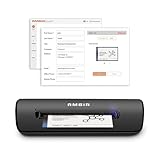
- IMPORT CONTACTS DIRECTLY TO OUTLOOK: Compatibility with Microsoft Outlook makes growing your contact list simple and easy. Scan your business card in just seconds, and the information will be imported directly into your Outlook address book.
- DELETING DUPLICATE CONTACTS: Automatic duplicate detection of Outlook contacts keeps your address book organized and up to date. Never worry about repeating information, and edit contact fields easily if needed.
- AI-POWERED CONTACT RECOGNITION: Enable optional AI processing in AmbirScan to significantly improve accuracy when extracting names, titles, phone numbers, and email addresses from scanned business cards — all processed locally on your PC.
- MULTI-LANGUAGE AI SUPPORT: When AI processing is enabled, AmbirScan's contact extraction supports business cards in English, French, Italian, German, and Spanish — so your global contacts are just a scan away.
- SCAN TO SHARED CONTACT FOLDER: For executive assistants and distributed office environments, scanning contacts to a shared folder allows for easy contact sharing across your organization. Simply set up your shared folder and start scanning.
| App named in source | Device described | What the evidence establishes |
|---|---|---|
| WorldCard Mobile | iPhone | The current US App Store listing says “Only for iPhone.” Source |
| WorldCard HD | iPad | Described as a separate iPad app in iMore’s article updated September 16, 2013; current availability is not established. Source |
What to check before relying on a scan
- Compare the recognized name, company, position, and contact details with the original card; OCR output should be reviewed rather than assumed correct.
- Confirm which sharing or backup options your installed version actually offers before planning a transfer.
- Check the App Store listing on the intended device for current compatibility and regional availability.
- For desktop-to-phone .wcxf transfers, consult the legacy FAQ with the understanding that its iTunes and iOS instructions may not fit current systems.
Product prices and availability are accurate as of the date/time indicated and are subject to change. Any price and availability information displayed on Amazon at the time of purchase will apply.

