
Free tools Windows power users keep installed
One-click scans. No signup required.
iTechGuides is reader-supported. When you buy through links on our site, we may earn an affiliate commission. As an Amazon Associate I earn from qualifying purchases. Learn more
Microsoft Entra join is a strong default for new or reset Windows devices when an organization is ready to use cloud identity and mobile device management (MDM), and its applications do not depend on an on-premises Active Directory (AD) computer account. The device joins Microsoft Entra ID without joining the local AD domain. That can simplify cloud-first provisioning and enable device-aware access policies—but it does not, by itself, configure management, guarantee compliance, or preserve every AD-dependent application.
What Microsoft Entra join changes
An Entra-joined Windows device establishes a device identity in Microsoft Entra ID and is not joined to an on-premises AD domain. Users sign in with organizational accounts. Administrators can use the device identity and its management state when configuring access and device policies. Microsoft describes the join state and supported capabilities in its Microsoft Entra joined device overview.
Joining is not the same as enrolling and configuring. An organization still needs to select an MDM provider, apply device settings, and configure access policies. Depending on that setup, management can enforce settings such as encryption, password complexity, software installation, and updates. Entra join makes device-aware management possible; it does not automatically apply those controls.
How Entra join differs from hybrid join
The distinction is the device’s relationship to on-premises AD. An Entra-joined device joins the cloud directory. A hybrid-joined device remains joined to on-premises AD and is also registered in Entra. Registration alone is a separate device-identity state; it does not mean the device is Entra-joined or hybrid-joined.
#1 Best Overall

- Supports FIDO2 biometric authentication services and FIDO U2F services requiring security key functionality. Secure and flexible authentication across multiple platforms.
- Exceptional biometric performance, 360° readability, and advanced anti-spoofing technology.
- Designed for portability, it comes with a cover to protect the security key when not in use.
- Aligns with cybersecurity measures that comply with key privacy laws and regulations, including GDPR, BIPA, and CCPA. Approved for use in U.S. federal government institutions.
- Passkey compatibility with Microsoft, Google, and Apple for a convenient and secure sign-in experience. Certified for Microsoft Entra ID for secure multifactor integration with Microsoft services.
| Dimension | Microsoft Entra join | Microsoft Entra hybrid join |
|---|---|---|
| Device state | Joined to Entra; not joined to on-premises AD. | Joined to on-premises AD and registered in Entra. |
| Typical fit | New, refreshed, or reset endpoints when cloud-native management is viable. | Existing AD-joined endpoints that still rely on AD capabilities or management. |
| Management | MDM; Group Policy is unsupported. | Group Policy and/or Intune; combining policy systems can add overhead. |
| On-premises access | SSO to supported resources is possible, but applications that require the device’s AD computer account are a compatibility concern. | Retains AD domain membership and its associated dependencies. |
| Migration effort | An existing AD- or hybrid-joined device needs a Windows reset to become Entra-joined. | Can add a cloud identity to an existing AD-joined device with less user disruption. |
| Architectural role | Cloud-native endpoint state. | Useful transition state while AD dependencies remain. |
Microsoft says the two join types can coexist during a transition, but supporting a mixed fleet adds complexity, maintenance, and support costs. See Microsoft’s guidance on joining cloud-native endpoints.
Why it can be the better choice for new endpoints
For a new or reset device, Entra join can avoid making local domain membership a prerequisite for provisioning. Microsoft recommends it as the default for new and reset endpoints when no technical, political, or regulatory restriction blocks cloud-native operation. Devices can be provisioned through user-driven setup, Windows Autopilot, or bulk enrollment, then managed through MDM.
Rank #2

- POWERFUL SECURITY KEY: The Security Key C NFC is the essential physical passkey for protecting your digital life from phishing attacks. It ensures only you can access your accounts.
- WORKS WITH 1000+ ACCOUNTS: Compatible with Google, Microsoft, and Apple. A single Security Key C NFC secures 100 of your favorite accounts, including email, password managers, and more.
- FAST & CONVENIENT LOGIN: Plug in your Security Key C NFC via USB-C and tap it, or tap it against your phone (NFC) to authenticate. No batteries, no internet connection, and no extra fees required.
- TRUSTED PASSKEY TECHNOLOGY: Uses the latest passkey standards (FIDO2/WebAuthn & FIDO U2F) but does not support One-Time Passwords. For complex needs, check out the YubiKey 5 Series.
- BUILT TO LAST: Made from tough, waterproof, and crush-resistant materials. Manufactured in Sweden and programmed in the USA with the highest security standards.
The choice of provisioning route affects user involvement, IT effort, and local administrator assignments:
Quick wins for a faster PC:
Fix the driver behind crashes, sound loss and screen glitchesFind Drivers →Repair Windows errors before they cause bigger problemsFix Now →- Self-service: Requires less IT effort, but the joining user is a local administrator by default.
- Windows Autopilot: Requires IT setup and OEM support; the account type can be configured.
- Bulk enrollment: Admin-driven; later users do not become local administrators by default.
Microsoft’s planning guidance also says Entra-joined devices cannot be deployed using Sysprep or similar imaging tools. Check the current Entra join deployment plan before selecting a process, particularly if existing imaging workflows are central to device setup.
Rank #3

- Supports FIDO2 biometric authentication services and FIDO U2F services requiring security key functionality. Secure and flexible authentication across multiple platforms.
- Exceptional biometric performance, 360° readability, and advanced anti-spoofing technology.
- Designed for portability, it comes with a cover to protect the security key when not in use.
- Aligns with cybersecurity measures that comply with key privacy laws and regulations, including GDPR, BIPA, and CCPA. Approved for use in U.S. federal government institutions.
- Passkey compatibility with Microsoft, Google, and Apple for a convenient and secure sign-in experience. Certified for Microsoft Entra ID for secure multifactor integration with Microsoft services.
What device identity enables—and what it does not
Device identities are prerequisites for scenarios such as device-based Conditional Access and MDM. An MDM provider can report a device’s compliance state for use in access decisions. Microsoft’s device identity overview, last updated June 27, 2025, describes this role.
That is an access-control building block, not a security guarantee. The organization must enroll and configure devices, define compliance requirements, and set the relevant identity and Conditional Access policies. Sign-in methods also depend on platform and configuration; support for options such as Windows Hello for Business does not mean a particular passwordless method is enabled automatically.
Rank #4
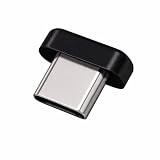
- FIDO2 + FIDO U2F certified security key, supports PIV credential authentication
- Sits with a low-profile when plugged-in
- Works in every browser without installing any drivers
- Supports desktops, laptops, tablets, and Android mobile devices via USB-C
- Helps protect your accounts from phishing and other cyber-attacks. Prevents your devices from unauthorized use.
Can Entra-joined users access on-premises resources?
Yes, in supported scenarios. Microsoft documents single sign-on (SSO) to on-premises resources from Entra-joined devices. The important boundary is whether access depends on the user’s identity or on the device’s AD computer account. User access to some on-premises resources can continue; an application that relies on machine authentication may not work as it did on a domain-joined device.
Recommended Free Tools
Do not treat all legacy applications or network services as either supported or blocked as a group. Evaluate each application’s authentication method and prerequisites. Microsoft specifically cautions that Entra-joined devices do not support on-premises applications relying on machine authentication. Other services—such as network shares, Wi-Fi or RADIUS, printing, and Remote Desktop—can have individual requirements or limitations. The deployment planning guidance identifies these as items to assess.
Best Value

- FIDO2 + FIDO U2F certified and supported USB security key
- Supports Computers, Laptops, Tablets, and Mobile Devices with a USB-C port and/or NFC
- Works without downloading any drivers. Supported OS: Android, Chrome OS, Windows, MacOS, Linux
- Durable design made to last for a long time with everyday use. Water-resistant (IP67)
- Helps protect your accounts from phishing and other cyber-attacks. Prevents your devices from unauthorized use.
When hybrid join remains the practical option
Hybrid join suits an existing fleet that still needs AD domain membership—for example, because of Group Policy, current imaging practices, or applications that depend on AD machine authentication. It gives those devices an Entra identity while preserving their on-premises domain relationship. Microsoft describes hybrid join as an interim step for organizations moving toward Entra join.
That retained relationship also means retained dependencies. Hybrid-joined devices need periodic line of sight to a domain controller for some functions; losing that access can affect sign-in or policy updates in particular circumstances. This is an architectural dependency to plan for, not a claim that every offline sign-in or use case will fail.
Assess readiness before choosing Entra join
Use a compatibility and operations review to decide whether cloud-native join is practical for the target device group. Microsoft’s planning guidance covers identity, management, applications, provisioning, and access controls.
- Identity: If users originate in on-premises AD, synchronize their accounts to Entra. In a federated environment, verify that the identity provider supports required WS-Fed and WS-Trust protocols. Confirm UPN alignment; Microsoft’s planning guidance says differing on-premises and Entra UPNs are unsupported for Entra-joined devices.
- Management: Choose an MDM provider and check that it can cover required settings and workflows. Group Policy does not apply to Entra-joined devices; use GPO analytics and a policy-parity review to identify what must be replaced.
- Applications and services: Inventory dependencies on AD machine authentication, integrated authentication, domain-controller access, certificates, RADIUS, and legacy protocols. Test representative applications and services before migration.
- Provisioning and administration: Choose self-service, Autopilot, or bulk enrollment based on user involvement, IT effort, device and OEM support, and local administrator needs. Set and review join permissions and local administrator assignments.
- Access policy: Decide whether to require MFA for device join, and verify how the MDM provider reports compliance to Conditional Access.
- Migration: Pilot on new or reset devices first. For existing devices, plan the reset, application validation, user communications, and support capacity.
Choose the join state by device lifecycle and dependency
For new, refreshed, or reset Windows endpoints, Entra join is the stronger default when MDM can replace required endpoint-management functions and applications do not need an AD computer account. For an existing domain-joined fleet with unresolved AD dependencies, hybrid join can preserve continuity while the organization evaluates or replaces those dependencies. Move existing devices to Entra join at a complementary event—such as hardware refresh, OS upgrade, or troubleshooting—because the transition requires a Windows reset.
Quick Recap
Product prices and availability are accurate as of the date/time indicated and are subject to change. Any price and availability information displayed on Amazon at the time of purchase will apply.

