
Free tools Windows power users keep installed
One-click scans. No signup required.
iTechGuides is reader-supported. When you buy through links on our site, we may earn an affiliate commission. As an Amazon Associate I earn from qualifying purchases. Learn more
You can make a 3D printer play a tune when a print finishes, but it usually cannot play a MIDI file directly. Instead, convert the MIDI notes into firmware-specific G-code tone commands, then add those commands to the printer’s end-of-print routine. Whether it works depends on the firmware configuration and the printer’s buzzer or speaker hardware.
How MIDI becomes a print-completion sound
A MIDI file stores musical notes and timing instructions; it is not itself a sequence of sounds the printer can play. In the workflow described by Hackaday’s 2020 report, a converter translates MIDI notes into G-code tone commands. Those commands are placed in the slicer’s end G-code so they run as part of the print-completion routine.
The printer must understand the tone command, and its electronics must have compatible sound hardware. So conversion alone does not guarantee that a tune will play.
Recommended Free Tools
Check whether your printer supports tones
Marlin’s M300 command
For Marlin firmware, M300 adds a tone to the tone queue. Its S parameter sets the frequency in hertz, and P sets the duration in milliseconds. For example:
#1 Best Overall

- Generate up to 4 audible tones of different frequencies at one time. Since inductive piezo buzzers are used for tone generation the volume is constant.
- Also adds 4 more I/O or A/D channels to your project through I2C. On board solder-jumpers allow selection of 16 different addresses, and optional 2200 ohm bus pull-up resistors
- Many support videos and extensive documentation available online, including a micropython example to play midi files with this board
- Use up to 16 boards on the same I2C Bus to increase the number of simultaneous audio outputs
- Open source hardware and software
M300 S440 P200
M300 S660 P250
M300 S880 P300
These commands request three tones; they do not represent a complete melody. A MIDI-to-G-code converter can generate a longer sequence from a selected track.
Firmware configuration and sound hardware
Marlin’s configuration guide says tone support requires the SPEAKER option. A printer running Marlin may not have that option enabled, and its board and buzzer or speaker must also be compatible. If the printer lacks working audio hardware, adding a piezo buzzer may be possible, but the correct part and support depend on the specific board and firmware.
Rank #2
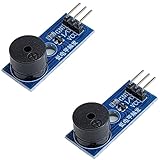
- Passive Piezo Buzzer Module (2-Pack) – Generates sound based on input signal frequency, allowing for customizable audio tones and sound effects in DIY projects.
- Adjustable Frequency Output – Control pitch and tone using PWM signals from your microcontroller—ideal for creating music or alerts.
- Low Power & Broad Voltage Support – Operates with minimal power and works with 3.3V to 5V systems, including Arduino, ESP32, and Raspberry Pi.
- Compact & Easy to Use – Small, lightweight design with simple wiring makes it perfect for embedded systems, smart devices, or educational kits.
- Tutorials Available Online – Search “DIYables passive buzzer module” for example projects using Arduino, ESP32, ESP8266, and Raspberry Pi.
Firmware version can also affect timing: Marlin’s M300 documentation says version 1.0.2 blocks the command queue during tones, while version 1.1.0 uses a background tone player. Check the documentation for the firmware build on your printer rather than assuming all Marlin machines behave identically.
Quick wins for a faster PC:
Fix the driver behind crashes, sound loss and screen glitchesFind Drivers →Repair Windows errors before they cause bigger problemsFix Now →Add the tune to the end-of-print routine
- Choose a MIDI melody and convert it. Use a MIDI-to-G-code converter that produces tone commands for your printer’s firmware. Hackaday’s report describes a tool by FuseBox2R that converts MIDI tracks to M300 commands.
- Test a single tone on the printer. If the machine uses Marlin and supports M300, try a short command such as
M300 S440 P200using a method that sends G-code to the printer. Confirm that it sounds before adding a full tune. - Find the slicer’s end G-code for the printer profile. Add the generated tone sequence to the end routine only if that profile permits editing it. Keep the existing commands that park the print head, turn off heaters, and otherwise shut down the machine; do not replace the end routine with the melody.
- Test a completed routine on the actual machine. Check that the tune plays and that the original end-of-print actions still occur. Command handling can vary with the firmware, printer, slicer, and any host software in the path.
There is no universal end-code sequence established for every printer. The converter workflow and insertion into slicer G-code are described in Hackaday’s report; the exact placement and behavior must be checked against your printer profile.
Rank #3
- Active Piezo Buzzer Module for Arduino, ESP32, ESP8266, Raspberry Pi
- Equipped with fixing bolt holes for easy installation
- Working voltage 3.3V-5V
- Tutorials for Arduino, ESP32, ESP8266, Raspberry Pi are provided (Search for: DIYables active piezo buzzer module)
Slicer end G-code or a host-side script?
These approaches put the completion logic in different places. The documented workflow here is slicer end G-code. A host-side event or script is another possible approach only when that particular host supports it and passes the necessary commands through.
| Approach | Where the completion logic runs | What to verify |
|---|---|---|
| Slicer end G-code | In the end-code section of the printer profile | The profile allows editing, the firmware accepts the tone commands, and the existing shutdown and parking routine remains intact. |
| Host-side event or script | In the host software, if that host supports a suitable completion action | The specific host supports the action and sends commands the printer and its sound hardware can handle. Support is not established for a particular host or setup. |
Neither placement bypasses the need for compatible firmware and sound hardware. The host-side option is setup-dependent; the available coverage of that approach does not verify it for a specific host.
Rank #4
- Generate up to 4 audible tones of different frequencies at one time. Since inductive piezo buzzers are used for tone generation the volume is constant.
- Also adds 4 more I/O or A/D channels to your project through I2C. On board solder-jumpers allow selection of 16 different addresses, and optional 2200 ohm bus pull-up resistors
- Many support videos and extensive documentation available online, including a micropython example to play midi files with this board
- Use up to 16 boards on the same I2C Bus to increase the number of simultaneous audio outputs
- Open source hardware and software
What to do if you hear nothing
- Confirm the command is reaching the printer. Send a short M300 test command using your usual G-code connection and check the printer’s response.
- Check firmware support. Verify that the firmware implements M300 and that tone support, including Marlin’s
SPEAKERoption where relevant, is enabled. - Check the board and sound hardware. A supported command cannot make sound if the printer lacks compatible, connected audio hardware.
- Test the end routine separately. If a manual tone works but the completion tune does not, check where the slicer or host sends the generated commands and whether they interfere with the existing end routine.
Documentation can establish what a firmware command and configuration option are intended to do; it cannot confirm compatibility with an unspecified printer model or firmware build. Test on the machine you plan to use.
PC Slower Than It Used to Be?
A free scan shows the junk files, broken settings and background clutter dragging Windows down - then fixes them in one click.Free scan · Windows 10 & 11Crashes, No Sound, or Screen Glitches?
Random freezes, missing sound and display glitches usually trace back to one bad driver. Find and replace yours safely.Free scan · under a minuteQuick Recap
Best Value
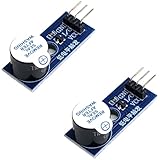
- Active Piezo Buzzer Module (2-Pack) – Simple and effective sound module that emits a tone when powered, ideal for alarms, timers, and alerts in DIY electronics.
- Works with 3.3V–5V Boards – Compatible with both 3.3V and 5V logic levels, making it suitable for Arduino, ESP32, ESP8266, Raspberry Pi, and more.
- Plug-and-Play Operation – Active design means it generates sound with just a DC signal—no need for PWM or tone generation from your code.
- Easy Mounting – Comes with built-in fixing bolt holes for secure installation in enclosures, robots, panels, and prototyping boards.
- Tutorials Available – Search “DIYables active piezo buzzer module” online to find helpful tutorials and usage examples with various microcontrollers.
Product prices and availability are accurate as of the date/time indicated and are subject to change. Any price and availability information displayed on Amazon at the time of purchase will apply.

