
What’s actually slowing this PC down?
Pick the symptom - the matching free tool is one click away.
iTechGuides is reader-supported. When you buy through links on our site, we may earn an affiliate commission. As an Amazon Associate I earn from qualifying purchases. Learn more
Shared-hosting malware scans inspect files on a hosting server and report items the scanner considers suspicious. A report is not the same as a cleaned website: coverage, customer access, and removal options depend on the host’s software and configuration. Ask your provider what was scanned, what action was taken, and how it will help you recover safely.
How does malware scanning for shared hosting work?
A server-side scanner checks files within the directories or accounts it is configured to cover. For example, cPanel’s documented ClamAV controls can include a server home directory, mail folders, public FTP space, and public web space. That does not establish that every file, database, hosting account, or connected service was scanned. Ask your provider to confirm coverage and whether scans run on a schedule or only on demand. cPanel’s ClamAV Scanner documentation describes the available targets and controls.


Whether you can start a scan or view its results is a separate question from whether the server has scanning software. In cPanel & WHM, installing ImunifyAV is a server-administration task requiring root or root-level reseller privileges through WHM’s Security Advisor. A typical shared-hosting customer will not have those permissions. cPanel also notes the installation alert may not appear on unsupported servers, trial accounts, or accounts without sufficient privileges. Ask your host whether scanning is enabled and how customers can access reports. cPanel’s ImunifyAV installation instructions set out those requirements.
Recommended Free Tools
Scanning also uses server resources. cPanel recommends at least 3 GB of RAM for a server installing ClamAV, warns of possible performance issues on systems with less memory, and recommends scheduling scans for off-peak hours. Its guidance for Imunify scans says reducing CPU and I/O use can make scans slower. These are product and server-configuration considerations, not a prediction of scan duration or impact on every shared-hosting account. cPanel’s scan-resource guidance explains the trade-off.
#1 Best Overall
Does a malware scan remove malware?
Not necessarily. Detection means the scanner has flagged or listed files it considers malicious or suspicious. The result is a reason to investigate, not proof that the whole account is infected—or that everything else is clean. Cleanup is a separate action that may quarantine, alter, or remove files.
cPanel’s comparison says ImunifyAV lists suspicious files but does not include integrated file removal. ImunifyAV+ has file-removal options, while Imunify360 is a broader suite; exact features depend on the license and server configuration. cPanel’s licensing documentation describes one-click cleanup, notifications, and automatic-removal options for ImunifyAV+. A product’s listed capability does not mean your host has enabled it or included it in your plan. See cPanel’s comparison of Imunify products and its ImunifyAV+ licensing documentation.
Rank #2
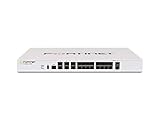
- Protects against known exploits, malware and malicious websites; detects unknown attacks; identify thousands of applications
If a tool quarantines or replaces files, restoration may be available from retained originals. cPanel says restoring original files after ImunifyAV+ actions requires an active ImunifyAV+ license. Keep an independent, known-clean backup too; a scanner’s retained copy is not a substitute for a backup you control. cPanel’s restoration instructions describe this license requirement.
Does my shared hosting plan include malware scanning?
There is no universal shared-hosting feature set. The available evidence describes particular cPanel products and controls; it does not establish what an arbitrary provider includes, which accounts it scans, or how often it scans them. A control-panel icon or a scanner name alone does not tell you whether scans are automatic, whether you can see findings, or whether support will clean an infection.
Rank #3

- Fortinet Web Application Firewall - virtual appliance for all supported platforms. Supports up to 1 x vCPU core
- Fortinet HW FWB-VM01
- Manufacturer Part: FWB-VM01
Ask the provider these questions before relying on the feature:
- Is scanning enabled for my account, and which directories, file types, and related accounts does it cover?
- Which scanner and product tier is running, and when did the last scan finish?
- Can I see flagged paths and the reason each item was flagged?
- Does the service only report findings, or can it quarantine, clean, or restore files?
- Will support investigate the entry point and look for persistence beyond the reported file?
- Is there a known-clean backup from before the suspected compromise, and can it be restored without losing valid content?
- If the issue may affect the server itself rather than only my site account, what response will the provider take?
When comparing hosting security features, compare coverage, scan access and scheduling, actions after detection, incident support, restoration options, and resource controls. Do not assume a particular scan frequency, detection rate, price, or included cleanup service without confirmation from the provider.
Independent reader supportYour contribution helps us test, update, and keep practical guides available for everyone.What should I do if your hosting provider finds malware?
First establish what the provider found and whether it has already changed any files. Do not treat a scan report as a completed incident response: a flagged file may be only one part of the problem. Cloudflare recommends asking the provider how it believes the site was hacked and asking it to remove malicious content. Cloudflare’s recovery guidance offers additional steps.
Outdated Drivers Are Slowing You Down
One free scan finds every outdated or missing driver and matches the right update for your exact hardware.Free scan · exact hardware matchPC Slower Than It Used to Be?
A free scan shows the junk files, broken settings and background clutter dragging Windows down - then fixes them in one click.Free scan · Windows 10 & 11- Coordinate before deleting or restoring. Ask the host to preserve relevant details, such as flagged file paths and scan results, and to advise whether cleanup or a restore is underway. Uncoordinated changes can remove evidence or replace valid content.
- Clarify the scope. Ask whether the suspected compromise is limited to your website or hosting account, or may involve the server itself. These are different situations and require different provider responses.
- Find out what changed and what remains. Ask which malicious content was removed or quarantined, whether the entry point was investigated, and whether the provider checked for persistence elsewhere in the account.
- Choose cleanup or restoration based on the incident. If the provider can establish a reliable cleanup plan, confirm what it covers. If the account needs a rebuild, a known-clean pre-compromise backup may be the practical recovery route. Confirm what valid content, messages, or database changes would be lost before restoring.
- Verify the site afterward. Have the provider confirm the status of remaining files and any relevant follow-up scan. If Google or browser warnings appeared, resolve the underlying problem first; Cloudflare advises addressing site warnings in Google Webmaster Tools and resubmitting the site for review after the hack is resolved.
Thoroughly cleaning a compromised site or account can require substantial skill and labor, according to cPanel. If your provider cannot explain the scope or safely resolve it, ask what qualified incident-response help is appropriate rather than deleting files at random. cPanel’s guidance on cleaning a hacked website distinguishes site/account cleanup from a root-level server compromise.
Quick Recap
How can I protect my website from getting hacked again?
- Update the site software. Keep your CMS, themes, and plugins current, and remove components you no longer use.
- Protect administrator access. Use strong, unique credentials and appropriate access controls for administrative accounts; limit access to people who need it.
- Keep recoverable backups. Maintain backups that preserve valid site content and can be restored independently of the hosting account. Know how restoration works before an incident.
- Close the loop with your host. Ask what caused the compromise, what was removed, and whether the suspected entry point and persistence were addressed. A clean-looking homepage alone does not answer those questions.
- Recheck warnings after remediation. If search or browser warnings were displayed, follow the relevant review process only after the underlying issue is fixed.
Product prices and availability are accurate as of the date/time indicated and are subject to change. Any price and availability information displayed on Amazon at the time of purchase will apply.

